Guest Connection (Android)
Download
포커스 모드
폰트 크기
AtomicXCore provides the CoGuestStore module, purpose-built to manage the complete audience co-hosting workflow. You do not need to handle complex state synchronization or signaling logic—simply call a few intuitive methods to add robust audio and video interaction between viewers and hosts in your live stream.
Core Features
CoGuestStore supports the two most common co-hosting scenarios:Audience Request to Join: An audience member initiates a co-hosting request, and the host can accept or reject it.
Host Invites to Join: The host can invite any audience member in the live room to co-host.
Core Concepts
Core Concept | Core Responsibilities | Key APIs / Properties |
CoGuestStore | Manages the entire signaling workflow for viewer-host interaction (Apply, Invite, Accept, Reject, Disconnect) and maintains real-time state of related user lists. | coGuestState: A read-only StateFlow containing connected (current co-guests), applicants (pending applications), and invitees (pending invitations).applyForSeat(): Viewer applies to become a co-guest.inviteToSeat(): Host invites a viewer to take a seat.acceptApplication(): Host accepts a link mic application.disconnect(): Terminates the connection. |
HostListener | Used by the UI layer to respond to events such as "Received viewer application" or "Viewer accepted invitation". | onGuestApplicationReceived(): Triggered when a viewer applies for a seat.onHostInvitationResponded(): Triggered when a viewer responds to an invitation. |
GuestListener | Used by the UI layer to respond to events such as "Received host invitation", "Application approved", or "Kicked off seat". | onHostInvitationReceived(): Triggered when the host sends an invitation.onGuestApplicationResponded(): Triggered when the host processes an application (Accept/Reject).onKickedOffSeat(): Triggered when kicked off the seat by the host. |
Implementation
Step 1: Component Integration
Step 2: Implement Audience Request to Join
Audience-Side Implementation
As an audience member, your primary tasks are to initiate a request, handle the host's response, and leave the seat when desired.
1. Initiate a Co-hosting Request
When the user taps the "Request to Join" button, call the
applyForSeat method.import io.trtc.tuikit.atomicxcore.api.live.CoGuestStoreimport io.trtc.tuikit.atomicxcore.api.CompletionHandlerval liveId = "Room ID"val guestStore = CoGuestStore.create(liveId)// User clicks "Request to Join"fun requestToConnect() {// timeout: Request timeout in seconds, e.g., 30guestStore.applyForSeat(seatIndex = 0,timeout = 30,extraInfo = null,completion = object : CompletionHandler {override fun onSuccess() {println("Co-hosting request sent, waiting for host response...")}override fun onFailure(code: Int, desc: String) {println("Failed to send request: $desc")}})}
2. Listen for Host Response
Add a
GuestListener to receive the host's response.import android.os.Bundleimport androidx.appcompat.app.AppCompatActivityimport io.trtc.tuikit.atomicxcore.api.device.DeviceStoreimport io.trtc.tuikit.atomicxcore.api.live.CoGuestStoreimport io.trtc.tuikit.atomicxcore.api.live.GuestListenerimport io.trtc.tuikit.atomicxcore.api.live.LiveUserInfoclass YourActivity : AppCompatActivity() {val liveId = "Room ID"val guestStore = CoGuestStore.create(liveId)val deviceStore = DeviceStore.shared()private val guestListener = object : GuestListener() {override fun onGuestApplicationResponded(isAccept: Boolean, hostUser: LiveUserInfo) {if (isAccept) {println("Host ${hostUser.userName} accepted your request. Preparing to join the seat.")// Co-hosting request accepted; enable camera and microphoneDeviceStore.shared().openLocalCamera(true, completion = null)DeviceStore.shared().openLocalMicrophone(completion = null)// Update UI, e.g., disable request button and show co-hosting status} else {println("Host ${hostUser.userName} rejected your request.")// Show rejection notification}}}override fun onCreate(savedInstanceState: Bundle?) {super.onCreate(savedInstanceState)guestStore.addGuestListener(guestListener)}override fun onDestroy() {super.onDestroy()guestStore.removeGuestListener(guestListener)}}
3. Leave the Seat
When the co-hosting audience member wants to end the interaction, call
disconnect to return to audience status.// User clicks "Leave Seat"fun leaveSeat() {guestStore.disconnect(object : CompletionHandler {override fun onSuccess() {println("Successfully left the seat")}override fun onFailure(code: Int, desc: String) {println("Failed to leave seat: $desc")}})}
4. (Optional) Cancel Request
To withdraw a pending request before the host responds, call
cancelApplication.// User clicks "Cancel Request"fun cancelRequest() {guestStore.cancelApplication(object : CompletionHandler {override fun onSuccess() {println("Request cancelled")}override fun onFailure(code: Int, desc: String) {println("Failed to cancel request: $desc")}})}
Host-Side Implementation
As a host, your main responsibilities are to receive requests, display the applicant list, and process requests.
1. Listen for New Co-hosting Requests
Add a
HostListener to be notified when a new audience request arrives.import android.os.Bundleimport androidx.appcompat.app.AppCompatActivityimport io.trtc.tuikit.atomicxcore.api.live.CoGuestStoreimport io.trtc.tuikit.atomicxcore.api.live.HostListenerimport io.trtc.tuikit.atomicxcore.api.live.LiveUserInfoclass YourActivity : AppCompatActivity() {val liveId = "Room ID"val guestStore = CoGuestStore.create(liveId)val hostListener = object : HostListener() {override fun onGuestApplicationReceived(guestUser: LiveUserInfo) {println("Received co-hosting request from ${guestUser.userName}")// Update UI, e.g., show a badge on the "Request List" button}}override fun onCreate(savedInstanceState: Bundle?) {super.onCreate(savedInstanceState)// Add listenerguestStore.addHostListener(hostListener)}override fun onDestroy() {super.onDestroy()// Remove listenerguestStore.removeHostListener(hostListener)}}
2. Display Request List
CoGuestStore maintains the current list of applicants in real time. Subscribe to this list to update your UI.class YourActivity : AppCompatActivity() {val liveId = "Room ID"val guestStore = CoGuestStore.create(liveId)override fun onCreate(savedInstanceState: Bundle?) {super.onCreate(savedInstanceState)// Subscribe to applicant list updateslifecycleScope.launch {guestStore.coGuestState.applicants.collect { applicants ->println("Current number of applicants: ${applicants.size}")// Update your "Applicant List" UI here// updateApplicantListView(applicants)}}}}
3. Process Co-hosting Requests
When you select an audience member and choose "Accept" or "Reject", call the corresponding method.
// Host taps "Accept" for a given userIdfun accept(userId: String) {guestStore.acceptApplication(userId, object : CompletionHandler {override fun onSuccess() {println("Accepted $userId's request. They are joining the stage.")}override fun onFailure(code: Int, desc: String) {println("Failed to accept request: $desc")}})}// Host taps "Reject"fun reject(userId: String) {guestStore.rejectApplication(userId, object : CompletionHandler {override fun onSuccess() {println("Rejected $userId's request")}override fun onFailure(code: Int, desc: String) {println("Failed to reject request: $desc")}})}
Step 3: Implement Host Inviting Audience to Join the Stage
Host-Side Implementation
1. Send Invitation to Audience
When the host selects an audience member and taps "Invite to Co-host", call the
inviteToSeat method.// Host selects an audience member and sends an invitationfun invite(userId: String) {// timeout: Invitation timeout duration in secondsguestStore.inviteToSeat(inviteeID = userId,seatIndex = 0,timeout = 30,extraInfo = null,completion = object : CompletionHandler {override fun onSuccess() {println("Invitation sent to $userId. Waiting for response...")}override fun onFailure(code: Int, desc: String) {println("Failed to send invitation: $desc")}})}
2. Listen for Audience Response
Listen for the
onHostInvitationResponded event via HostListener.// In HostListener implementationoverride fun onHostInvitationResponded(isAccept: Boolean, guestUser: LiveUserInfo) {if (isAccept) {println("Audience member ${guestUser.userName} accepted your invitation")} else {println("Audience member ${guestUser.userName} rejected your invitation")}}
Audience-Side Implementation
1. Receive Host Invitation
Listen for the
onHostInvitationReceived event via GuestListener.// In GuestListener implementationoverride fun onHostInvitationReceived(hostUser: LiveUserInfo) {println("Received co-hosting invitation from host ${hostUser.userName}")// Show a dialog to let the user choose "Accept" or "Reject"// showInvitationDialog(hostUser)}
2. Respond to Invitation
After the user makes a selection, call the corresponding method.
val inviterId = "Inviting Host ID" // Obtained from onHostInvitationReceived// User taps "Accept"fun accept() {guestStore.acceptInvitation(inviterId, object : CompletionHandler {override fun onSuccess() {// Enable camera and microphoneDeviceStore.shared().openLocalCamera(true, completion = null)DeviceStore.shared().openLocalMicrophone(completion = null)}override fun onFailure(code: Int, desc: String) {println("Failed to accept invitation: $desc")}})}// User taps "Reject"fun reject() {guestStore.rejectInvitation(inviterId, object : CompletionHandler {override fun onSuccess() {println("Invitation rejected")}override fun onFailure(code: Int, desc: String) {println("Failed to reject invitation: $desc")}})}
Run and Test
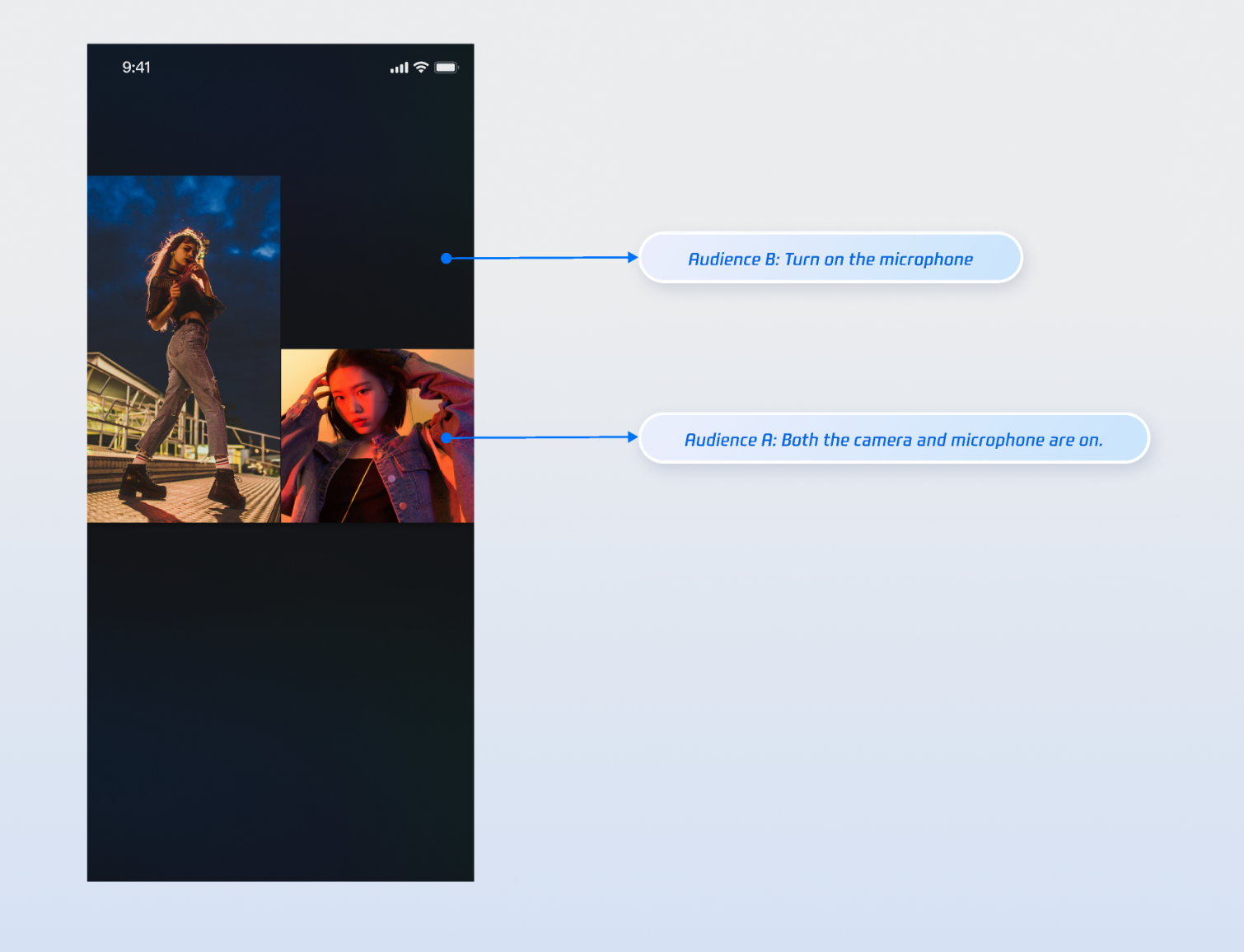
After integrating the above features, use two audience members and a host to test co-hosting. For example, Audience A enables both camera and microphone, while Audience B enables only the microphone. The result is shown below. For UI customization, see Refining UI Details.
Refining UI Details
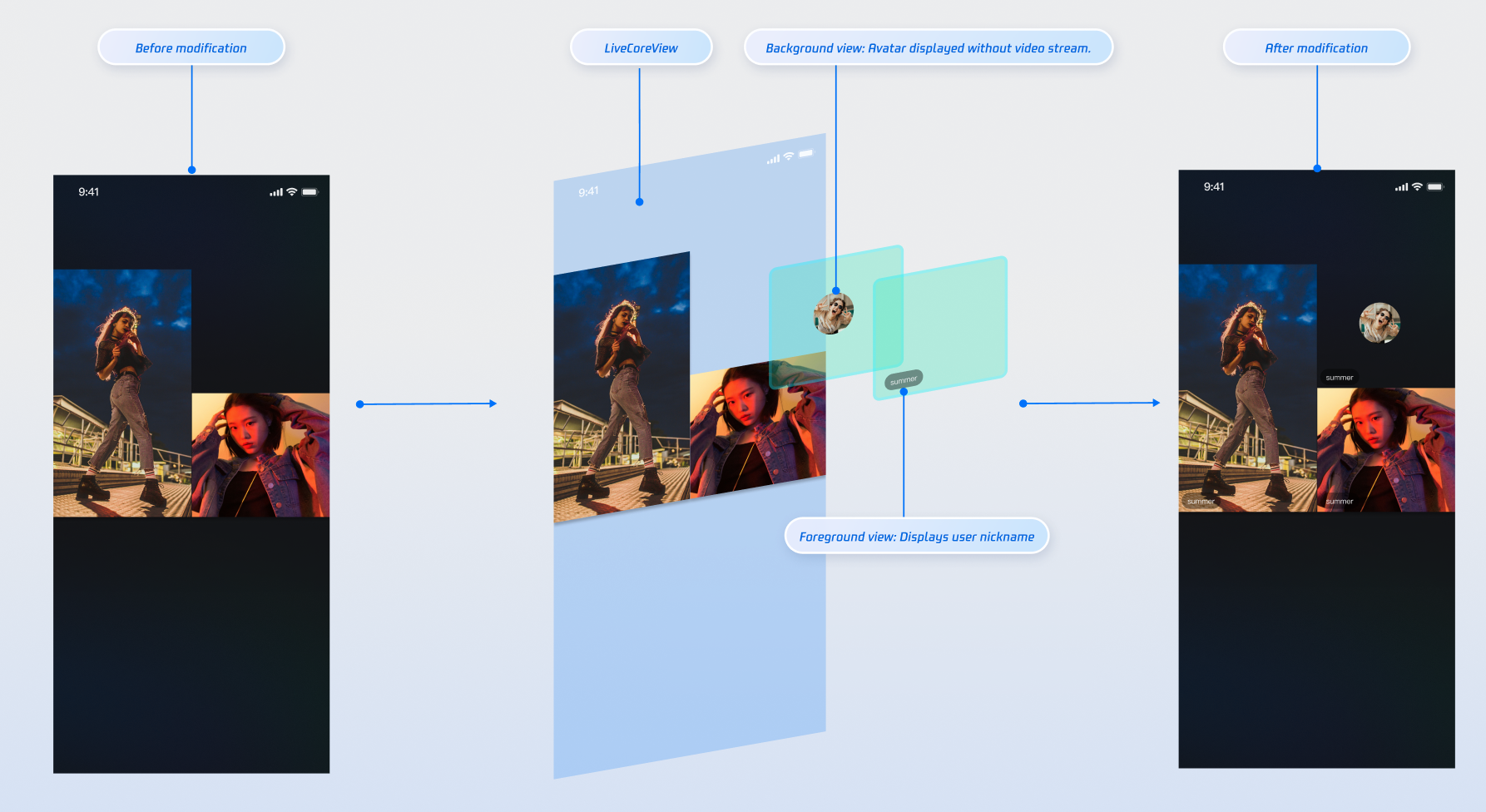
Use the "slot" feature provided by the
VideoViewAdapter interface to add custom views on top of audience co-hosting video streams. For example, display nicknames, avatars, or show a placeholder image when the camera is off to enhance the user experience.Displaying Nicknames on Video Streams
Implementation Example
Implementation
Note:
You can also refer to the widgets directory in the open-source TUILiveKit project for a complete implementation.
Step 1: Create the foreground view
CustomSeatView to display user info above the video stream.import android.content.Contextimport android.graphics.Colorimport android.view.Gravityimport android.view.ViewGroupimport android.widget.LinearLayoutimport android.widget.TextView// Custom floating user info view (foreground)class CustomSeatView(context: Context) : LinearLayout(context) {private val nameLabel: TextViewinit {orientation = VERTICALgravity = Gravity.BOTTOM or Gravity.STARTsetBackgroundColor(Color.parseColor("#80000000")) // Semi-transparent black backgroundnameLabel = TextView(context).apply {setTextColor(Color.WHITE)textSize = 14f}addView(nameLabel, LayoutParams(ViewGroup.LayoutParams.WRAP_CONTENT,ViewGroup.LayoutParams.WRAP_CONTENT).apply {setMargins(20, 0, 0, 20) // Left margin 20, bottom margin 20})}fun setUserName(userName: String) {nameLabel.text = userName}}
Step 2: Create the background view
CustomAvatarView to serve as a placeholder when the user has no video stream.import android.content.Contextimport android.graphics.Colorimport android.view.Gravityimport android.view.ViewGroupimport android.widget.ImageViewimport android.widget.LinearLayout// Custom avatar placeholder view (background)class CustomAvatarView(context: Context) : LinearLayout(context) {private val avatarImageView: ImageViewinit {orientation = VERTICALgravity = Gravity.CENTERsetBackgroundColor(Color.TRANSPARENT)avatarImageView = ImageView(context).apply {setColorFilter(Color.GRAY)scaleType = ImageView.ScaleType.CENTER_CROP}addView(avatarImageView, LayoutParams(120, 120)) // 60dp * 2 = 120px}fun setUserAvatar(avatarUrl: String) {// Load user avatar here, e.g., using Glide// Glide.with(context).load(avatarUrl).into(avatarImageView)}}
Step 3: Implement the
VideoViewAdapter.createCoGuestView interface. Return the appropriate view based on the viewLayer value.import android.os.Bundleimport android.view.Viewimport androidx.appcompat.app.AppCompatActivityimport com.tencent.cloud.tuikit.engine.room.TUIRoomDefineimport io.trtc.tuikit.atomicxcore.api.view.VideoViewAdapterimport io.trtc.tuikit.atomicxcore.api.view.ViewLayer// Implement VideoViewAdapter in your Activityclass YourActivity : AppCompatActivity(), VideoViewAdapter {// ... other code ...// Implement the interface method for both viewLayer typesoverride fun createCoGuestView(userInfo: TUIRoomDefine.SeatFullInfo?, viewLayer: ViewLayer?): View? {userInfo ?: return nullval userId = userInfo.userIdif (userId.isNullOrEmpty()) return nullreturn when (viewLayer) {ViewLayer.FOREGROUND -> {// Show foreground view when camera is onval seatView = CustomSeatView(this)seatView.setUserName(userInfo.userName ?: "")seatView}ViewLayer.BACKGROUND -> {// Show background view when camera is offval avatarView = CustomAvatarView(this)userInfo.userAvatar?.let { avatarView.setUserAvatar(it) }avatarView}else -> null}}override fun onCreate(savedInstanceState: Bundle?) {super.onCreate(savedInstanceState)// Set the adapterliveCoreView.setVideoViewAdapter(this)}}
Parameter Description:
Parameter | Type | Description |
seatInfo | SeatFullInfo? | Seat information object, containing detailed information about the user on the seat |
seatInfo.userId | String | ID of the user on the seat |
seatInfo.userName | String | Nickname of the user on the seat |
seatInfo.userAvatar | String | Avatar URL of the user on the seat |
seatInfo.userMicrophoneStatus | DeviceStatus | Microphone status of the user on the seat |
seatInfo.userCameraStatus | DeviceStatus | Camera status of the user on the seat |
viewLayer | ViewLayer | View layer enum: - FOREGROUND: Foreground widget view, always displayed on top of the video- BACKGROUND: Background widget view, displayed below the foreground view, only shown when the user has no video stream (e.g., camera is off); typically used for the user's avatar or a placeholder image |
API Documentation
For detailed information on all public interfaces, properties, and methods of CoGuestStore and related classes, refer to the official API documentation included with the AtomicXCore framework. The relevant stores used in this guide include:
Store/Component | Function Description | API Documentation |
LiveCoreView | Core view component for live video stream display and interaction. Handles video rendering and widget management, supporting host streaming, audience co-hosting, host connections, and more. | |
DeviceStore | Audio and video device control: microphone (on/off, volume), camera (on/off, switch, quality), screen sharing, real-time device status monitoring. | |
CoGuestStore | Audience co-hosting management: request/invite/accept/reject co-hosting, permission control (microphone/camera), state synchronization. |
FAQs
How do I manage the lifecycle and events of custom views added via VideoViewAdapter?
LiveCoreView automatically manages the addition and removal of views returned by your adapter methods. You do not need to handle this manually. To support user interactions (such as click events) in your custom view, add the appropriate event listeners when creating the view.
What is the purpose of the viewLayer parameter in VideoViewAdapter?
The viewLayer parameter distinguishes between foreground and background widgets:
FOREGROUND: Foreground layer, always displayed on top of the video.BACKGROUND: Background layer, displayed only when the user has no video stream (e.g., camera is off); typically used to show the user's avatar or a placeholder image.Why is my custom view not showing up?
Check adapter settings: Ensure you have called liveCoreView.setVideoViewAdapter(this) and set the adapter successfully.
Check implementation method: Confirm that you have correctly implemented the relevant adapter method (such as createCoGuestView).
Check return value: Make sure your adapter method returns a valid View instance at the appropriate time, not null. Add logs in the adapter method for debugging if needed.
피드백