Seat Management (iOS)
다운로드
포커스 모드
폰트 크기
AtomicXCore provides the CoGuestStore and LiveSeatStore modules, which handle the complete workflow for audience mic-link requests in live streaming scenarios. You don’t need to worry about complex state synchronization or signaling interactions—simply call a few straightforward methods to add robust audio/video interaction between hosts and viewers in your live broadcast. This guide walks you through how to quickly implement voice mic-link functionality in your iOS app using
CoGuestStore and LiveSeatStore.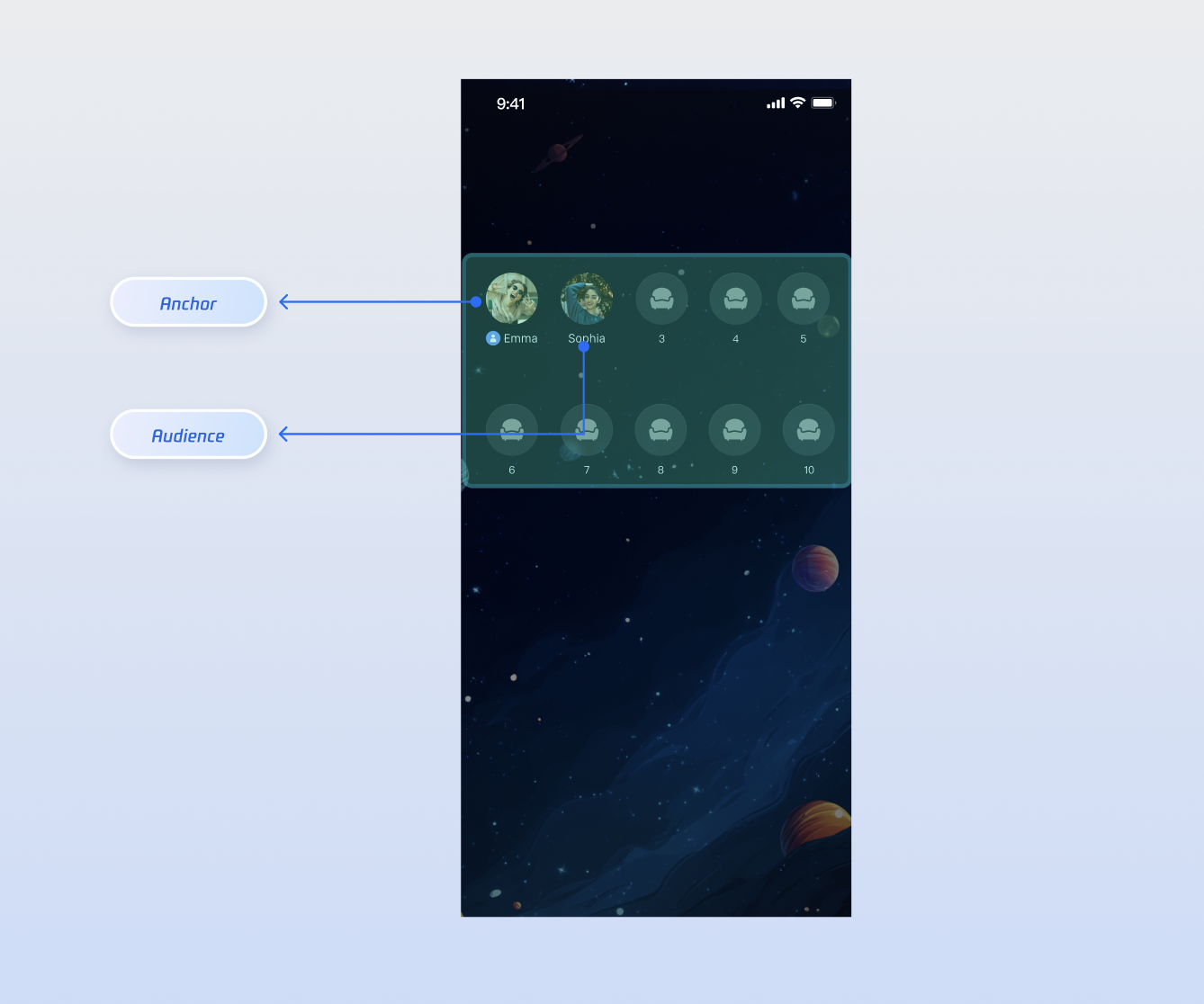
Core Scenarios
CoGuestStore and LiveSeatStore support the following core live interaction scenarios:Audience Request to Join Mic: Viewers can actively request to join the mic; the host can approve or reject these requests.
Host Invites Audience to Mic: The host can proactively invite any viewer in the live room to join the mic.
Host Manages Mic Seats: The host can manage users on mic seats, including removing users, muting, and locking seats.
Implementation
Step 1: Component Integration
Step 2: Implement Audience Mic-Link Request
Audience Side Implementation
As an audience member, your main tasks are initiating a request, handling the response, and leaving the mic proactively.
1. Initiate Mic-Link Request
When the user taps the "Request Mic-Link" button in the UI, call the
applyForSeat method.import AtomicXCorelet liveId = "Room ID"var guestStore: CoGuestStore {CoGuestStore.create(liveID: liveID)}// User taps "Request Mic-Link"func requestToConnect() {// timeout: Request timeout, e.g., 30 secondsguestStore.applyForSeat(timeout: 30.0, extraInfo: nil) { result inswitch result {case .success():print("Mic-link request sent, waiting for host response...")case .failure(let error):print("Failed to send request: \\(error.message)")}}}
2. Listen for Host Response
Subscribe to
guestEventPublisher to receive the host’s response.import AtomicXCoreimport Combine// Subscribe to events during view controller initializationfunc subscribeGuestEvents() {guestStore.guestEventPublisher.sink { [weak self] event inif case let .onGuestApplicationResponded(isAccept, hostUser) = event {if isAccept {print("Host \\(hostUser.userName) accepted your request, preparing to join mic")// 1. Open microphoneDeviceStore.shared.openLocalMicrophone(completion: nil)// 2. Update UI, e.g., disable request button, show "on mic" status} else {print("Host \\(hostUser.userName) rejected your request")// Show popup to inform user of rejection}}}.store(in: &cancellables) // Manage subscription lifecycle}
3. Leave Mic Proactively
When an audience member on mic wants to end the interaction, call
disConnect to return to regular audience status.// User taps "Leave Mic" buttonfunc leaveSeat() {guestStore.disConnect { result inswitch result {case .success():print("Successfully left mic")case .failure(let error):print("Failed to leave mic: \\(error.message)")}}}
4. (Optional) Cancel Request
If the audience member wants to withdraw the request before the host responds, call
cancelApplication.// User taps "Cancel Request" while waitingfunc cancelRequest() {guestStore.cancelApplication { result inswitch result {case .success():print("Request cancelled")case .failure(let error):print("Failed to cancel request: \\(error.message)")}}}
Host Side Implementation
As the host, your main tasks are receiving requests, displaying the request list, and handling requests.
1. Listen for New Mic-Link Requests
Subscribe to
hostEventPublisher to be notified immediately when a new audience request arrives.import AtomicXCoreimport Combinelet liveId = "Room ID"var guestStore: CoGuestStore {CoGuestStore.create(liveID: liveID)}// Subscribe to host eventsguestStore.hostEventPublisher.sink { [weak self] event inif case let .onGuestApplicationReceived(guestUser) = event {print("Received mic-link request from audience \\(guestUser.userName)")// Update UI, e.g., show a red dot on the "Request List" button}}.store(in: &cancellables)
2. Display Request List
The
CoGuestStore state maintains the current list of applicants in real time. Subscribe to it to refresh your UI.import AtomicXCoreimport Combine// Subscribe to state changesguestStore.state.subscribe(StatePublisherSelector(keyPath: \\CoGuestState.applicants)) // Only care about applicant list changes.removeDuplicates().sink { applicants inprint("Current number of applicants: \\(applicants.count)")// Refresh your "Applicant List" UI here// self.applicantListView.update(with: applicants)}.store(in: &cancellables)
3. Handle Mic-Link Requests
When you select an audience member from the list and tap "Accept" or "Reject", call the corresponding method.
// Host taps "Accept" button, passing applicant's userIDfunc accept(userId: String) {guestStore.acceptApplication(userID: userId) { result inif case .success = result {print("Accepted \\(userId)'s request, they are joining the mic")}}}// Host taps "Reject" buttonfunc reject(userId: String) {guestStore.rejectApplication(userID: userId) { result inif case .success = result {print("Rejected \\(userId)'s request")}}}
Step 3: Implement Host-Initiated Mic-Link Invitation
Host Side Implementation
1. Invite Audience to Mic
When the host selects a viewer from the audience list and taps "Invite to Mic", call the
inviteToSeat method.// Host selects audience and initiates invitationfunc invite(userId: String) {// timeout: Invitation timeoutguestStore.inviteToSeat(userID: userId, timeout: 30.0, extraInfo: nil) { result inif case .success = result {print("Invitation sent to \\(userId), waiting for response...")}}}
2. Listen for Audience Response
Listen for the
onHostInvitationResponded event via hostEventPublisher.// Add to hostEventPublisher subscriptionif case let .onHostInvitationResponded(isAccept, guestUser) = event {if isAccept {print("Audience \\(guestUser.userName) accepted your invitation")} else {print("Audience \\(guestUser.userName) rejected your invitation")}}
Audience Side Implementation
1. Receive Host Invitation
Listen for the
onHostInvitationReceived event via guestEventPublisher.// Add to guestEventPublisher subscriptionif case let .onHostInvitationReceived(hostUser) = event {print("Received mic-link invitation from host \\(hostUser.userName)")// Show a dialog for the user to choose "Accept" or "Reject"// self.showInvitationDialog(from: hostUser)}
2. Respond to Invitation
When the user makes a choice in the dialog, call the corresponding method.
let inviterId = "Host ID who sent the invitation" // Get from onHostInvitationReceived event// User taps "Accept"func accept() {guestStore.acceptInvitation(inviterID: inviterId) { result inif case .success = result {// 2. Open microphoneDeviceStore.shared.openLocalMicrophone(completion: nil)}}}// User taps "Reject"func reject() {guestStore.rejectInvitation(inviterID: inviterId) { result in// ...}}
Advanced Features
Once a user is on mic, the host may need to manage mic seats. The following features are primarily provided by
LiveSeatStore, which functions with CoGuestStore.On-Mic Users Control Their Own Microphone
On-mic users (including the host) can control their own microphone mute status via the
LiveSeatStore interface.Implementation:
1. Mute: Call
muteMicrophone(). This is a one-way request with no callback.2. Unmute: Call
unmuteMicrophone(completion:).Example Code:
let seatStore = LiveSeatStore.create(liveID: liveId)seatStore.muteMicrophone() // MuteseatStore.unmuteMicrophone(completion: nil) // Unmute
unmuteMicrophone Parameters:
Parameter | Type | Description |
completion | CompletionClosure? | Callback after the operation completes. |
Host Remotely Controls On-Mic User’s Microphone
The host can perform "force mute" or "invite to unmute" operations on other on-mic users.
Implementation:
1. Force Mute (Lock): The host calls
closeRemoteMicrophone to forcibly mute the target user's microphone and lock their mic control. The muted user will receive the onLocalMicrophoneClosedByAdmin event via liveSeatEventPublisher, and their local "Open Microphone" button should become disabled.2. Invite to Unmute (Unlock): The host calls
openRemoteMicrophone—this does not forcibly open the user's mic, but unlocks their mic control, allowing them to unmute themselves. The target user receives the onLocalMicrophoneOpenedByAdmin event, their "Open Microphone" button should become enabled, but they remain muted until they unmute themselves.3. User Unmutes Themselves: After receiving the unlock notification, the user must actively call
LiveSeatStore's unmuteMicrophone() to actually unmute and be heard in the room.Example Code:
Host Side:
let targetUserId = "userD"// 1. Force mute and lock userDseatStore.closeRemoteMicrophone(userID: targetUserId) { result inif case .success = result {print("\\(targetUserId) has been muted and locked")}}// 2. Unlock userD’s microphone control (userD remains muted)seatStore.openRemoteMicrophone(userID: targetUserId, policy: .unlockOnly) { result inif case .success = result {print("Invited \\(targetUserId) to open microphone (unlocked)")}}
Audience Side:
// userD listens for host actionsseatStore.liveSeatEventPublisher.sink { event inswitch event {case .onLocalMicrophoneClosedByAdmin:print("Muted by host")// self.muteButton.isEnabled = falsecase .onLocalMicrophoneOpenedByAdmin(policy: _):print("Host unlocked mute control")// self.muteButton.isEnabled = true// self.muteButton.setTitle("Open Microphone")default:break}}.store(in: &cancellables)
closeRemoteMicrophone Parameters:
Parameter | Type | Description |
userID | String | The userID of the target user. |
completion | CompletionClosure? | Callback after the request completes. |
openRemoteMicrophone Parameters:
Parameter | Type | Description |
userID | String | The userID of the target user. |
completion | CompletionClosure? | Callback after the request completes. |
Host Removes On-Mic User from the Seat
Implementation:
1. Remove User from Mic: The host can call
kickUserOutOfSeat to forcibly remove a specified user from the mic seat.2. Listen for Event Notification: The removed user will receive the
onKickedOffSeat event via CoGuestStore.guestEventPublisher.Example Code:
// Suppose you want to remove "userB"let targetUserId = "userB"seatStore.kickUserOutOfSeat(userID: targetUserId) { result inswitch result {case .success:print("\\(targetUserId) has been removed from the mic seat")case .failure(let error):print("Failed to remove user: \\(error.message)")}}// "userB" receives the removal eventguestStore.guestEventPublisher.receive(on: RunLoop.main).sink { [weak self] event inguard let self = self else { return }switch event {case .onKickedOffSeat(seatIndex: _, hostUser: _):// Show toast notificationdefault:break}}.store(in: &cancellables)
kickUserOutOfSeat Parameters:
Parameter | Type | Description |
userID | String | The userID of the user to be removed from the mic seat. |
completion | CompletionClosure? | Callback after the request completes. |
Host Locks and Unlocks Mic Seats
The host can lock or unlock a specific mic seat.
Implementation:
1. Lock Seat: The host can call
lockSeat to lock the seat at the specified index. Once locked, audience members cannot occupy this seat via applyForSeat or takeSeat.2. Unlock Seat: Call
unlockSeat to unlock the seat, making it available again.Example Code:
// Lock seat #2seatStore.lockSeat(seatIndex: 2) { result inif case .success = result {print("Seat #2 locked")}}// Unlock seat #2seatStore.unlockSeat(seatIndex: 2) { result inif case .success = result {print("Seat #2 unlocked")}}
lockSeat Parameters:
Parameter | Type | Description |
seatIndex | Int | Index of the seat to lock. |
completion | CompletionClosure? | Callback after the request completes. |
unlockSeat Parameters:
Parameter | Type | Description |
seatIndex | Int | Index of the seat to unlock. |
completion | CompletionClosure? | Callback after the request completes. |
Move Mic Seats
Hosts and on-mic users can call
moveUserToSeat(userID:targetIndex:policy:completion:) to move users between mic seats.Implementation:
1. Host Moves User to Mic Seat: The host can use this API to move any user to a specified mic seat. Provide the target user's
userID, the target seat index as targetIndex, and use the policy parameter to specify the seat movement strategy if the target seat is occupied (see parameter details below).2. On-Mic User Moves Themselves: On-mic users can also call this API to move themselves. In this case,
userID must be the user's own ID, targetIndex is the desired new seat index, and the policy parameter is ignored. If the target seat is occupied, the move fails with an error.Example Code:
seatStore.moveUserToSeat(userID: "userC",targetIndex: newSeatIndex,policy: .abortWhenOccupied) { result inif case .success = result {print("Successfully moved to seat #\\(newSeatIndex)")} else {print("Move failed, seat may be occupied")}}
moveUserToSeat Parameters:
Parameter | Type | Description |
userID | String | The userID of the user to move. |
targetIndex | Int | Target seat index. |
policy | MoveSeatPolicy? | Seat movement policy if the target seat is occupied:<br>- abortWhenOccupied: Abort move if seat is occupied (default)<br>- forceReplace: Force replace the user on the target seat; replaced user will be removed<br>- swapPosition: Swap positions with the user on the target seat. |
completion | CompletionClosure? | Callback after the request completes. |
API Documentation
For detailed information about all public interfaces, properties, and methods of CoGuestStore, LiveSeatStore, and related classes, refer to the official AtomicXCore framework API documentation. The relevant stores used in this guide are as follows:
Store/Component | Feature Description | API Documentation |
CoGuestStore | Audience mic-link management: mic-link requests/invitations/accept/reject, member permission control (microphone/camera), state synchronization. | |
LiveSeatStore | Mic seat management: mute/unmute, lock/unlock seats, remove users from mic, remote mic control, mic seat list state monitoring |
FAQs
What’s the difference between voice room mic-link and video live mic-link implementation?
The main differences are in business logic and UI presentation:
Video Live: The core is the video feed. Use LiveCoreView as the main component to render video streams for the host and mic-linked viewers. The UI focuses on video layout and sizing, and you can add overlays (nickname, placeholder image) via VideoViewDelegate. Both camera and microphone can be enabled.Voice Room: The core is the mic seat grid. Do not use LiveCoreView; instead, build a grid UI (e.g., UICollectionView) based on the LiveSeatStore's state (especially seatList). The UI focuses on real-time display of each seat’s SeatInfo status: occupied, muted, locked, and speaking status. Only the microphone needs to be enabled.How do I refresh mic seat info (e.g., occupied, muted) in the UI in real time?
Subscribe to the
seatList property in LiveSeatState, which is a reactive [SeatInfo] array. Any changes will notify you to re-render the mic seat list. Iterate through this array to:Get user info on each seat via
seatInfo.userInfo.Check if a seat is locked via
seatInfo.isLocked.Check mic status of the user via
seatInfo.userInfo.microphoneStatus.What’s the difference between microphone interfaces in LiveSeatStore and DeviceStore?
This is an important distinction.
DeviceStore manages the physical device, while LiveSeatStore manages mic seat business logic (audio stream).DeviceStore:openLocalMicrophone: Requests system permission and starts the microphone hardware for audio capture. This is a time-consuming operation.closeLocalMicrophone: Stops audio capture and releases the microphone device.LiveSeatStore:muteMicrophone: Mute. Stops sending local audio stream to remote, but the microphone hardware remains running.unmuteMicrophone: Unmute. Resumes sending audio stream to remote.Recommended workflow: "Open the device once, control mute/unmute while on mic"
1. When joining mic: When an audience member successfully joins the mic, call
openLocalMicrophone once to start the device.2. While on mic: All "mute" and "unmute" actions while on mic should use
muteMicrophone and unmuteMicrophone to control the audio stream.3. When leaving mic: When leaving mic (e.g., calling
disconnect), call closeLocalMicrophone to release the device.
피드백