Member includes agents. Agents are personnel responsible for making and receiving calls. Administrators can perform operations such as adding, deleting, modifying, and querying agent accounts.
Add Member
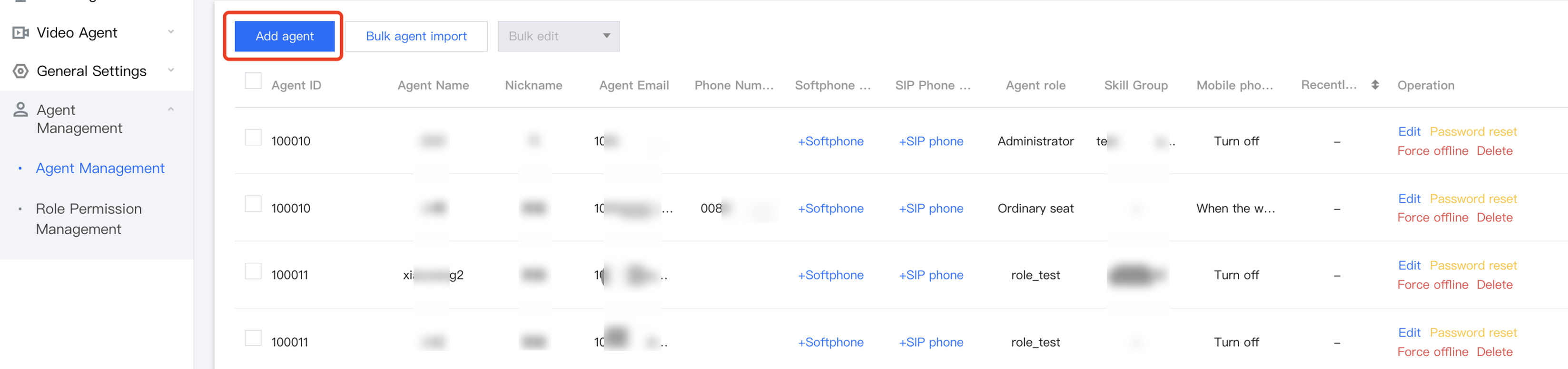
1. Log in to Cloud Contact Center Management Console. In the left sidebar, click Customer Service Management to enter the agent management page. In the upper left corner of the agent management page, click Add Customer Service.
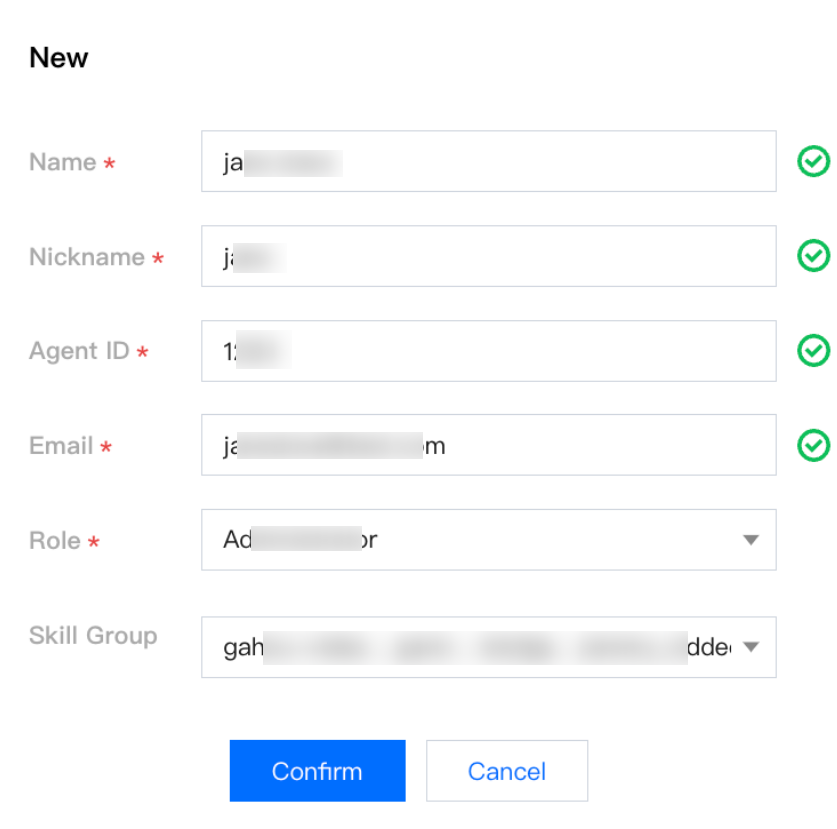
2. Fill in the name, nickname, customer service ID, mailbox, role and other information. Once the filling is completed, click Confirm. After successful addition, the system will send an email containing random password to the customer service mailbox. The customer service can be prompted to check the mailbox and log in to the workbench.
Notes:
Skill group is an optional field. You can create a skill group first and then add the customer service to the corresponding skill group in the skill group management.
Batch Import
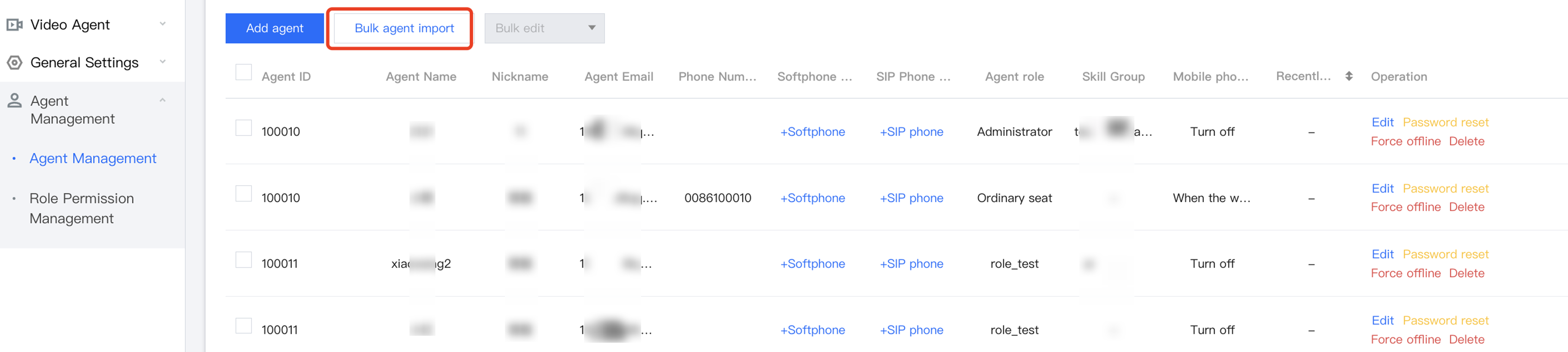
1. In the upper left corner of the agent management page, click Batch Add Customer Service.
2. Click Download Template in the Import in Batches dialog box. Fill in the agent name, nickname, agent ID, mailbox, role and other information in the table of the template.
3. After completing the filling, click Upload File. Once the upload is successful, click Confirm. After successful addition, the system will send an email containing a random password to the customer service mailbox. The customer service can be prompted to check the mailbox and then log in.
Password Reset
If the customer service forgets the password or does not receive the email with the random password, the administrator clicks Password Reset in the operation column of the target customer service to send an email containing a random password to the customer service's mailbox. The original password becomes invalid. The customer service can be prompted to log in to the mailbox to check the new random password.
Edit Member
Click Edit in the operation column of the target customer service to modify the agent name, nickname, and skill group information. Other information does not support modification at the moment. You can delete the customer service agent and re-add.
Delete Member
Click Delete in the operation column of the target customer service. Once deleted, the customer service agent will not be able to log in.
Force Offline
Click Force Logout in the operation column of the target customer service. After the operation, the customer service agent will be unable to retry login.
Restore Online
After setting forced logout for customer service agents, if you need to lift the login restriction on the customer service agent, you can click Restore Online in the operation column of the target customer service agent. Then the customer service agent can continue to log in.