Sidecar Caption
Sidecar caption refer to subtitle files that are stored separately from the video file, rather than being directly embedded within the video. Sidecar caption files are commonly in formats such as .srt, .vtt, or .ttml, and are used together with the video file. When playing the video, the player reads the sidecar caption file and displays the corresponding subtitles on the screen. The advantages of sidecar captions include convenient multi-language subtitle switching, as well as easy editing and translation of subtitle files. Currently, StreamLive supports intelligent speech recognition of voice information during live streaming and retains it as WebVTT subtitles. In addition, it supports translation based on the original language and retains the translated target language as WebVTT subtitles.
Points of Attention
The ability to generate the intelligent captions is provided by Media Processing Service (MPS) to StreamLive. When using it for the first time, you need to authorize MPS to access StreamLive's data to generate captions.
When using the intelligent caption recognition feature in StreamLive, in addition to StreamLive's live transcoding fees, there will also be speech recognition fees from MPS. Translating across languages will incur speech translation fees from MPS. For specific billing information, please refer to the MPS Billing Document.
Prerequisites for Use
You have activated the StreamLive service.
Configuring Intelligent Caption
1. Log in to the StreamLive Console, navigate to Channel Configuration and Configure Output Group, create a new Output, click Setting to configure detailed parameters.
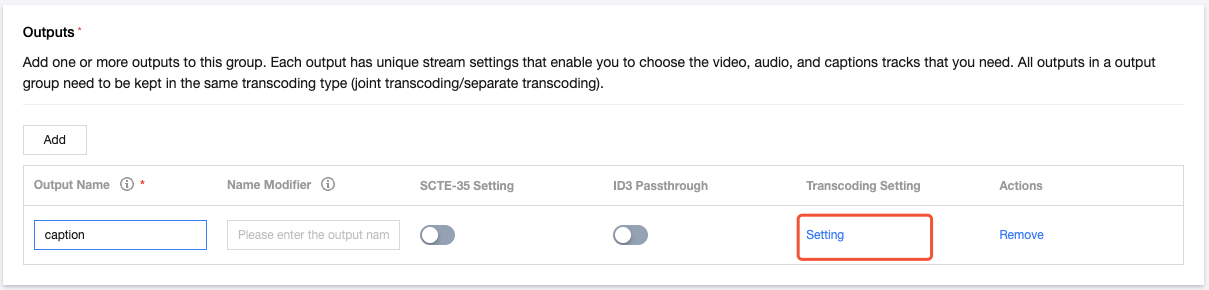
2. For output with WebVTT caption, the output can only contain caption file and cannot contain video and audio. It is necessary to click Remove to delete the Audio/Video transcoding configuration, then click Add Caption to add caption configuration.
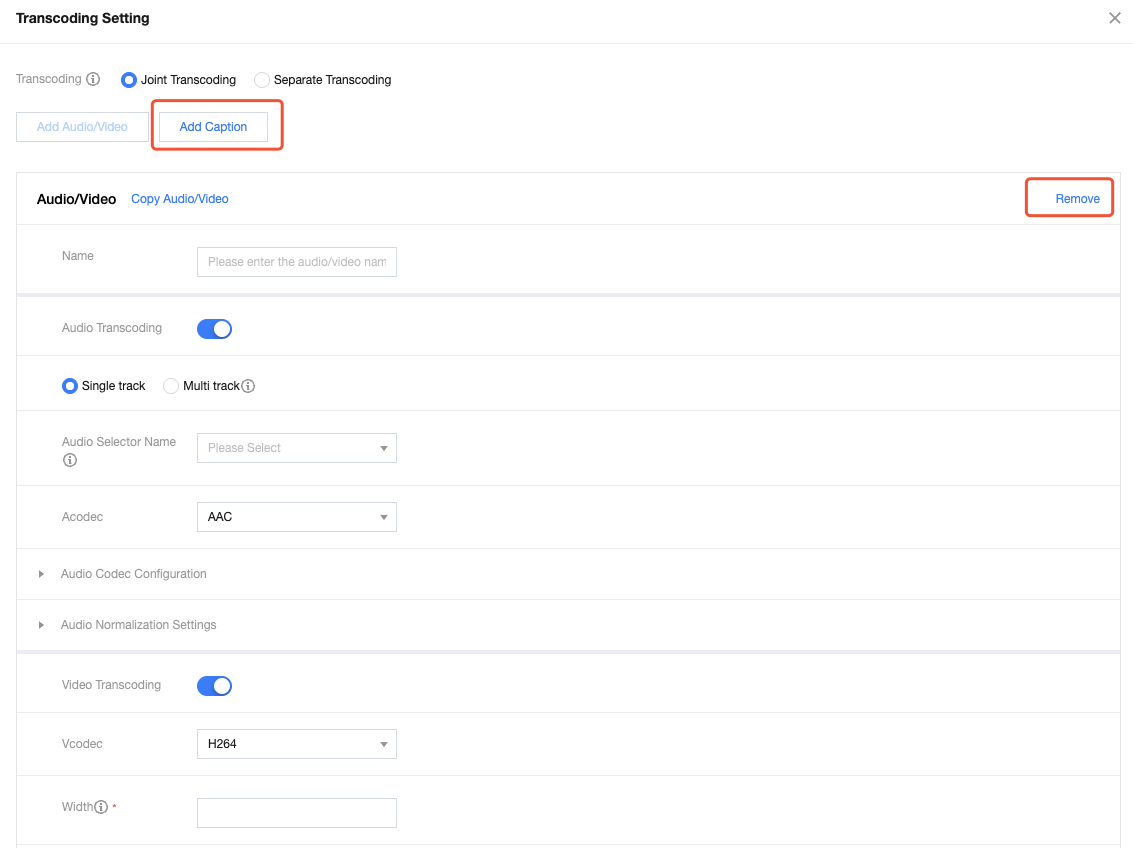
3. For Caption Source, select Analysis. For Format, select WebVTT.

Note:
Since the intelligent caption recognition feature is provided by MPS to StreamLive, role authorization is required to support MPS in obtaining StreamLive data and generating captions.
When in use, the system will verify if you have authorized it before. If you have, you can directly configure captions.
If you have not authorized before, the system will guide you through role authorization. Once you agree, you can continue configuring captions.
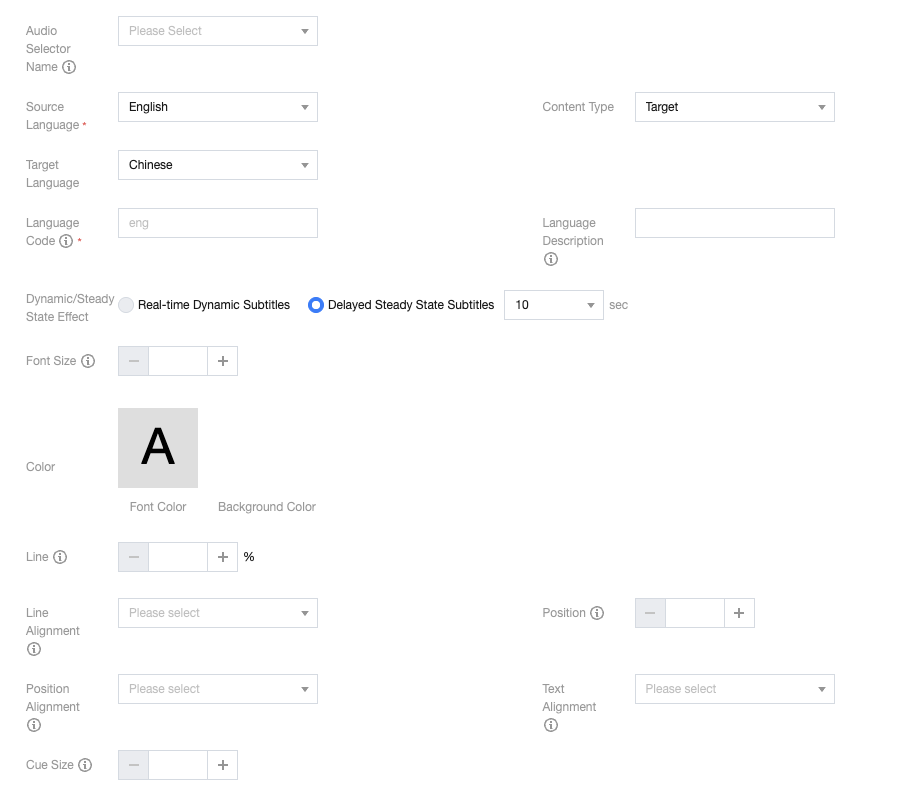
4. Configure caption
Configuration Item | Description |
Audio Selector Name | For input with multiple audio tracks, please identify which audio to use by selecting an audio selector name. The audio selector name can be configured in the Input Setting. |
Source Language | It supports recognition of four source languages: Chinese, English, Japanese, and Korean. |
Content type | Source: display only source language. Target: display only translation language. |
Target Language | Currently, the source language can be translated into three target languages. |
Language Code | Supports input compliant with the ISO 639-3 standard (three-digit code), making it easy for the player to perform caption recognition and switchover. |
Language Description | Please enter a human readable language description for the audience to easily select the desired caption, such as English or Chinese. |
Dynamic/Steady State Effect | Currently only support Delayed Steady State. The system will delay the live streaming according to the set time, but the experience of watching complete sentence is better. The default delay time is 10 seconds. |
Font Size | A number specifying the size of the caption font, interpreted as a percentage of the video width. Integers between 1 and 100 are supported. |
Color | Font Color: The font color can be customized. Background Color: The background color can be customized. And the customization of level of transparency is supported. |
Line | Define the vertical position of the cue box, represented as a percentage of the video height. This indicates the distance from the top edge of the screen. |
Line Alignment | Defines how the cue box is aligned vertically relative to the specified Line. Start: The top edge of the cue box is aligned to the Line. Center: The vertical center of the cue box is aligned to the Line. End: The bottom edge of the cue box is aligned to the Line. |
Position | Define the indent of the cue box. The position percentage is relative to the width of the video. This indicates the distance from the left edge of the screen. |
Position Alignment | Defines how the cue box is aligned horizontally relative to the specified Position. Line-left: The left edge of the cue box is aligned to the Position. Center: The horizontal center of the cue box is aligned to the Position. Line-right: The right edge of the cue box is aligned to the Position. Auto: The alignment is determined automatically by the player. |
Text Alignment | Specify the alignment for all lines of text within the cue box. Start: Lines are left-aligned within the cue box. Center: Lines are center-aligned within the cue box. End: Lines are right-aligned within the cue box. Left: Lines are left-aligned within the cue box. Right: Lines are right-aligned within the cue box. |
Cue Size | A number specifying the size of the cue box, interpreted as a percentage of the video width. |
5. Preview.
Turn on the preview switch, enter test text, and the preview effect will be displayed according to your previous configuration. Additionally, you can readjust the resolution of the preview screen.
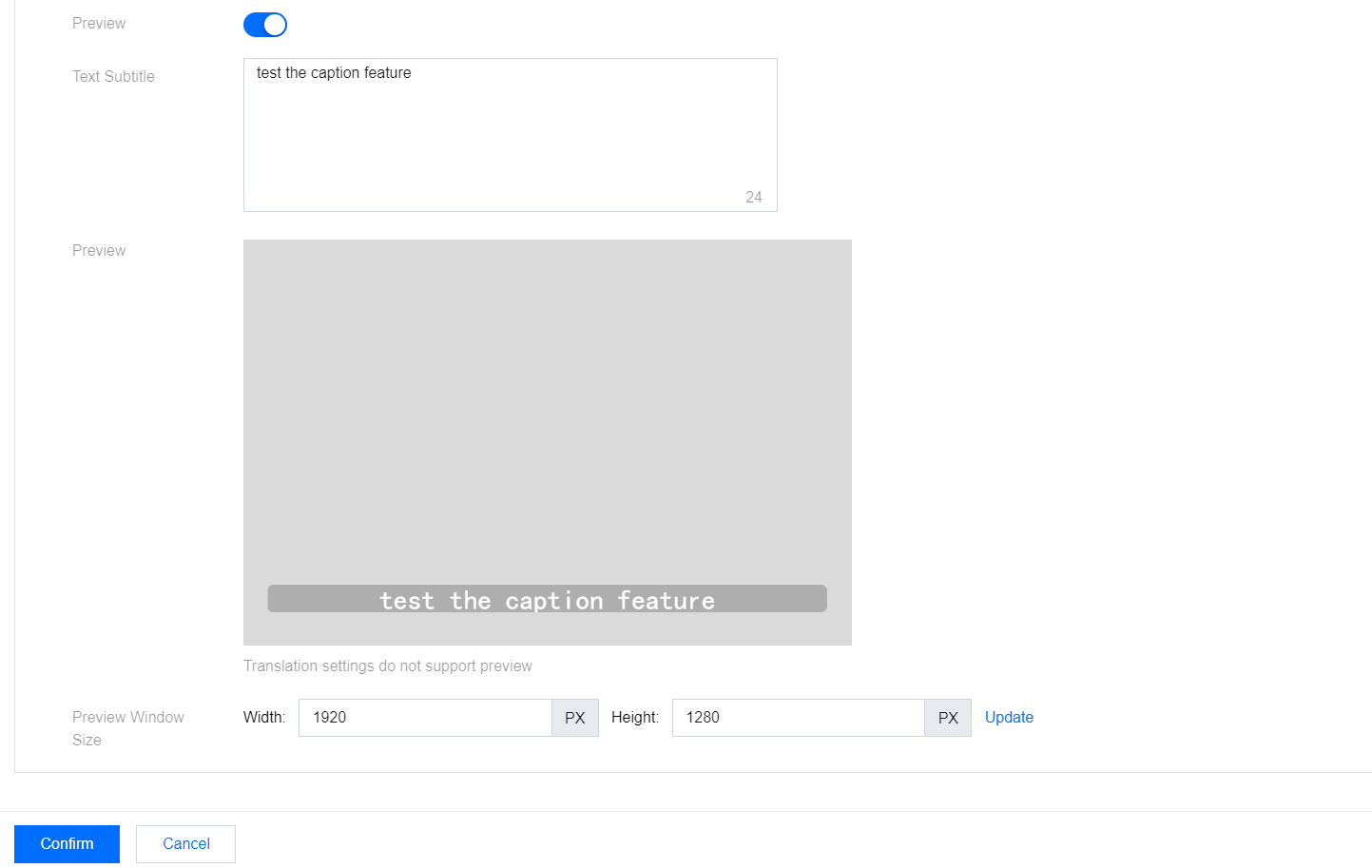
6. Click Confirm to save your current configuration.
Help and Support
Was this page helpful?
You can also Contact sales or Submit a Ticket for help.
Help us improve! Rate your documentation experience in 5 mins.
Feedback