Modify Configurations Through Console
Download
Mode fokus
Ukuran font
Tencent Cloud TCHouse-D supports flexible parameter configuration methods. You can comprehensively and intuitively set parameters such as BE/FE/Broker in the console and support to view historical modification records.
Operation Guide
1. Log in to Tencent Cloud TCHouse-D Console, and click Cluster ID/Name in the cluster list to view cluster details. Select Configurations> Modify Configurations from the left sidebar to enter the parameter configuration page.
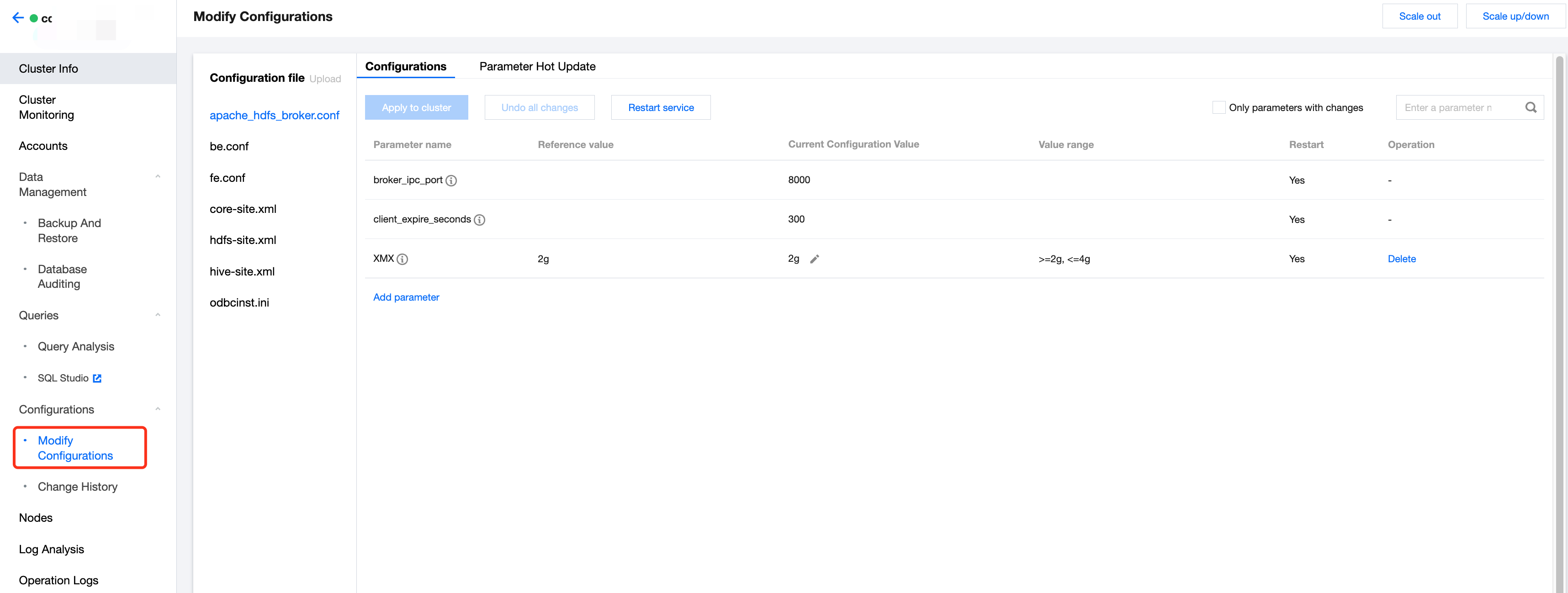
2. The configuration parameters corresponding to Broker, BE and FE support configuration management, and parameter hotspot update. Whole file modification is supported for XML configuration files.
Note:
To ensure the stability of the service, the feature to upload configuration files has been disabled. If you need to add new configuration files, contact us by Submit a ticket.
Modifying Configuration Parameters
The configuration parameters corresponding to Broker, BE, and FE support configuration management, and the parameter hot updates. Configuration modification will be applied to the node after a restart, and parameter hot updates will take effect immediately without restarting.
Configuration Management
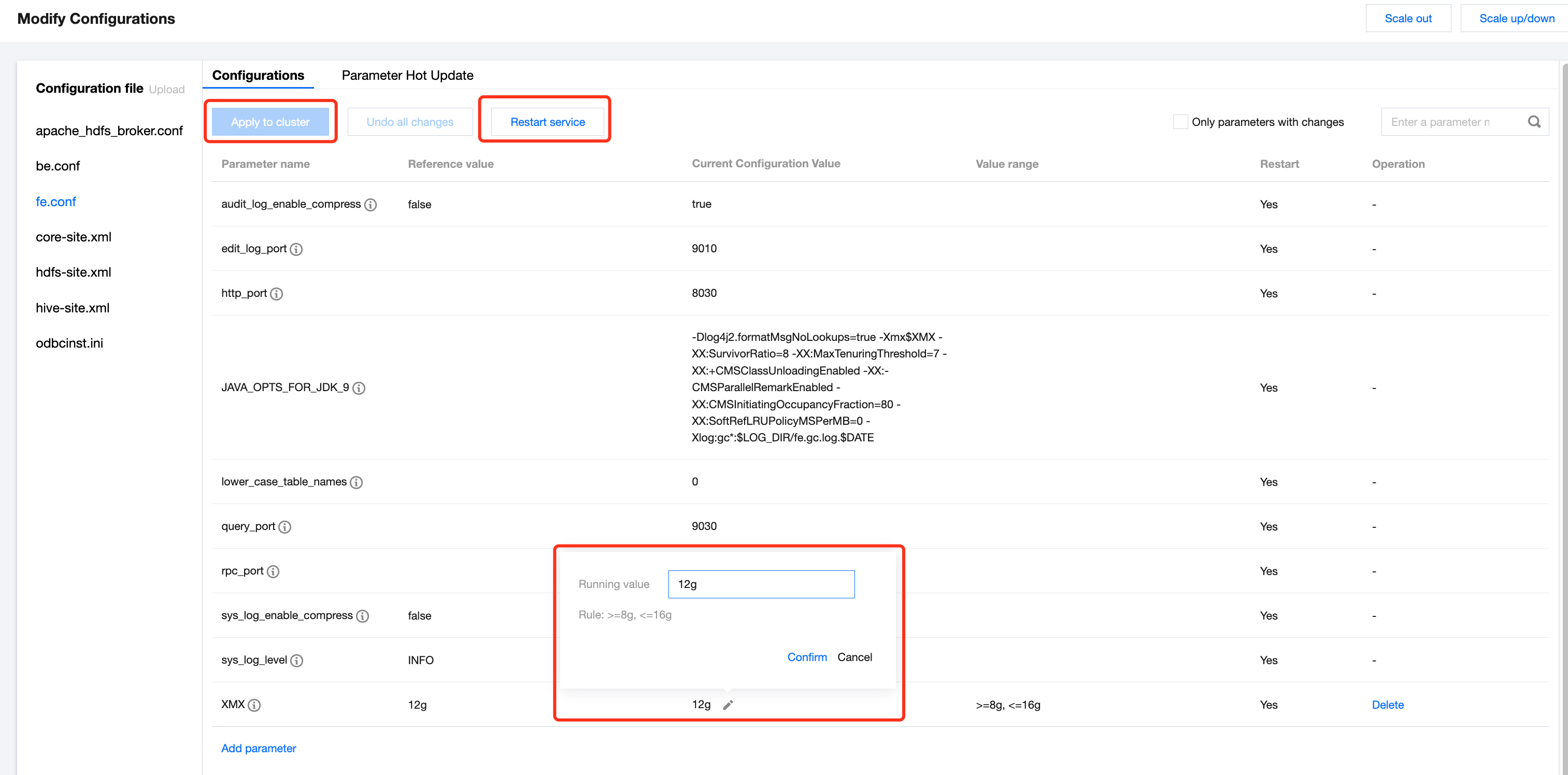
For parameters in the conf configuration file, you can view the reference value, the current configuration value, and the range of modifications. Parameters in the conf configuration file can be added, deleted, or modified.
Modifying parameters: You can define parameters within a certain range. After editing, click Apply to Cluster to save and distribute. The modifications will take effect after rebooting the respective node by clicking Restart Service.
Adding parameters: You can add new configuration parameters in the corresponding configuration file. Like modifying parameters, the new parameters will take effect after saving, distributing, and restart.
Deleting parameters: Some parameters support deletion. After saving, distributing, and rebooting the corresponding node, deletion will take effect. The cluster will run according to the default parameters. Be cautious.
Parameter Hot Update
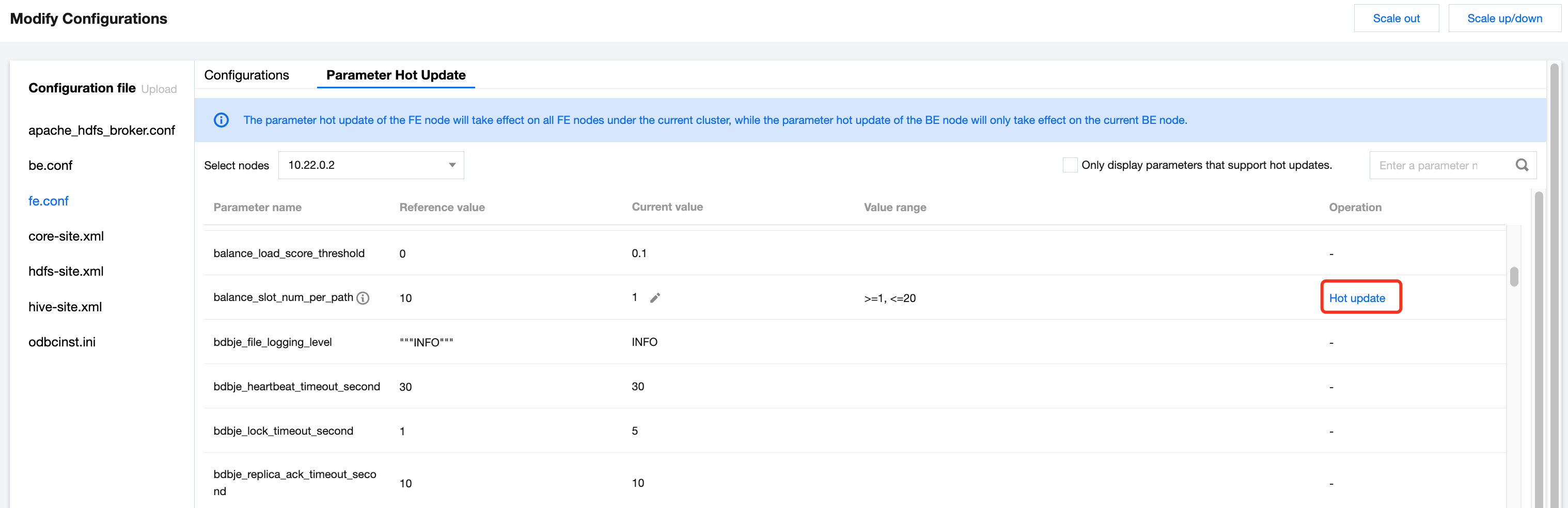
For parameters in the configuration file, you can view the reference values, current running values, and modification ranges. After modifying parameters, click Hot Update to apply modification. The parameter hot update will take effect immediately after the modification, with no cluster restart needed.
Note:
The parameter hot update for the FE node will apply to all FE nodes in the cluster, and the parameter hot update for the BE node will only apply to the current BE node.
Modifying XML File
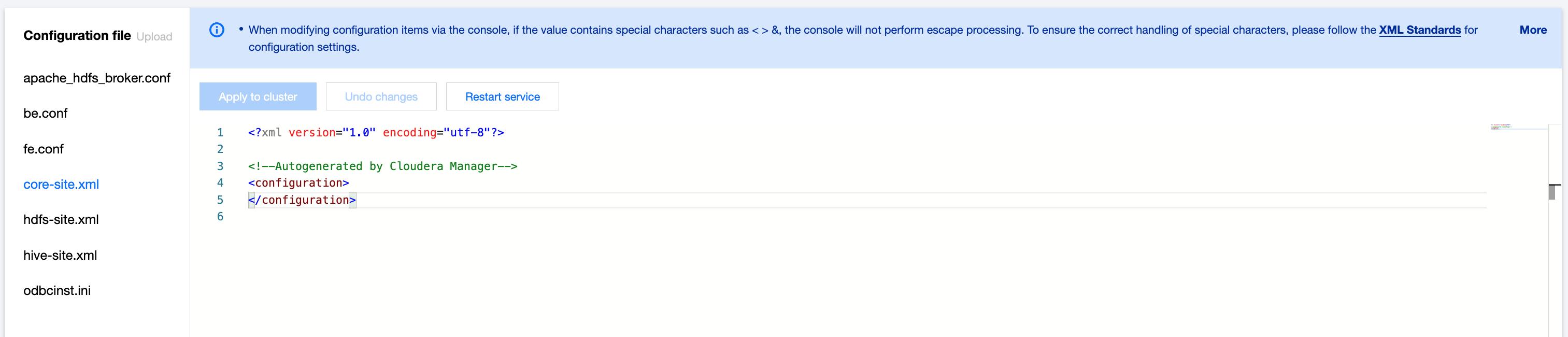
For XML configuration files, you can edit the entire file as needed. Click Apply to Cluster to save and distribute modification. The configuration modifications will take effect after restarting the service.
Note:
While modifying the configuration items, if the value contains special characters like <, >, & etc., the console won't escape them. To ensure the correct handling of special characters, follow XML Standards for configuration.
View Modification History
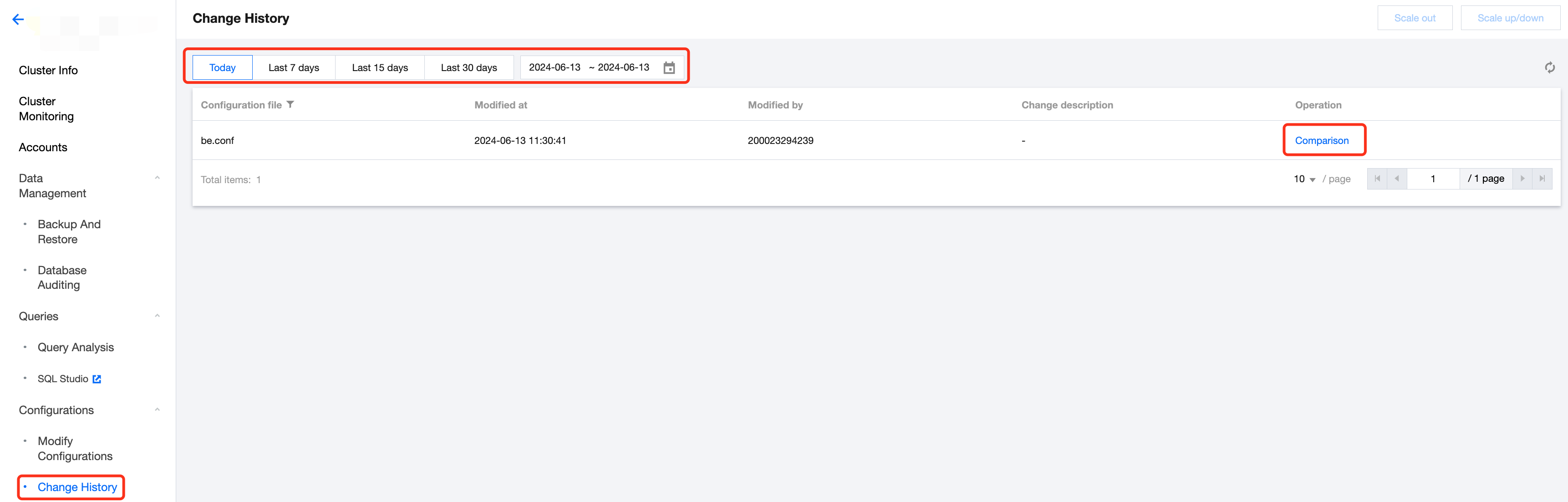
In the cluster list, click Cluster ID/Name to view cluster details. Select Configurations > Change History from the left sidebar to enter the configuration modification records page.
Supports viewing the parameter modification records within any selected time range. You can specifically view the modification time, the account ID of the person who made the changes, and the change description.
If you want to understand the differences in the configuration file before and after a specific modification, you can click Operation > Comparison for detailed viewing.
Bantuan dan Dukungan
Apakah halaman ini membantu?
Anda juga dapat Menghubungi Penjualan atau Mengirimkan Tiket untuk meminta bantuan.
masukan