tencent cloud

Tencent Cloud Agent Development Platform

Release Notes and Announcements
Release Notes
Product Announcement
Product Introduction
Product Overview
Advantages
Use Cases
Model Introduction
Purchase Guide
Package Subscription
Previous Version
Getting Started
Agent Application and Its Three Modes
Creating a "Content Summary Assistant" in Standard Mode
Creating a “Webpage Scraping Assistant” in Single Workflow Mode
Creating a “Stand-up Comedy Content Creation Assistant” in Multi-Agent Mode
Operation Guide
Application Development
Workflow
Multi-Agent
Knowledge Base
Widget
Plugin Marketplace
Model List 
Prompt Templates
Application Templates
Platform Management
Business, Workspace and Permissions
API Documentation
History
API Category
Making API Requests
Atomic Capability APIs
Operation Optimization APIs
Document Library APIs
Q&A Database APIs
Knowledge Tag APIs
Application Management APIs
Enterprise Management APIs
Billing APIs
Release Management APIs
Dialogue Endpoint APIs
Data Statistics APIs
Data Types
Error Codes
Application API Documentation
Dialogue API Overview
Dialog API Documentation (WebSocket)
Dialog API Documentation (HTTP SSE)
Image Chat or File Chat (Real-time Document Parsing + Chat)
Offline Document Upload
Tencent Cloud Agent Development Platform Operation COS Guide
ADP Document Parsing Protocol
FAQs
Product FAQs
Technical FAQs
Related Agreements
Tencent Cloud Agent Development Platform Service Level Agreement
Tencent Cloud Agent Development Platform Service Specific Terms
Tencent Cloud Agent Development Platform Privacy Policy
Tencent Cloud Agent Development Platform Data Processing and Security Agreement
Open-Source License Statement
Lighthouse OpenClaw Connector Plugin Service Agreement
Contact Us
Glossary

Create from Widget Template

PDF
Mode fokus
Ukuran font
Terakhir diperbarui: 2026-02-04 10:54:55

Feature Overview

The platform presets multiple Widget Templates for common scenarios, such as clarification ask and information confirmation, to help users quickly create available Widgets.
You can copy the Template to the Widget development space for direct use, or customize it based on the Template to quickly complete content and style modifications, reducing the cost of creating a new one.

Applicable Scenarios

Rapid deployment of a mature and available Widget is required.
Reuse a unified form of Widget across multiple similar scenarios.
Lightweight customization based on template, not zero development.

Steps

The specific creation steps are as follows:

1. Create a Widget

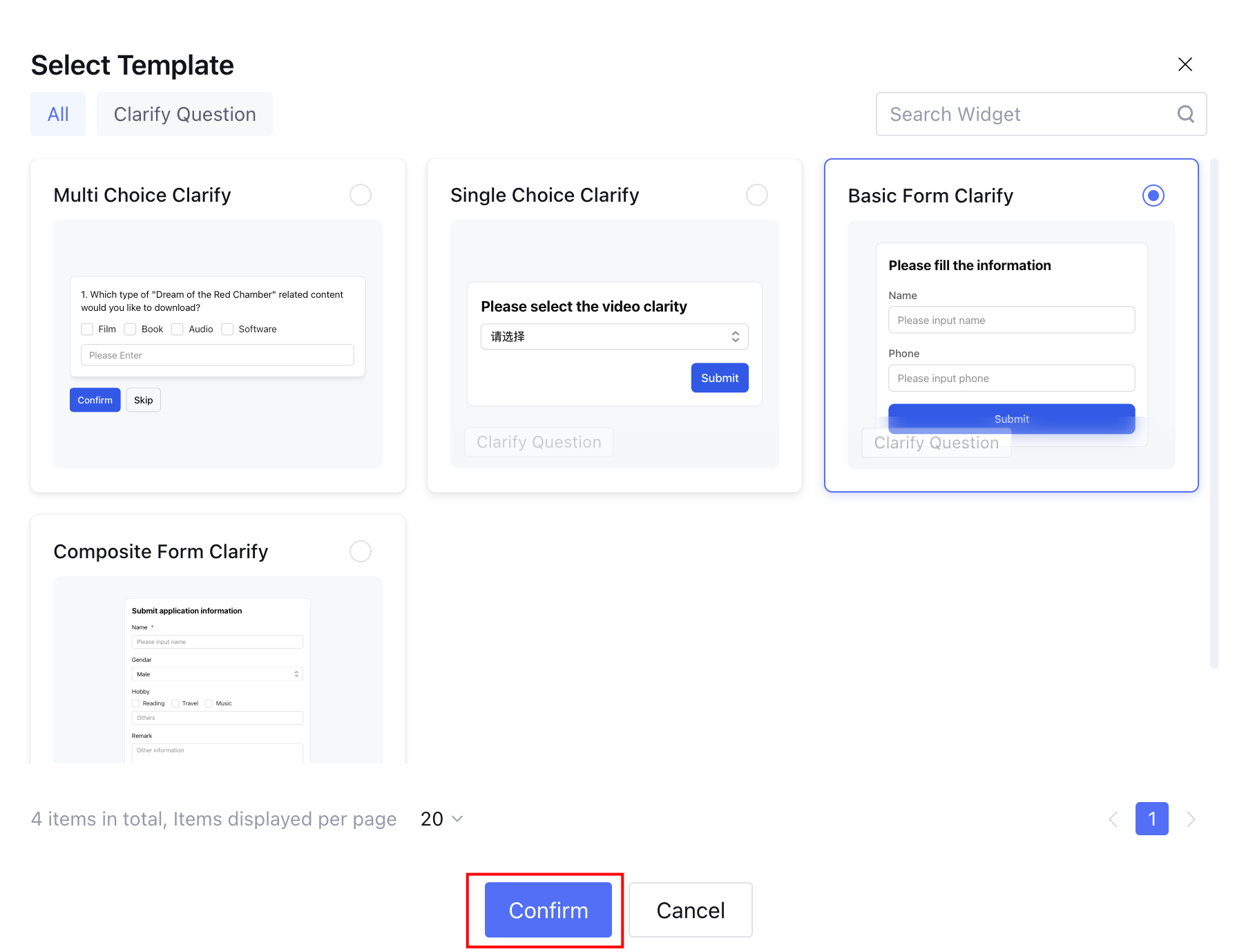
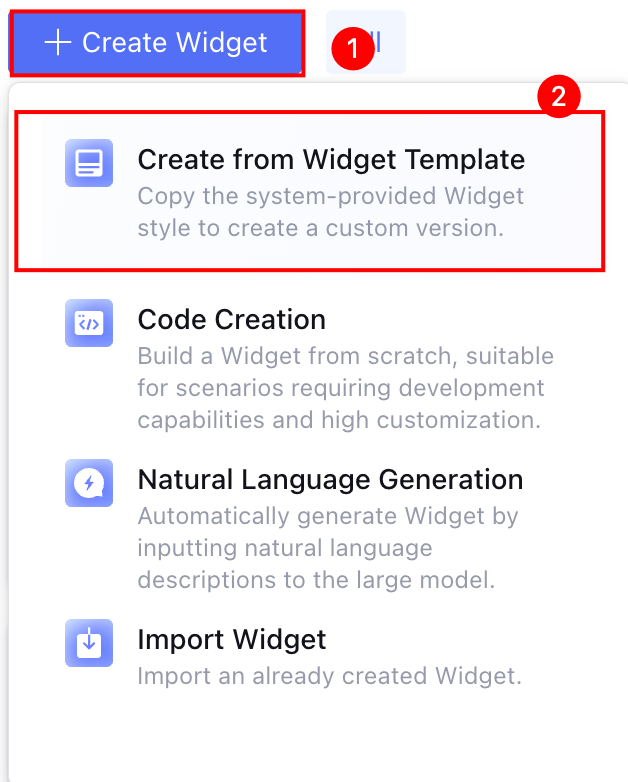
On the Widget development page, click Create Widget and select Create from Widget Template.


2. Select a Template

Within the scope of Widget Template, choose appropriate Widget and click Confirm to enter the Widget preview interface.


3. Editing and Saving

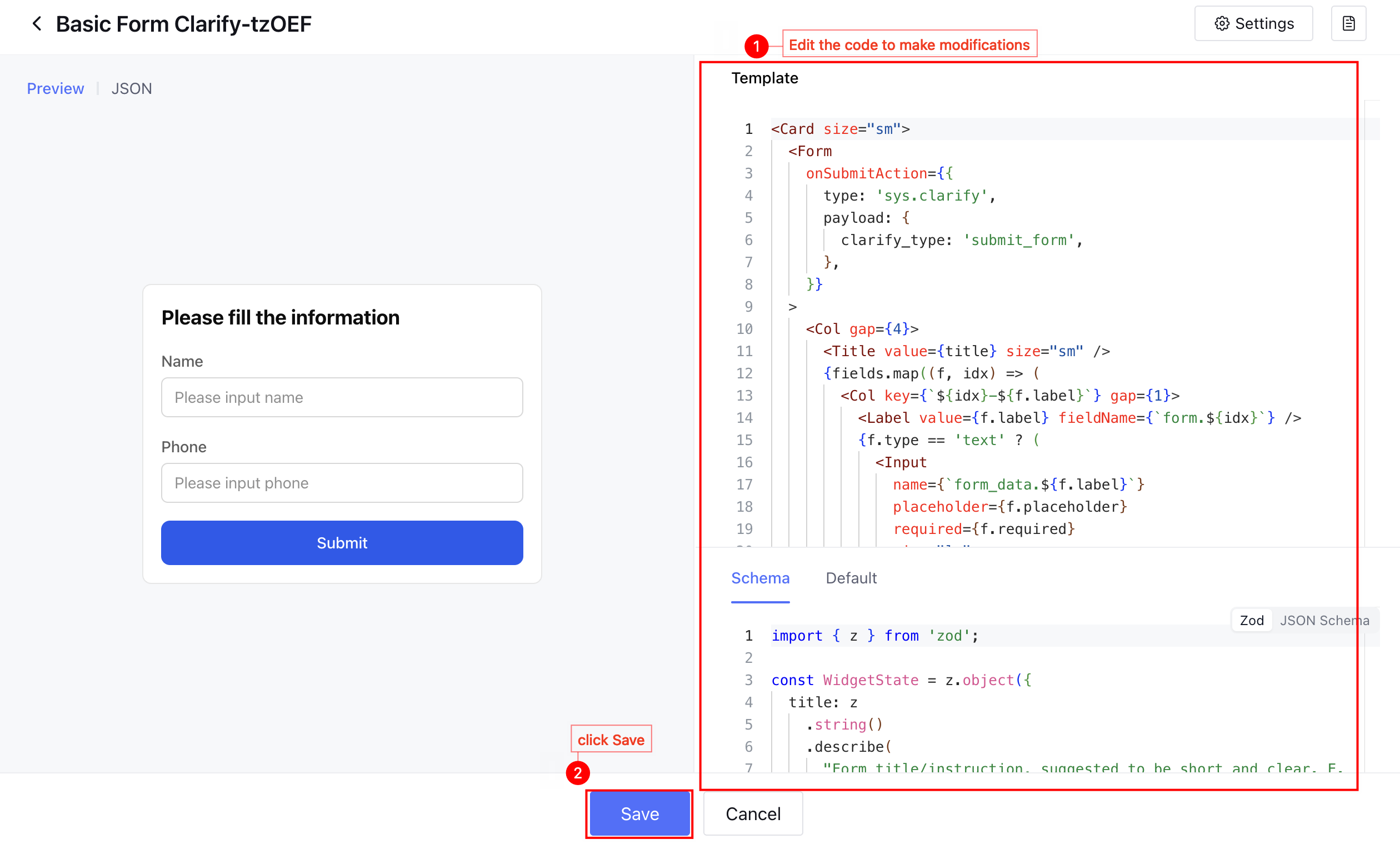
On the Widget preview interface, click Save. At this point, you can:
Log out of the Widget preview page and direct use the Widget.


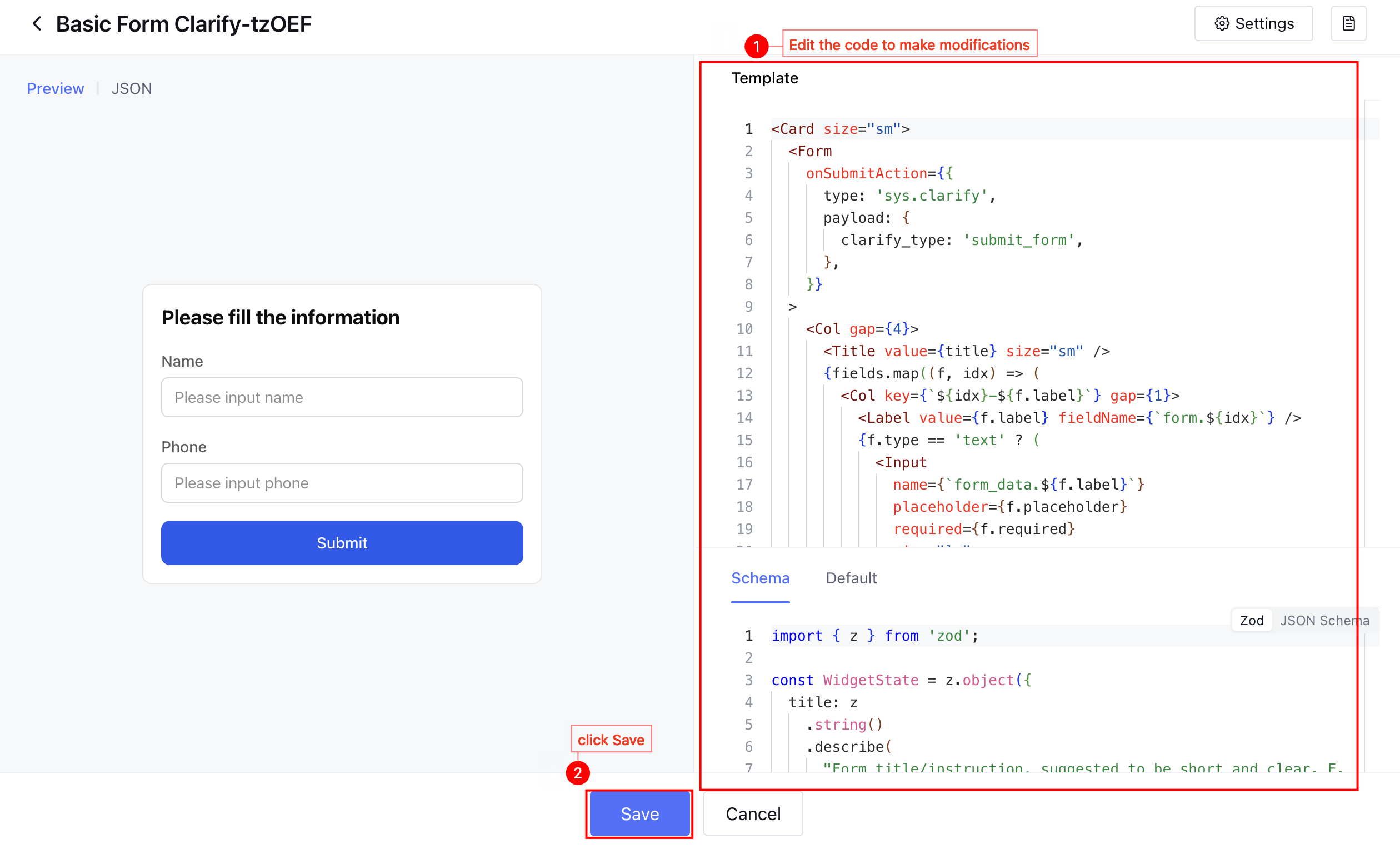
Click Edit, modify the display form of Widget by editing Template, Schema, and Default, then save again. For details on component usage and editing method, see Widget Components.


4. Save a Widget

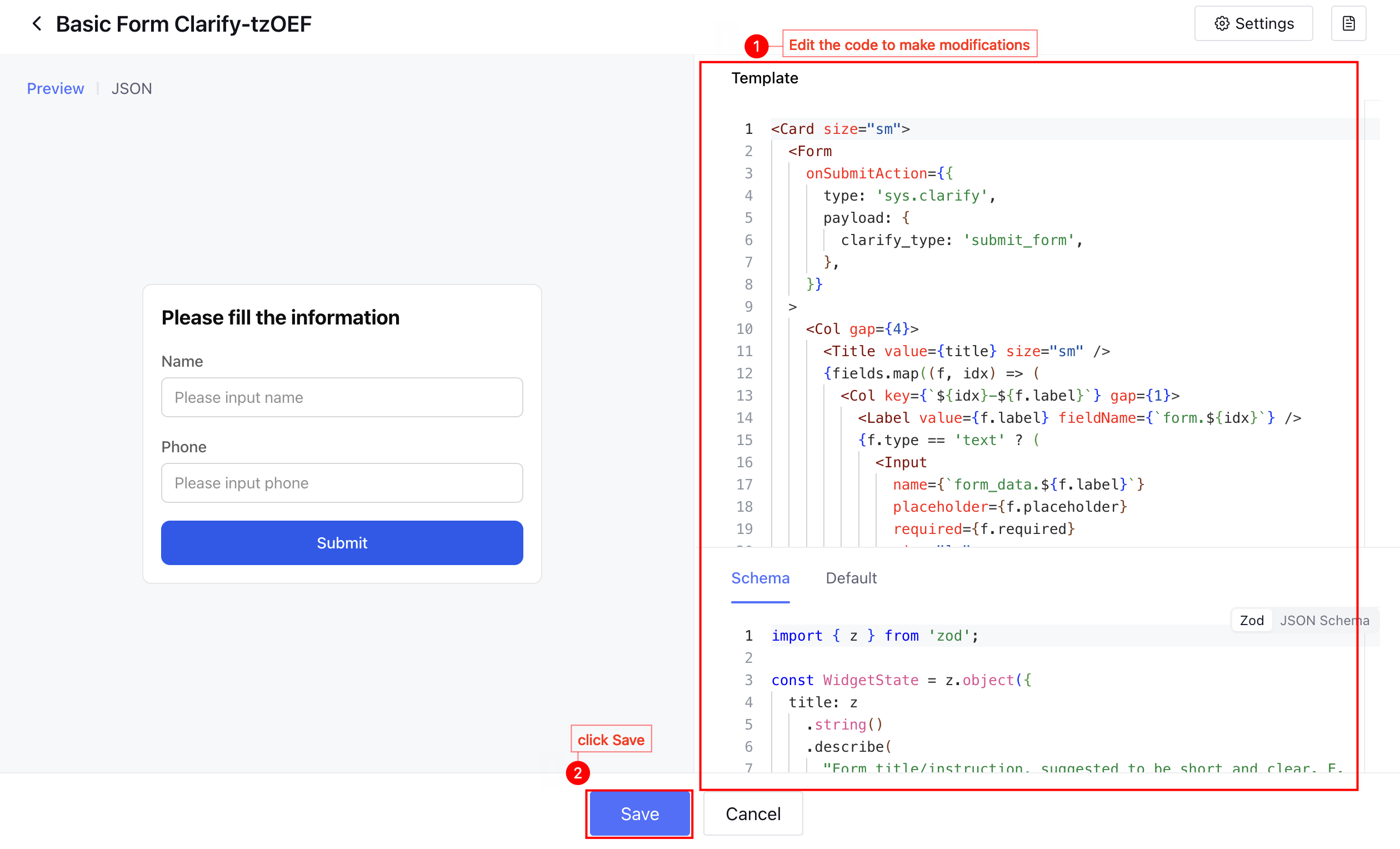
Click Confirm to complete the Widget editing.
To understand how to configure Widget within application, for details, see Configuring a Widget.


Bantuan dan Dukungan

Apakah halaman ini membantu?

masukan