tencent cloud

Tencent Cloud Agent Development Platform

Release Notes and Announcements
Release Notes
Product Announcement
Product Introduction
Product Overview
Advantages
Use Cases
Model Introduction
Purchase Guide
Package Subscription
Previous Version
Getting Started
Agent Application and Its Three Modes
Creating a "Content Summary Assistant" in Standard Mode
Creating a “Webpage Scraping Assistant” in Single Workflow Mode
Creating a “Stand-up Comedy Content Creation Assistant” in Multi-Agent Mode
Operation Guide
Application Development
Workflow
Multi-Agent
Knowledge Base
Widget
Plugin Marketplace
Model List 
Prompt Templates
Application Templates
Platform Management
Business, Workspace and Permissions
API Documentation
History
API Category
Making API Requests
Atomic Capability APIs
Operation Optimization APIs
Document Library APIs
Q&A Database APIs
Knowledge Tag APIs
Application Management APIs
Enterprise Management APIs
Billing APIs
Release Management APIs
Dialogue Endpoint APIs
Data Statistics APIs
Data Types
Error Codes
Application API Documentation
Dialogue API Overview
Dialog API Documentation (WebSocket)
Dialog API Documentation (HTTP SSE)
Image Chat or File Chat (Real-time Document Parsing + Chat)
Offline Document Upload
Tencent Cloud Agent Development Platform Operation COS Guide
ADP Document Parsing Protocol
FAQs
Product FAQs
Technical FAQs
Related Agreements
Tencent Cloud Agent Development Platform Service Level Agreement
Tencent Cloud Agent Development Platform Service Specific Terms
Tencent Cloud Agent Development Platform Privacy Policy
Tencent Cloud Agent Development Platform Data Processing and Security Agreement
Open-Source License Statement
Lighthouse OpenClaw Connector Plugin Service Agreement
Contact Us
Glossary

Code Creation

PDF
Mode fokus
Ukuran font
Terakhir diperbarui: 2026-02-03 14:31:42

Feature Overview

Code creation refers to building a Widget from scratch via writing code, suitable for scenarios where there are high customization requirements for display structure, interaction logic, and style.
This method possesses higher flexibility and controllability, suitable for users with certain frontend or Widget development experience.

Applicable Scenarios

The Widget Template provided by the platform cannot meet the utilization need.
Implement complex or highly customized show and interaction effect.
Users have certain code development skills and can create Widgets on their own.

Steps

You can refer to the following steps to generate a weather forecast Widget and proceed to create.

1. Create a Widget

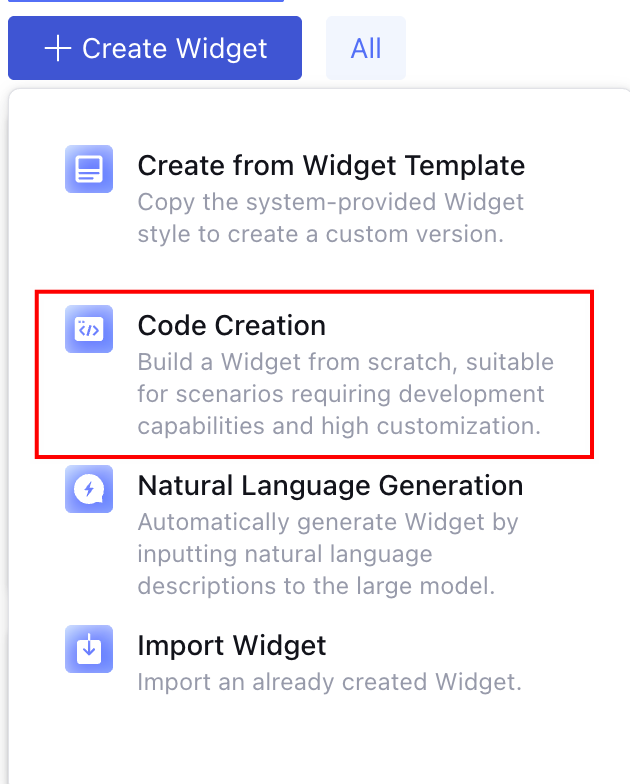
On the Widget development page, click Create Widget and select code creation.


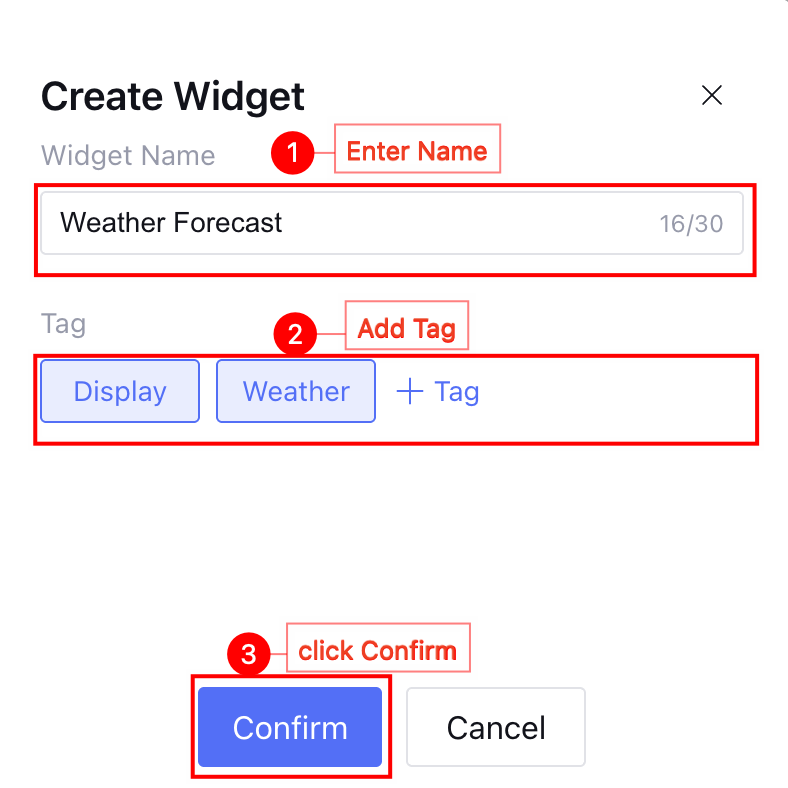
2. Fill in Basic Information

Enter Widget name: weather forecast, create tags: weather, result display, click confirm, and enter the card preview interface.


3. Edit Code

Click Edit, edit code in the Template, Schema, and Default interfaces respectively, generate the Widget, click confirm, and complete the Widget editing.
Template module: Defines the layout structure of components in the weather forecast Widget, mainly using Card, Title, Icon and other components. For specific editing methods, see Widget Components.
<Card size="sm"> {/* Create a small size card container as the main framework of the Widget */}
<Col gap={2}> {/* Vertical layout container with a child element spacing of 2 units */}
{/* Title area */}
<Title value="Tomorrow weather" size="md" /> {/* Display the Widget heading with medium font size */}
{/* Location and weather status line */}
<Row gap={2}> {/* Horizontal layout container with a child element spacing of 2 units */}
<Icon name="map-pin" size="sm" color="secondary" /> {/* Location icon, small size, secondary color */}
<Text value={city} size="sm" color="secondary" /> {/* city name, bind to city variable */}
<Spacer /> {/* Flexible blank area that pushes subsequent elements to the right */}
<Badge label={condition} color="info" /> {/* weather condition tag, bind to condition variable */}
</Row>
{/* Temperature info row */}
<Row gap={2}> {/* Horizontal layout container with a child element spacing of 2 units */}
<Text value={`Temperature ${temp}°C`} size="sm" /> {/* Current temperature, using template string to bind temp variable */}
<Spacer /> {/* Flexible blank area that pushes subsequent elements to the right */}
<Caption value={`Max ${high}°C • Min ${low}°C`} /> {/* High and low temperature, small text */}
</Row>
</Col>
<Divider /> {/* Split line, separate content areas */}
{/* Clothing advice area */}
<Col gap={1}> {/* Vertical layout container with small spacing */}
<Caption value="Clothing Advice" /> {/* Section heading */}
<Text value={advice} size="sm" color="secondary" /> {/* Clothing advice content, bound to the advice variable */}
</Col>
</Card>
JSON Schema module: Configure data format and variable type.
{
"$schema": "https://json-schema.org/draft/2020-12/schema", // Specify JSON Schema version
"type": "object", // Root data type is an object
"properties": { // Define the attribute structure of the definition object
"city": {
"type": "string" // City name, string type
},
"condition": {
"type": "string" // Weather condition, string type (for example: sunny, multi-cloud, rainy)
},
"temp": {
"type": "string" // Current temperature, string type (includes measurement unit, for example: 25°C)
},
"high": {
"type": "string" // Highest temperature, string type (includes measurement unit)
},
"low": {
"type": "string" // Lowest temperature, string type (includes measurement unit)
},
"advice": {
"type": "string" // Dressing advice, string type (suggestion based on temperature)
}
},
"required": [ // List of required fields, all fields are necessary
"city", // City name required
"condition", // Weather condition required
"temp", // Current temperature required
"high", // Highest temperature required
"low", // Lowest temperature required
"advice" // Clothing advice required
],
"additionalProperties": false // Prohibit addition of undefined additional attributes, ensure data strict
}
Default module: Fill variable data as an example.
{
city: 'Shenzhen',
condition: 'cloudy',
temp: '14',
high: '18',
low: '10',
advice: 'Wear a sweater or thick coat, carry an umbrella when going out, and pay attention to temperature changes.'
}
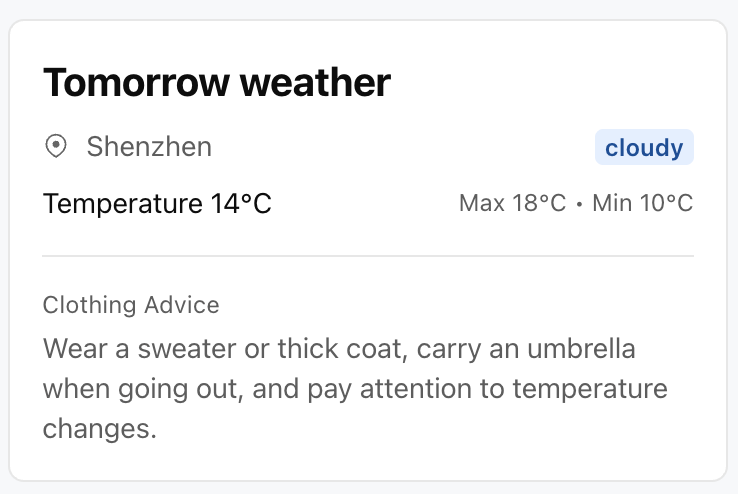
Widget effect preview as follows:


Bantuan dan Dukungan

Apakah halaman ini membantu?

masukan