Setting Static Website
Download
Mode fokus
Ukuran font
Concepts
A static website refers to a website that contains static content (such as HTML) or client-side scripts. Users can configure the static website via the COS Console for the bucket bound with custom domains.A dynamic website contains server scripts such as PHP, JSP, or ASP.NET, and needs to be processed on a server. You can host static websites on Tencent Cloud COS, but cannot write server scripts. For deployment of a dynamic website, recommended for use Cloud Virtual Machine (CVM) for server-side code deployment.
Here is an example to introduce the ability to host a static website.
A user created a bucket named examplebucket-1250000000 and uploaded the following files:
index.html404.html403.htmltest.htmldocs/a.htmlimages/
Static website
Before enabled: Access the bucket via the following default domain name. When a download prompt pops up, save the
index.html file to the local.https://examplebucket-1250000000.cos-website.ap-guangzhou.myqcloud.com/index.html
After enabled: Access the bucket via the following access node, and then you can view the content of
index.html directly in the browser.https://examplebucket-1250000000.cos-website.ap-guangzhou.myqcloud.com/index.html
Note:
For buckets created after January 1, 2024, direct access to objects through the COS default domain (including static website domain) is no longer supported. For details, see COS Bucket Domain Usage Security Management Notification (Effective January 2024). You can access objects through a custom domain name. For details, see Enable Custom Origin Site Domain.
Forced HTTPS
Before enabled: When the request source is HTTP, the access node URL keeps the HTTP unencrypted transport protocol.
https://examplebucket-1250000000.cos.ap-guangzhou.myqcloud.com/index.html
After enabled: The access node always maintains the HTTPS encrypted transport protocol regardless of whether the request source is HTTP or HTTPS.
https://examplebucket-1250000000.cos-website.ap-guangzhou.myqcloud.com
Index document
An index file, the homepage of the static website, is a page returned when the root directory or any subdirectory of a website is requested, and is usually named
index.html.
When you access a static website via a bucket access domain name, such as https://examplebucketbucket-1250000000.cos-website.ap-guangzhou.myqcloud.com, and no specific page is requested, the web server will return the homepage.When your user accesses any directory (including the root directory) in a bucket using a URL ending with
/, the index document in that directory will be matched preferentially. / is not mandatory in the root URL, so the index document is returned in response to either of the following URLs.http://www.examplebucket.com/http://www.examplebucket.com
Note:
If a folder is created in the bucket, the index file needs to be added at each level of the folder.
Error document
Assume that when you visit the following page before configuring the error document, a 404 status code is returned, and the default error information is displayed on the page.
https://examplebucket-1250000000.cos-website.ap-guangzhou.myqcloud.com/webpage.html
When you visit the following page after configuring the error document, a 404 status code is also returned, but the specific error information is displayed on the page.
https://examplebucket-1250000000.cos-website.ap-guangzhou.myqcloud.com/webpage.html
Redirection rules
Note:
To configure redirection rules for a hosted static website, the path of the replacement file should be an object path in the bucket.
Redirection rule priority is to trigger force HTTPS or prefix match redirection first, and finally trigger error code redirection.
Configure error code redirection
If the webpage.html document is set to Private Read/Write, when a user tries to access it, a 403 error is returned.
After the 403 error code is redirected to 403.html, the browser will return the content of 403.html.
If you do not configure a 403.html document, the browser will return an error document or default error message.

Configure prefix match
Note:
Prefix match does not support wildcards. If you want to redirect two folders prefixed with
index1/ and index2/, you cannot use index*/ as the match rule; instead, you should create corresponding match rules separately.When you rename the
docs/ folder to documents/, users will encounter an error when accessing the docs/ folder. So, you can redirect requests with the docs/ prefix to documents/.
When you delete the
images/ folder (i.e., all objects with the images/ prefix are removed). You can add a redirection rule to redirect any request for objects with the images/ prefix to the test.html webpage. 
Scenarios
You can set up a bucket to host a static website through the COS console, and access the static website via the bucket's static website domain.
Notes
If your static website is not external, it is recommended to set the permission of the bucket to private read/write, and achieve full-link protection of data via CDN origin authentication and CDN authentication. For details, see CDN acceleration configuration.
If you wish to make the static website accessible to everyone, set the bucket permission to public-read/private-write. However, note this may lead to misappropriated resources, so configure with caution. See anti-fraud guidelines to reduce risks of being stolen.
After enabling static website configuration and setting a custom domain, you need to use the custom domain to access the origin server for the changes to take effect. If you use the COS default domain to access, there will be no static website effect (for example, unable to present normal layout).
Prerequisites
Operation Steps
Enabling Static Website
1. Log in to the COS Console.
2. In the left sidebar, click Bucket List to go to the bucket list page.
3. Locate the bucket to be used to host a static website, click its bucket name, and enter the bucket details page.
4. In the left navigation bar, select Permission Management > Bucket Access Permissions, then choose public-read/private-write in the public permission section and save.
5. In the left sidebar, select Basic Configuration > Static Website. In the Static Website section, click Edit and toggle on the Enable button under Status.
6. Fill in the configuration items for the static website in sequence.
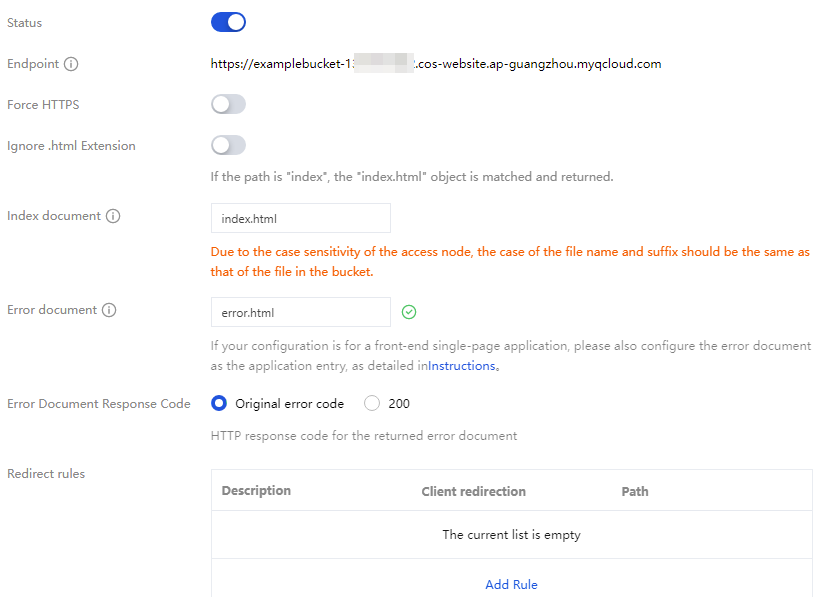
The configurations are described as follows:
Access node: When you enable static website, you will GET a static website access node (i.e., static website domain) associated with the bucket. The access node supports only GET/HEAD Object operations.
Note:
The access nodes of a static website are case sensitive. Please note that the file name and suffix English case filled in when configuring the index file, error file, and redirection rule prefix match should be consistent with the files in the bucket.
Force HTTPS (Optional): When you enable force HTTPS, the access node of the static website will forcibly use the HTTPS protocol for user access.
Note:
If you access the static website through a custom domain name while force HTTPS is enabled, confirm the custom domain name has a related certificate configured correctly. If there is a certificate anomaly, it will navigate to the default domain name.
Ignore HTML extension (optional): If the access path is index, the index.html object will be automatically matched and returned.
Index document (required): The index document is the homepage of a static website. It is the returned page when users request the root directory or any subdirectory of a website, usually named index.html.
Note:
If a folder is created in the bucket and web pages reference these folders, add an index document at each folder hierarchy level.
For COS buckets created after January 1, 2024, if you use the static website domain name to access them, the index document will not return webpage content at the time of request but will trigger a direct download.
Error document (optional): An error document refers to the page returned when an error occurs during static website access. This configuration item allows you to define your own error documents. When a static website cannot respond to a user request, it will return a specified custom error page. For example, if you configured an error document named error.html, the webpage will return error.html when a user encounters an HTTP error during access, providing help and guidance. If you have not configured an error document, the page will return the default error message when a user encounters an HTTP error at this time.
Note:
The error document configuration can support files in the root directory or subdirectories of the bucket. Use browser recognizable files like
.html or .htm. If you use a file that the browser cannot recognize, such as .zip, most browsers will display errors, be unable to access, or deny the access request.Error document response code: This item is displayed if an error document is set. You can configure the HTTP response code when the error document is returned to be the original error code or 200.
Redirection rule (optional): With redirection rules, you can conditionally redirect requests based on a specific file path, prefix in request, or response code.
For example, if you delete or rename a certain file in the bucket, you can add one redirection rule to redirect the request to access the file to other files.
Type: Refers to the original type of the redirection rule.
Error code: Currently, only
4xx error codes (such as 404) can be redirected in the redirection rules. You can optionally customize the error page. If a user triggers a corresponding HTTP error, you can provide additional guidance on this error page.Prefix matching: You can use the prefix matching rules to redirect files or folders in the bucket. For specific examples, see Redirection Rules.
Note:
Prefix match does not support wildcards. If you want to redirect two folders prefixed with `index1/` and `index2/`, you cannot use `
index*/` as the match rule. You must create the corresponding match rules separately.Description: The original error code or prefix of the redirection rule.
Rule: The replacement rule for redirection, including replace path and replace prefix.
If you choose error code as the type, the rule defaults to "replace path". Replace path means the request address will be replaced with the path of the new page when the redirection rule is triggered.
If you choose prefix as the type, the rule supports selecting "replace path" or "replace prefix".
Note:
Replace path must be the object path in bucket.
Replacement content: The file path or prefix to be replaced.
7. After the settings are completed, click Save.
Configuring Custom Domain
Buckets created after January 1, 2024 do not support preview when users access files via the default domain name (including the static website domain). Therefore, after enabling Static Website, you need to configure and use a custom domain name to preview the static website. Directions:
1. Log in to the COS Console, enter the bucket details page, select Domain and Transfer Management, then Custom Origin Server Domains.
2. In the Custom Origin Server Domains section, click Add Domain, input the custom domain name (if not, register a domain name and re-input), and set the origin server type to static website origin server. For details about configuration items, please refer to Enable Custom Origin Site Domain.
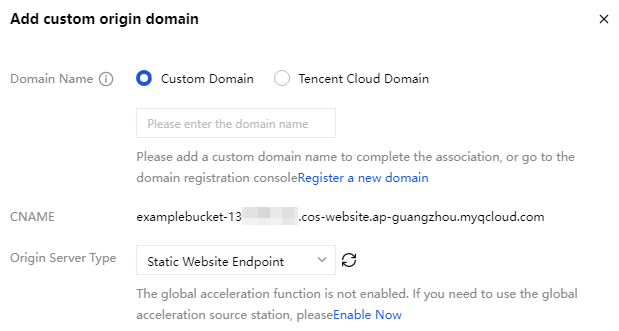
3. To make the custom domain name take effect, you need to configure custom DNS parsing to the static website CNAME domain. If HTTPS access is required, you need to bind an HTTPS certificate. For more information, see Configure Domain Name Resolution and Bind Certificate.
Bantuan dan Dukungan
Apakah halaman ini membantu?
Anda juga dapat Menghubungi Penjualan atau Mengirimkan Tiket untuk meminta bantuan.
masukan