tencent cloud

Cloud Object Storage

Release Notes and Announcements
Release Notes
Announcements
Product Introduction
Overview
Features
Use Cases
Strengths
Concepts
Regions and Access Endpoints
Specifications and Limits
Service Regions and Service Providers
Billing
Billing Overview
Billing Method
Billable Items
Free Tier
Billing Examples
Viewing and Downloading Bill
Payment Overdue
FAQs
Getting Started
Console
Getting Started with COSBrowser
User Guide
Creating Request
Bucket
Object
Data Management
Batch Operation
Global Acceleration
Monitoring and Alarms
Operations Center
Data Processing
Content Moderation
Smart Toolbox
Data Processing Workflow
Application Integration
User Tools
Tool Overview
Installation and Configuration of Environment
COSBrowser
COSCLI (Beta)
COSCMD
COS Migration
FTP Server
Hadoop
COSDistCp
HDFS TO COS
GooseFS-Lite
Online Tools
Diagnostic Tool
Use Cases
Overview
Access Control and Permission Management
Performance Optimization
Accessing COS with AWS S3 SDK
Data Disaster Recovery and Backup
Domain Name Management Practice
Image Processing
Audio/Video Practices
Workflow
Direct Data Upload
Content Moderation
Data Security
Data Verification
Big Data Practice
COS Cost Optimization Solutions
Using COS in the Third-party Applications
Migration Guide
Migrating Local Data to COS
Migrating Data from Third-Party Cloud Storage Service to COS
Migrating Data from URL to COS
Migrating Data Within COS
Migrating Data Between HDFS and COS
Data Lake Storage
Cloud Native Datalake Storage
Metadata Accelerator
GooseFS
Data Processing
Data Processing Overview
Image Processing
Media Processing
Content Moderation
File Processing Service
File Preview
Troubleshooting
Obtaining RequestId
Slow Upload over Public Network
403 Error for COS Access
Resource Access Error
POST Object Common Exceptions
API Documentation
Introduction
Common Request Headers
Common Response Headers
Error Codes
Request Signature
Action List
Service APIs
Bucket APIs
Object APIs
Batch Operation APIs
Data Processing APIs
Job and Workflow
Content Moderation APIs
Cloud Antivirus API
SDK Documentation
SDK Overview
Preparations
Android SDK
C SDK
C++ SDK
.NET(C#) SDK
Flutter SDK
Go SDK
iOS SDK
Java SDK
JavaScript SDK
Node.js SDK
PHP SDK
Python SDK
React Native SDK
Mini Program SDK
Error Codes
Harmony SDK
Endpoint SDK Quality Optimization
Security and Compliance
Data Disaster Recovery
Data Security
Cloud Access Management
FAQs
Popular Questions
General
Billing
Domain Name Compliance Issues
Bucket Configuration
Domain Names and CDN
Object Operations
Logging and Monitoring
Permission Management
Data Processing
Data Security
Pre-signed URL Issues
SDKs
Tools
APIs
Agreements
Service Level Agreement
Privacy Policy
Data Processing And Security Agreement
Contact Us
Glossary

403 Error for COS Access

PDF
Mode fokus
Ukuran font
Terakhir diperbarui: 2025-11-07 11:58:54

Problem

Error code 403 is returned when you use the APIs or SDKs of COS to upload/download files.
Error code 403 is returned when you access COS resources by using a sub-account or temporary key.
Error code 403 is returned when you modify the bucket configuration.

Analysis

When the error code 403 appears in the COS request, you can refer to the following procedures to analyze the cause of the problem:
1. Check whether the request is a CORS request. For failed cross-origin requests, COS will return "AccessForbidden".
2. Check whether the request hits the bucket's referer hotlink protection configuration. For the error code 403 caused by the hotlink protection rule, COS will return "You are denied by bucket referer rule".
3. Check whether the request is anonymous. For unsigned requests to a non-publicly readable object, COS will return "Access Denied." To set a bucket or object publicly readable, see Setting Access Permission or Setting Object Access Permission.
4. Check whether the request key and signature are correct.
4.1 If the signature uses an incorrect SecretId, COS will return "InvalidAccessKeyId".
4.2 If the local system time is inaccurate, or the request time is after the validity period of the signature, COS will return "RequestTimeTooSkewed" or "Request has expired".
4.3 If there is a problem with the calculation method of the signature, COS will return "SignatureDoesNotMatch".
5. Check whether the sub-account or temporary key that initiated the request has been granted corresponding access permission.
5.1 Check the access permission of the sub-account. For requests from sub-accounts without resource access permissions, COS will return "Access Denied.".
5.2 For requests initiated with a temporary key, the policy entered when the temporary key was applied for limits the scope of accessible resources. For more information, see Generating and Using Temporary Keys.
6. Check whether the requested object is stored in ARCHIVE or DEEP ARCHIVE storage class. For such requests, COS will return "InvalidObjectState".

Troubleshooting

Message: "Access Denied."

If the following message is displayed when you access COS:
<Code>AccessDenied</Code>
<Message>Access Denied.</Message>
You can:
1. Log in to the COS console.
2. Click Bucket List on the left sidebar.
3. Click the name of the target bucket to enter the configuration page.
4. Click Permission Management > Bucket ACL (Access Control List) on the left sidebar.
5. In the Bucket ACL (Access Control List) section, check whether the COS account is granted access permission.
If so, proceed to the next step.
If not, click Add User and grant the account the needed permission.
6. Verify whether the account has the granted permission.
If so, proceed to the next step.
If not, click Edit to configure again.
7. In the Permission Policy Settings section, check whether a policy has been configured for the account.
Note:
If the bucket is set to Private Read/Write but anonymous access is set in the policy, the permission set in the policy takes effect.
If an action is set to Allow and Deny in different policies associated with the same sub-account, the action will be denied.
Policies set for Everyone have lower priorities than those set for a Specified user.
If so, proceed to the next step.
If not, click Add Policy and add the needed permission to the sub-account that initiates the signed request.
8. Verify whether the account has the granted permission.
If so, proceed to the next step.
If not, click Edit to configure again.
9. Check whether the value of q-ak (case-sensitive) is the secretID and secretKey of the root account of the bucket.
If so, proceed to the next step.
If not, change the value of q-ak to the secretID and secretKey of the root account.
10. Check whether the resource is accessed cross accounts.
If so, grant the account the needed permission as instructed in Authorizing Cross-Account's Sub-account Read/Write Access to Specified File.
If not, contact us.

Message: "AccessForbidden"

If the following message is displayed when you access COS:
<Code>AccessDenied</Code>
<Message>AccessForbidden</Message>
You can:
1. Log in to the COS console.
2. Click Bucket List on the left sidebar.
3. Click the name of the target bucket to enter the configuration page.
4. Click Security Management > CORS (Cross-Origin Resource Sharing) on the left sidebar.
5. In the CORS (Cross-Origin Resource Sharing) section, check whether the request is across origins.
If so, proceed to the next step.
If not, modify the rule.
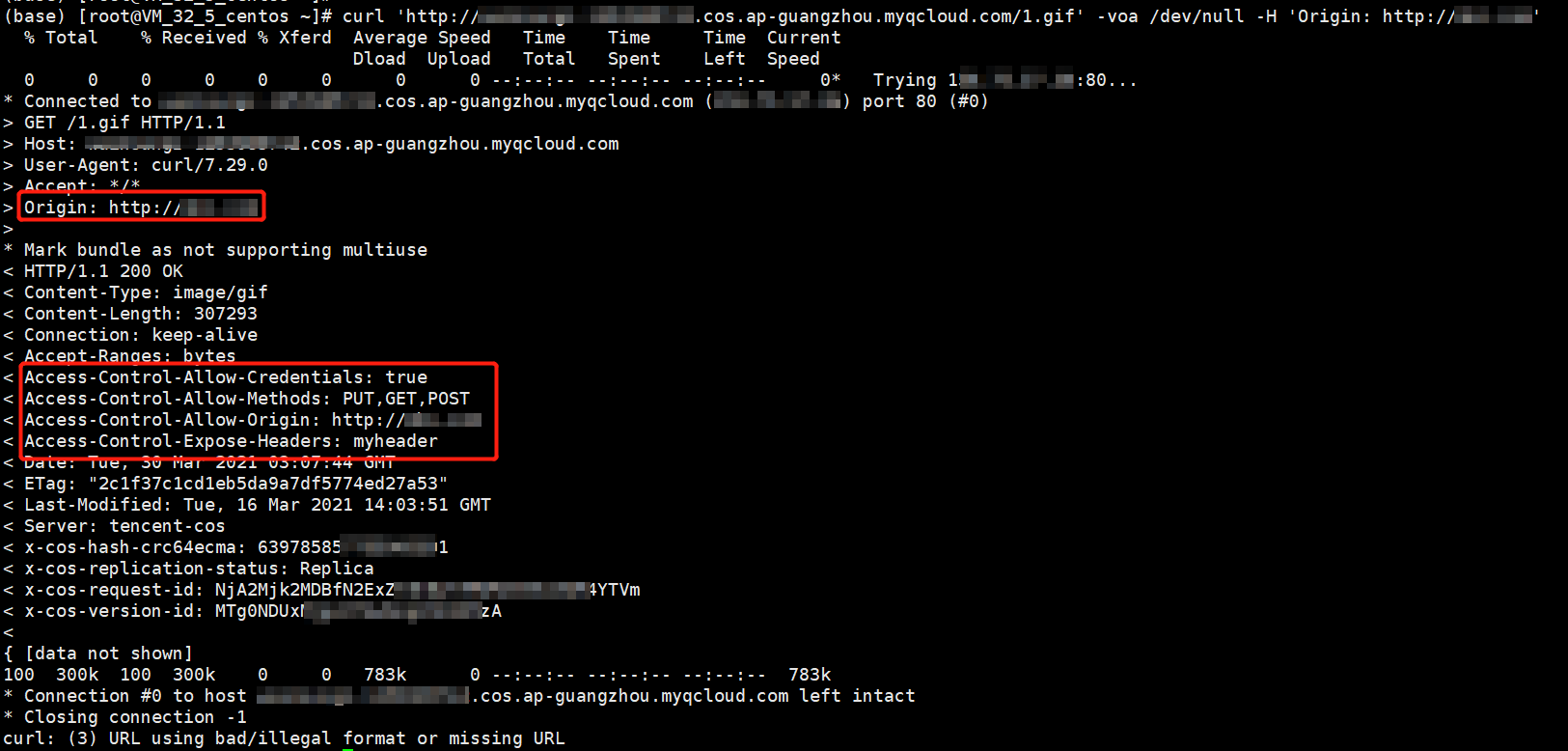
6. Run the following command to check whether the cross-origin request is correctly configured:
curl 'http://bucket-appid.cos.ap-guangzhou.myqcloud.com/object' -voa /dev/null -H 'Origin: Origin set in the CORS configuration'
If the following message is displayed, the configuration is correct:


Message: "You are denied by bucket referer rule"

If the following message is displayed when you access COS:
<Code>AccessDenied</Code>
<Message>You are denied by bucket referer rule</Message>
You can:
1. Log in to the COS console.
2. Click Bucket List on the left sidebar.
3. Click the name of the target bucket to enter the configuration page.
4. Click Security Management > Hotlink Protection on the left sidebar.
5. In the Hotlink Protection section, check whether hotlink protection is configured.
If so, proceed to the next step.
If not, contact us.
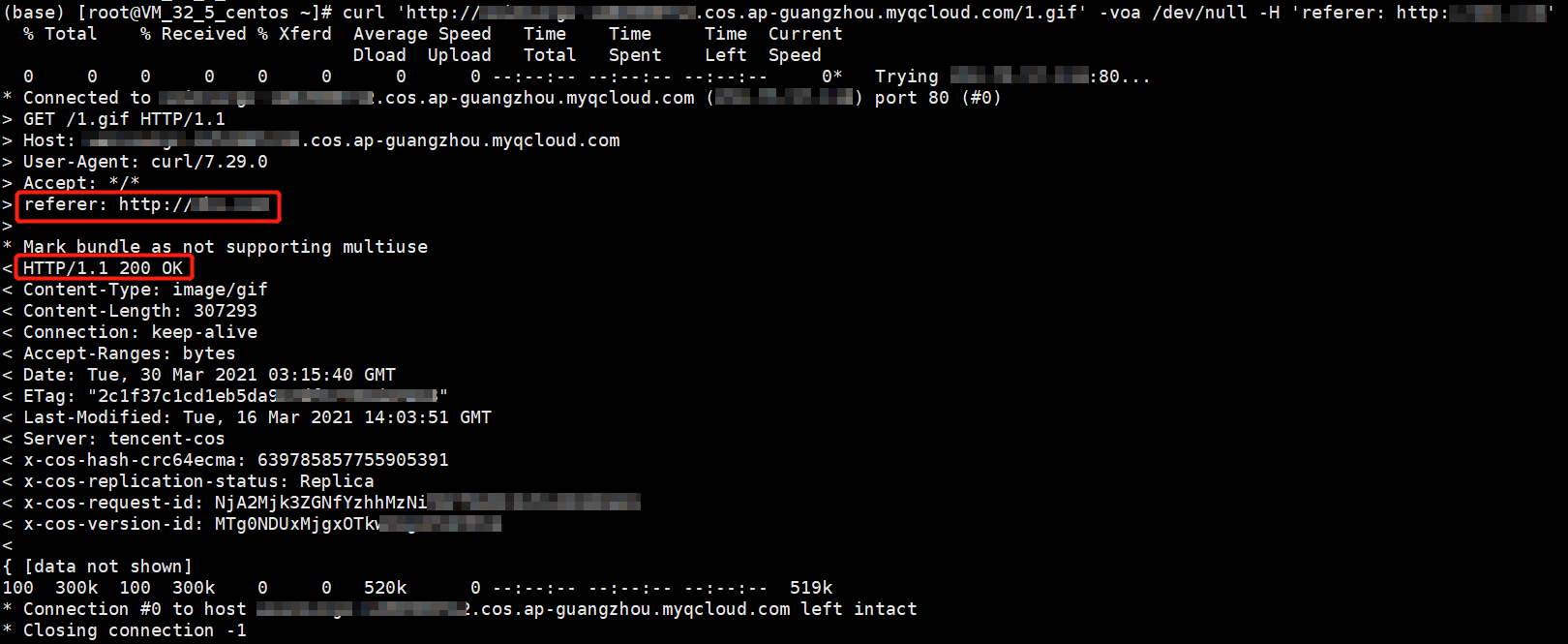
6. Run the following command to check whether hotlink protection is correctly configured:
curl 'http://bucket-appid.cos.ap-guangzhou.myqcloud.com/object' -voa /dev/null -H 'referer: Referer value'
If the following message is displayed, the configuration is correct:


Message: "InvalidAccessKeyId"

If the following message is displayed when you access COS:

<Code>AccessDenied</Code>
<Message>InvalidAccessKeyId</Message>
You can:
1. Check whether the q-ak value of Authorization in the request signature is correct.
If so, proceed to the next step.
If not, modify the value of q-ak (case-sensitive), which should be the same as SecretId of the key.
2. Go to the Manage API Key page to check whether the API key is enabled.
If so, contact us.
If not, enable the API key.

Message: "InvalidObjectState"

If the following message is displayed when you access COS:
<Code>AccessDenied</Code>
<Message>InvalidObjectState</Message>
You can:
Check whether the requested object is stored in ARCHIVE or DEEP ARCHIVE storage class.
If so, restore the object first. For more information, see POST Object restore.
If not, contact us.

Message: "RequestTimeTooSkewed"

If the following message is displayed when you access COS:
<Code>AccessDenied</Code>
<Message>RequestTimeTooSkewed</Message>
You can:
1. Check the client-side time based on the OS as follows:
Windows (with Windows Server 2012 as an example): Click

> Control Panel > Clock, Language, and Region > Set the time and date.
Linux: Run the date -R command.


2. Check whether the clock skew between the client and server is larger than 15 minutes.
If so, sync the clock.
If not, contact us.

Message: "Request has expired"

If the following message is displayed when you access COS:
<Code>AccessDenied</Code>
<Message>Request has expired</Message>
Possible causes are as follows:
The signature has expired when you initiate the request.
Your local system time is out of sync with the local time in your time zone.
You need to set the effective time of your signature again or sync the local system time. If the problem persists, contact us.

Message: "SignatureDoesNotMatch"

If the following message is displayed when you access COS:
<Code>AccessDenied</Code>
<Message>SignatureDoesNotMatch</Message>
You can:
Check whether the signature calculated on the client is the same as that calculated on the server.
If so, contact us.
If not, see Request Signature and use COS' signature tool to check how the signature is generated.

Bantuan dan Dukungan

Apakah halaman ini membantu?

masukan