Data export to ES is a data export solution provided by COS based on SCF. It can help you export data in CSV, JSON, and other formats to the ES service in the same region for quick setup of log analysis and exception monitoring use cases.
Notes
Data export to ES involves COS' data extraction APIs. For more information on the restrictions, see SELECT Overview.
If you have added a rule of data export to ES to your bucket in the COS console, the export function will appear in the SCF console. Do not delete or modify the function; otherwise, your rule may not take effect.
Currently, the data export to ES feature is only supported in Guangzhou, Shanghai, Beijing, and Chengdu regions.
The data export to ES feature depends on the SCF service, which provides a free tier. Excessive usage will be billed at SCF prices. For more information, see Pricing.
2. On the left sidebar, click App Integration > Data Export and find Data Export to ES.
3. Click Configure Rule to enter the rule configuration page.
4. Click Add Function.
Note:
If you haven't activated SCF, go to the SCF console to activate it and authorize the service as instructed.
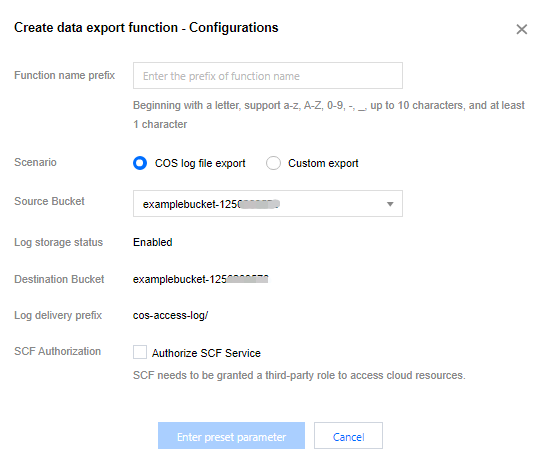
5. In the pop-up window, configure the following information:
Function name prefix: It uniquely identifies a function and cannot be modified after being set. You can view the function in the SCF console.
Scenario: Select the log source from which you want to export data. We recommend you select COS log file export.
Source bucket: It is the name of the bucket where the logs are stored. If you select COS log file export, you need to enable the COS log storage feature first.
SCF authorization: This authorization is required, because data export to ES requires you to authorize SCF to read logs from your bucket.
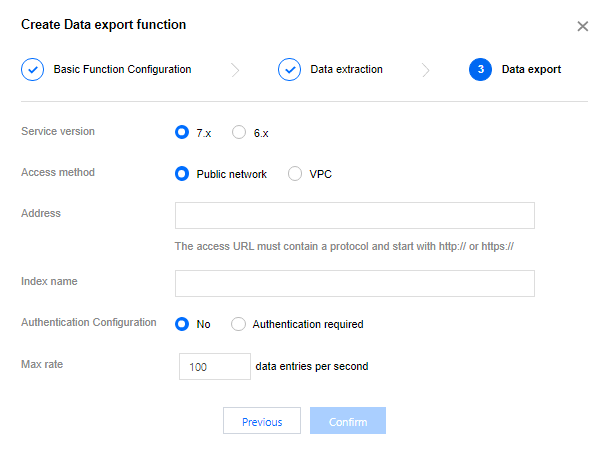
6. Click Enter preset parameter to set the data export to ES configuration items as follows:
Service version: Select the ES version, which can be 7.x or 6.x.
Access method: Select the ES access method. If you select VPC, you need to enter the VPC information.
Address: Enter the ES access address, which must start with http:// or https://.
Index name: Enter the name of the ES search index you created.
Authentication configuration: Select your ES authentication method. Currently, you can only select Authentication required for ES, and you need to enter the corresponding username and password.
Max rate: Set the rate cap for exporting data to ES.
7. If you want to personalize log data extraction, click Previous to configure options. Generally, we recommend you directly click Confirm to add the function.
You can perform the following operations on the created function:
Click Log to view the historical running status of data export to ES. If an error is reported, you can click Log to quickly redirect to the SCF console to view its details.
Click Details to view the detailed configuration of the function.
Click Edit to modify a rule of data export to ES.
Click Trigger and select an existing log in the bucket to directly trigger the export to ES.
Click Delete to delete an unwanted rule of data export to ES.