tencent cloud

Cloud Object Storage

Release Notes and Announcements
Release Notes
Announcements
Product Introduction
Overview
Features
Use Cases
Strengths
Concepts
Regions and Access Endpoints
Specifications and Limits
Service Regions and Service Providers
Billing
Billing Overview
Billing Method
Billable Items
Free Tier
Billing Examples
Viewing and Downloading Bill
Payment Overdue
FAQs
Getting Started
Console
Getting Started with COSBrowser
User Guide
Creating Request
Bucket
Object
Data Management
Batch Operation
Global Acceleration
Monitoring and Alarms
Operations Center
Data Processing
Content Moderation
Smart Toolbox
Data Processing Workflow
Application Integration
User Tools
Tool Overview
Installation and Configuration of Environment
COSBrowser
COSCLI (Beta)
COSCMD
COS Migration
FTP Server
Hadoop
COSDistCp
HDFS TO COS
GooseFS-Lite
Online Tools
Diagnostic Tool
Use Cases
Overview
Access Control and Permission Management
Performance Optimization
Accessing COS with AWS S3 SDK
Data Disaster Recovery and Backup
Domain Name Management Practice
Image Processing
Audio/Video Practices
Workflow
Direct Data Upload
Content Moderation
Data Security
Data Verification
Big Data Practice
COS Cost Optimization Solutions
Using COS in the Third-party Applications
Migration Guide
Migrating Local Data to COS
Migrating Data from Third-Party Cloud Storage Service to COS
Migrating Data from URL to COS
Migrating Data Within COS
Migrating Data Between HDFS and COS
Data Lake Storage
Cloud Native Datalake Storage
Metadata Accelerator
GooseFS
Data Processing
Data Processing Overview
Image Processing
Media Processing
Content Moderation
File Processing Service
File Preview
Troubleshooting
Obtaining RequestId
Slow Upload over Public Network
403 Error for COS Access
Resource Access Error
POST Object Common Exceptions
API Documentation
Introduction
Common Request Headers
Common Response Headers
Error Codes
Request Signature
Action List
Service APIs
Bucket APIs
Object APIs
Batch Operation APIs
Data Processing APIs
Job and Workflow
Content Moderation APIs
Cloud Antivirus API
SDK Documentation
SDK Overview
Preparations
Android SDK
C SDK
C++ SDK
.NET(C#) SDK
Flutter SDK
Go SDK
iOS SDK
Java SDK
JavaScript SDK
Node.js SDK
PHP SDK
Python SDK
React Native SDK
Mini Program SDK
Error Codes
Harmony SDK
Endpoint SDK Quality Optimization
Security and Compliance
Data Disaster Recovery
Data Security
Cloud Access Management
FAQs
Popular Questions
General
Billing
Domain Name Compliance Issues
Bucket Configuration
Domain Names and CDN
Object Operations
Logging and Monitoring
Permission Management
Data Processing
Data Security
Pre-signed URL Issues
SDKs
Tools
APIs
Agreements
Service Level Agreement
Privacy Policy
Data Processing And Security Agreement
Contact Us
Glossary
DokumentasiCloud Object StorageUse CasesData SecurityPractice for Auditing COS Bucket Encryption Configuration Using Custom SCF Functions

Practice for Auditing COS Bucket Encryption Configuration Using Custom SCF Functions

PDF
Mode fokus
Ukuran font
Terakhir diperbarui: 2026-01-14 14:11:04

Introduction

You can use custom SCF functions to configure inspection of COS bucket encryption. After successful configuration, your bucket can achieve audit and governance. To learn more, see Config.

Preparations

Operation Steps

Step 1: Create SCF

1. Log in to the SCF console, click Function Service in the left sidebar, and go to the function list page.
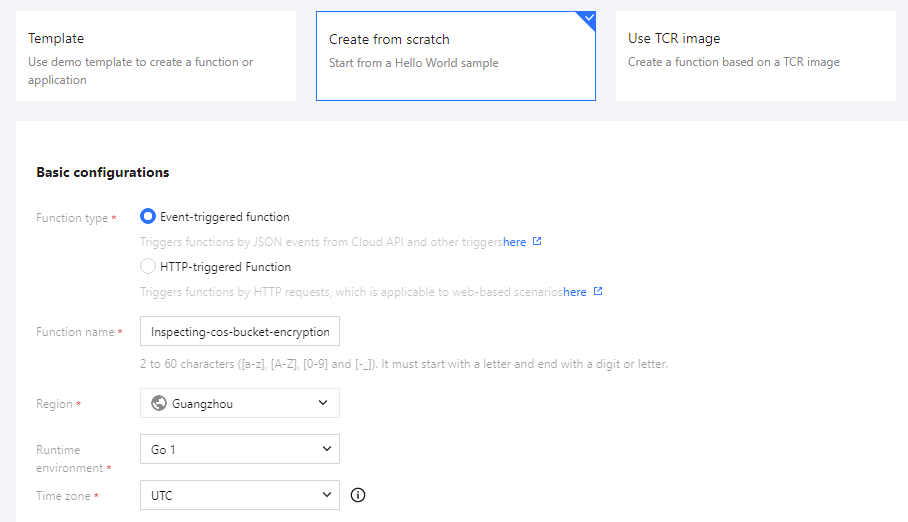
2. Create SCF. Click New to create SCF. Configure the following options:
Select template: choose the template type from scratch.
Basic Configuration:
Function type: select Event Function.
Function name: You can use the default function name or a custom function name.
Region: select the bucket region. The following uses Guangzhou as an example for explanation.
Runtime environment: select Go 1.
Timezone: Use the default setting UTC.

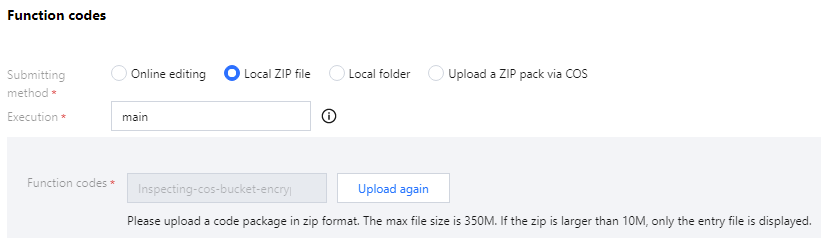
Function code:
Submission method: select local upload zip package and upload the zip package downloaded during the preparation work.
Execution method: Use the default setting main.

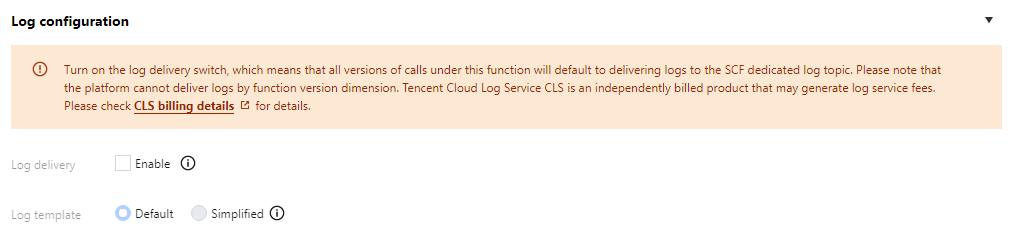
Log configuration: No setup required.


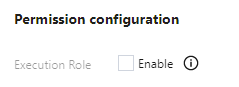
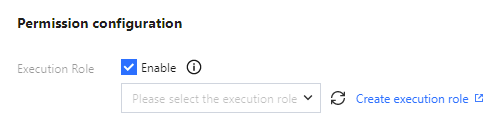
Advanced Configuration: Click the Advanced Configuration option and expand the configuration details. In the Permission Configuration, click Enable the role for runtime.

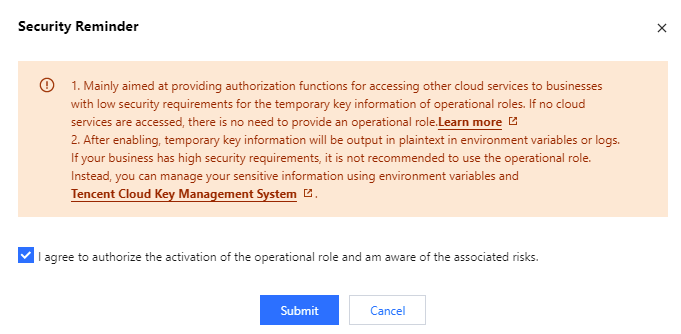
3. Agree and authorize, and Submit.

4. Click Create New Runtime Role.


Step 2: Create Custom Role

1. Log in to the CAM console, choose Role > Create Role > Tencent Cloud Product Service. On the New Custom Role page, search for and select Cloud Function (scf) in the product services, then click Next.

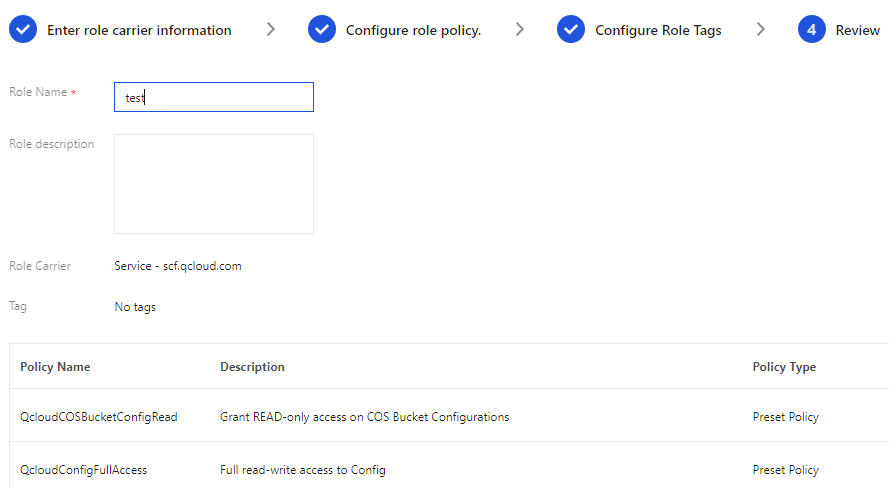
2. In the policy list, search for the QcloudCOSBucketConfigRead policy and the QcloudConfigFullAccess policy and select them. When done, click Next.

3. You can choose whether to configure role tags based on the actual situation. This step is optional. After completion, click Next.
4. On the Review page, set the role name and click Complete. At this point, all operations for creating a new custom role have been completed.

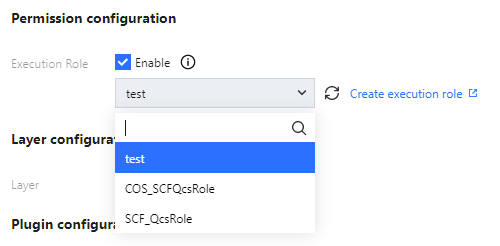
5. Return to the SCF creation page. In the runtime role section under permission configuration, refresh the runtime roles and select the previously created role.

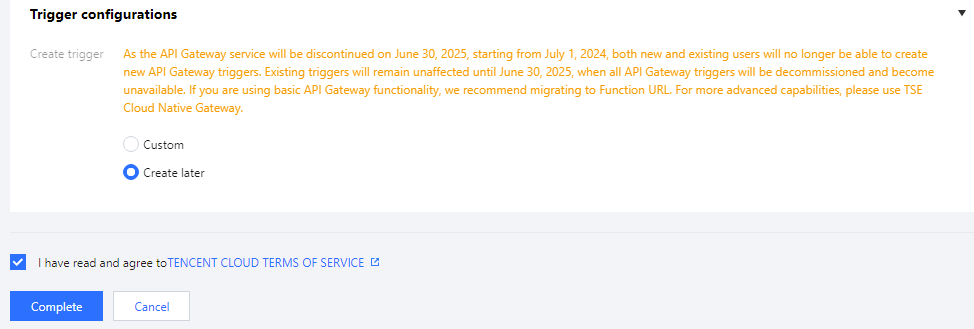
6. Check the service agreement box. After completing the above configurations, check the agreement box. Click Complete, and the SCF has been successfully created.


Step 3: Create a New Custom Rule

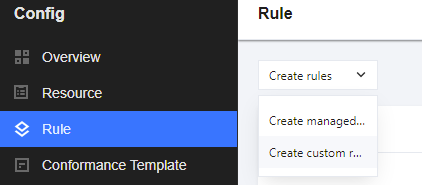
1. In the Config console, navigate to the Rules page. Choose New Rule > New Custom Rule to go to the rule configuration page.

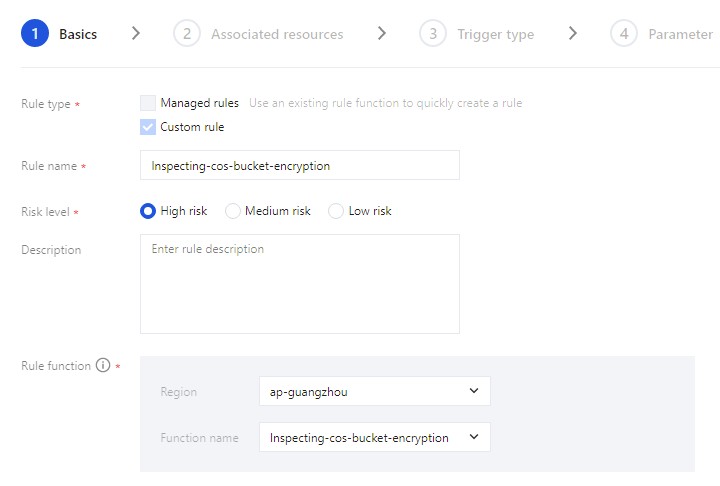
2. On the Basic Attributes page in the custom rule configuration, configure the basic information, select the newly deployed cloud function (SCF), and click Next.

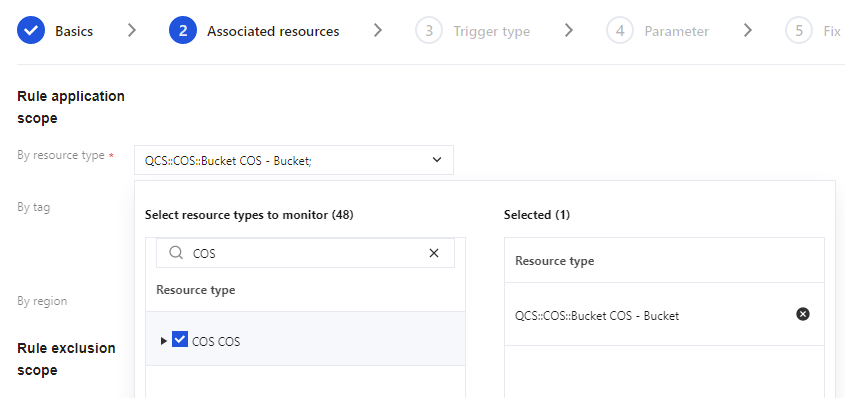
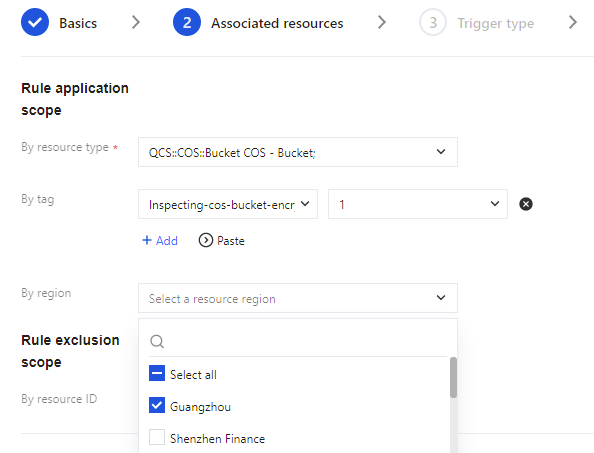
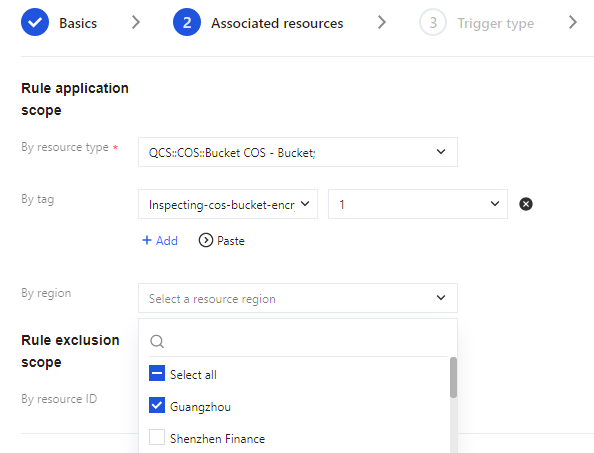
3. On the Associated Resources page, select COS Object Storage by resource type.

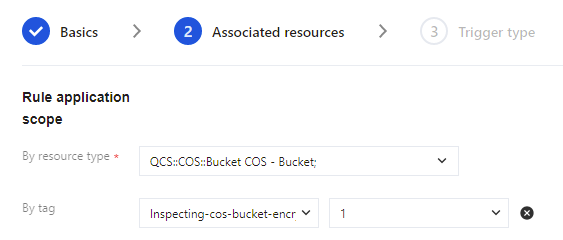
By Tag. If you need to inspect buckets with specific tags, you can set tags for the buckets to be inspected on the Bucket List Page in the COS console.
Go to the bucket list page.

Set the tags for the bucket.

Select the corresponding Tag to complete the operation.

By Region. If you need to inspect buckets in specific regions, configure this field. For example: to inspect buckets in the Guangzhou region, select Guangzhou from the By Region drop-down menu.

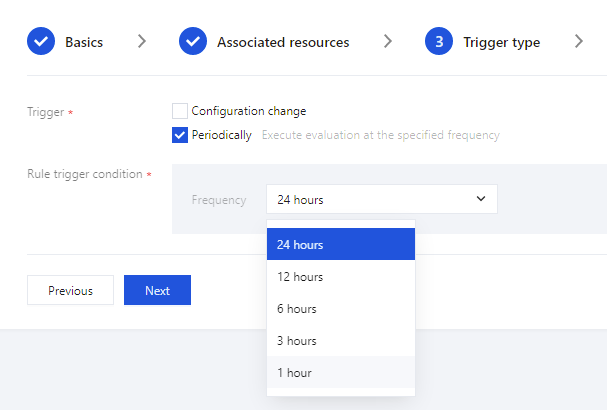
4. After completing the configuration in the previous step, click Next, to go to Trigger Mechanism:
Rule Trigger Mechanism: Select Periodic Execution.
Rule Trigger Condition: Select based on actual conditions. The minimum selectable interval is 1 hour.

5. Parameter Settings: No configuration required, skip.
6. Preview and Save: No configuration required, simply click Confirm. Now, the custom rule has been successfully created.

Step 5: Set Up Delivery Service

1. In the Config console, click Settings > Delivery Service. Once enabled, the results of configuration inspections will be delivered to CLS.
Note:
If you have not enabled the Config service yet, please activate it by following the prompts.
Currently, the delivery of inspection results is only supported at 00:15 daily.
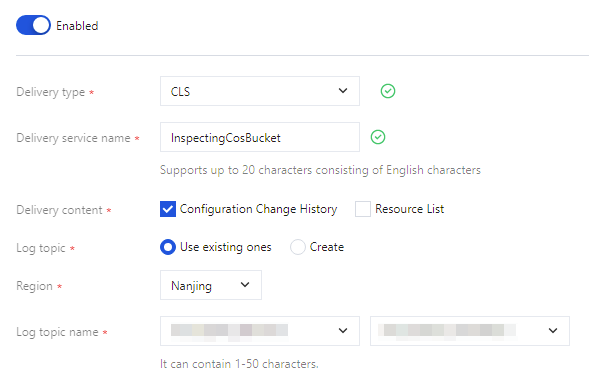
2. Detailed configuration is as follows:
Delivery Type Selection: Select Log Service (CLS).
Delivery Service Name: Customize as needed.
Delivery Content: Select Configuration Change History.
log topic: Select Use Existing or create new, both are acceptable. The following section will use 'Use Existing' as an example for explanation.
Region: Select the region where the log topic is located.
log topic name: Configure the name of the log topic as needed.

At this point, you have completed all configurations.
3. In the Config console, click Rules to view the inspection results.

Bantuan dan Dukungan

Apakah halaman ini membantu?

masukan