You can obtain statistics for a folder (directory) via the COS console, including the total number of objects and the total size of objects in the current folder. For details about folders and directories, see folder and directory.
Note
Object storage stores objects in a flat structure without the concept of folders. To maintain user habits, it implements "folders" by naming objects with a "/" suffix in the object key. In fact, a "folder" in object storage is an object with a storage size of 0KB.
Metadata Acceleration Bucket currently only supports statistics for folders (directories) with fewer than 100,000 files. If the number of files exceeds 100,000, it is recommended to use HDFS du command or API inventory statistics.
If you have enabled versioning, the statistics will only be calculated for the current version and will not include historical versions or delete markers. For more details, see Versioning Overview.
COS charges for List Objects and inventory on demand: List Objects request fees are incurred when using List statistics, while inventory feature fees are incurred when using inventory statistics. For details, see Product Pricing.
When a folder (directory) contains a large number of objects, the statistics process may take some time. Please wait patiently.
2. In the left sidebar, click Bucket List to go to the bucket list page.
3. Locate the bucket where the folder resides, click its bucket name to go to the bucket management page.
4. In the left sidebar, select File List to go to the file list page.
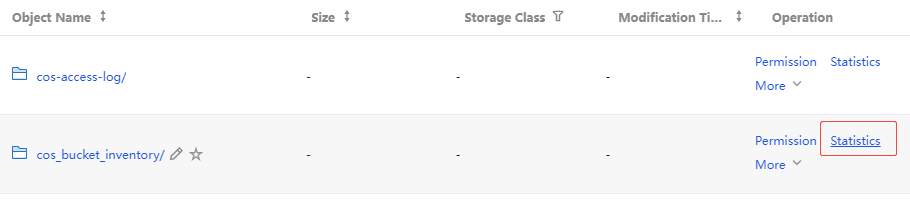
5. Locate the target folder, then click Statistics in the right-hand Operation column, or hover over the Size column and click Statistics.
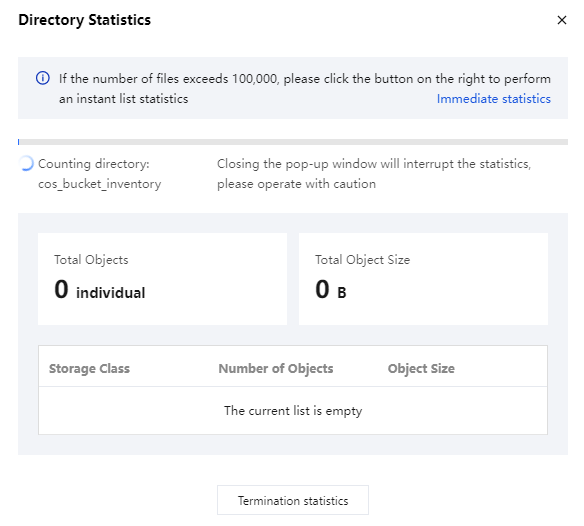
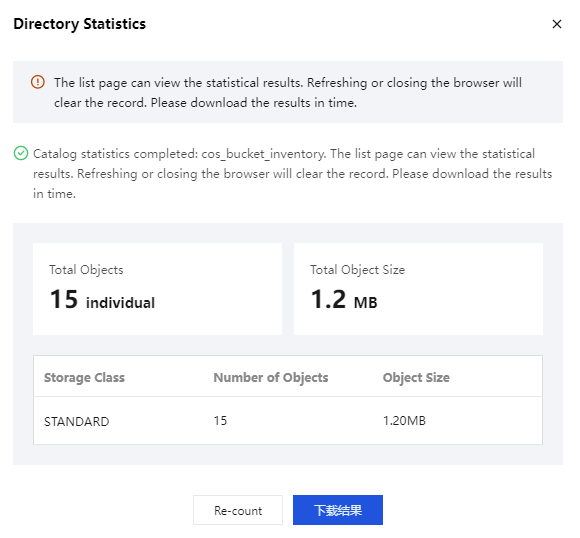
6. In the pop-up window, you can view the statistics of the folder, including the total number of objects and the total size of objects.
Note:
Do not close the pop-up window during the List Objects statistics process, otherwise the statistics will be aborted.
7. If the number of files exceeds 100,000, a pop-up will prompt you to perform inventory statistics. Click Use Real-time Inventory to proceed. If the number of files is less than 100,000, you can directly view and download the results after statistics are completed. For operational steps, skip directly to Statistical Results.
8. After the real-time inventory is clicked to use, go to the real-time inventory statistics configuration pop-up. Configure the "Filter Storage Type" configuration item as needed. After configuration, click Start Statistics to perform inventory statistics. For more information on inventory, see Inventory Feature Overview.
9. Inventory statistics can be paused by closing the pop-up window for later viewing. However, do not switch or refresh the file list page, otherwise the statistics status will no longer be displayed directly in the list. If you switch or refresh, manually go to the inventory report storage path to view the results.
Note:
Supports simultaneous statistics for up to 3 directories.
If it is List Objects statistics, the results can be viewed or downloaded through the following two methods.
Note:
After the statistics are completed, do not refresh or close the browser, otherwise the records will be cleared. Please download the results promptly.
1. View in the statistics pop-up window: After statistics are completed, you can directly view or download the statistical results in the pop-up window, including the total number of objects and the total size of objects.
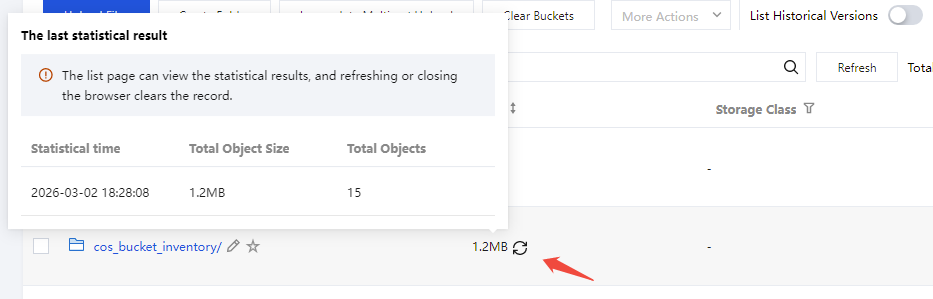
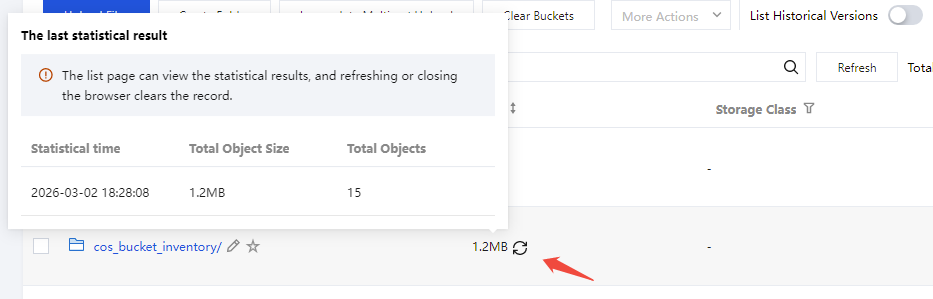
2. View in the size column of the file list page: After the statistics are completed, you can close the pop-up window and return to the file list page. In the size column, you can view the total size of objects. Hover the mouse over this result to further view the total number of objects and the statistics time.
Inventory Statistics Results
If it is inventory statistics, the results can be viewed or downloaded through the following two methods.
Note:
After the statistics are completed, do not refresh or close the browser, otherwise the records will be cleared. Please download the results promptly.
1. View in the statistics pop-up window: After statistics are completed, you can directly view or download the statistical results in the pop-up window, including the total number of objects and the total size of objects.
2. View in the size column of the file list page: After the statistics are completed, you can close the pop-up window and return to the file list page. In the size column, you can view the total size of objects. Hovering the mouse over this result allows you to further view the total number of objects and the statistics time.