Allocate Voucher Amount
Download
フォーカスモード
フォントサイズ
Scenario
Distributors need to bear the cost of the vouchers issued by second-level resellers to their end customers. Customer vouchers are used to offset end customers' expenses in the bills.
Distributors should allocate the voucher quota to second-level resellers in advance. The total voucher amount issued by a second-level reseller to end customers should not exceed this quota.
This document describes how distributors manage the voucher quotas that second-level resellers are allowed to issue.
Applicable Scope
This document is applicable to distributors.
Prerequisites
A distributor has the distributor identity.
Operation Steps
1. Log in to Tencent Cloud with your distributor account and enter the Partner Center.
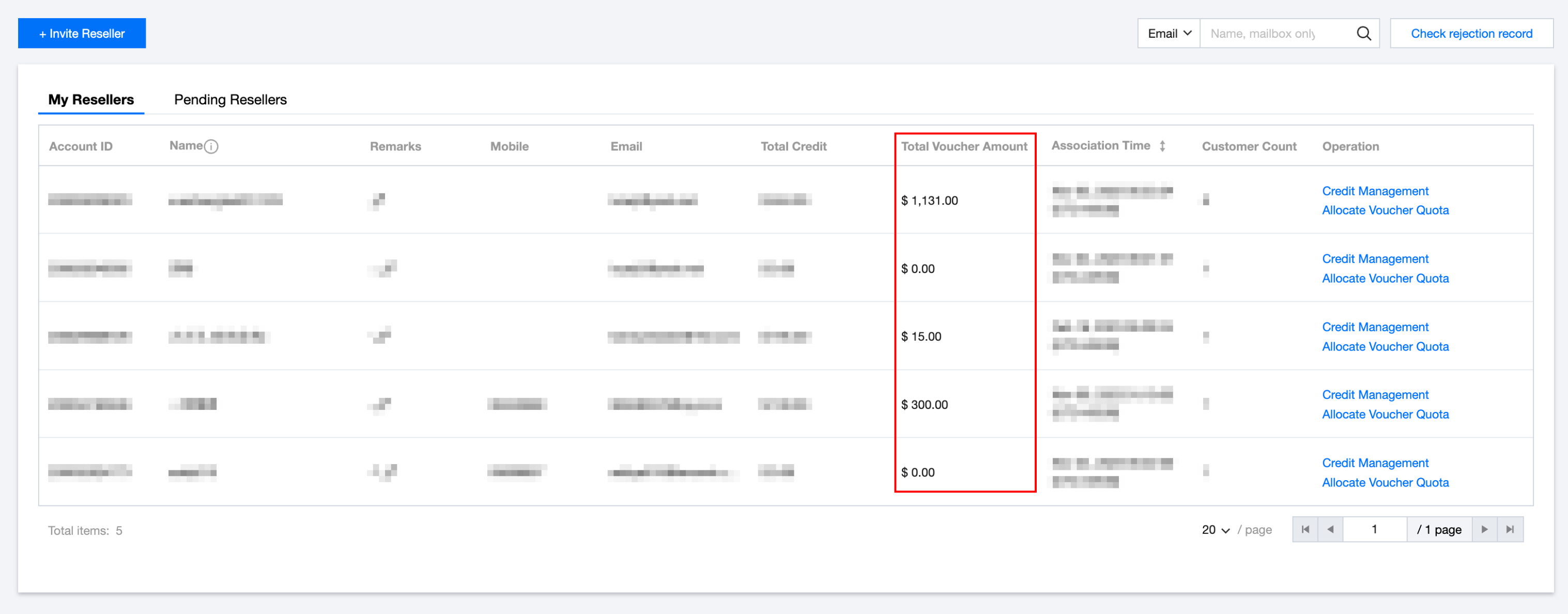
2. Choose Distribution > Second-Level Reseller Management in the left sidebar and enter the My Reseller page, where you can view the total voucher quotas that second-level resellers can issue to their customers.
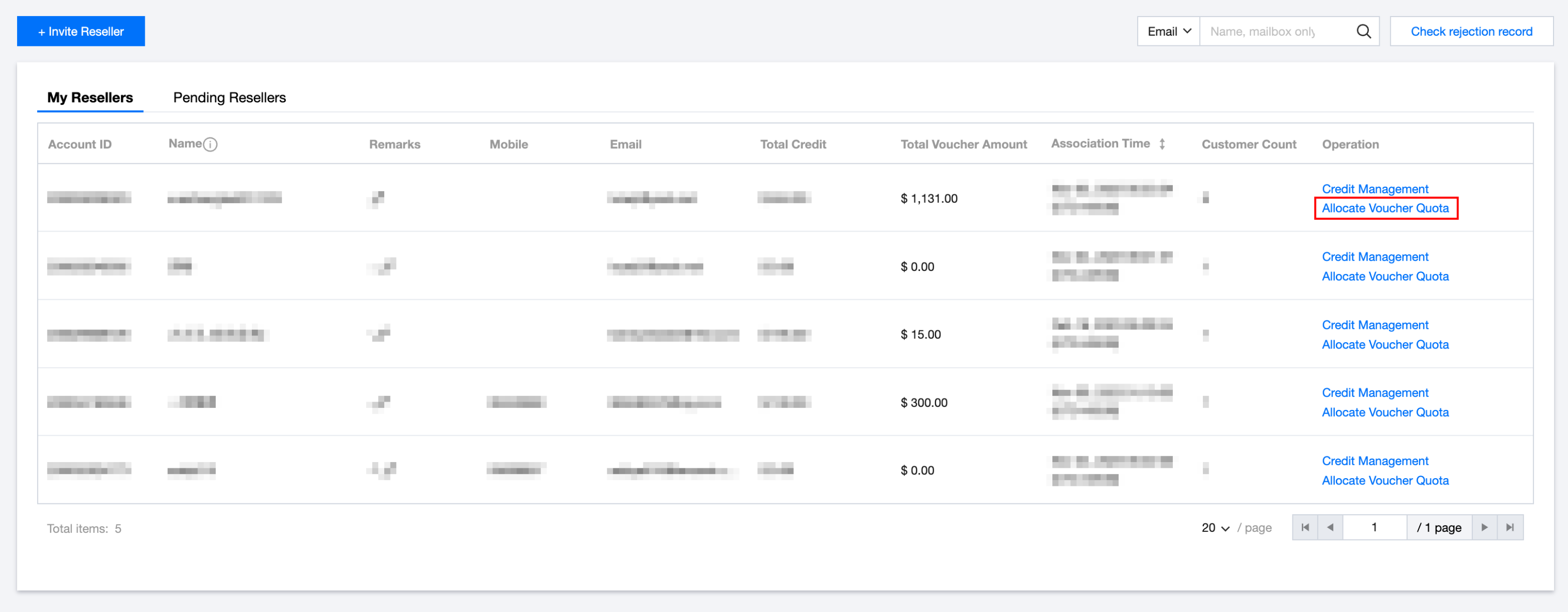
3. In the reseller list, click Allocate Voucher Quota in the operation column of the target reseller.
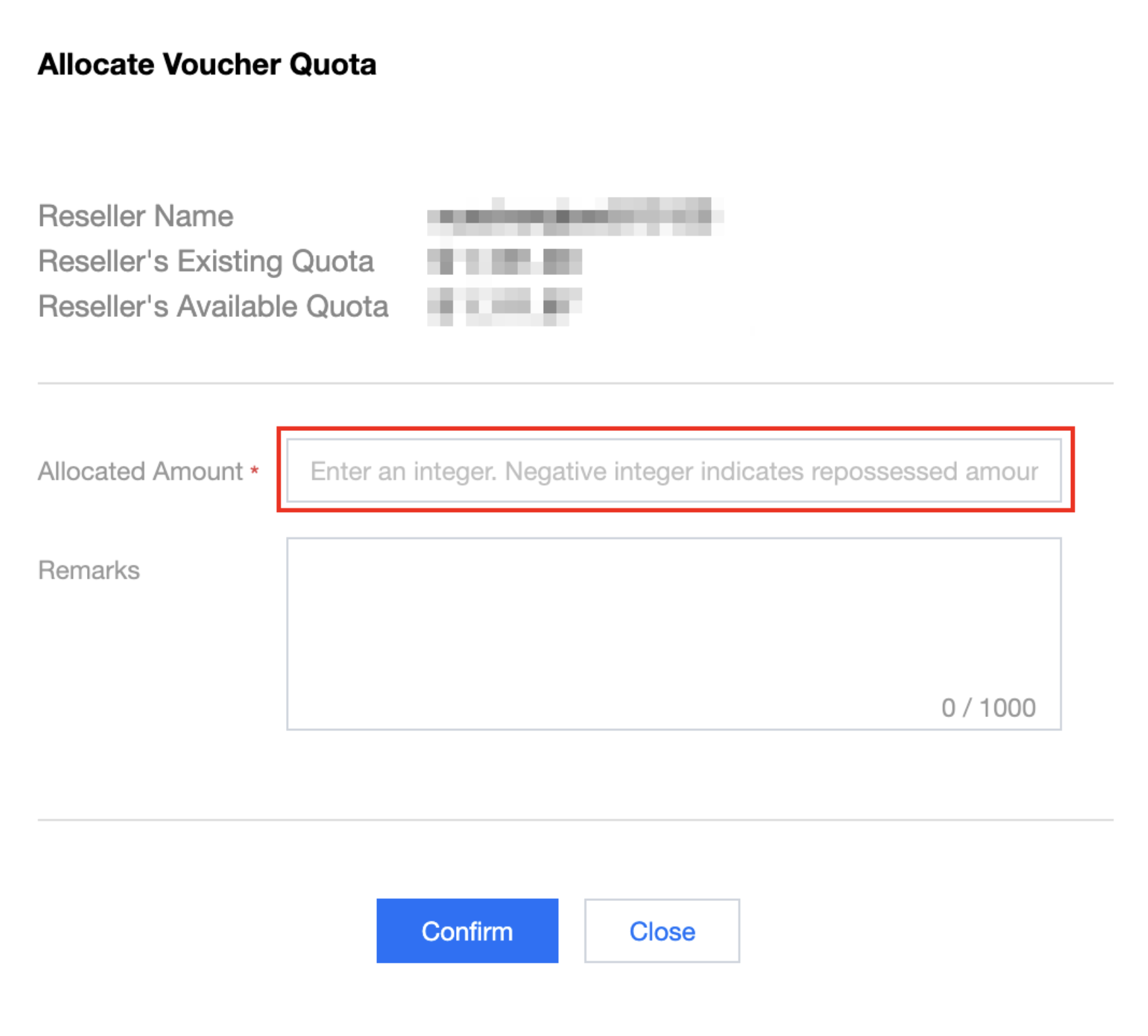
4. Fill in the quota to be allocated to the second-level reseller in the window that appears.
Note:
A positive number means allocating the quota to the second-level reseller’s pool, while a negative number means reclaiming the quota from the pool.
After the allocation is completed, the second-level reseller still needs to issue vouchers to end customers in the console. The total amount issued to all end customers should not exceed the allocated total amount.
5. Click Confirm to make the configuration effective immediately.
フィードバック