The platform is currently undergoing development and is not yet fully launched.
Overview
Tencent Cloud’s Partner Academy is an exclusive learning platform that only Tencent Cloud Partners and their employees are allowed to access. This document introduces how to join the Partner Academy as a learner, as well as how to approve and create learner accounts as an admin.
1. Enter the platform homepage, and click the Sign in button in the top-right corner to log in using your partner employee account.
2. Once logged in, enter the learner application page.
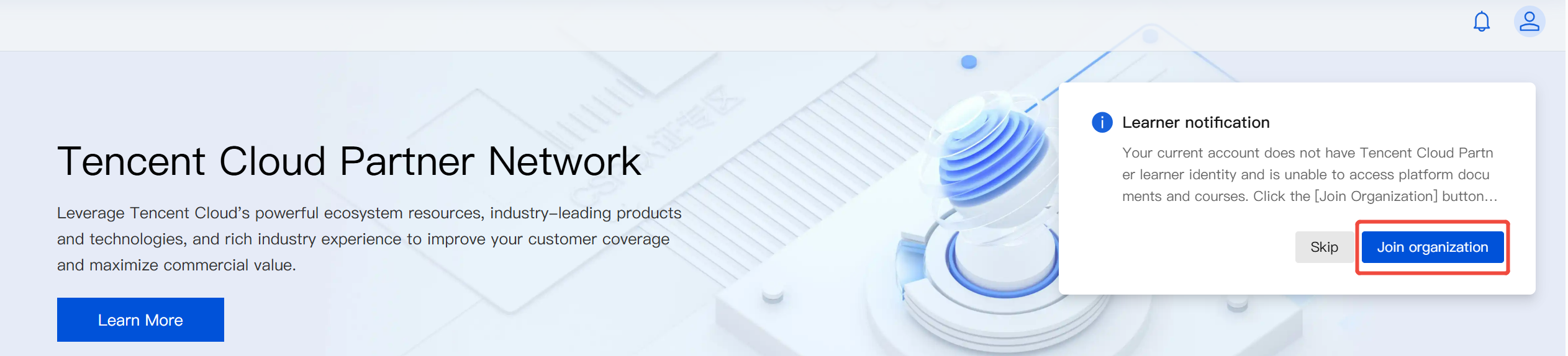
Portal 1: Upon entering the homepage, a pop-up will appear on the right, as shown in the image below. Click Join organization to enter the application page.
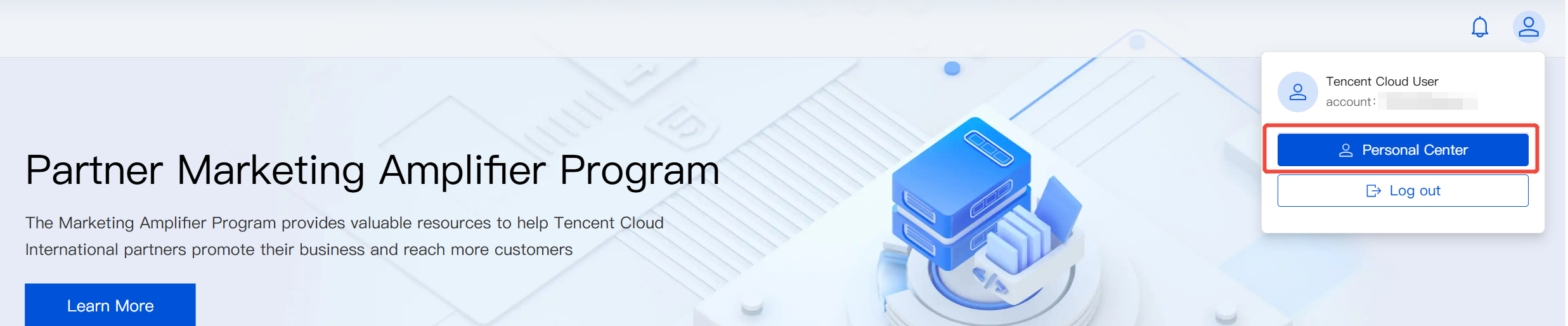
Portal 2: Click the
icon in the top-right corner and enter the Personal Center. On the Your organization page, click Account application to enter the application page.
3. Complete the application.
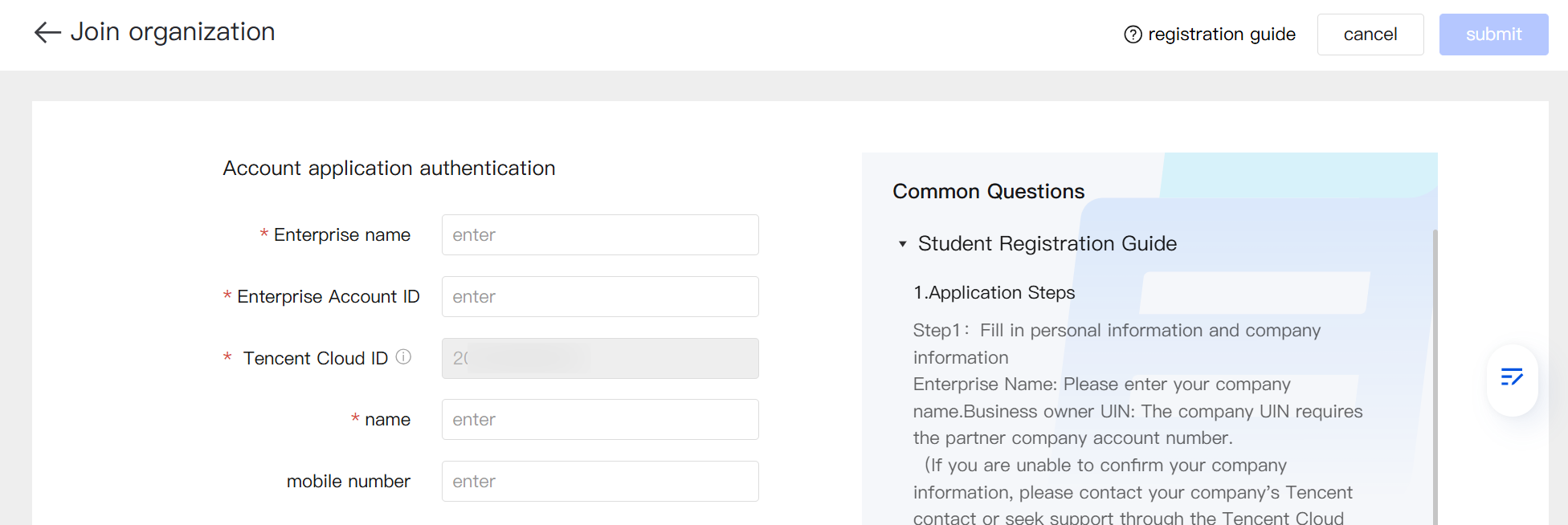
3.1 Fill in the required personal and enterprise information. The enterprise name and enterprise account ID, as well as the learner’s name and their Tencent Cloud ID are required fields, while the mobile number is optional.
Enterprise name: The name of the enterprise you want to join.
Enterprise account ID: The account ID (UIN) of the enterprise. The enterprise must already be registered as a Tencent Cloud partner (such as a distributor partner).
Note:
If you can't confirm the enterprise information, please contact your company's Tencent Cloud contact person or ask for help via online support.
The enterprise admin can log in to the Tencent Cloud console to find the enterprise account information.
Tencent Cloud ID: The applicant’s Tencent Cloud account ID. If the applicant is currently logged into their Tencent Cloud account, the system will automatically fill in the account ID.
Note:
This must be a Tencent Cloud personal account, enterprise accounts are not supported.
Name: The name of the applicant
Mobile number: The mobile number of the applicant (optional).
3.2 After filling in the information, click submit to complete the application.
Note:
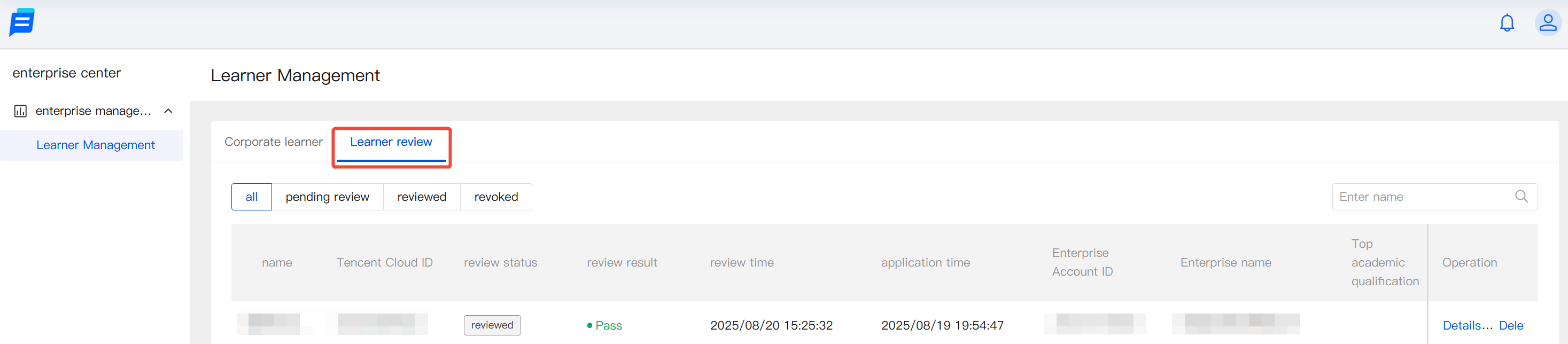
After submitting the application, contact the enterprise admin and ask them to review your application. When your application is approved, you can access the platform.
Method 2: Receive an invitation from the enterprise
After receiving an invitation from the enterprise, log into the platform using the account specified in the invitation. Upon first login, a confirmation pop-up will appear. Read and agree to the relevant terms, and click Agree to Join to officially bind the account to the enterprise and activate your learner status.
icon in the top-right corner, and enter the Enterprise Center.
2. On the Learner management > Corporate learners page, click Add new learner.
3. When a new learner is added, their status will initially be “inactive”. For the learner status to become activated, the learner must log in to the platform and complete a confirmation. For more information on learner activation, refer to Receiving an invitation from the enterprise.