OrcaTerm is a login method recommended by Tencent Cloud. You can use it to directly log in to a Linux instance quickly. It has the following strengths:
Supports copy and paste.
Supports scrolling with mouse wheel.
Note:
When you create a Linux Lighthouse instance, it will be bound to a key by default. The username of the key is lighthouse, which has the root privileges.
When you use OrcaTerm to log in to a Linux instance, the system will use the key of the lighthouse username for login by default.
Supported Systems
Windows, Linux, or macOS.
Prerequisites
Before login, confirm that the firewall of the instance has passed port 22 (which has been enabled by default when the instance was created).
2. Find the target instance in the server list and select a login method as desired.
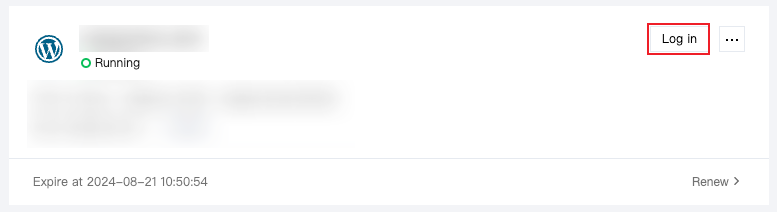
Click Log in in the instance card in the server list.
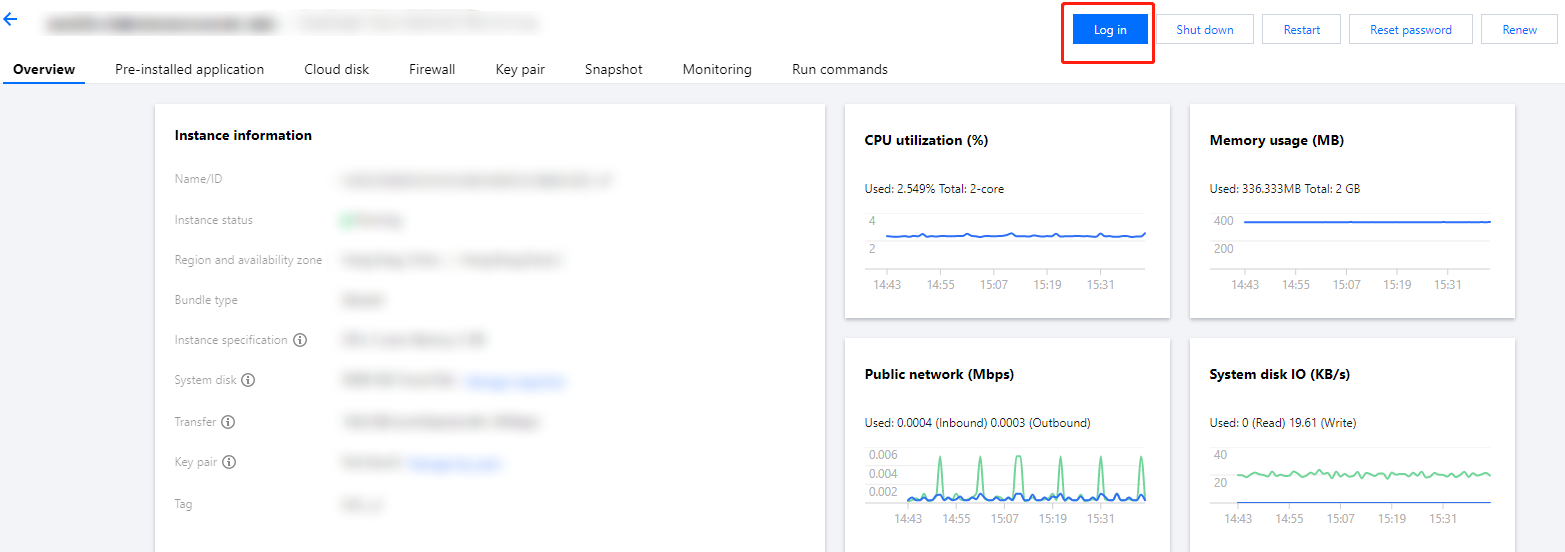
Click the instance card to enter the instance details page and click Log In in Remote Login or in the top-right corner of the page.
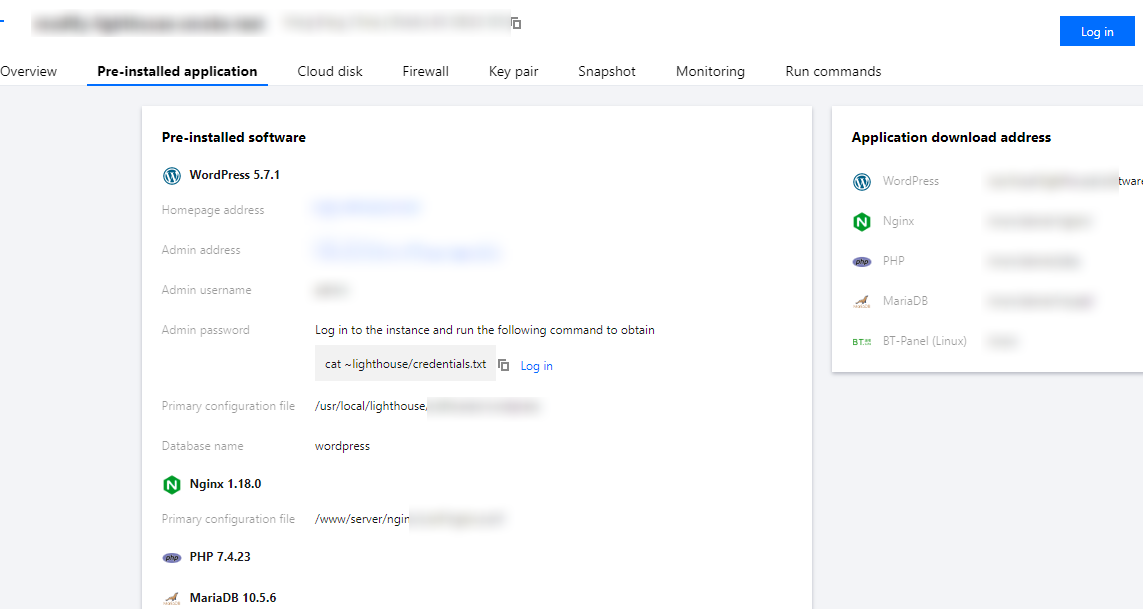
For an instance created by using an application image, select Pre-installed application on the instance details page and click Log in in the top-right corner of the page.
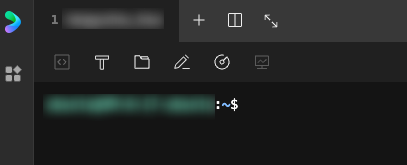
The page for successful login is as shown below:
After successful login, you can set up low-load lightweight applications with a moderate number of access requests, such as small and middle-sized websites, web applications, blogs, forums, mini games, ecommerce, cloud storage, image hosting, and cloud-based development, testing, and learning environments as instructed in Best Practices.
The OrcaTerm has a variety of features. You can use the virtual keyboard on the mobile client to change the OrcaTerm appearance, upload/download files, start self-service instance detection, enable multi-session, split the screen, and get the prompts as instructed in More OrcaTerm features.
Related Operations
Enabling/Disabling OrcaTerm-based quick login
Note:
After a Lighthouse instance is created successfully, the OrcaTerm-based quick login feature will be enabled by default. You can disable or enable it again in the following steps:
2. Find the target instance in the server list and enter the instance details page.
3. In Quick login in Remote login, you can enable or disable OrcaTerm-based quick login as needed:
Close: If you don't need to use quick login, you can disable it.
Note:
After quick login is disabled, you can still use the local SSH client to remotely log in to the instance. You can also enable quick login again.
After quick login is disabled, the public key (stored under the lighthouse user of the operating system by default) of the default system key won't be deleted at the same time. You can delete the public key by yourself. However, if it is deleted, quick login will not take effect after being enabled again.
Enable: After quick login is enabled, you can use the default system key to quickly log in to the instance through OrcaTerm in a browser.
Note:
Confirm that the public key (stored under the lighthouse user of the operating system by default) of the default system private key is not deleted; otherwise, the quick login feature won't work after being enabled.
More OrcaTerm features
OrcaTerm offers a variety of features to ensure a satisfactory user experience.
OrcaTerm features are described as follows:
Multiple keyboard shortcuts
OrcaTerm supports
multiple keyboard shortcuts, which can be viewed on the UI as instructed below:
2. In the Log in pop-up window, the default username is lighthouse, which can be changed as needed.
3. Then click Log in
Quickly installing TencentCloud Automation Tools
You need to use TencentCloud Automation
Tools to implement quick passwordless login via OrcaTerm. If the tool is not installed for your instance, you can install it upon login as instructed below:
2. In the Log in pop-up window, select the installation method as needed if you are prompted that TencentCloud Automation Tools is not installed for your instance.
Quick installation (reboot required): Read the notes, select Installation requires your agreement to a forced shutdown, and click Quickly install TencentCloud Automation Tools.
Manual installation (no reboot required): Perform the installation as instructed in Installing TAT Agent.
3. After the installation is completed, the instance can be quickly logged in to via OrcaTerm.
Using the command block mode
You can use the command block
mode on the OrcaTerm UI. After the mode is enabled, every executed command will be displayed as a module for easy use of OrcaTerm. You can also disable the mode as needed as instructed below:
3. In the pop-up menu, select Upload or Download.
The detailed steps are as follows:
Upload a file:
3.1.1 In the Select the file and directory for upload pop-up window, select Local upload or Upload via URL as needed.
3.1.2 If you select Local upload, click Click to upload and then select a local file. If you select Upload via URL, enter the file URL in URL.
3.1.3 Select the target upload directory and click OK.
Note:
Currently, files can be uploaded only to the `home > lighthouse` directory.
3.1.4 Click
in the bottom-right corner of the page and view the operation result in the pop-up window. If the file is uploaded successfully, the result will be displayed.
Download a file:
3.2.1 In the Download file pop-up window, open the directories and select the target file.
3.2.2 Click OK and select the local directory in the pop-up window.
3.2.3 Click
in the bottom-right corner of the page and view the operation result in the pop-up window. If the file is downloaded successfully, the result will be displayed.
Using self-service instance detection
If you encounter any
problem when logging in to or using the instance, you can perform self-service instance detection as instructed below: