This article introduces how to quickly run Cloud Contact Center uni-app Demo.
Development Environment Requirements
It is recommended to use the latest HBuilderX editor.
For iOS devices, iOS 9.0 or later is required, and the device must support audio.
For Android devices, version 4.1 or later is required, with audio support. Emulators are not currently supported. Ensure the "Enable Debugging" option is turned on.
Both iOS/Android devices must be connected to the Internet.
SDKAppID: A unique application ID created in Cloud Contact Center console. Each Tencent Cloud account can create up to 20 TCCC applications.
UserID: The member ID added in the Tencent Cloud Contact Center, usually an email address. For first-time setup, the admin account and password can be found in the Internal Message (sub-accounts must subscribe to TCCC product notification). Each SDKAppID supports multiple UserIDs, and additional licenses can be purchased at Agent Purchase if needed.
SecretId and SecretKey: Developers need credentials to call the Cloud API. SecretId and Secretkey can be created in theTencent Cloud console.
Token: A login credential obtained via CreateSDKLoginToken API. The app requests real-time tokens from your server, which stores the generation code and encryption key.
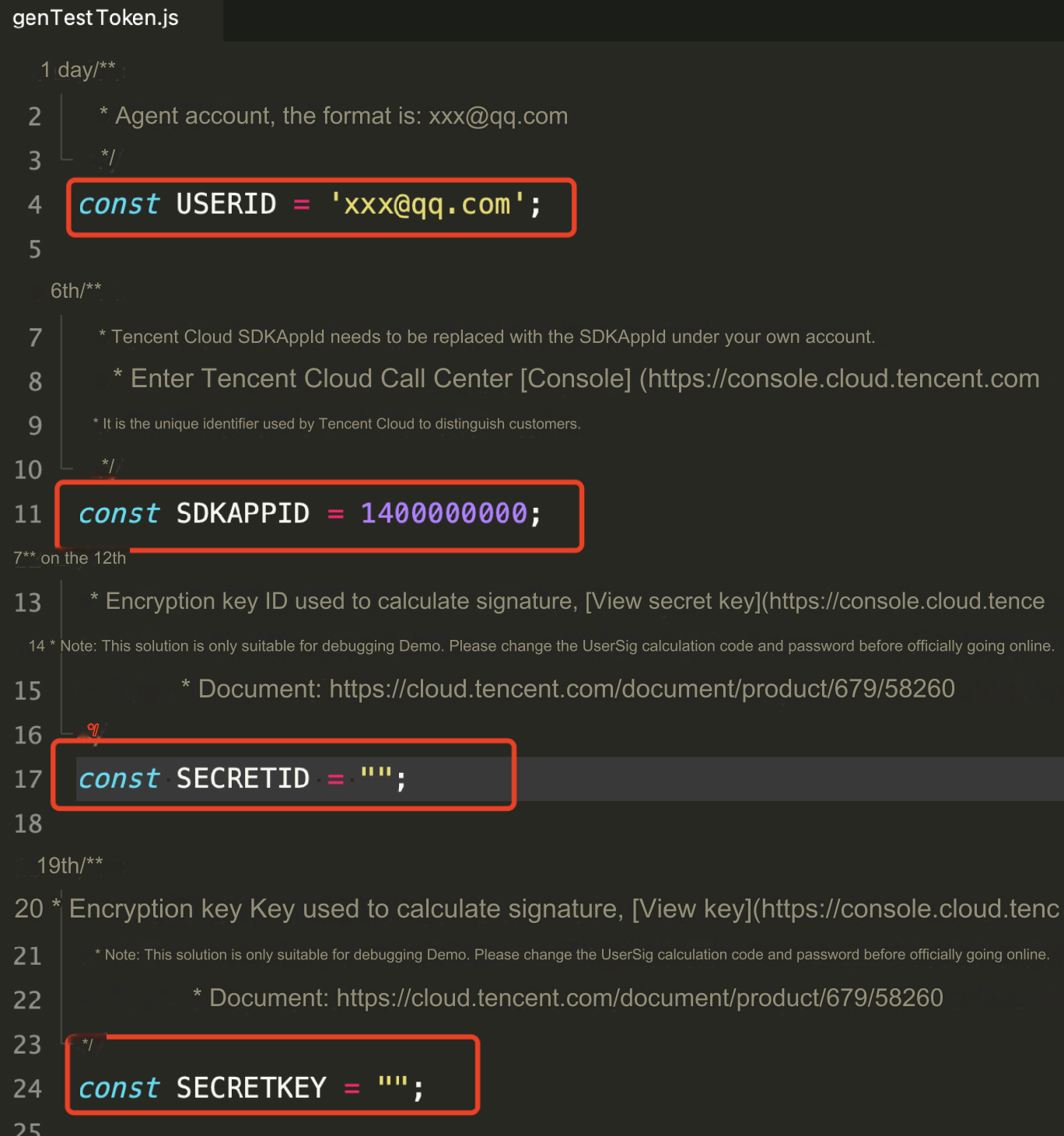
SDKAPPID: Cloud Contact Center SDKAppId, which needs to be replaced with your own account's SDKAppId
SECRETID: ID of the encryption key used to calculate the signature
SECRETKEY: Key of the encryption key used to calculate the signature
Caution:
Do not include the token generation code in your app's production version for the following reasons:
The provided code is for testing basic SDK features only and is not secure for production. SECRETKEY in client-side code can be easily reverse-engineered, and web code is even more vulnerable. If your key is leaked, attackers can generate valid tokens and misuse your Tencent Cloud resources.
Safer approach is to place the token generation code and encryption key on your server. The app should request real-time tokens from your server as needed. This method is more secure, as breaching a server is significantly harder than cracking a client-side app. For more details, see Creating SDK Login Token.
Step 4: Compile the Demo
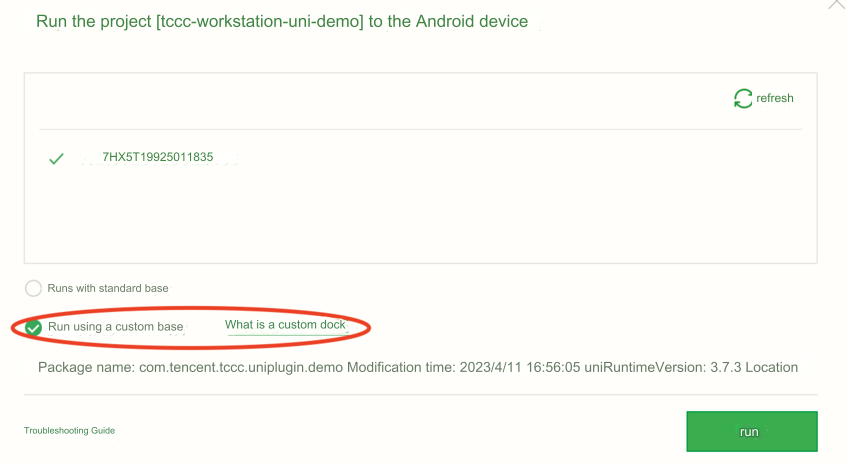
Use a custom base for packaging and running (do not select the standard base), and make sure to run the custom base on a physical device.
Caution:
For details on what a custom debugging base is and how to use it, please see the official tutorial.
Step 5: Run the Demo
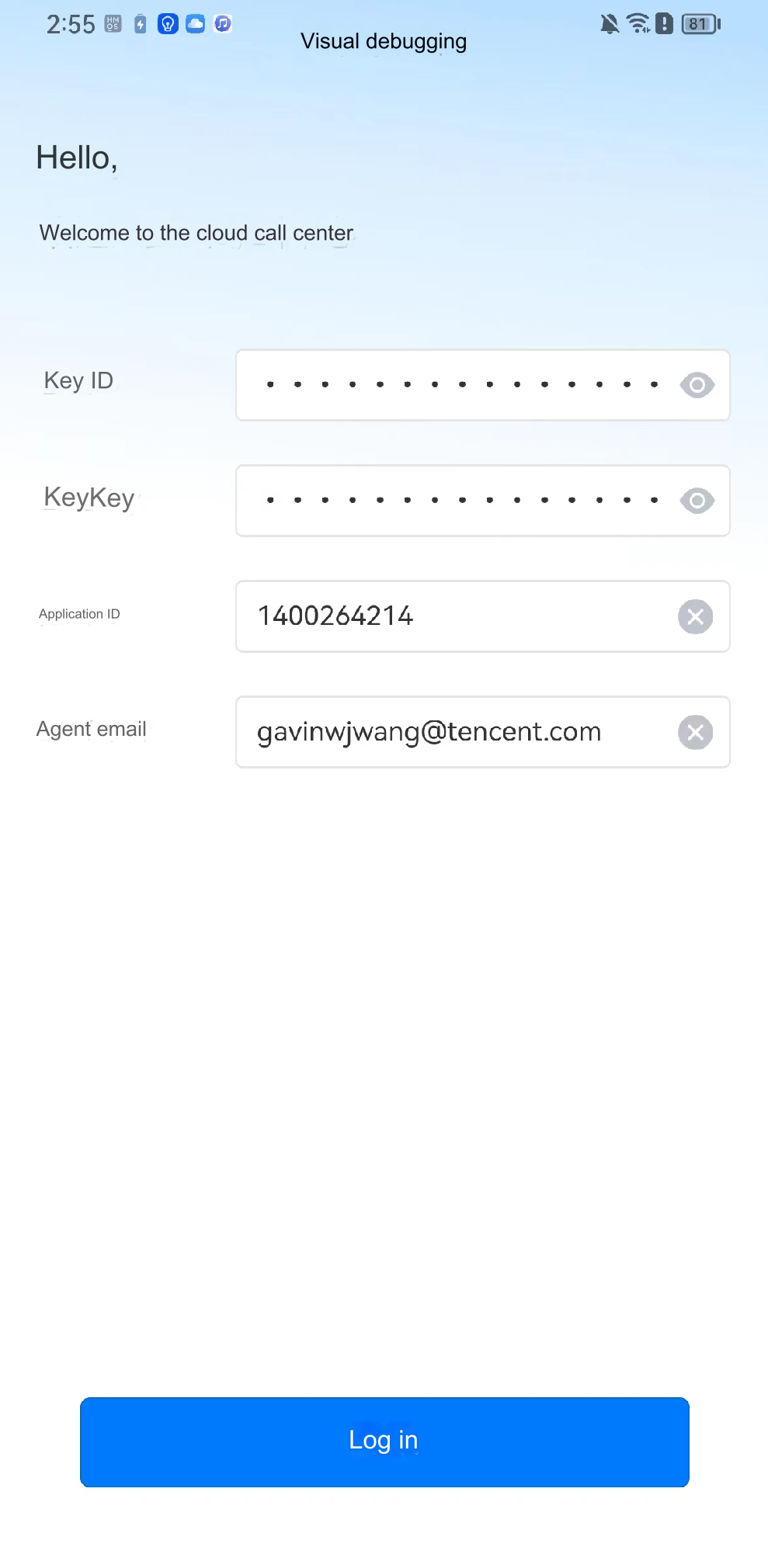
1. After choosing to run on the physical device, click Log In.
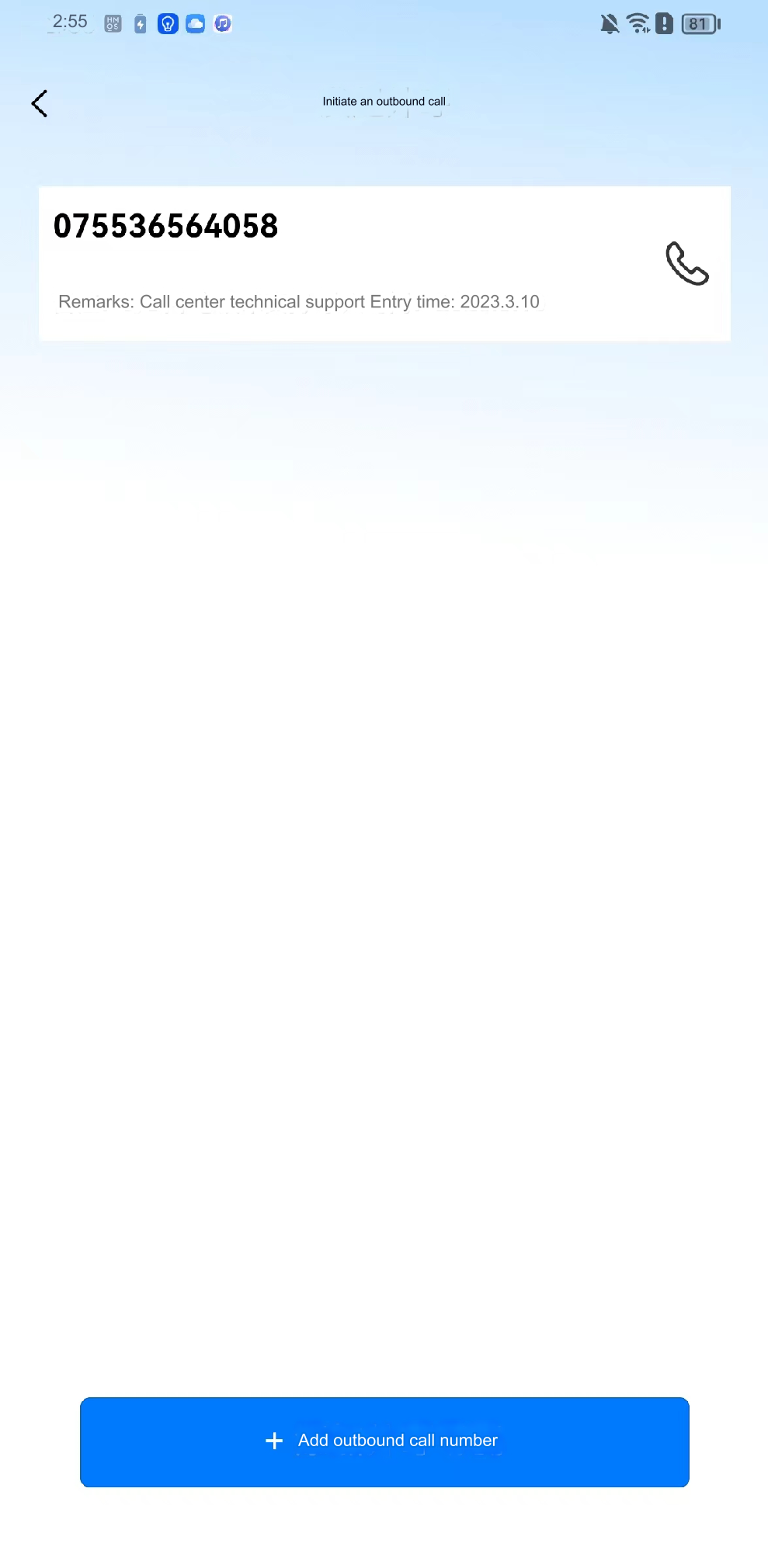
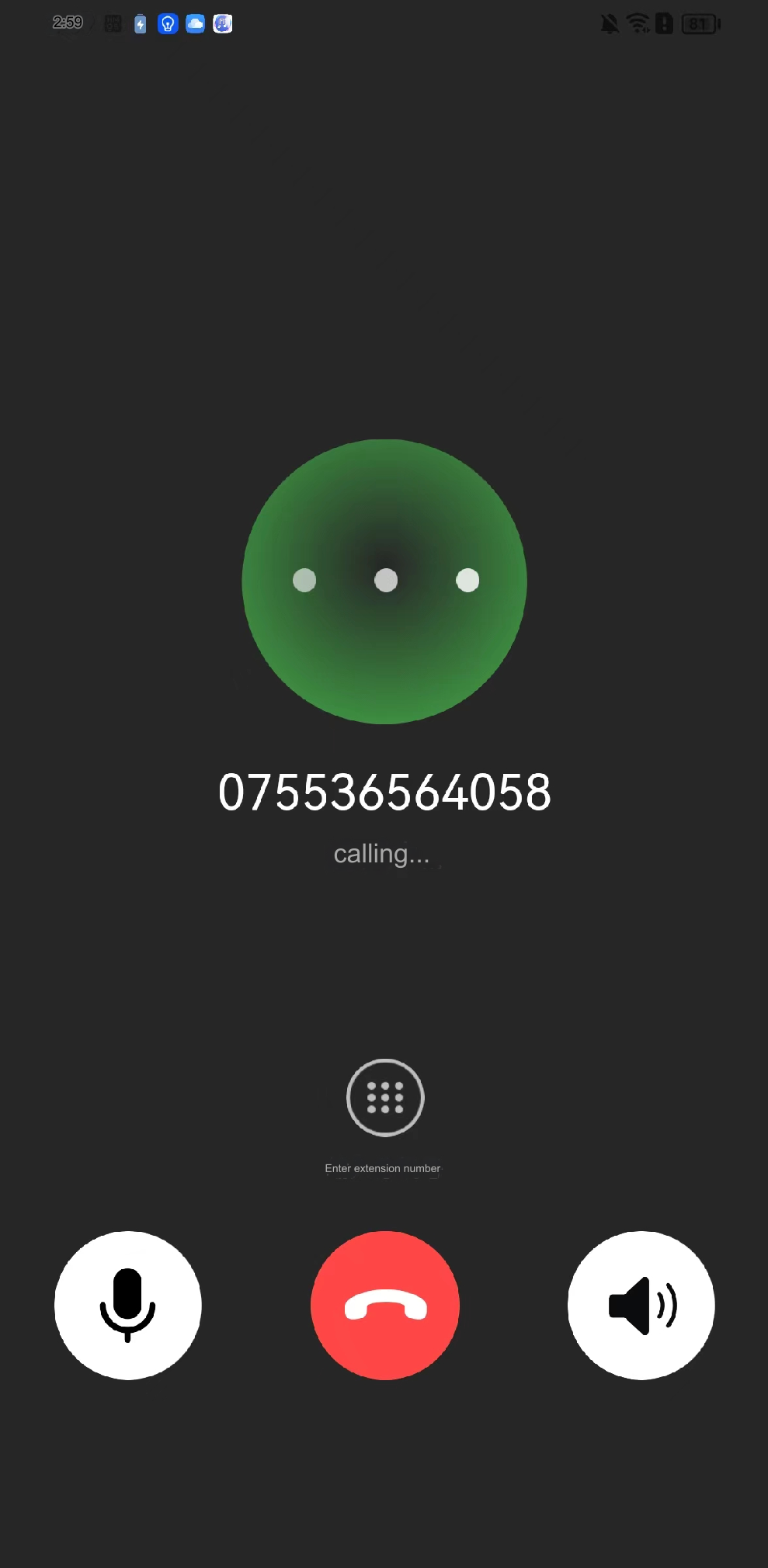
2. After logging in successfully, enter the phone number and start a call.