The Fabric network supports the creation of multiple channels. Each channel is equivalent to a logical blockchain. Different channels within the network are isolated from each other and exist in the form of independent ledgers. A blockchain node can join different channels. The ledger data of different channels within the same node are independent of each other, flexibly meeting the requirements of ledger isolation and node reuse in various business scenarios.
Create Channel
1. In the TBaaS Console, select Fabric > Blockchain Network in the left sidebar to enter the network card page. Click the corresponding card to enter the network details page.
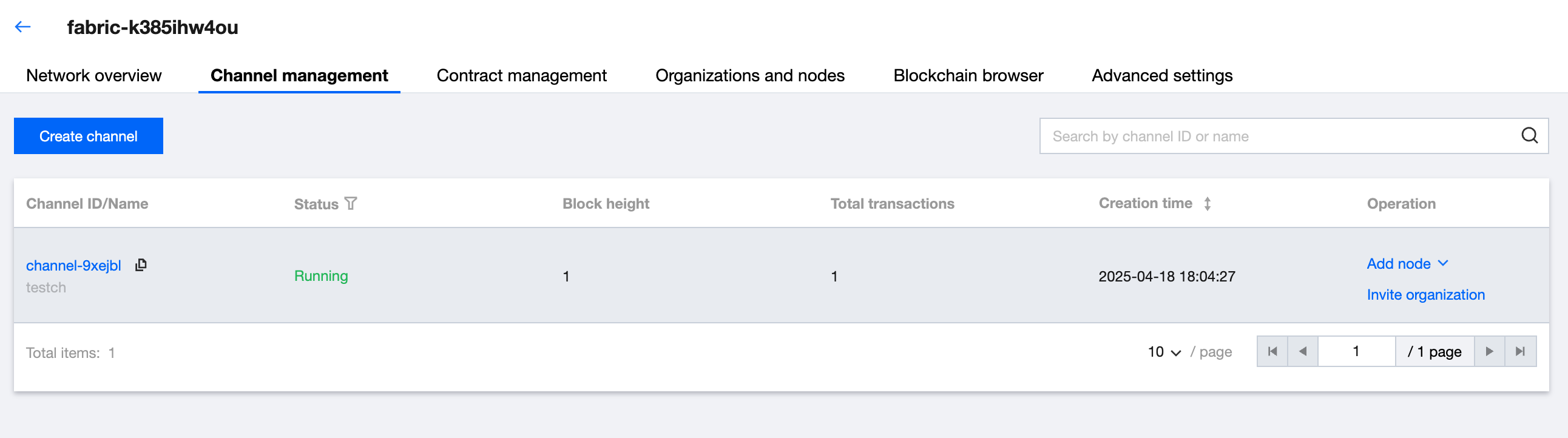
2. Select the Channel Management tab, and you will see all current channel information, including channel ID/name, block height, total number of transactions, creation time, etc., as shown below:
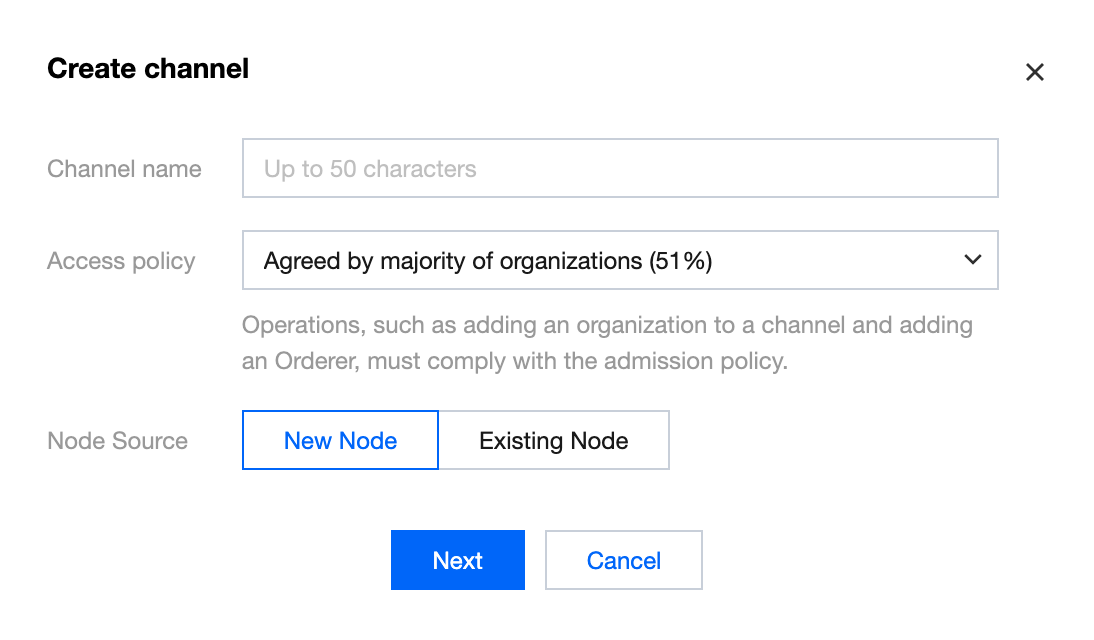
3. Click Create Channel in the upper left corner of the list. Fill in the channel name and select the node source in the popup. Then click Next to proceed with the node configuration selection. After confirmation, you can start creating. As shown below:
Notes:
A new channel can be created by using brand-new nodes or by selecting existing nodes within the network. A channel includes at least 1 Peer and 1 Orderer.
Join Node
Joining a node into a channel is divided into two modes: one is to create a node and join, and the other is to select an existing node to join. Specific operations are as follows:
Create a Node and Join a Channel
1. In the TBaaS Console, select Fabric > Blockchain Network in the left sidebar to enter the network card page. Click the corresponding card to enter the network details page.
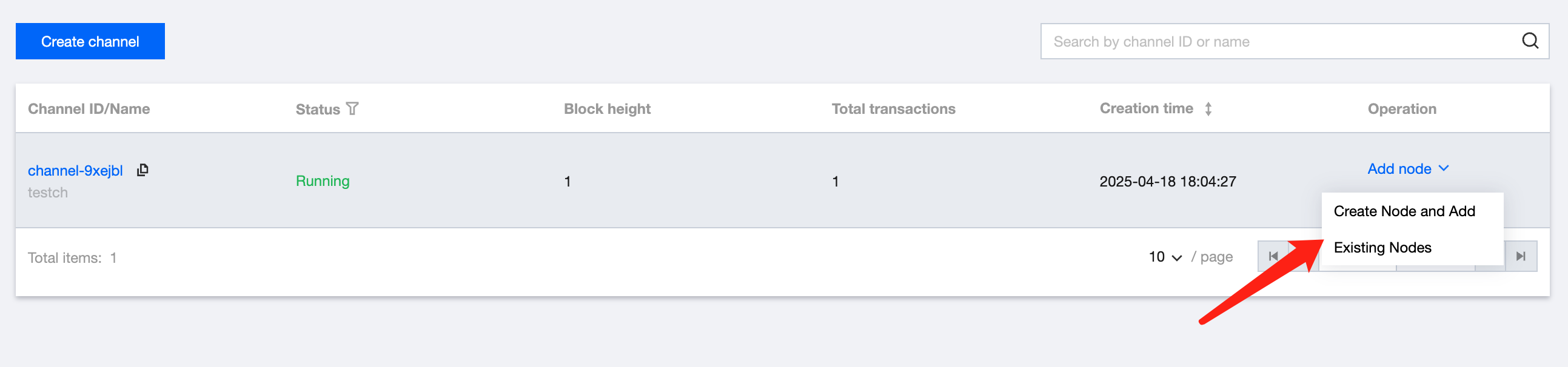
2. Select the Channel Management tab. In the channel where you need to add a node, select Add Node > Create Node and Add in the Operation column.
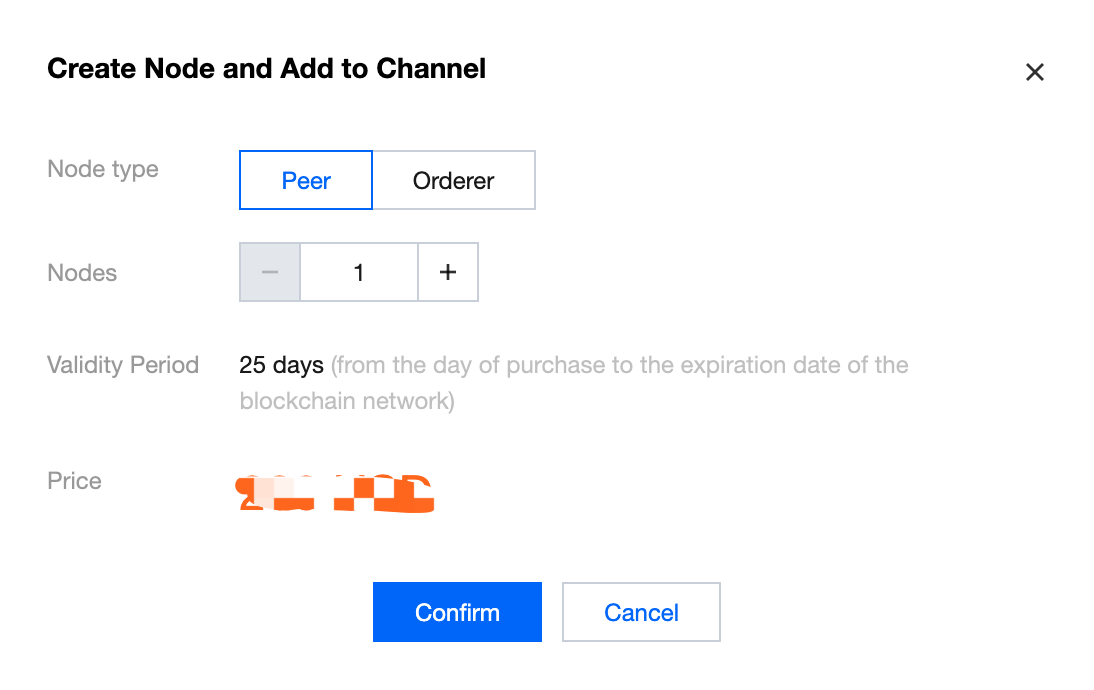
3. Configure the Peer or Orderer quantity. Each time, only one type of node can be added. As shown below:
Notes:
When creating a new Peer, it can be added after procurement is completed. When a new orderer joins the channel, voting will be initiated. The node can be purchased and added only after the organizations within the channel vote and the admission rate is met. After initiation, the voting progress can be viewed in the Event Center.
4. Click OK.
Select an Existing Node to Join a Channel
1. In the TBaaS Console, select Fabric > Blockchain Network in the left sidebar to enter the network card page. Click the corresponding card to enter the network details page.
2. Select the Channel Management tab. In the channel where you need to add a node, select Add Node > Select Existing Node to Join Channel in the Operation column.
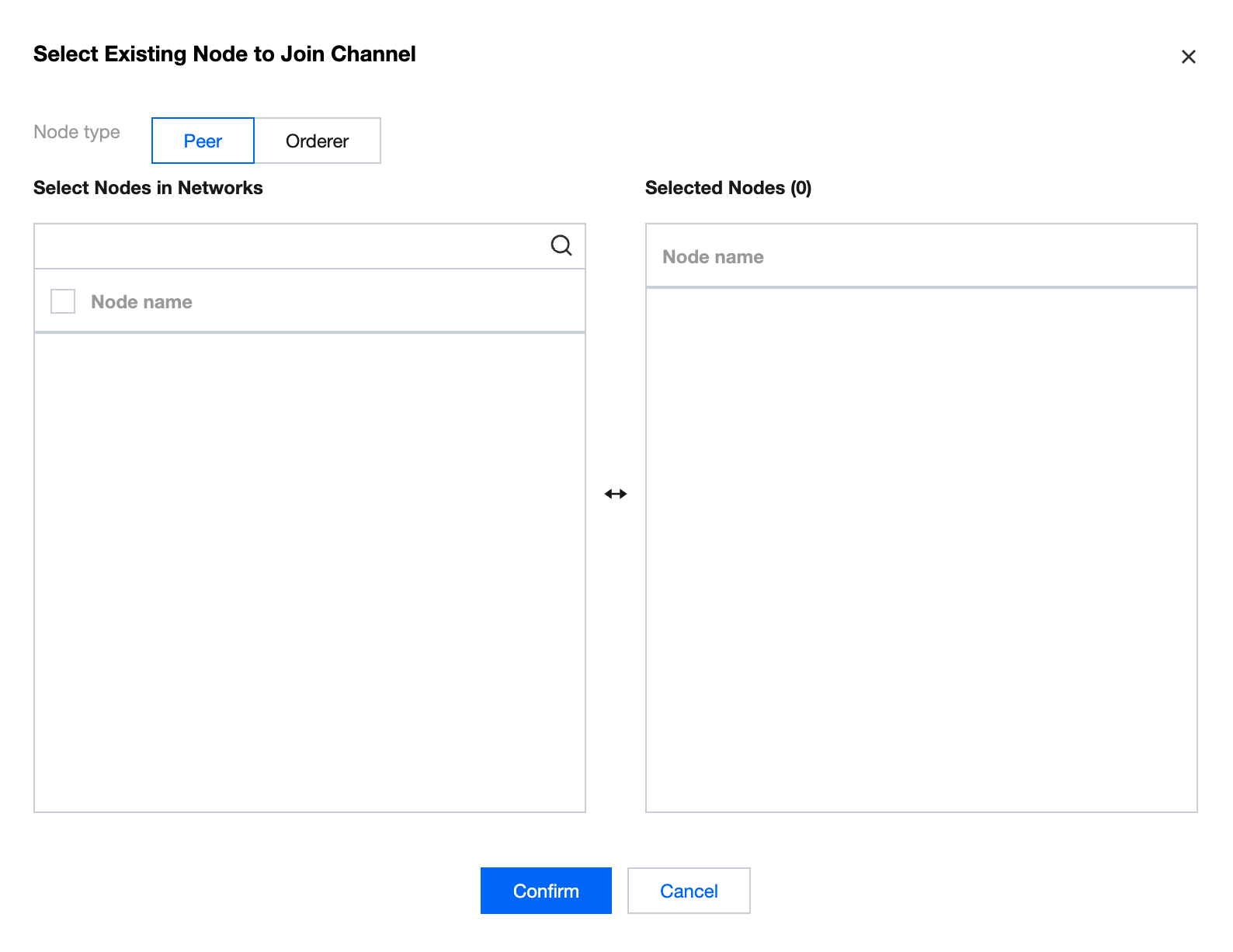
3. You can select a Peer or orderer belonging to you in the network in the pop-up window. as shown below:
Notes:
When selecting an orderer to join the channel, voting will be initiated. The node can be joined only after the organizations within the channel vote and the admission rate is met. After initiation, the voting progress can be viewed in the Event Center.
4. Click OK.
Invite an Organization
1. In the TBaaS Console, select Fabric > Blockchain Network in the left sidebar to enter the network card page. Click the corresponding card to enter the network details page.
2. Select the Channel Management tab. Click Invite Organization in the Operation column on the right side of the channel to which you want to invite organizations to join.
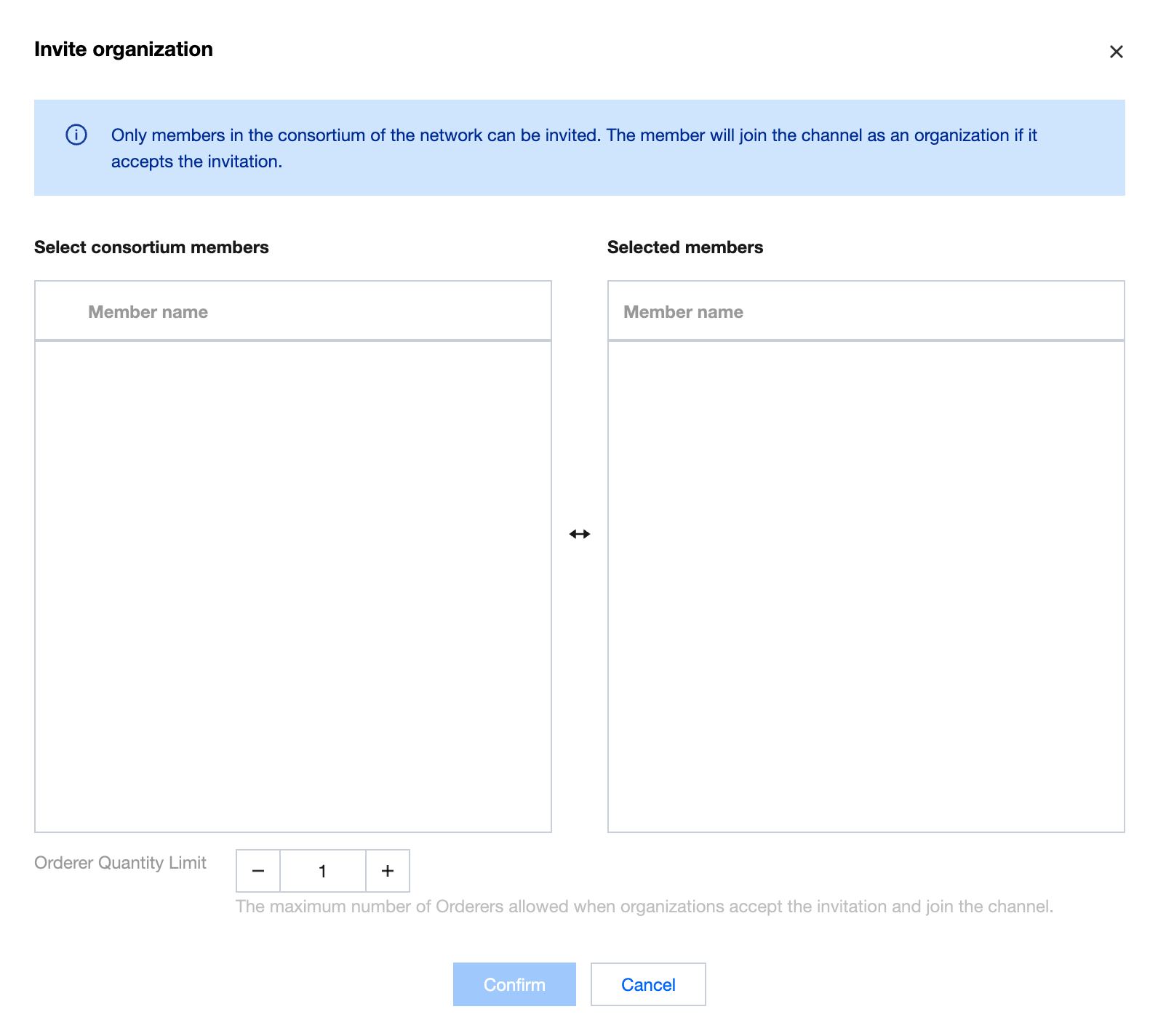
3. You can select to invite members within the alliance in the pop-up window. After successful invitation, the member will join the channel as an organization identity. When initiating an invitation, you can also set a limit on the quantity of orderer nodes that the other party can join when accepting the invitation. The quantity can be set according to business requirements. as shown below:
4. After an invitation is initiated, other organizations in the channel will receive a voting event, which can be handled in the Event Center in the console.
5. When the event meets the voting admission rate, the invitee will receive the voting event. It can be handled in the Event Center in the console, and the information of the node to be added can be configured to complete the channel join.