Alarm Configuration
Scenarios
Registration Configuration Governance Center provides a configuration alarm feature for some key metrics. Configuring alarms helps you detect issues in a timely manner and handle them. This article introduces how to configure alarms through the console.
Operation Steps
Configure Alarm Rule
Created alarms compare monitored metrics with given thresholds over a certain period to determine whether relevant notifications need to be triggered. When a change in metric status triggers an alarm, you can promptly take preventive or remedial measures. Properly configuring alarms helps enhance the robustness and reliability of your applications.
1. Log in to the Tencent Service Framework (TSF) console.
2. On the Instance List page under Service Governance Center, click the "ID" of the target engine to go to the Basic Information page.
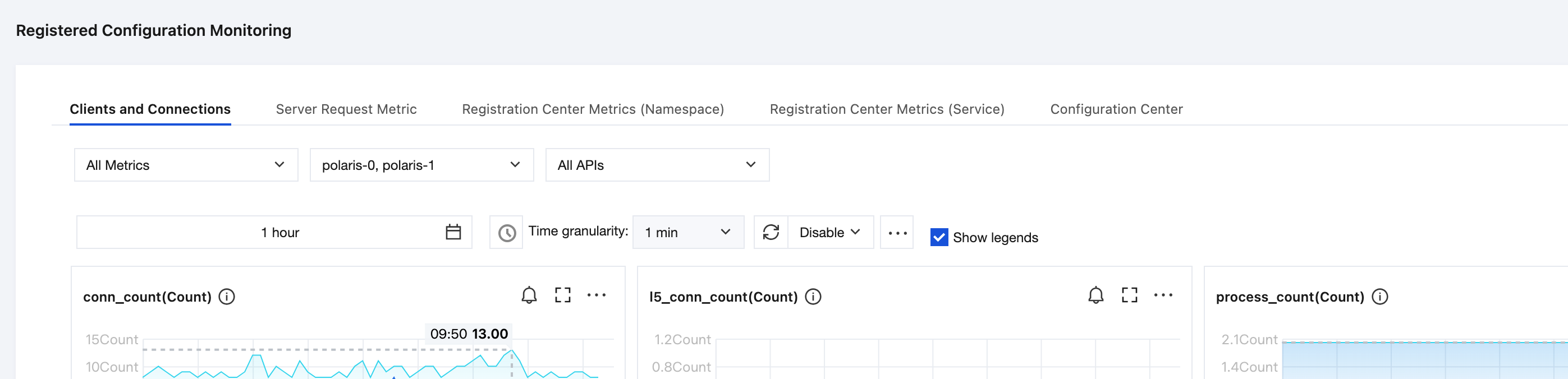
3. On the top tab, click Runtime Monitoring, on the Request Metrics page, click the alarm button in the figure below to jump to the TCOP console to configure alarm policies.
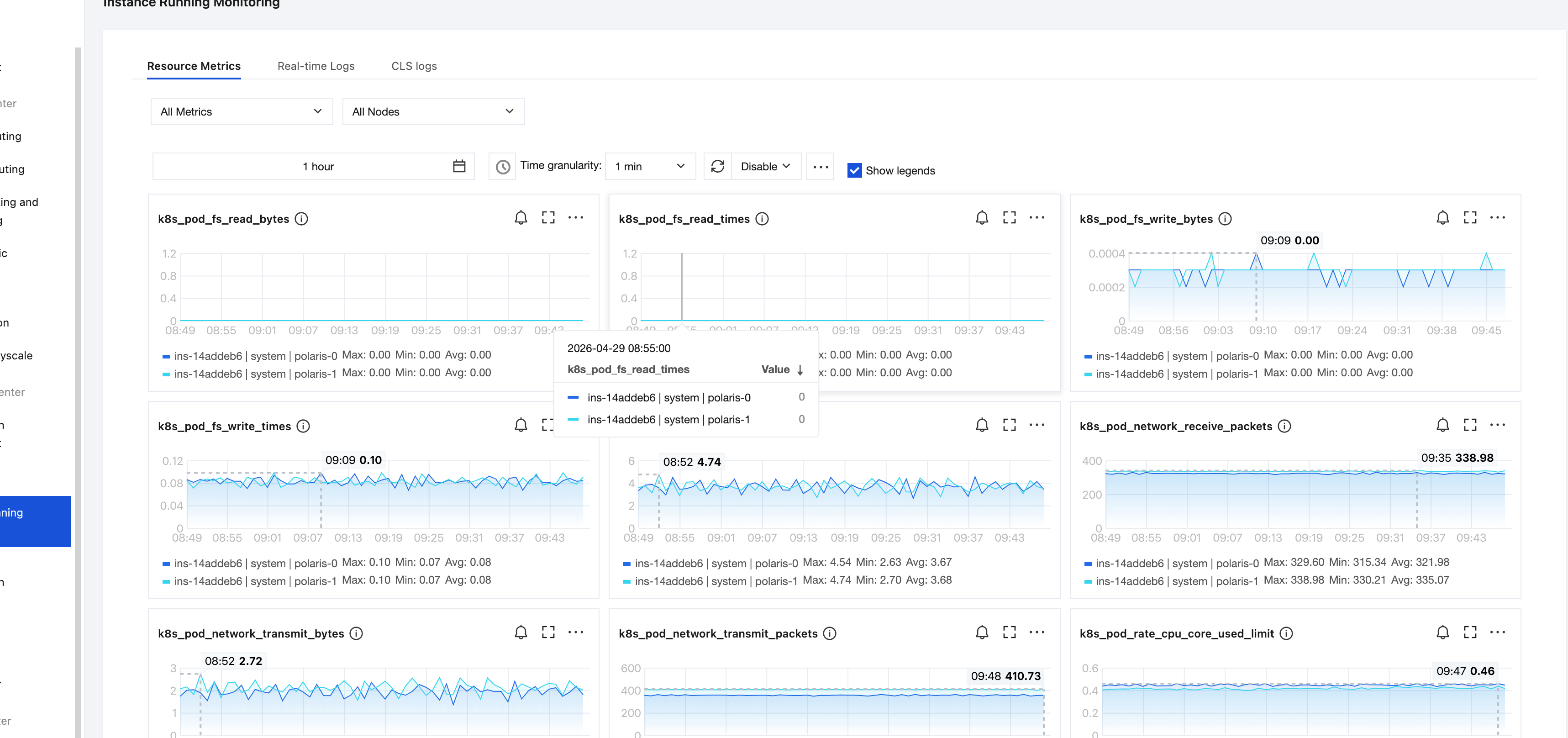
4. On the Alarm Policy page, select a policy type and the instance for which alarms need to be set, and set the alarm rule and the alarm notification template.
Policy Type: Select TSE/polarismesh.
Alarm Target: Select the TSE resources for which you need to configure alarm policies.
Trigger Conditions: Supports Select Template and Manual Configuration. Manual configuration is selected by default. For manual configuration, refer to the instructions below. To create a new template, see Create Trigger Condition Template.
Note:
Metrics: For example, "average request latency". If the statistical granularity is set to 1 minute, an alarm will be triggered when the average request latency exceeds the threshold for N consecutive data points within 1 minute.
Alarm Frequency: For example, "alarm triggered once every 30 minutes" indicates that an alarm is triggered once every 30 minutes if a metric exceeds the threshold in multiple consecutive statistical periods. Another alarm will be triggered only if the metric exceeds the threshold again in the next 30 minutes.
Notification template: Select a notification template or create one, and set alarm recipients and receiving channels.
5. Click Complete to complete the configuration.
Note:
Create a new trigger template
1. Log in to the TCOP console.
2. In the left sidebar, click Alarm Management. On the Policy Management tab, click to create a new alarm policy.
3. Under Configure Alarm Rules, for trigger conditions, click Select Template and click Add Trigger Condition Template.
4. On the Create Template page, configure the policy type.
Policy type: Select TSE/polarismesh, and then select a policy from request metrics (interface-level) / request metrics (node-level) / system metrics as needed.
Use preset triggers: Select this option and the system recommended alarm policy will appear.
5. After confirmation, click Save.
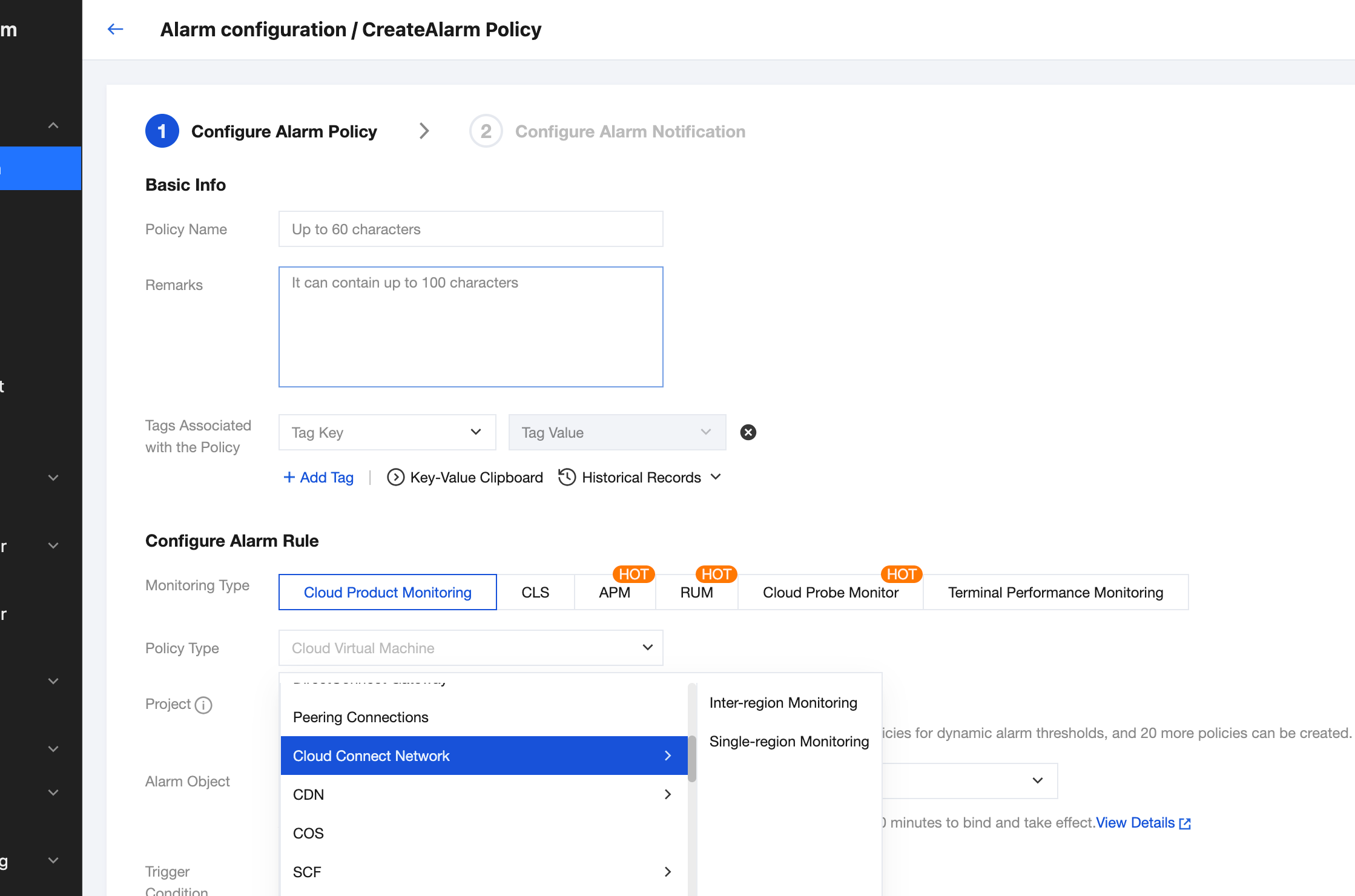
6. Return to the Create Alarm Policy page, click Refresh. The alarm policy template that you configured will be displayed.
Bantuan dan Dukungan
Apakah halaman ini membantu?
Anda juga dapat Menghubungi Penjualan atau Mengirimkan Tiket untuk meminta bantuan.
masukan