You can set different Quality of Service (QoS) levels for an Elastic Network Interface (ENI). In the event of network bandwidth congestion, the highest forwarding priority is given to key workloads.
Currently, Gold, Silver, Bronze, and Default QoS levels are supported. The traffic forwarding priority for the four QoS levels is as follows: Gold > Silver > Bronze > Default. Unless otherwise required, retain the default setting.
This document describes how to set a QoS level in the console.
Note:
After an ENI is created, the QoS level of the ENI is set to Default.
An ENI is a private network resource, and its QoS level is only applied to underlying traffic services and does not affect billing.
2. In the left sidebar, choose IP and ENI > ENI to go to the ENI list page.
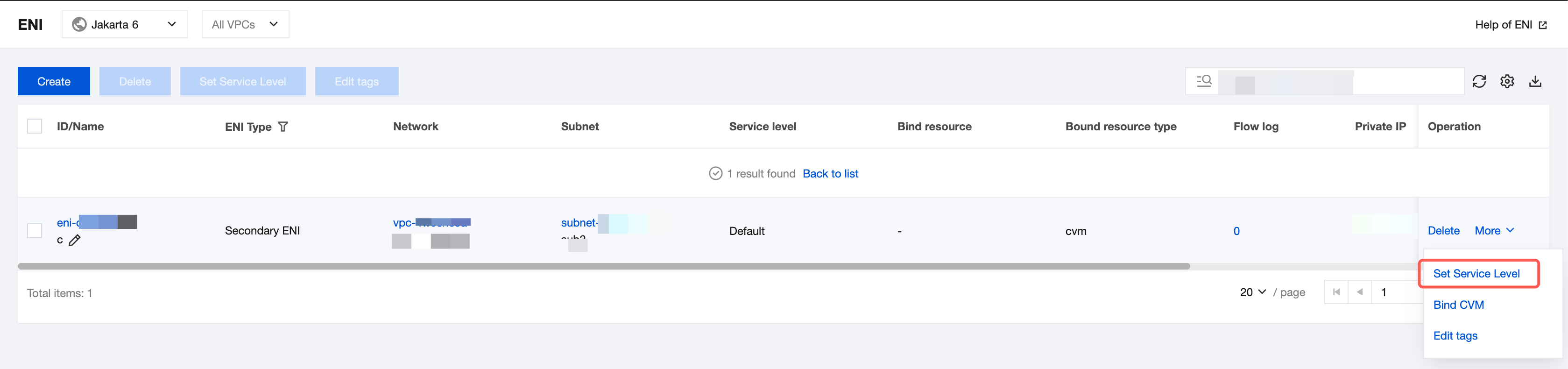
3. Find the row of the ENI for which you want to set the QoS level, and choose More > Set Service Quality Level in the Operation column.
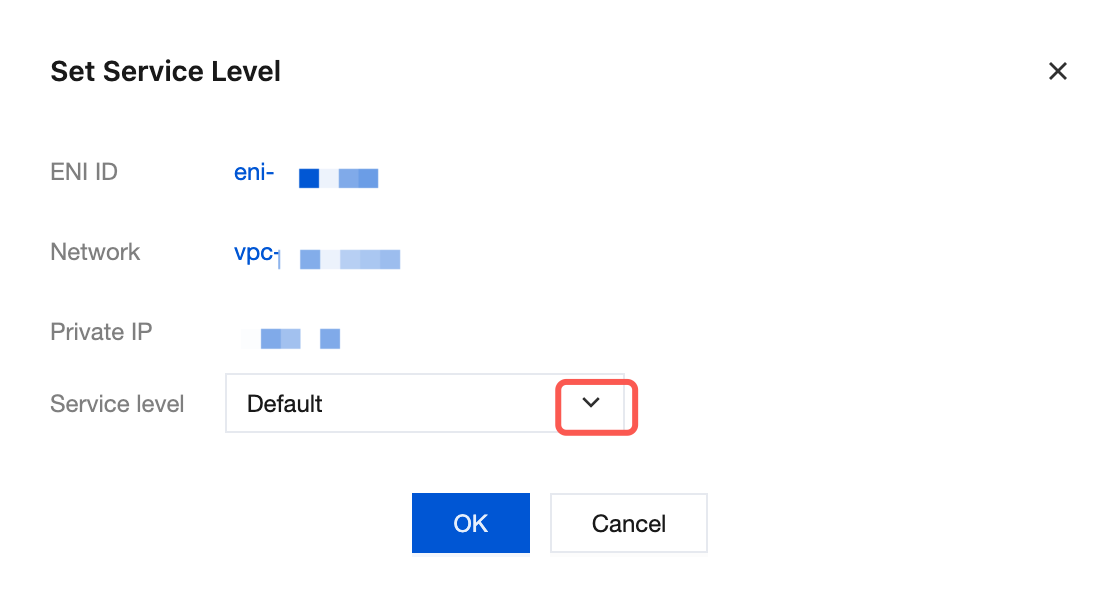
4. Click the drop-down arrow icon and select an option based on the actual business requirements and click OK. The available options include Gold, Silver, Bronze, and Default.
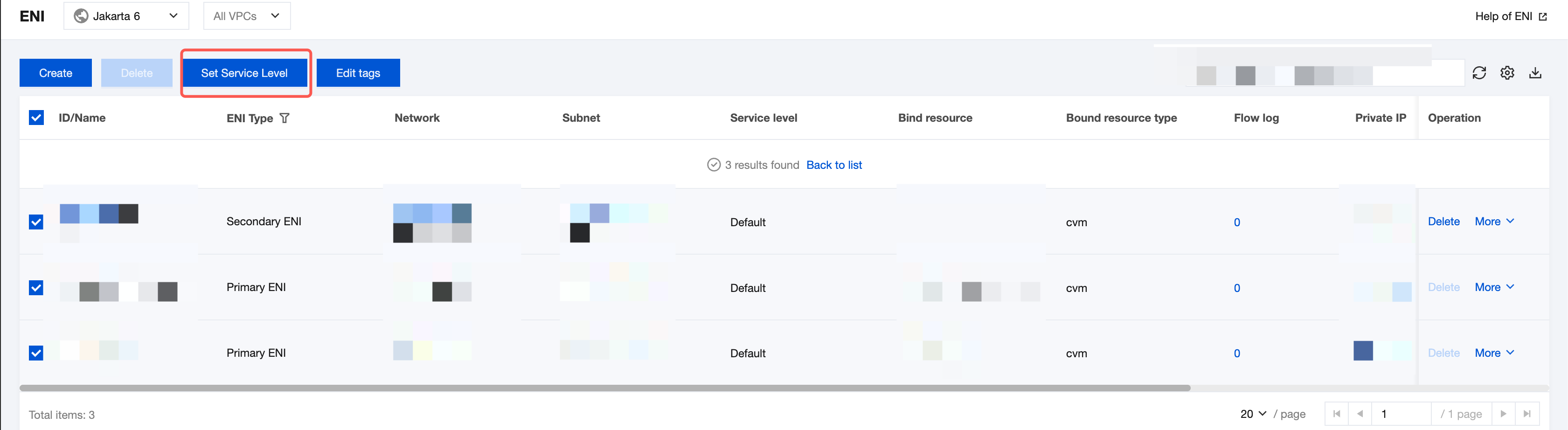
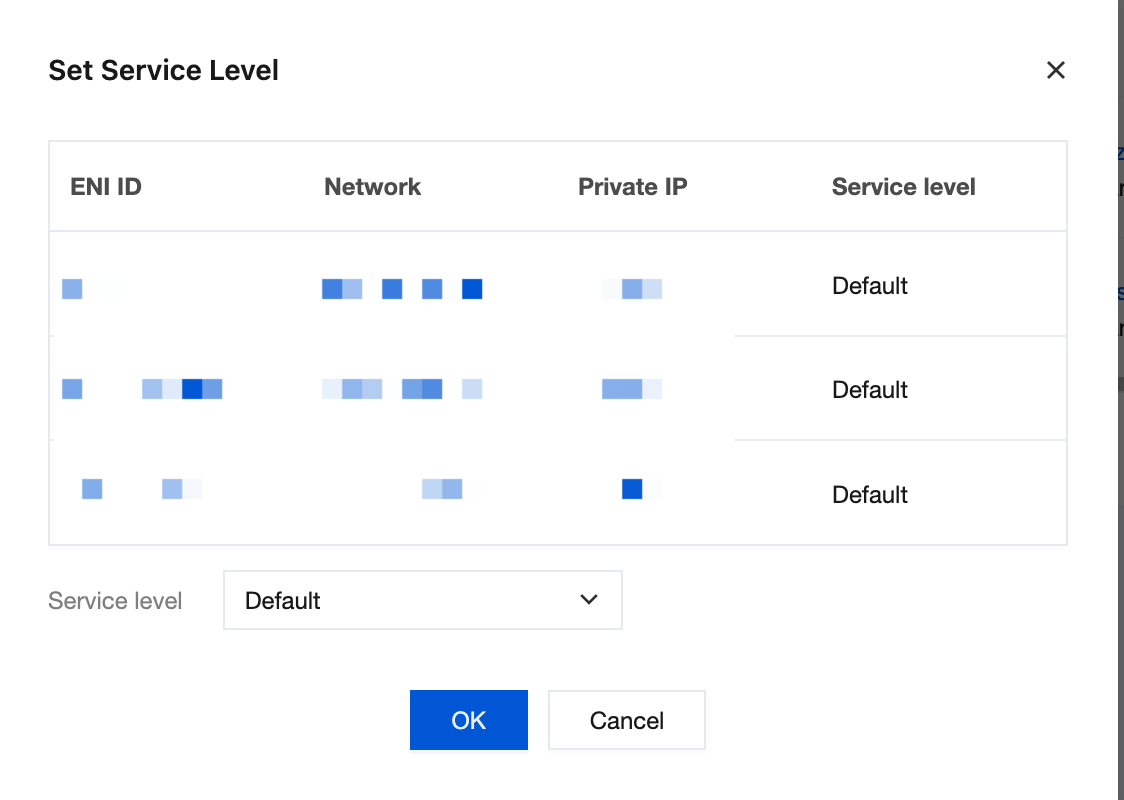
5. Select multiple ENIs for which you want to set the same QoS level, and click Set QoS Level above the list.