You can download the cold backup data and binlogs in the TencentDB for MariaDB console.
Downloading a cold backup or binlog
1. Log in to the TencentDB for MariaDB console. Click an instance ID or Manage in the Operation column to enter the instance management page.
2. Select Backup and Restoration > Cold Backup List or Binlog List
3. Select the file to be downloaded and click Download in the Operation column.
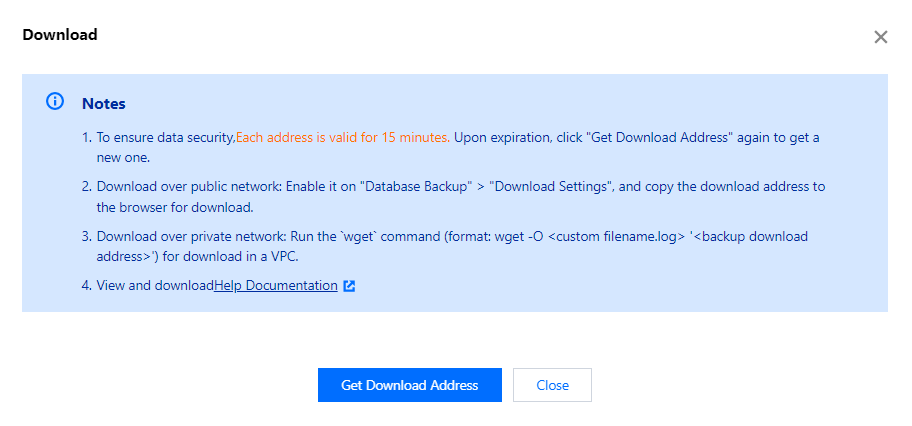
4. In the pop-up dialog box, click Get Download Address to get the download address in a VPC.
5. Log in to CVM (Linux system) under the VPC where the database resides as instructed in Customizing Linux CVM Configurations and run the wget command to download the file.
Note:
Download from Public Network: Enable this option in Download Settings on the Database Backup page. Then, you can directly copy the download link to a browser for download.
Download from Private Network: Access the instance in the VPC and use the wget command for download: wget -O <custom name.log> '<backup file download address>'.
The address is valid for 15 minutes. Refresh the page to get a new one after expiration.
Downloading a slow log
1. Log in to the TencentDB for MariaDB console. Click an instance ID or Manage in the Operation column to enter the instance management page.
2. Select Performance Optimization > Slow Log tab
3. Select the file to be downloaded and click Download in the Operation column.
Note:
If the file size is 0 KB, no slow query record is available for download.
4. In the pop-up dialog box, click Get Download Address to get the download address in a VPC.
5. Log in to CVM (Linux system) under the VPC where the database resides as instructed in Customizing Linux CVM Configurations and run the wget command to download the file.
Note:
Download from Public Network: Enable this option in Download Settings on the Database Backup page. Then, you can directly copy the download link to a browser for download.
Download from Private Network: Access the instance in the VPC and use the wget command for download: wget -O <custom name.log> '<slow log download address>'.
The address is valid for 15 minutes. Refresh the page to get a new one after expiration.