Private Network Unable to Connect Location Guide
Download
フォーカスモード
フォントサイズ
Issue Description
Issue 1: Use the CVM to connect to a Tencent Cloud Distributed Cache instance at the private network address automatically assigned by the system as instructed in Connecting to Tencent Cloud Distributed Cache Instance. However, the connection fails.
Issue 2: Log in to the Tencent Cloud Distributed Cache console, go to the instance list, click Log In in the Operation column of the target instance to redirect to DMC, connect to the instance. However, the connection fails, as shown in the following figure.
Possible Causes
For database connection failures for the first time, the possible causes are as follows:
Port error.
Network configuration error or incorrect security group configuration.
Password error.
For sudden connection failures during instance running, the possible causes are as follows:
The maximum number of connections has been reached.
Memory or shards have been used up.
A high-availability (HA) switchover occurs, the database service becomes unavailable, a read-only replica switchover occurs, the read-only replica service becomes unavailable, or more.
For client errors, the possible causes are as follows:
Connection pool parameter setting is not proper.
Connections leak.
Troubleshooting
Step 1. Run telnet to Check Whether the Distributed Cache Port Can Be Accessed Normally
For most connection failure issues, run
telnet in the command line tool to narrow down the cause of the error:[root@VM-4-10-centos ~]# telnet 10.x.x.34 6379Trying 10.x.x.34...Connected to 10.x.x.34.Escape character is '^]'.
As shown above, if there is successful connection prompt, the port of the Distributed Cache instance can be accessed normally. If there is an exception, go to Step 2 to troubleshoot network issues.
Step 2. Check Whether It Is Caused by Network Configuration
To connect over the private network, the CVM and Tencent Cloud Distributed Cache must be under the same account and in the same VPC, or both in the classic network. The connection will fail in the following conditions:
If the CVM instance is in a VPC, while the Redis instance in the classic network, you are advised to switch the network type of the Distributed Cache instance from the classic network to VPC.
If the Distributed Cache instance is in a VPC, while the CVM instance in the classic network, you are advised to switch the network type of the CVM instance from classic network to VPC. For more information, see Switching to VPC.
If the CVM and Distributed Cache are in different VPCs in the same region, you are advised to migrate the Redis instance to the VPC of the CVM instance.
If the CVM and Distributed Cache are in different VPCs in different regions, you are advised to create a CCN between the two VPCs.
If the CVM and Distributed Cache are in different VPCs under different accounts, you are advised to create a CCN between the two VPCs.
Step 3. Check Whether It Is a Security Group Issue
The CVM instance cannot connect to the Distributed Cache if their security group configuration is incorrect.
Incorrect CVM Security Group Configuration
To use the CVM to connect the Distributed Cache, you need to configure an outbound rule in the security group of the CVM instance. If the target of the outbound rule is not "0.0.0.0/0" and the protocol port is not "ALL", the IP address and port of the Distributed Cache instance need to be added to the rule.
1. Go to the Security Group page in the CVM console and click the name of the CVM-bound security group to open its details page.
2. On the Outbound rule tab, click Add Rule.
Type: Select Custom.
Target: Enter the IP address or IP range of your Distributed Cache.
Protocol Port: Enter the private network port of the Distributed Cache.
Policy: Select Allow.
Incorrect Distributed Cache Security Group Configuration
To use the CVM to connect the Distributed Cache, you need to configure an inbound rule in the security group of the Redis instance. If the source of the inbound rule is not "0.0.0.0/0" and the protocol port is not "ALL", the IP address and port of the CVM instance need to be added to the rule.
1. Go to the Security Group page in the CVM console and click the name of theDistributed Cache security group to open its details page.
2. On the Inbound rule tab, click Add Rule.
Note that you also need to enable the IP address and port of the Redis in the inbound rule.
3. Enter the IP address (or IP range) and port information (Distributed Cache private network port) you wish to allow connections from, and select Allow.
Type: Select Custom.
Source: Enter the IP address or IP range of your CVM.
Protocol Port: Enter the private network port of the Distributed Cache instance.
Policy: Select Allow.
Note:
The default private network port of Distributed Cache is 6379, and the port can be customized. If the default port is changed, the new port need be enabled in the inbound rule of the Distributed Cache security group.
If the default port 6379 of the Distributed Cache instance is used, it need to be enabled in the inbound rule of the Redis security group.
Step 4. Check Whether the Issue Is Caused by the Password
Run the
info command. If the following information is displayed, the password of the Distributed Cache is correct.[root@SNG-Qcloud /data/home/rickyu]# redis-cli -h 10.x.x.34 -p 6379 -a password10.x.x.2:6379> info cpu# CPUused_cpu_sys:1623.176000used_cpu_user:4649.572000used_cpu_sys_children:0.000000used_cpu_user_children:0.000000
If
NOAUTH Authentication required. is displayed, the password is incorrect.10.x.x.31:6379> info memoryNOAUTH Authentication required.10.x.x.31:6379>
Log in to the Tencent Cloud Distributed Cache console and click an instance ID in the instance list to open the instance details page, where you can reset the password. For more information, see Managing Account.
Step 5. Check Whether the Memory or Shards Are Full
If the following error message is displayed for the business:
"-READONLY You can't write against a read only slave.\\r\\n"
Log in to the Tencent Cloud Distributed Cache console, find the target instance in the instance list, click the instance ID to enter the System Monitoring page, and select Memory Utilization in the Metric drop-down list to view the memory usage of the instance.
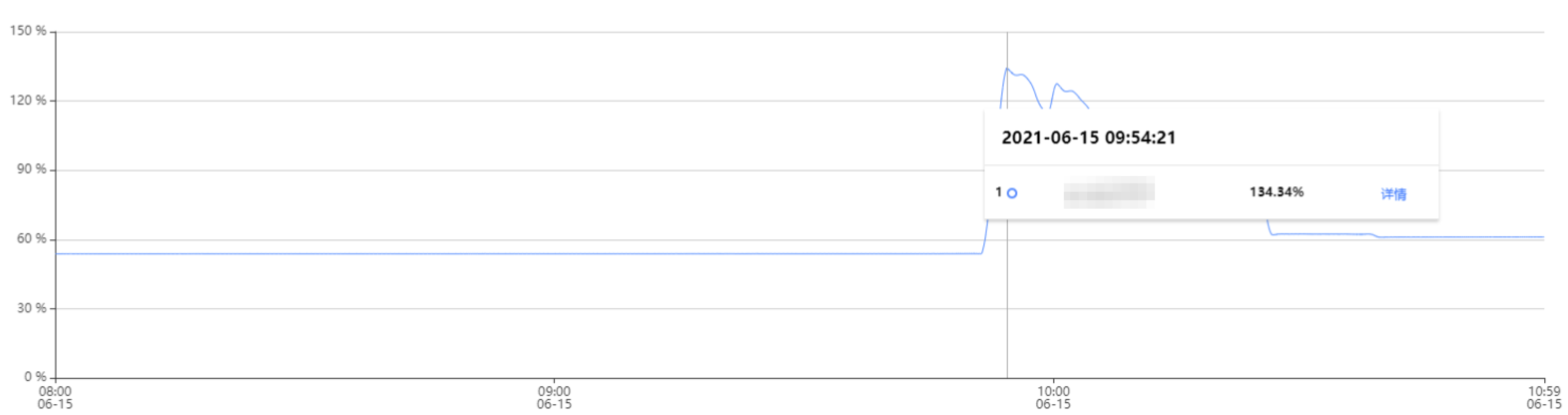
If memory is full, writes will fail. In this case, perform the following operations:
Expand the capacity immediately as instructed in Changing Instance Specification.
Modify the database eviction policy. In Parameter Settings, set the
maxmemory-policy parameter to allkeys-lru or volatile-lru. For details, see Setting Instance Parameters.Note:
Instance data may be lost if the
allkeys-lru eviction policy is adopted. Assess the impact before doing so.Step 6. Check the Connection Quota
The Connection Utilization metric refers to the ratio of the number of TCP connections from the client to the instance to the maximum number of connections to the instance. If this metric is continuously high, the current database connection quota is insufficient, and the maximum number of connections needs to be adjusted.
Issue
The error message is as follows:
ERR max number of clients reachedSolution
1. Log in to the Tencent Cloud Distributed Cache console. Above the instance list on the right, select the region. In the instance list, find the target instance. Click the instance ID in blue to enter the Instance Details page, click the System Monitoring tab, and then select the Monitoring Metrics tab to view the monitoring data. In the View drop-down list, select Instance Monitoring and Connection Utilization as the metric, and check whether it is continuously high in the monitoring view.
2. If the connection usage is continuously high, adjust the maximum number of connections and modify the specifications for the number of connections. For details, see Adjusting the Number of Connections.
Step 7. Check Whether HA Switchover, Unavailable Database Service, Read-only Replica Switchover, or Unavailable Read-only Replica Service Occurs
If you find abnormal connections or a large number of access errors and slow queries at a certain point in time, and TCOP event alarms for those abnormal events are received, Contact Us for help.
Step 8. Confirm Whether the Configuration of the Jedis Connection Pool Is Correct If You Use It
Issue
If the number of available connections in the connection pool is used up and the old connections are not released in time, the newly created connection will fail, and the following error message will be displayed on the client.
JedisConnectionException: Could not get a resource from the poolSolution
1. Use the following command on the client to confirm the number of connections currently accessing port 6379 of the instance. If this number is close to the maxTotal value configured in the connection pool, a connection failure will occur.
netstat -an | grep 6379 | grep ESTABLISHED | wc -l2. See Java Connection Sample, and check whether to call jedis.close() to release old connections to avoid connection leaks.
3. If all old connections have been released and the concurrent business volume is large, the maxTotal parameter value needs to be increased.
Note:
The maxTotal value of each client connection pool * The number of clients = The maximum number of connections for Tencent Cloud Distributed Cache.
References
Viewing the Network Type and VPC Information
To enable connection between CVM and Distributed Cache over private network, they must be under the same account and in the same VPC, or both in the classic network.
Note:
If the Network fields in the instance lists both show Classic Network or VPC, the networks of the CVM and Distributed Cacheare of the same type.
If the Network fields in the instance lists both show the same VPC (in the same region), it means that the CVM and Distributed Cache instances are in the same VPC.
Viewing the CVM Network Type

Viewing the Distributed Cache Network Type

Enabling Public Network Access
Tencent Cloud Distributed Cache now allows you to manually enable public network access in the console, to access Redis instance from the public network. For detailed directions, see Configuring the Public Network Address.
フィードバック