tencent cloud

SSL Certificates

Release Notes
Announcements
Notice on price adjustment of DigiCert and its affiliated brands'SSL certificates​
Price Change to DigiCert SSL Certificates
TrustAsia Root Certificate Update
Domain Validation Policy Update
SSL Certificate Service Console
Multi-Year SSL Certificate and Automatic Review
Notice on Stopping the Issuance of 2-Year SSL Certificates by CAs Starting from September 1, 2020
Announcement on Stop Using the Symantec SSL Certificate Name After 30 April 2020
Notice on Certificate Revocation Due to Private Key Compromises
Notice on Application Limits for DV SSL Certificates
Notice on Adjustment of Free SSL Certificates Policy
Let's Encrypt Root Certificate Expired on September 30, 2021
Product Introduction
Overview
Introduction to Tencent Cloud SSL Certificates
Strengths
Advantages of HTTPS
Browser Compatibility Test Report
Multi-Year SSL Certificate and Automatic Review Overview
SSL Certificate Security
Purchase Guide
Pricing
SSL Certificate Purchase Process
SSL Certificate Selection
Paid SSL Certificates Renewal
SSL Certificate Renewal Process
SSL Certificate Refund Process
Getting Started
Certificate Application
Information Submission Process for Paid SSL Certificates
Domain Ownership Validation
Domain Validation Method Selection
Automatic DNS Addition
DNS Validation
File Validation
Automatic DNS Validation
Automatic File Validation
Validation Result Troubleshooting Guide
Operation Guide
Domain Ownership Verification
Uploading Certificates
Secured Seal
CSR Management
Certificate Installation
Installing an SSL Certificate on a Tencent Cloud Service
Installation of International Standard Certificates
Selecting an Installation Type for an SSL Certificate
Certificate Management
Instructions on SSL Certificate Auto-Renewal
Certificate Hosting
Uploading (Hosting) an SSL Certificate
Reminding Reviewers to Review an SSL Certificate Application
Revoking an SSL Certificate
Deleting an SSL Certificate
Reissuing an SSL Certificate
Ignoring SSL Certificate Notifications
Customizing SSL Certificate Expiration Notifications
API Documentation
History
Introduction
API Category
Making API Requests
Certificate APIs
Certificate Renewal (Certificate ID Unchanged) APIs
CSR APIs
Data Types
Error Codes
Use Cases
Automatic Solution for Implementing and Issuing Multi-Year Certificates and Binding Resources
Apple ATS Server Configuration
Quickly Applying for a Free SSL Certificate via DNSPod
Enabling Tencent Cloud DDNS and Installing Free Certificates for Synology NAS
Batch Applying for and Downloading Free Certificates Using Python-based API Calls
Profile Management
Adding Organization Profile
Adding Administrator
Adding Domain
Troubleshooting
Domain Validation Failed
Domain Security Review Failed
Website Inaccessible After an SSL Certificate is Deployed
404 Error After the SSL Certificate is Deployed on IIS
“Your Connection is Not Secure” is Displayed After the SSL Certificate is Installed
Message Indicating Parsing Failure Is Displayed When a Certificate Is Uploaded
Automatic DNS Validation Failed for a Domain Hosted with www.west.cn
Host Name Field Cannot Be Edited in IIS Manager When Type Is Set to https
Message Indicating Intermediate Certificates Missing in Chain Is Displayed When a Free SSL Certificate Is Deployed on IIS
FAQs
SSL Certificate Selection
SSL Certificate Application
SSL Certificate Management
SSL Certificate Installation
SSL Certificate Region
SSL Certificate Review
SSL Certificate Taking Effect
SSL Certificate Billing and Purchase
SSL Certificate Validity Period
Related Agreement
SSL Service Level Agreement
Contact Us
Glossary
문서SSL CertificatesFAQsSSL Certificate ReviewHow Do I View the Domain Validation Result of a DV SSL Certificate?

How Do I View the Domain Validation Result of a DV SSL Certificate?

PDF
포커스 모드
폰트 크기
마지막 업데이트 시간: 2024-03-06 18:03:04

How do I view the domain validation result of a DV certificate?

After you submit a certificate application, the CA will review your domain and submitted information and issue the certificate after approval. If your certificate has not been issued for a long time, we recommend that you check the domain validation result as follows.
Note:
SSL Certificate Service provides hosts with fully qualified domain names (FQDNs). If your domain management system does not support them, remove the suffix of the root domain.
DNS validation type
1. Log in to your domain server and run the dig command to query the DNS record.
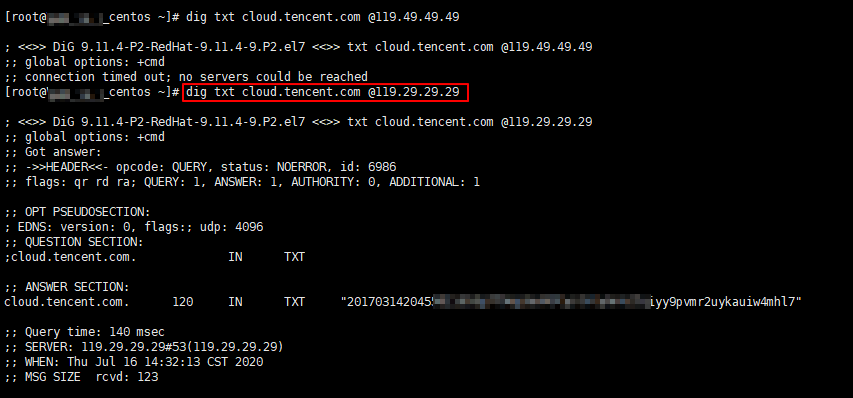
2. Run the dig + record type + @119.29.29.29 command to specify to use the DNSPod DNS for validation. For example, dig txt cloud.tencent.com @119.29.29.29


If the returned result contains a TXT record similar to that in the figure and the record value is the same as that on the Certificate Details page in the SSL Certificate Service console, your DNS configuration is correct and has taken effect.
If the returned result does not contain a TXT record, it's possible that the DNS configuration is incorrect or has not taken effect. If the DNS configuration is incorrect, go to the SSL Certificate Service console and click the Pending validation tab to enter the Certificate Details page. Copy the record value in Certificate Details and update the record at your DNS service provider. If the configuration has not taken effect for a long time, contact your domain hosting provider.
Note: For detailed directions, see DNS Validation.
File validation type
1. Log in to the SSL Certificate Service console and click the Pending validation tab to enter the Certificate Details page.
2. Click to access the validation URL. If the accessed page displays the same content as the validation file content on the Certificate Details page, the access is normal; otherwise, check the following:
Check whether the validation URL has an address accessible over HTTPS, and if so, use the HTTPS address in the browser for another access. If the browser prompts that the certificate is untrusted or the displayed content is incorrect, disable the HTTPS service of the domain.
Check whether the validation URL can be accessed anywhere. As the servers for validating certificates of each brand are located in different regions, you should check whether your site has an image outside the Chinese mainland or whether the smart DNS service is used.
File validation requires responding to status code 200 and file content directly and does not support redirects of any kind. Check whether the validation URL has the 301 or 302 redirect, and if so, disable the redirect.
Note:
You can run the wget -S URL command to check whether the validation URL has a redirect.
도움말 및 지원

문제 해결에 도움이 되었나요?

피드백