Account List
Download
포커스 모드
폰트 크기
Viewing the account list
1. Log in to the CSC console, click Cloud API Exception Monitoring in the left navigation.
2. In the account list, view the account's basic info, security advice, associated alarms, and risks from the account perspective.
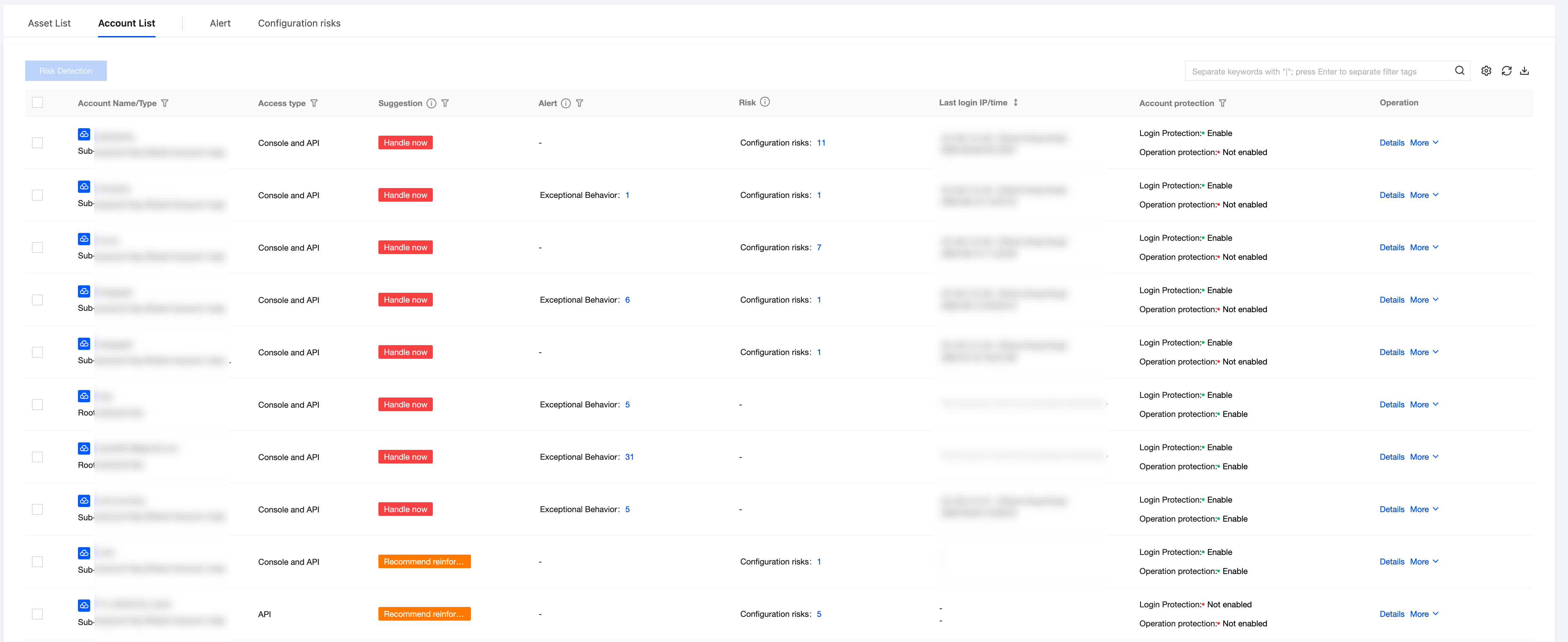
Field Name | Example | Description |
Account Name Identity | Account A Root account/Sub-account (belonging to main account: Root account B) | AK cloud service provider and account, if it is a sub-account show info belonging to main account. Hover over to view account name, account ID and APPID. |
Access Methods | API Console and API | Access methods for this account Support filtering API/Console and API |
security advice | Process now Harden security no abnormality detected | Based on current AK alarms and risk status, we offer a comprehensive security level. You can handle it as recommended by severity. Support filtering different AKs for recommendation management. |
Alarm | Abnormal behavior: x Leakage monitoring: x | Recent unhandled alarms. Click to pull up the AK details drawer and locate the Alarm tab. Support filtering leakage monitoring/abnormal behavior/no alarm. |
Risk | Configuration risk: x | Recent unhandled risks. Click to pull up the AK details drawer and locate the Risk tab. |
Recent login IP/time | 1.x.x.1 (China - Guangdong Province - Shenzhen city) 2025-01-12 18:00:00 | Last logged-in IP address (including location) and log-in time. Time format: YYYY-MM-DD HH:MM:SS. Time-based support for sorting. |
Account Protection | Login protection: Enable Operation protection: Enable | Show the activation of account's login protection and operation protection for security status. Support filtering enable all/partially enabled/not enabled. |
3. In the account list, select the desired account and click Details/More.

Operation Type | Description | |
Details | | Click to pull up the account details drawer. |
Others | Risk detection | Click to recheck the rule. |
| Go to view logs | Click to navigate to Log Analysis > VAS Log Retrieval. |
Viewing Account Details
1. Log in to the CSC console, click Cloud API Exception Monitoring in the left navigation.
2. In the account list, select the desired account and click Details.

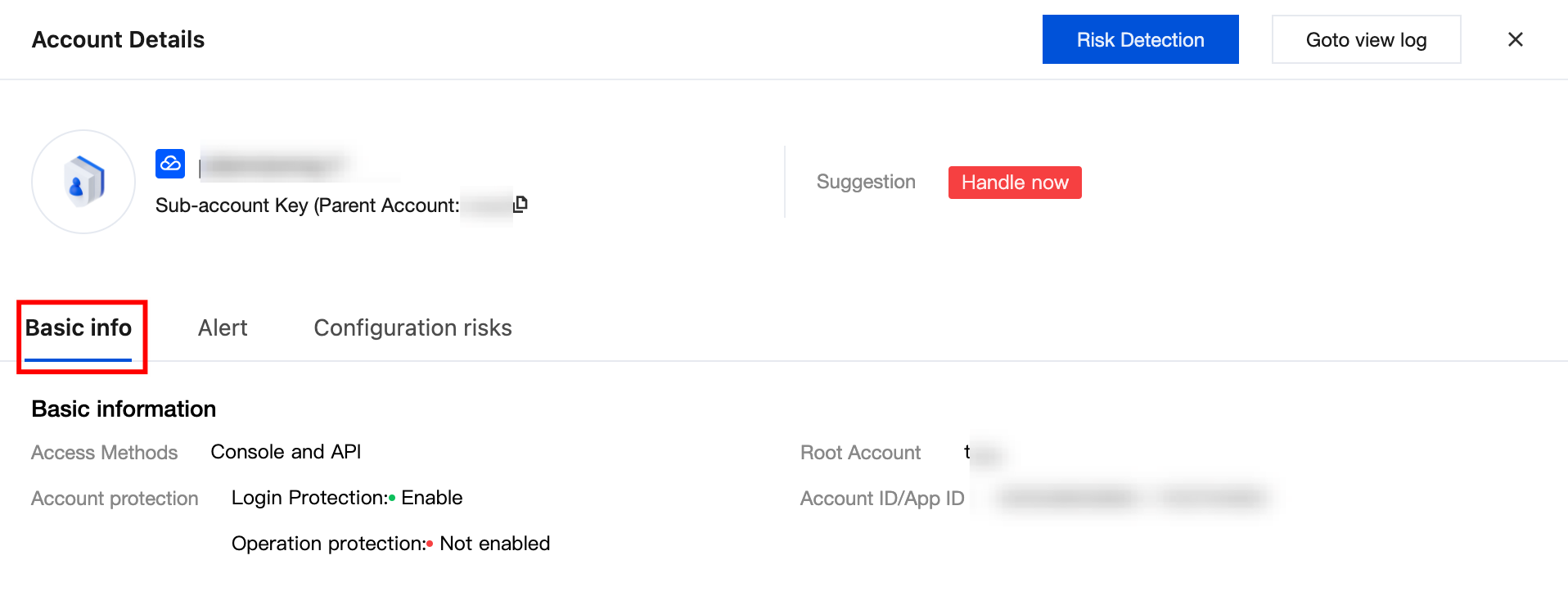
3. On the account details page, view basic account information, associated alarms and configuration risks, invocation records and associated assets.
View basic account information, including access method, account protection status, associated account, account ID and APPID.
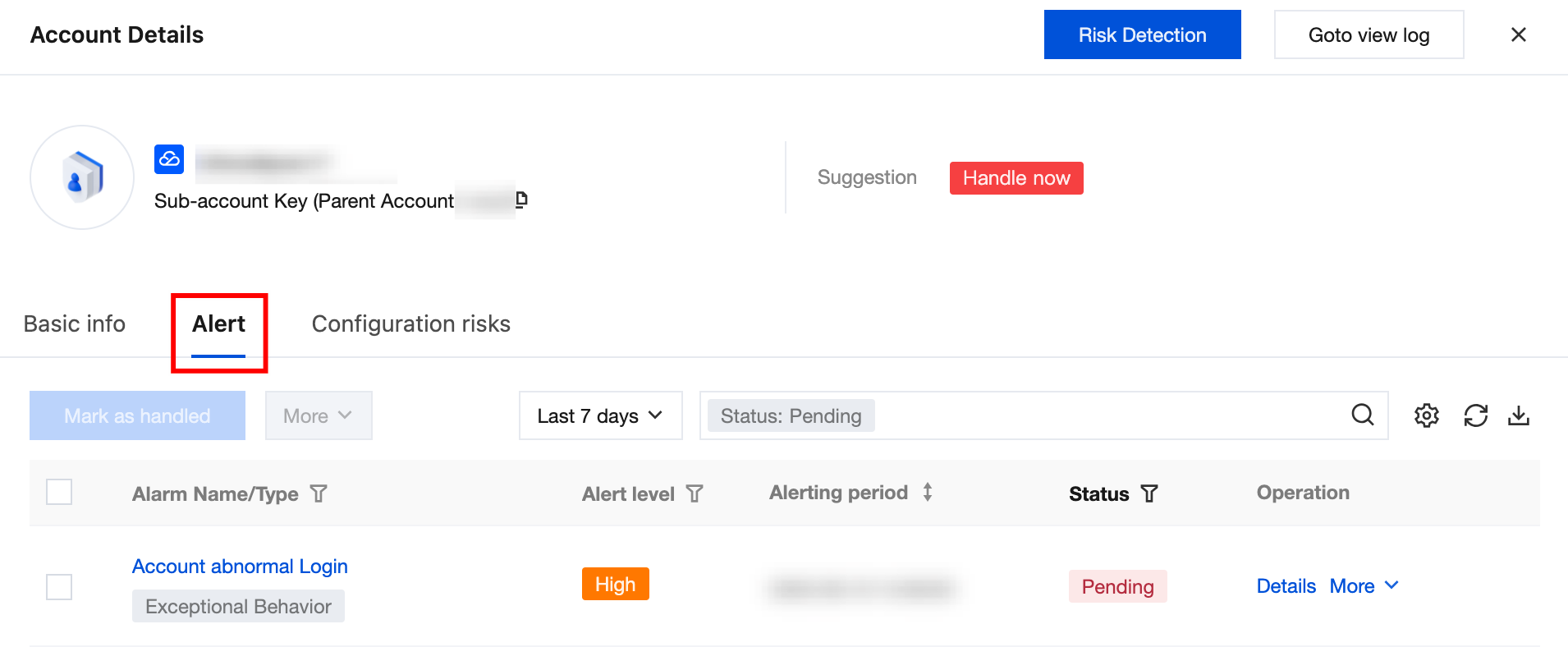
View account alarm information. By default, unhandled alarms are displayed. Click Details to open the alarm details drawer. For field descriptions, refer to Alarm.
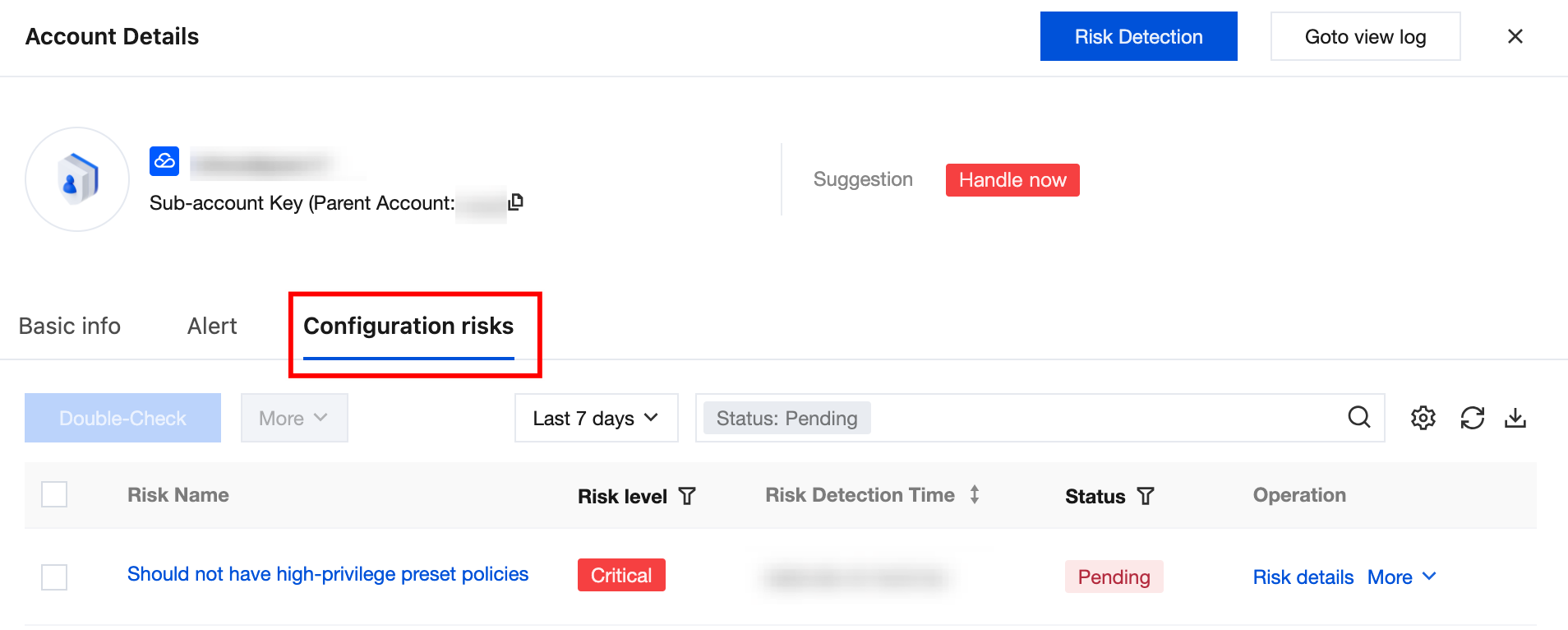
View account risk information. Unhandled risks are displayed by default. Click Details to open the risk details drawer. For field descriptions, refer to Configuration Risk.
View call records, including the IP address, IP type, calling method, service name, success or failure count, first/most recent call time, and related CAM policy.
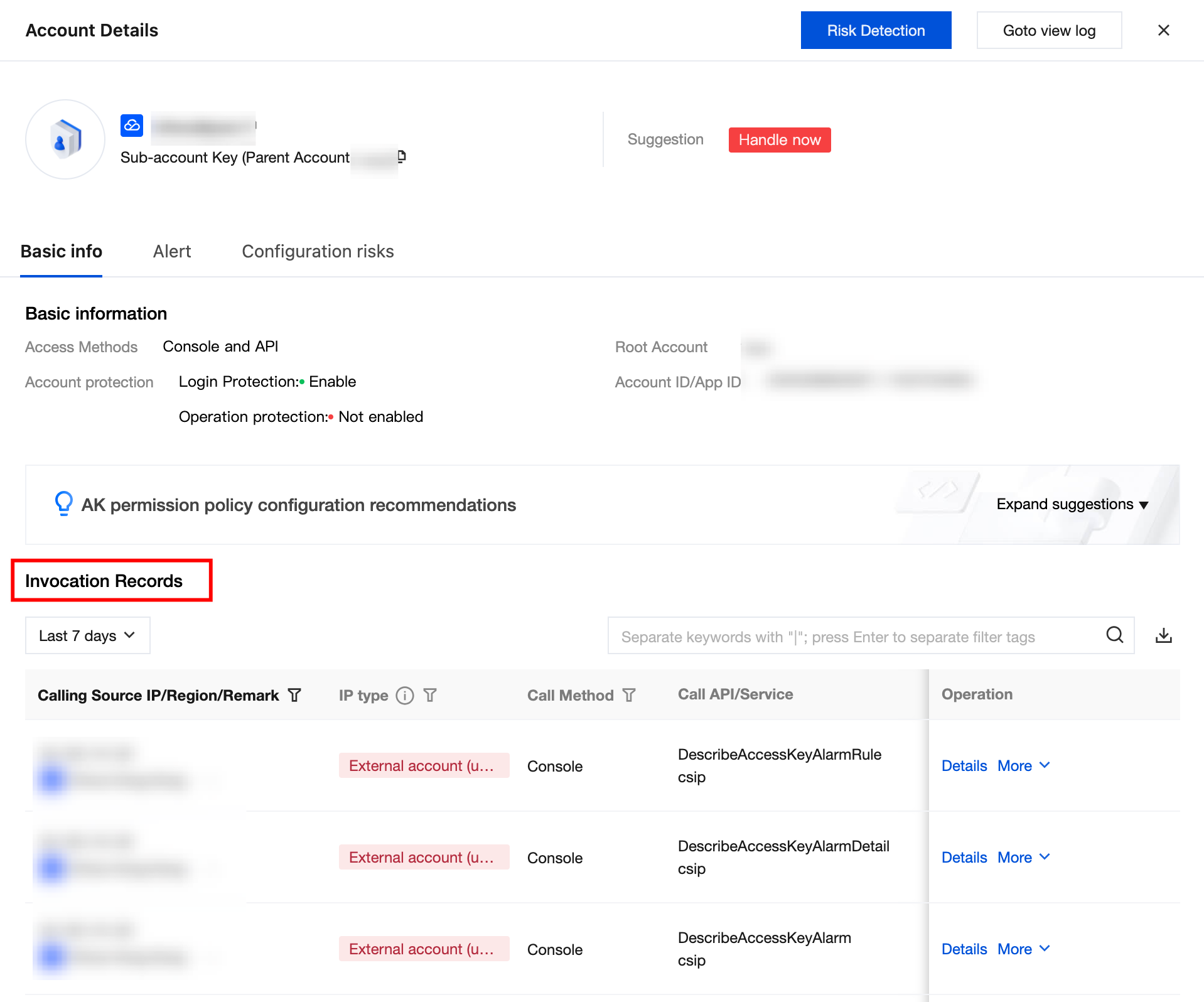
Field Name | Example | Description |
Source IP/Region/Remark | 1.x.x.1 China - Beijing | Department 1AK | Source IP, region, and custom remarks. IP content supports one-click copy. Remarks can be custom edited, no more than 20 characters. If empty, "-" will be displayed. |
IP address type | Account (with remark) Account (without remark) Account (external, with remark) Account (external, without remark) LAN (with remark) LAN (without remark) | Within the account (with remark): The source IP of calls identified in the CSC asset list, with remark. Within the account (without remark): The source IP of calls identified in the CSC asset list, without remark. Account (external, with remark): IP not within the account but with remark. Account (external, without remark): IP not within the account and without remark. LAN (with remark): Local Area Network IP Address, with remark. LAN (without remark): Local Area Network IP Address, without remark. |
API call method | API Console | Access the service via API call with AK or through console operations. |
Call API/service | DescribeAccountPrivileges cdb | Call the API and its associated service. |
CAM policy User (Role)/Policy | 1 username: xxx Policy: 1 | The number of CAM policies associated with this AK. Click the number to open the CAM policy details popup. The temporary key is displayed in an aggregated manner, so display users (role). |
call status count | Successful. (x times) Failed. (x times) | Call the AK successfully/failed state and count. |
First call time Recent call time | 2025-01-01 18:00:00 2025-01-12 18:00:00 | First call time and most recent call time. Format: YYYY-MM-DD HH:MM:SS. Support sorting. |
IP asset (ID/name) | ins-xxx Machine 1 | Show AK asset. |
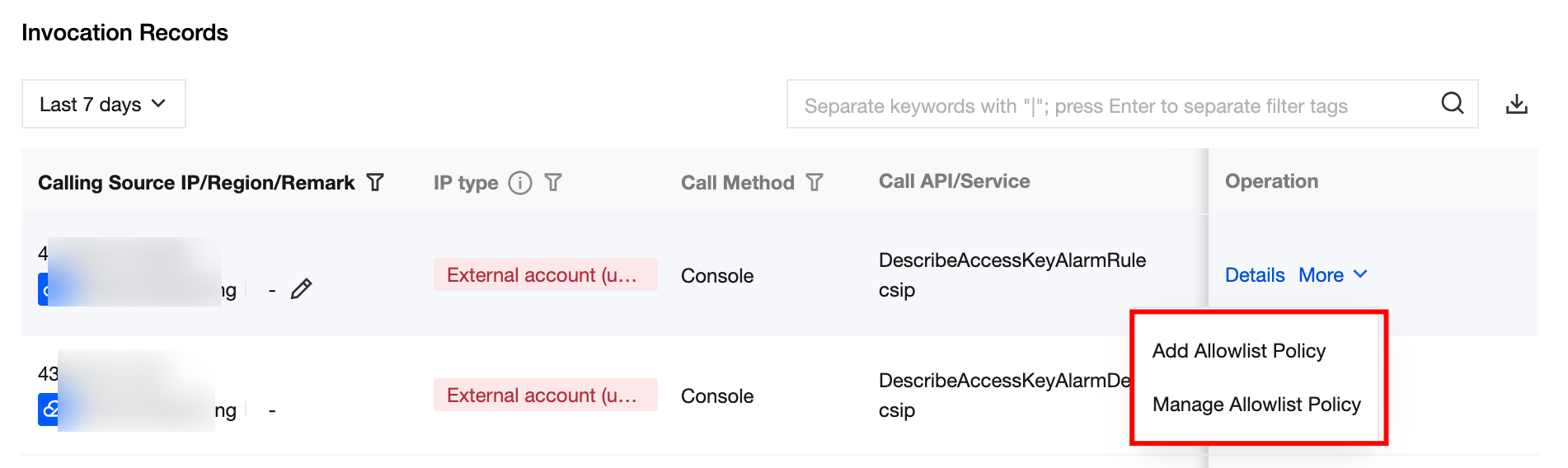
4. On the Account Details > Basic Info > Call Record page, select the desired source IP and click Details/More.
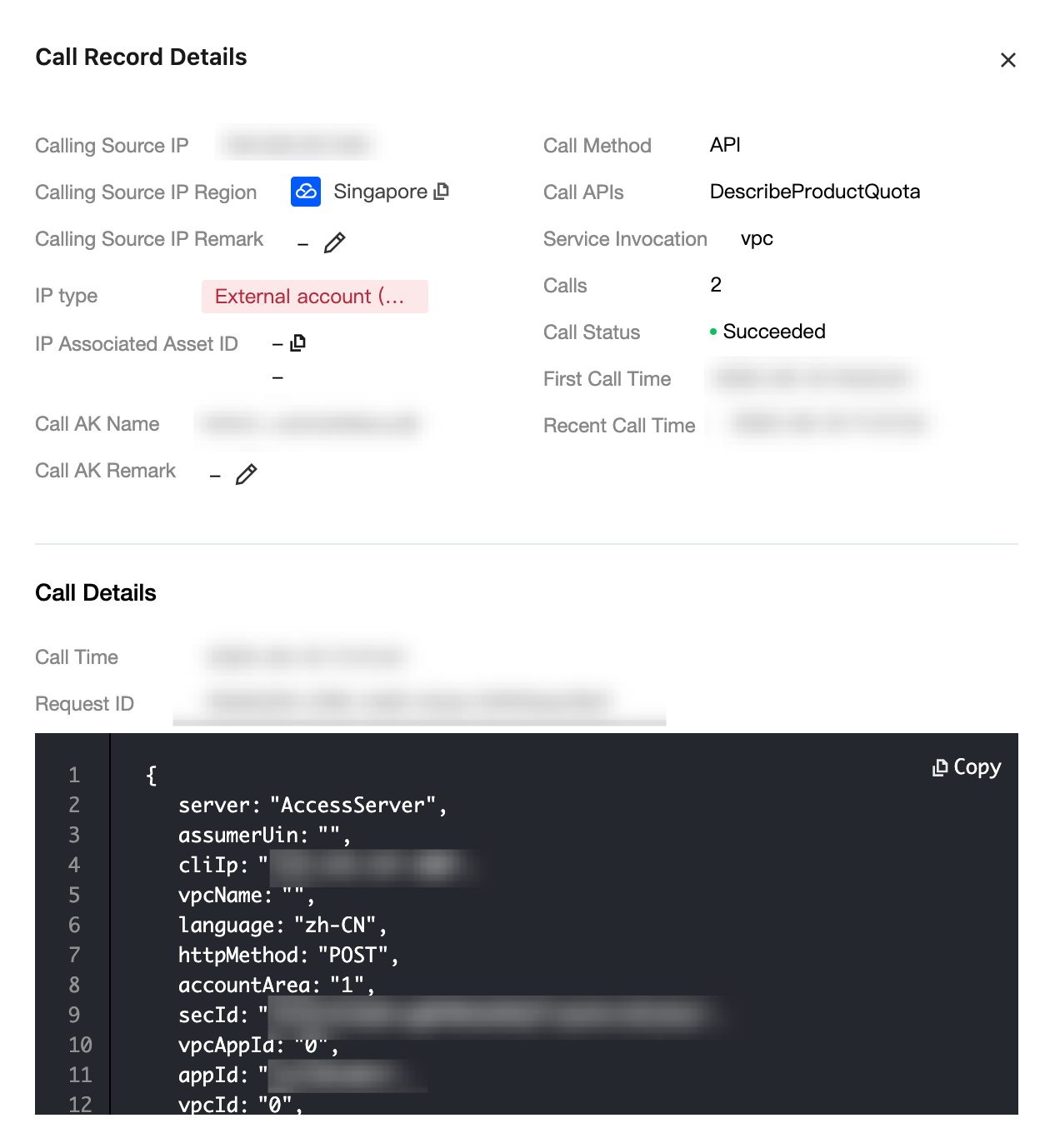
Details
Show call information, call details (including time, request ID, request body; supports pagination), CAM policy details.
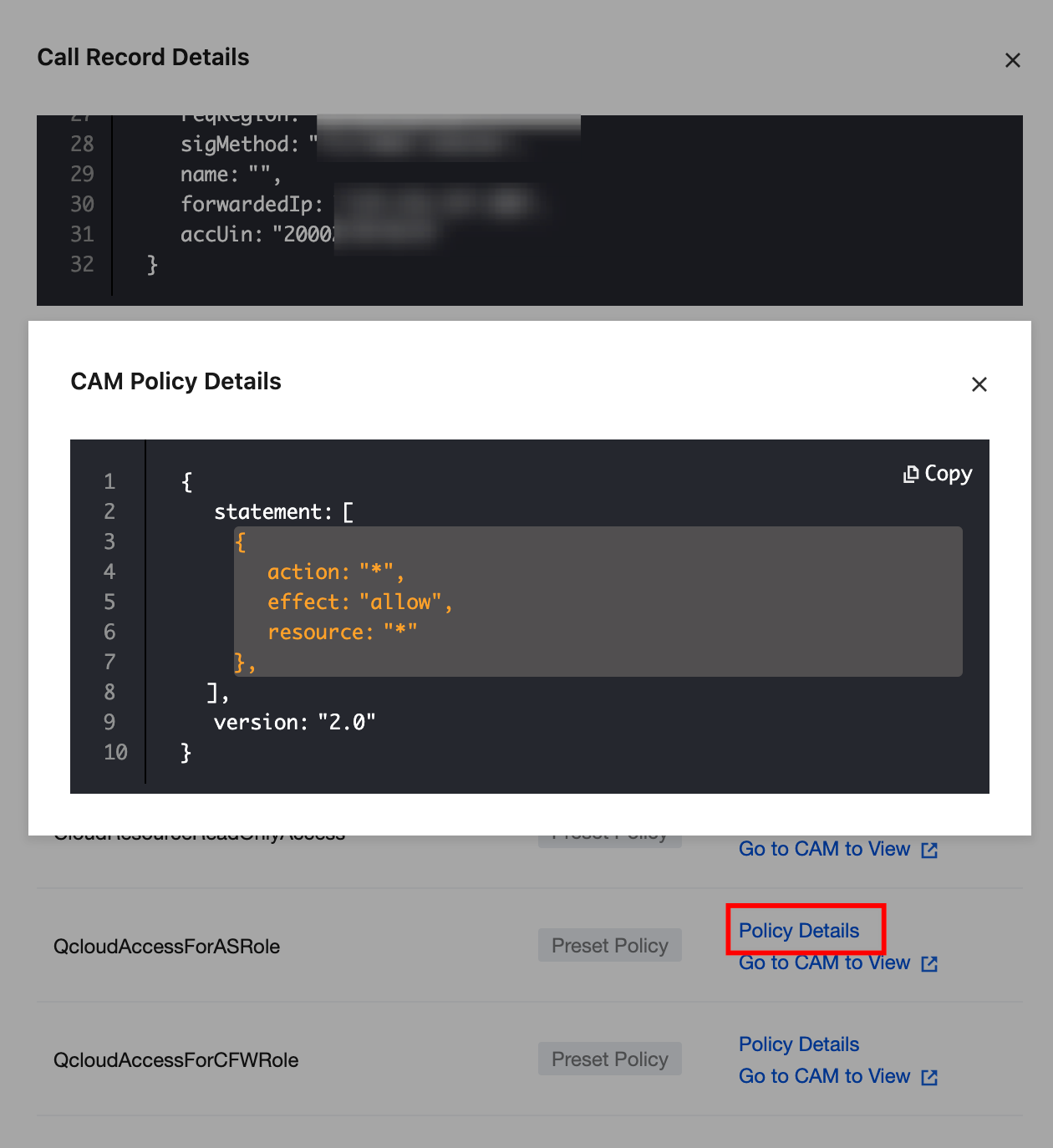
Click Policy Details to show its policy code (copying is supported). Click Go to CAM to navigate to Cloud Access Management > Policy > Specific Policy Details.
Others
Add allowlist policy: Click to pull up the Add Allowlist Policy drawer, fill in the effective policy, corresponding IP, calling method, AK, API, response code. For instructions, see Policy Management.
Manage allowlist policy: Click to pull up the Policy Management drawer and go to Policy Management > Allowlist Policy.
피드백