Changing Cluster Connection Password
Download
포커스 모드
폰트 크기
Operation Scenarios
This document describes how to change a cluster's connection password in the TcaplusDB Console and update the expiration time of the old password.
Prerequisites
You have created a cluster and a table group. For more information, please see Creating Cluster and Creating Table Group.
Directions
Changing connection password
1. Enter the Cluster List page, click Change Password in "Connection Password" of the cluster, enter the old password and new password, confirm the new password in the pop-up dialog box, and click Confirm.
For "Defer Change", you need to select Update password and the expiration time of the old password.
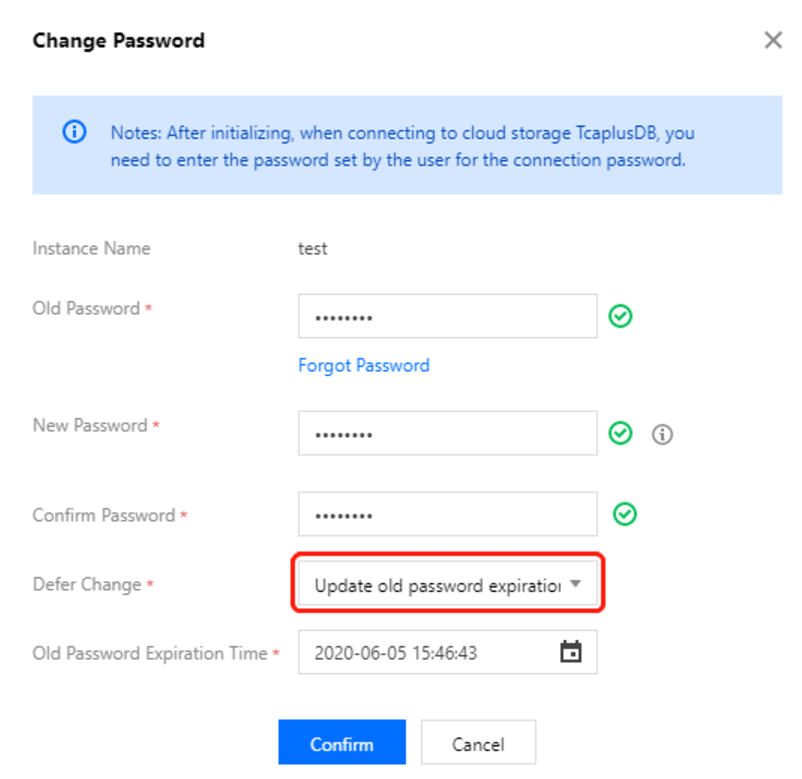
2. Once the request is successfully submitted, the expiration time of the old password will be displayed on the cluster details page, before which the old password will remain valid and you cannot submit another request to update the password.
Updating old password expiration time
Before the old password expires, you can update its expiration time to shorten or extend the period before replacing it.
1. Enter the Cluster List page, click Change Password in "Connection Password" of the cluster, modify the expiration time in the pop-up dialog box, and click Confirm.
Old Password: old password that will expire, i.e., the old password you entered when you changed the connection password.
New Password: new password that has not taken effect yet, i.e., the new password you entered when you changed the connection password.
Defer Change: select Update old password expiration time.
Old Password Expiration Time: select a new expiration time.
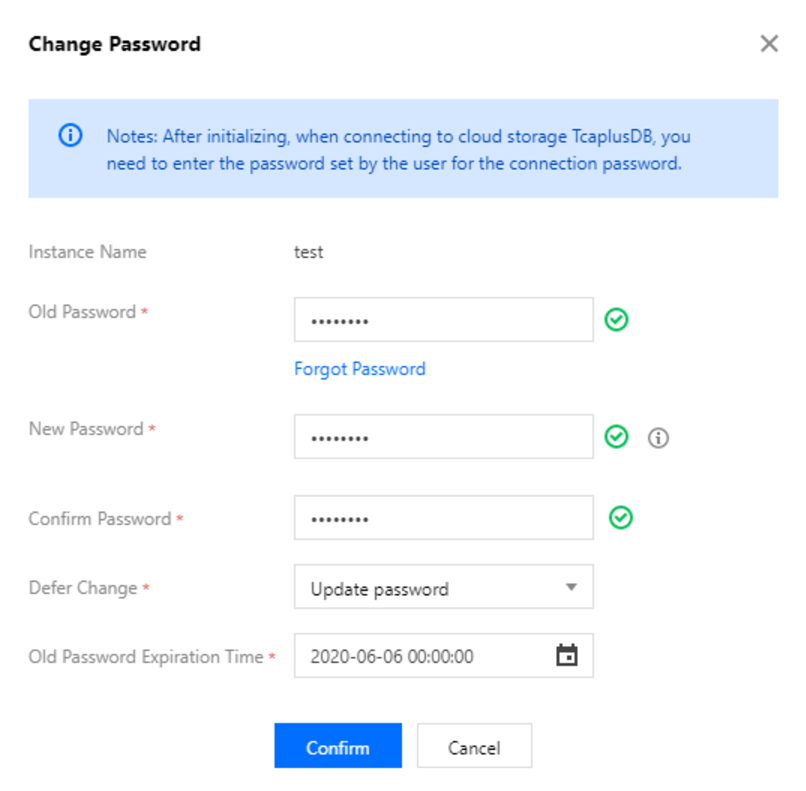
2. Return to the cluster details page and you will see that the expiration time of the old password has been updated.
After the expiration time, the old password will expire, and you can submit a new request to update the password.
피드백