This document describes how to research source-end resources using AWS CSV format bills. This operation guide is for reference only, providing users with a clear guide. Some materials originate from third-party public information. For specifics, refer to the relevant pages of the third party.
Step 1: Generate AWS Bill File
Log in to the AWS official website, go to Bills and Cost Management > Data Export > click Create. The configuration selection is as follows:
1. Export detailed information: Select standard data export.
2. Data table content settings: Select CUR 2.0.
3. Data table configuration: Check include resource ID.
4. Time granularity: Select per month.
5. SQL statement: selected by default. The following table lists the required items.
Column Name
Description
product
Product information
product_servicecode
Product Name
product_region_code
Region CODE
product_sku
Product SKU
product_usagetype
Product Usage Type
product_product_family
Product Family
resource_tags
Tag
product_instance_type
Product Specifications
pricing_unit
Billing unit
line_item_usage_amount
Usage
line_item_line_item_description
Billing Rule Description
line_item_usage_type
Usage Type
line_item_resource_id
product ID
6. Data export delivery options > Compression type and file format: Select gzip - text/csv.
7. Data export storage settings: Choose to create a new S3 bucket or select an existing bucket, and fill in the path prefix.
Note:
Based on the scale of bill details, generating a CSV bill file normally takes several hours.
Step 2: Download AWS Bill File
After the CSV bill file is generated, go to Bills and Cost Management > Data Export > click the corresponding export name > Delivery and Storage Option > S3 destination > click to enter the bucket.
Download the xxxxx.csv.gz bill file in the data/ path of the exported folder.
Note:
Danger: Do not modify the CSV bill file. Modification may result in data parsing failure during import.
Step 3: Execute AWS Bill Research
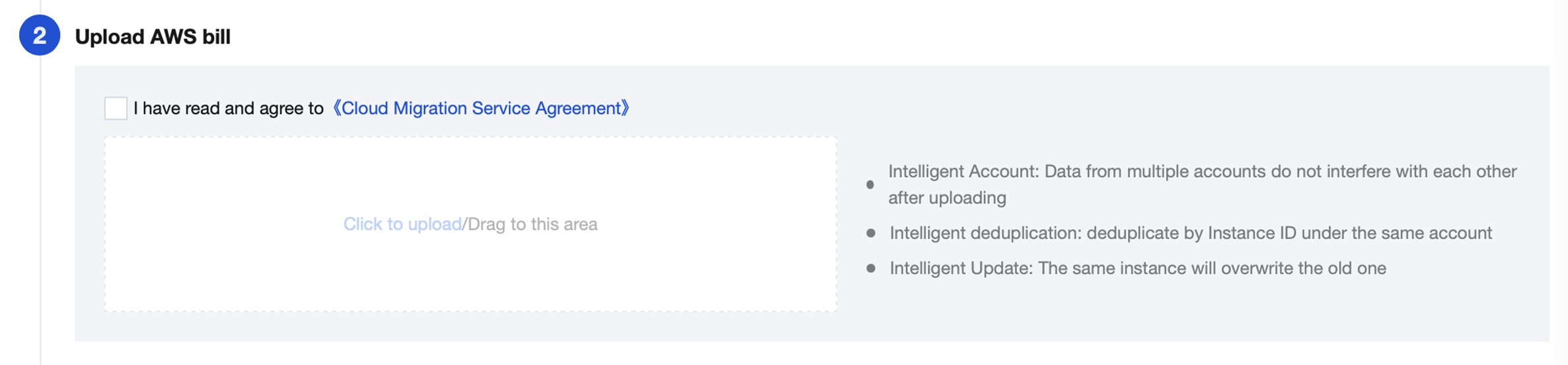
Enter Cloud Migration console, select Collection Tools > AWS > Bill Import, upload the CSV bill file.
Step 4: View Research Results
After the bill parsing is completed, click Go to Resource List to view the imported data this time.