Audio Separation Integration
Download
포커스 모드
폰트 크기
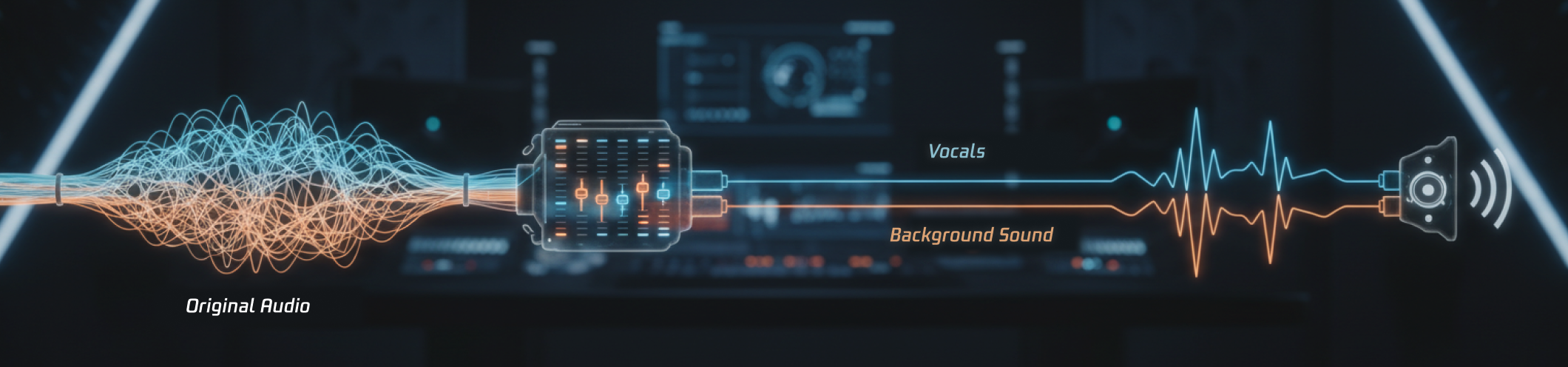
Audio Separation Feature Overview
The MPS audio separation feature supports the following capabilities:
Audio Separation Capability | Feature Description | Common Application Scenarios | Billing Information |
Vocal/Background Separation | Separates vocals from background audio in media files, allowing selective retention of either component. | Enhancing speech recognition accuracy Video dubbing replacement | Charges apply for "Audio Separation" services. For detailed pricing, please refer to the Billing Documentation. |
Vocal/Instrumental Separation | Separates vocal performances from instrumental accompaniment in media files, with options to retain either component. | Post-production | |
Music Removal | Eliminates musical components from media files while preserving other audio elements such as dialogue, ambient sounds, and sound effects. | International video distribution (copyright compliance) Music replacement in videos | Currently in beta testing with temporary "Audio Separation" charges. This feature is scheduled for official release in Q1 2026. Subsequent adjustments to billing methods and pricing may occur, with notifications provided via internal messages, SMS, or website announcements. We appreciate your support. |
Note:
Audio separation is implemented based on transcoding. Therefore, initiating an audio separation task incurs two separate charges: "Audio Separation" plus either "Standard Transcoding" or "Top Speed Codec Transcoding" (which can be selected as preferred).
Integration Prerequisites
Before using this feature, you need to complete the following preliminary operations:
Register/Log in to a Tencent Cloud account, activate MPS, and complete the service role authorization.
If you use a Tencent Cloud sub-account, ensure the account has sufficient permissions to use MPS.
For detailed guidance, see Quick Start. For account authorization issues, see Account Authorization.
Access Process
Step 1: Create Template
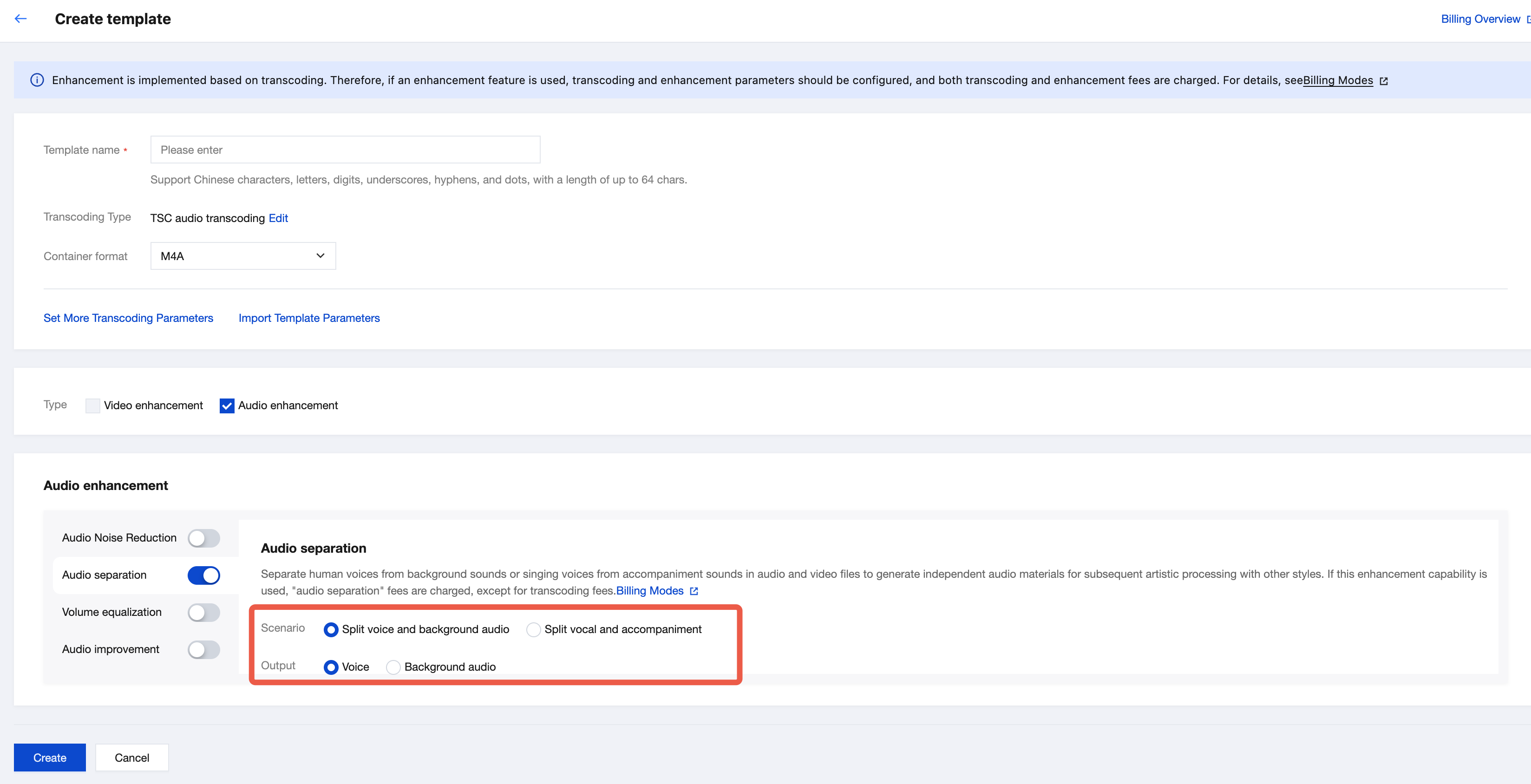
1. Go to the MPS console > audio/video enhancement template page.
2. Click Create Audio/Video Enhancement Template.
2.1 Select the "Audio enhancement" type, enable the "Audio separation" feature, and select the application scenario and output audio type to retain.
2.2 If you wish to output a processed video file, select "TSC transcoding" or "standard video transcoding" for the transcoding type. If you only need to output a processed audio file, select "TSC transcoding" or "general audio transcoding" for the transcoding type. Other parameters such as encoding standard and resolution can keep default values or be configured based on requirements.
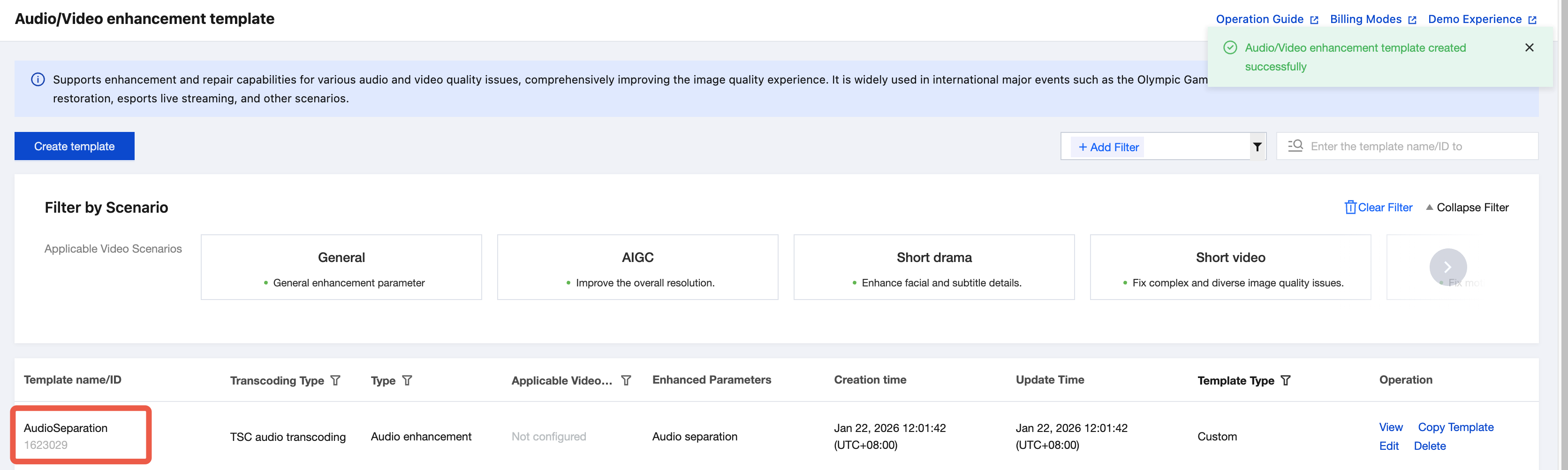
3. After the template is saved, click Create to obtain the template ID.
Step 2: Initiate Audio Separation Task
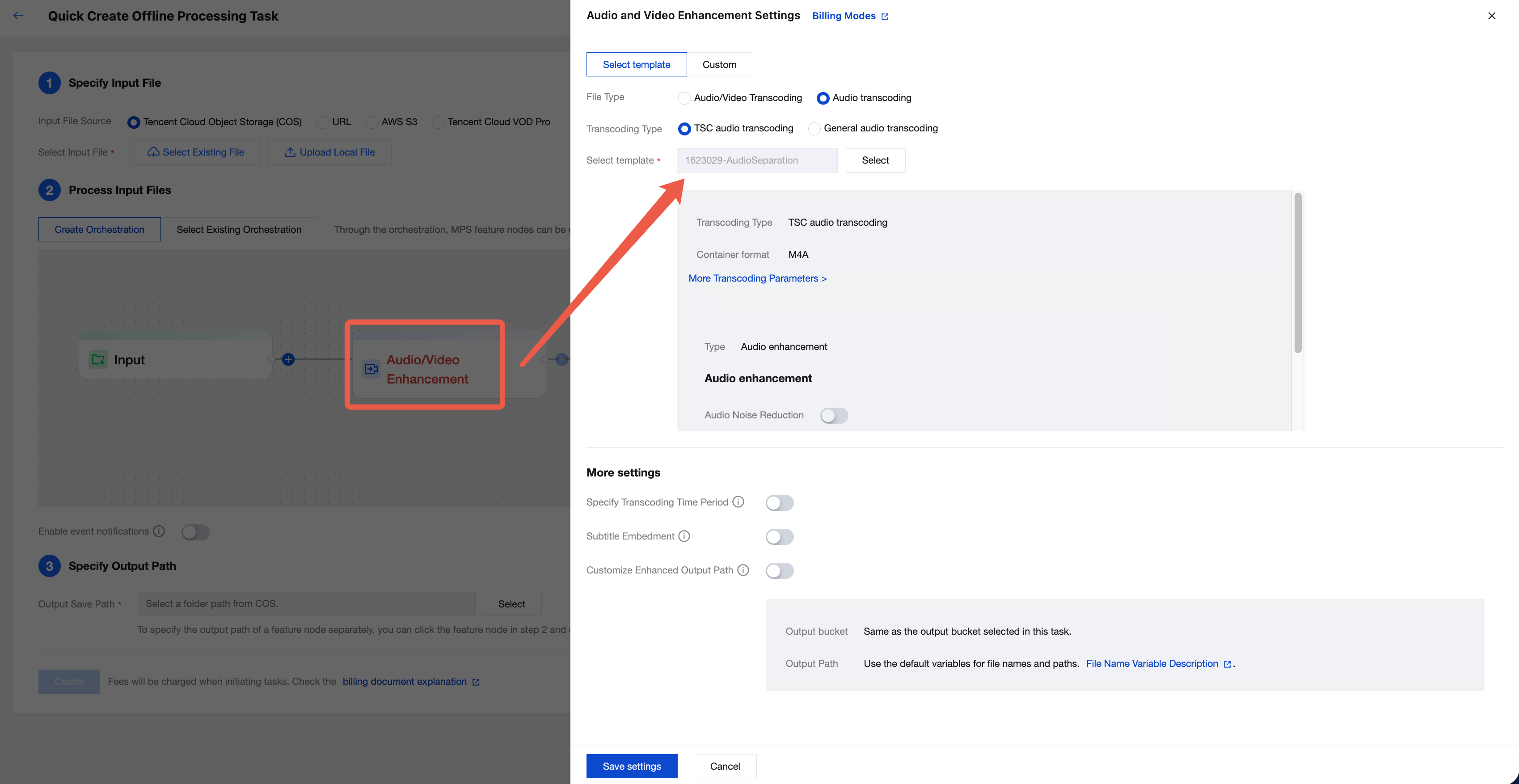
Initiating From the Console
1. Enter the task creation page, select the "Audio/Video Enhancement" node, and choose the created template in the pop-up interface on the right.
2. Specify the input file path and output path, then click Create to initiate the task.
API Initiation
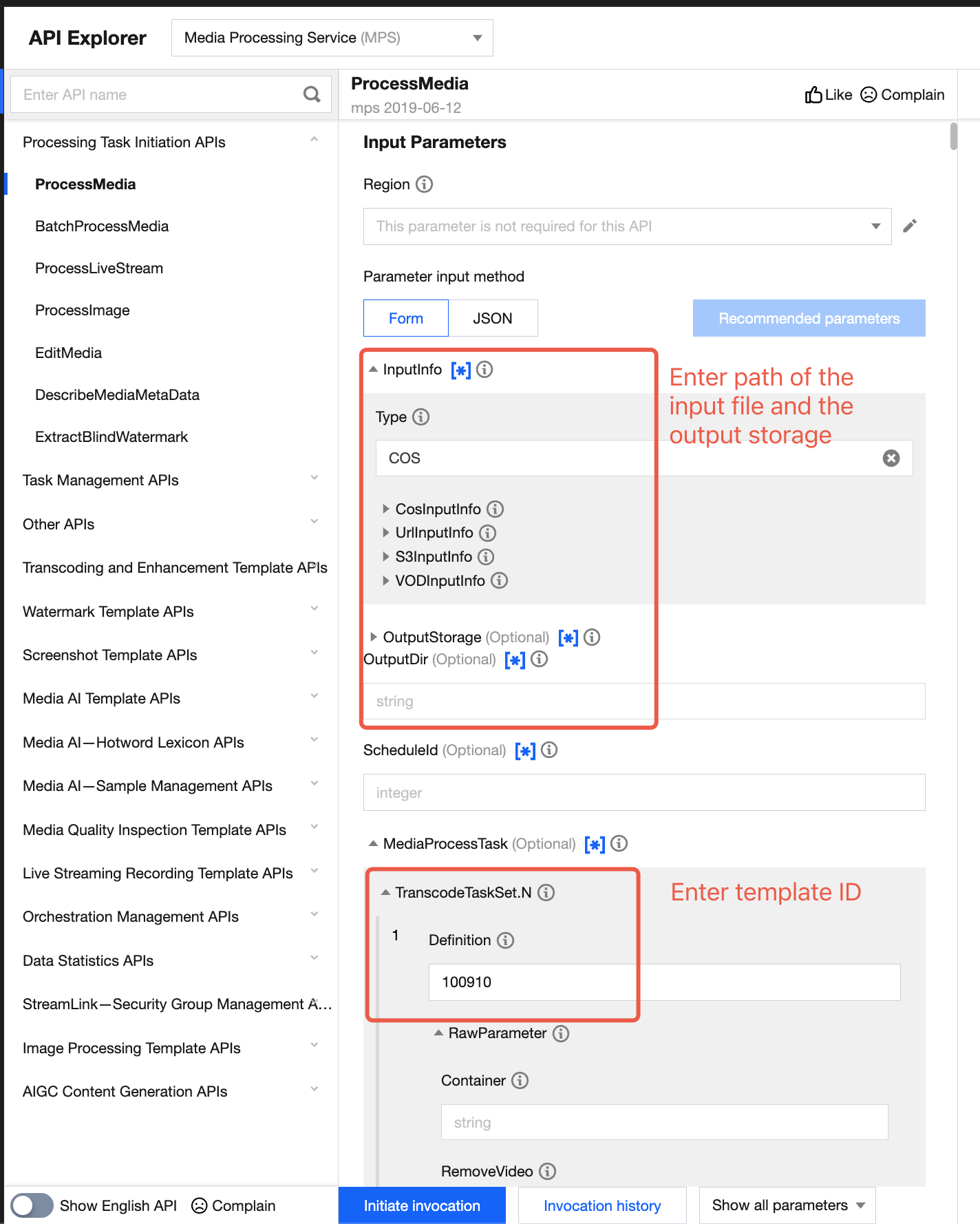
Call the ProcessMedia API, configure the input and output paths, and input the template ID in
MediaProcessTask -> TranscodeTaskSet -> Definition to initiate a task. Example:{"InputInfo": {//Input file path, supports sources such as COS, URL"Type": "URL","UrlInputInfo": {"Url": "xxxxx"}},"OutputStorage": { //Output path, supports COS, VODPro"Type": "COS","CosOutputStorage": {"Bucket": "xxx",// such as media-1300111"Region": "xxx" // For example ap-beijing}},"OutputDir": "/output/","MediaProcessTask": {"TranscodeTaskSet": [{"Definition": 100952,// Required. 100952 is the preset template ID. Replace with your custom audio separation template ID."OverrideParameter": { // Overwrite parameter to overwrite corresponding parameter values in template. Can be deleted if not needed"Container": "m4a",// For example, specify output as m4a"AudioTemplate": {"Codec": "aac","Bitrate": 64,"SampleRate": 44100,"AudioChannel": 2}},"OutputObjectPath": "{inputName}_transcode_{definition}.{format}" // Optional. Specify file output name}]},"TaskNotifyConfig": {"NotifyType": "URL","NotifyUrl": "xxx" // Optional. Callback URL}}
Auto-triggering task
If you want to upload a video file to the COS bucket and achieve automatic audio/video transcoding according to preset parameters, you can:
1. Create an orchestration and configure the trigger Bucket, trigger directory, and other parameters. Select the audio/video enhancement node in the task configuration and associate it with the audio separation template.
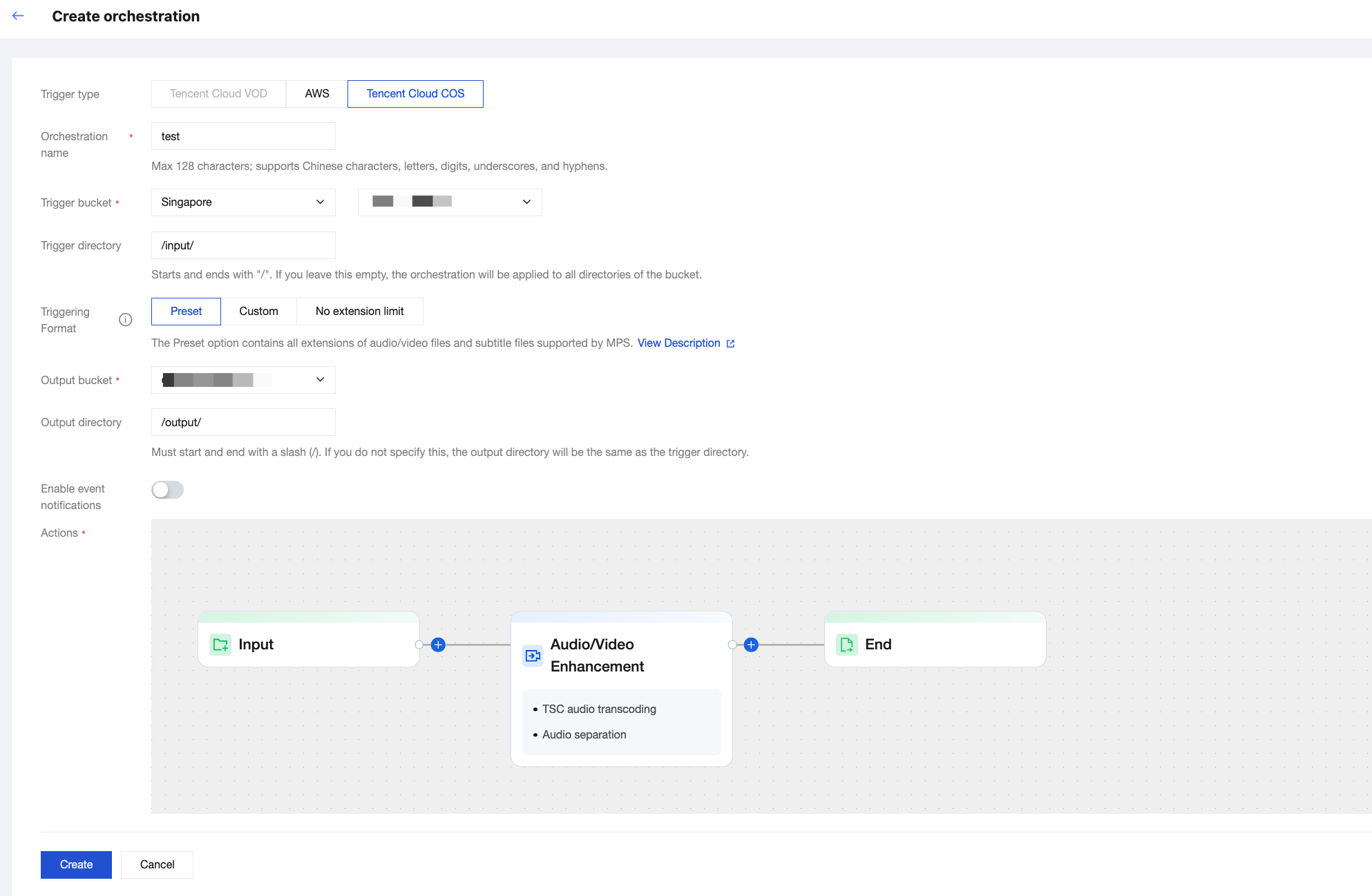
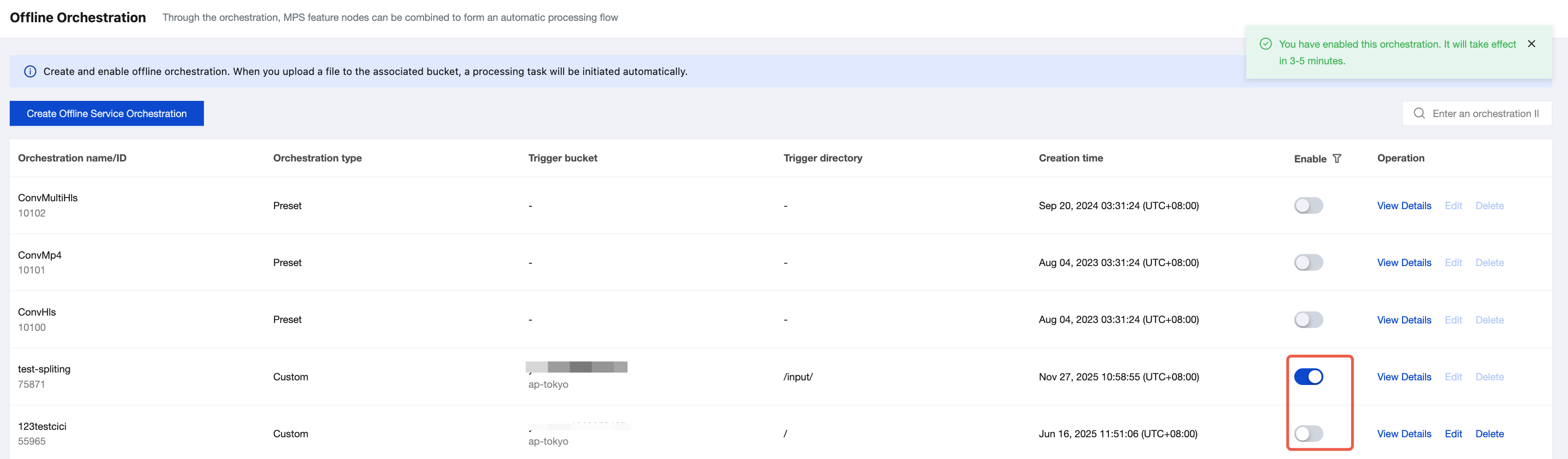
2. Then enter the offline orchestration list, find the newly created arrangement, and click the enable button to start it up. Subsequently, newly-added video files in the trigger directory will automatically initiate tasks according to the arrangement's preset process and parameters, and save the processed video files to the output path configured by the arrangement.
Note:
It takes 3 to 5 minutes for the orchestration to take effect after being enabled.
Step 3: Viewing the Task Result
Querying a Task Result in the Console
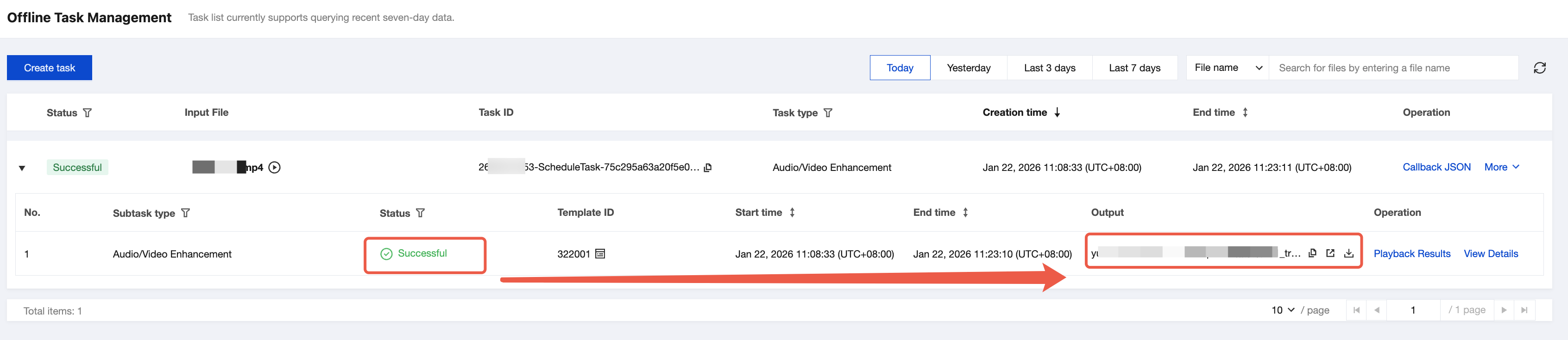
Go to the Offline Task Management console, and the task you just initiated will be listed in the task list.
When the subtask status is "successful", you can preview, download, or navigate to the corresponding COS Bucket directory for the output file.
Task Callback
When initiating an MPS task using ProcessMedia, you can set callback information through the TaskNotifyConfig parameter. After the task processing is completed, the task result will be callback through the configured callback information. You can parse the event notification result through ParseNotification.
Querying Task Results by Calling an API
Call the DescribeTaskDetail API and enter the task ID (for example, 24000022-ScheduleTask-774f101xxxxxxx1tt110253) to query the task result.
피드백