This document describes how to quickly integrate the MLVB SDK (iOS) of Tencent Video Cloud Toolkit into your project. The directions below use the full-featured Live Edition as an example.
Environment Requirements
Xcode 9.0 or above
iPhone or iPad with iOS 9.0 or above
A valid developer signature for your project
Integrating the SDK
You can use CocoaPods to automatically load the SDK or manually download the SDK and import it into your project.
CocoaPods
1. Install CocoaPods
Enter the following command in a terminal window (you need to install Ruby on your macOS first):
sudo gem install cocoapods
2. Create a Podfile
Go to the directory of your project and enter the following command to create a Podfile in the directory.
pod init
3. Edit the Podfile
There are two ways to edit the Podfile:
Method 1: use the path of the PODSPEC file of LiteAVSDK
platform :ios, '9.0'
target 'App'do
pod 'TXLiteAVSDK_Live', :podspec =>'https://liteav.sdk.qcloud.com/pod/liteavsdkspec/TXLiteAVSDK_Live.podspec'
end
Method 2: use CocoaPod’s official source, which allows version selection
platform :ios, '9.0'
source'https://github.com/CocoaPods/Specs.git'
target 'App'do
pod 'TXLiteAVSDK_Live'
end
4. Update the local repository and install the SDK
Enter the following command in a terminal window to update the local repository file and install LiteAVSDK:
pod install
Or, run the following command to update the local repository:
pod update
An XCWORKSPACE project file integrated with LiteAVSDK will be generated. Double-click to open the file.
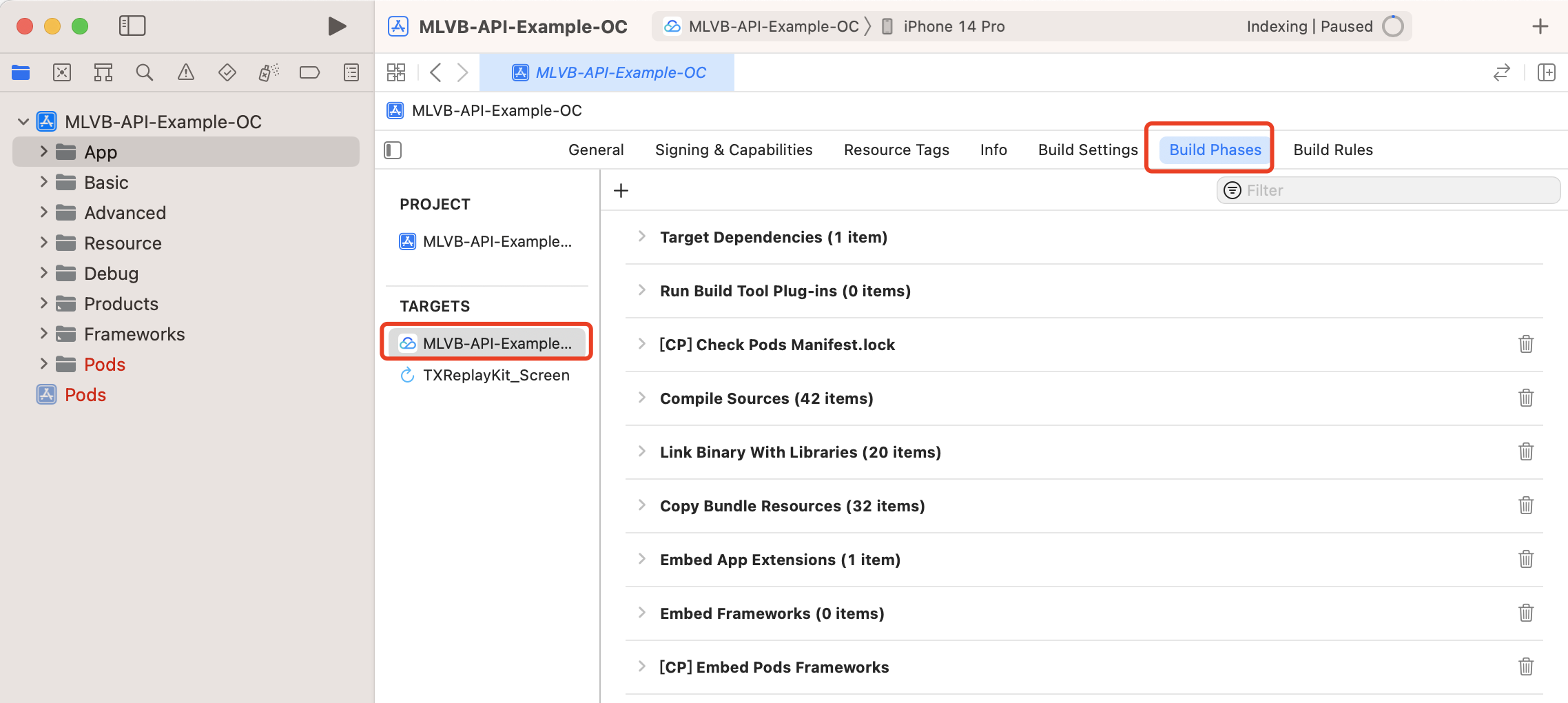
2. Open your Xcode project, select the target you want to run, and select Build Phases.
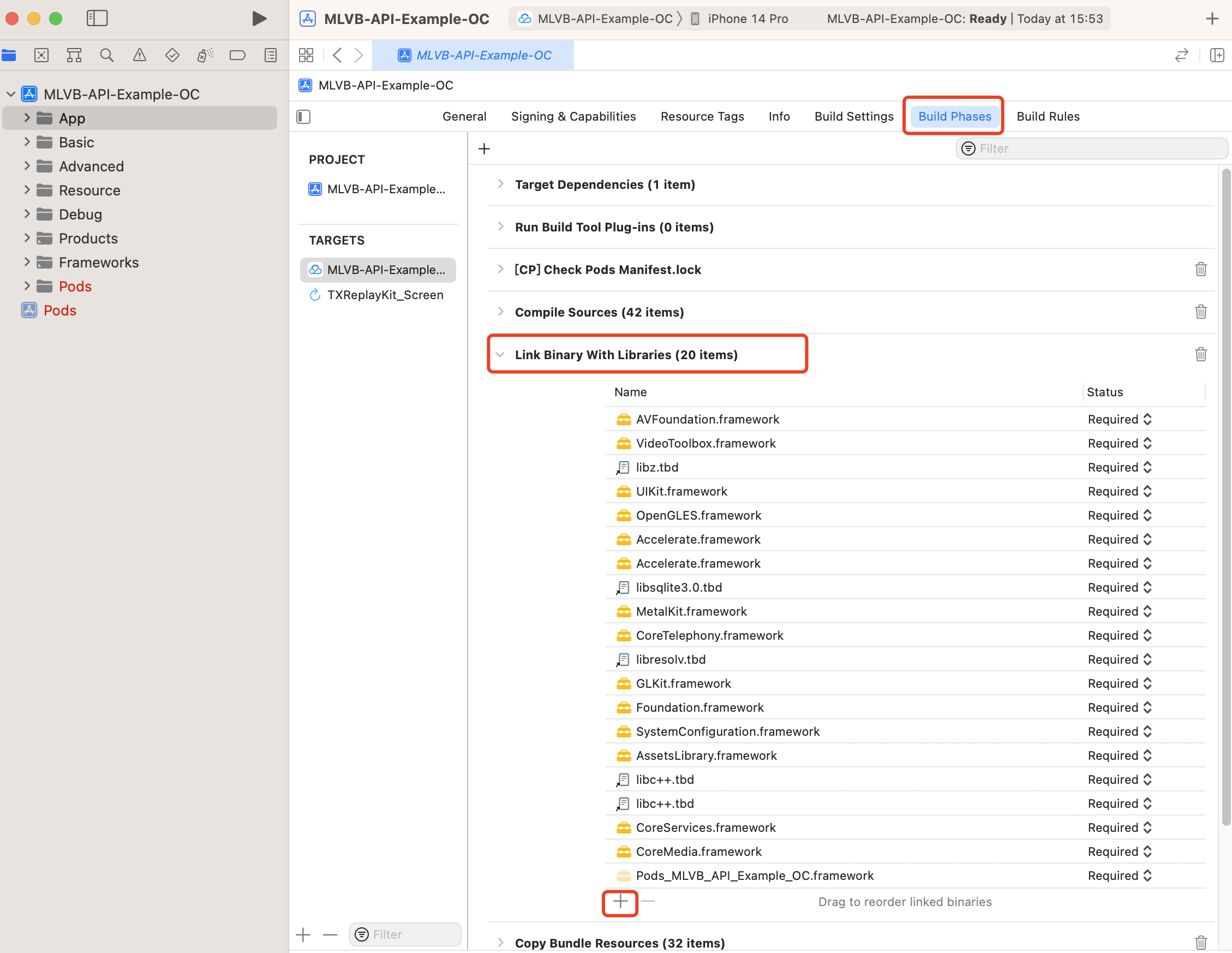
3. Expand Link Binary with Libraries and click + at the bottom to add the libraries to depend on.
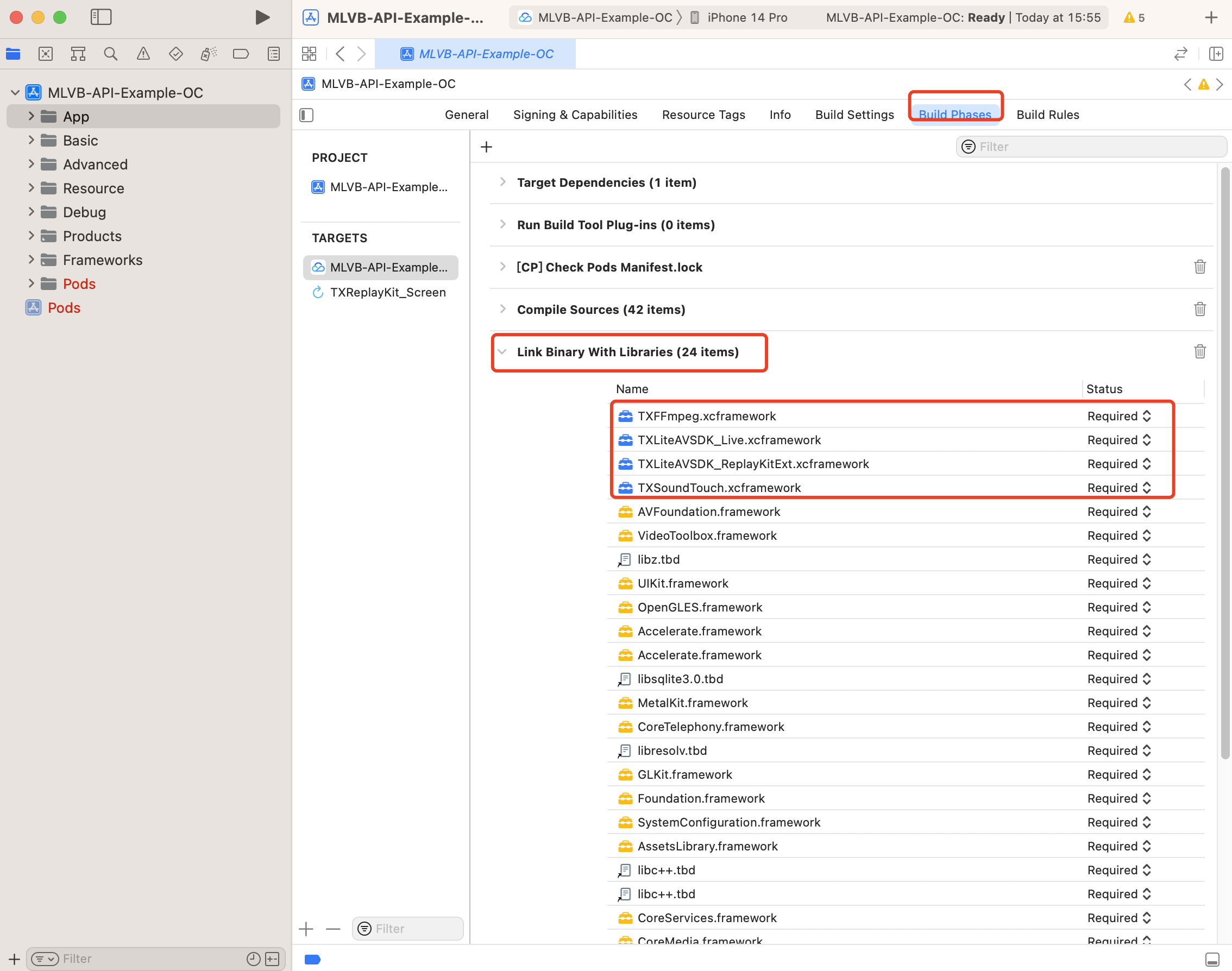
4. Add the downloaded TXLiteAVSDK_Live.xcframework、TXFFmpeg.xcframework、TXSoundTouch.xcframework and the libraries it depends on.
AVFoundation.framework
VideoToolbox.framework
libz.tbd
OpenGLES.framework
Accelerate.framework
libsqlite3.0.tbd
MetalKit.framework
CoreTelephony.framework
libresolv.tbd
GLKit.framework
Foundation.framework
SystemConfiguration.framework
AssetsLibrary.framework
libc++.tbd
CoreServices.framework
CoreMedia.framework
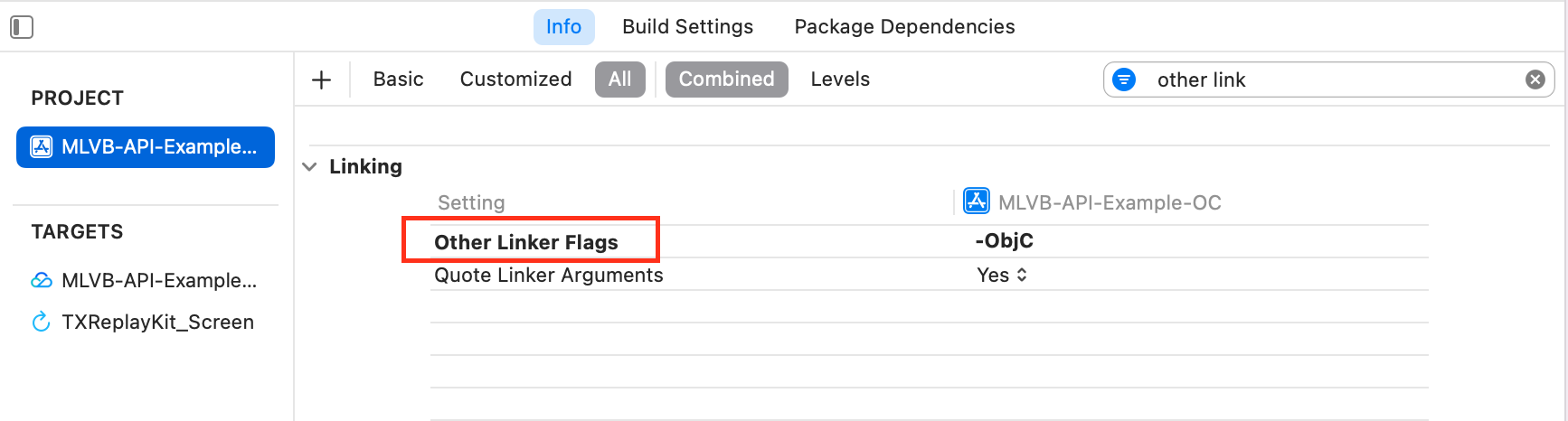
5. Click Build Settings, search for Other Linker Flags, and add -ObjC.
Granting Camera and Mic Permissions
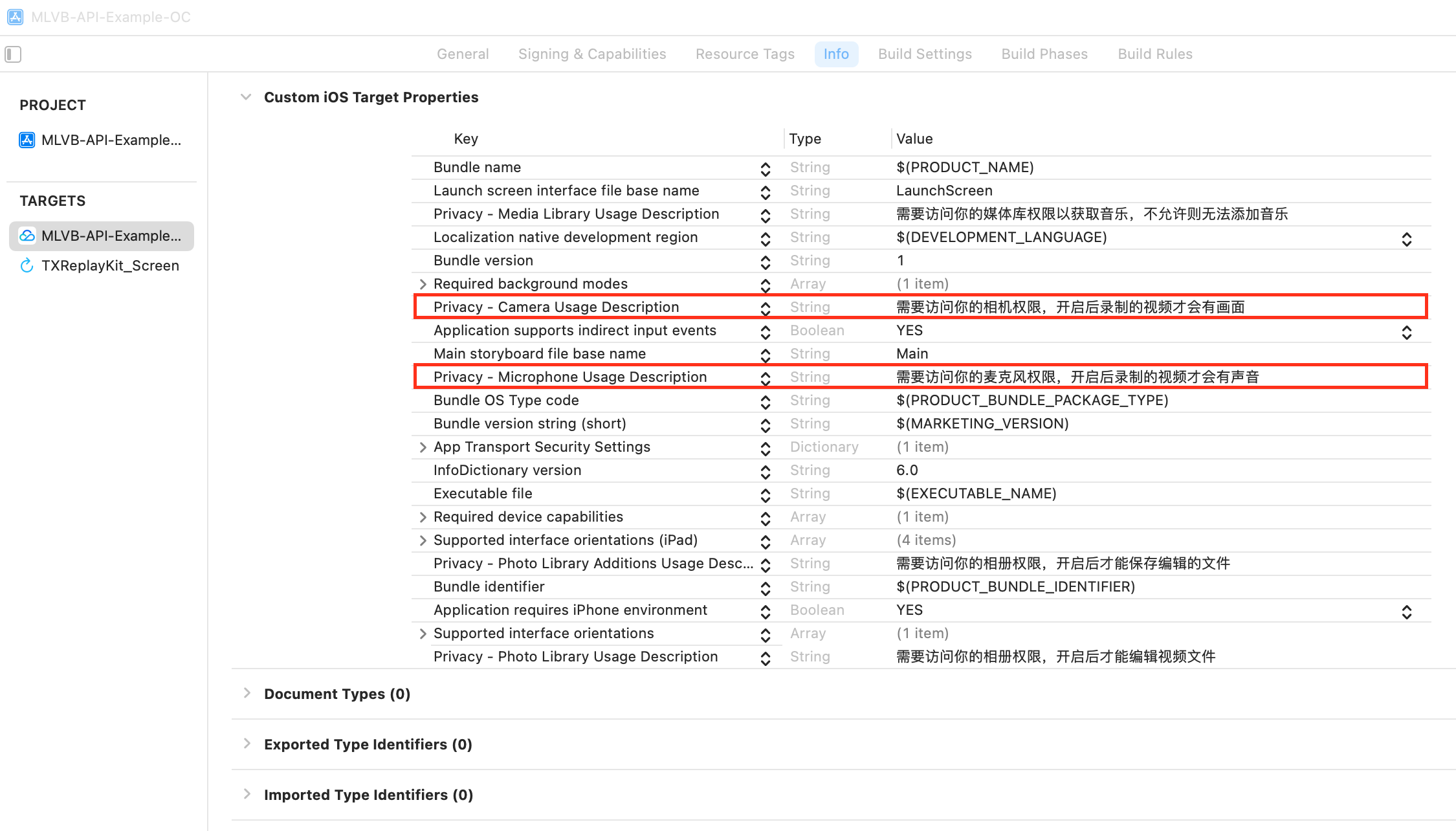
To use the audio/video features of the SDK, you need to grant it mic and camera permissions. Add the two items below to Info.plist of your application to display pop-up messages asking for mic and camera permissions.
Privacy - Microphone Usage Description, plus a statement specifying why mic access is needed
Privacy - Camera Usage Description, plus a statement specifying why camera access is needed
Importing the SDK
There are two ways to import the SDK in your project code.
Method 1: import the SDK module in the files that need to use the SDK’s APIs in your project
@import TXLiteAVSDK_Live;
Method 2: import a specific header file in the files that need to use the SDK’s APIs in your project
#import "TXLiteAVSDK_Live/TXLiteAVSDK.h"
Configuring License
Click Get License to obtain a trial license. You will get two strings: a license URL and a decryption key.
Before you use LiteAVSDK features in your application, complete the following configurations (preferably in - [AppDelegate application:didFinishLaunchingWithOptions:]):
NSLog(@"SDK Version = %@",[V2TXLivePremier getSDKVersionStr]);
}
@end
FAQs
1. Can I run LiteAVSDK in the background?
Yes, you can. If you want the SDK to run in the background, the operation is as follows:
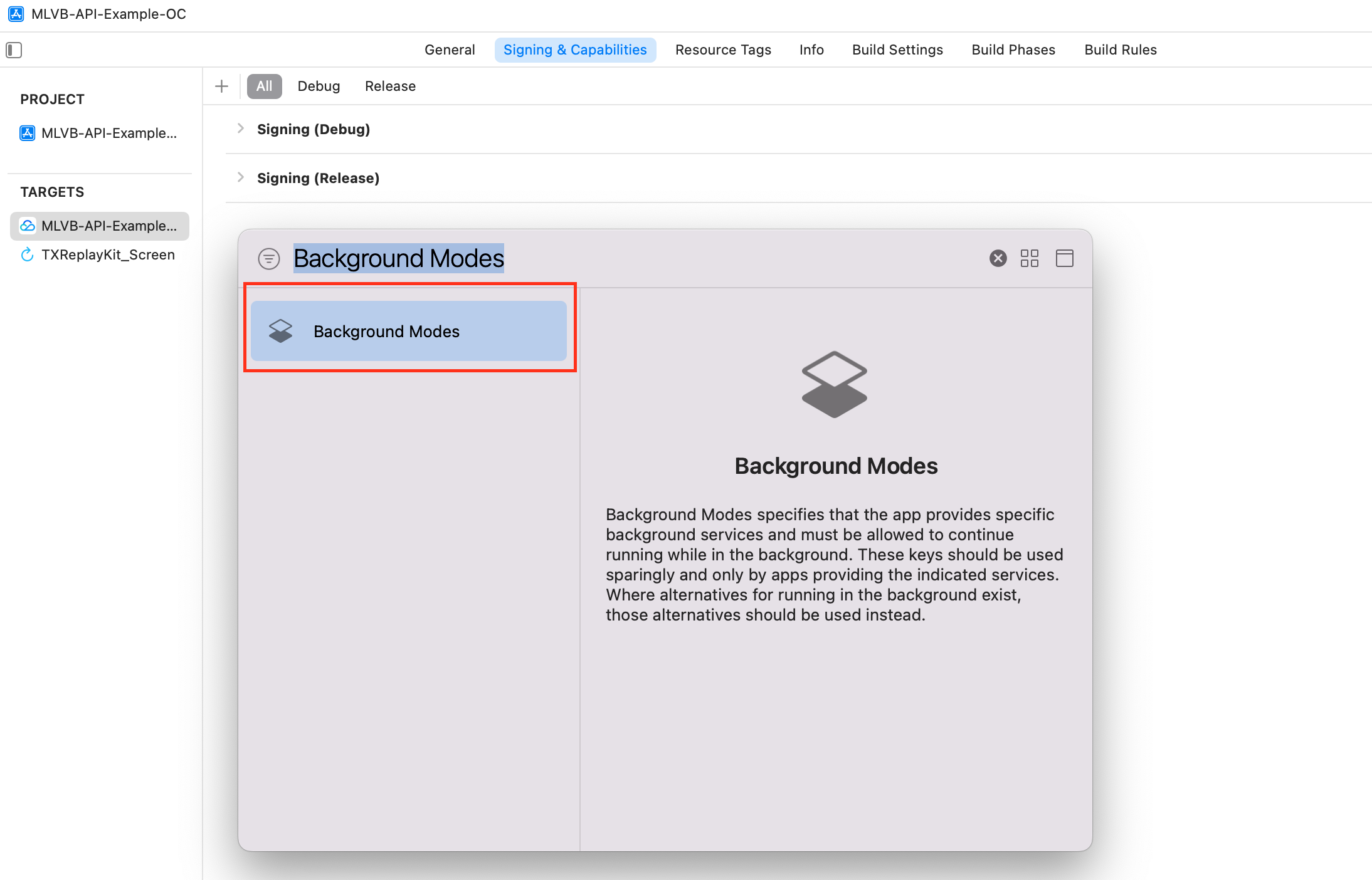
1. Select the current project, select Signing&Capabilities , click + in the upper left corner, as shown in the figure:
2. Select Background Modes.
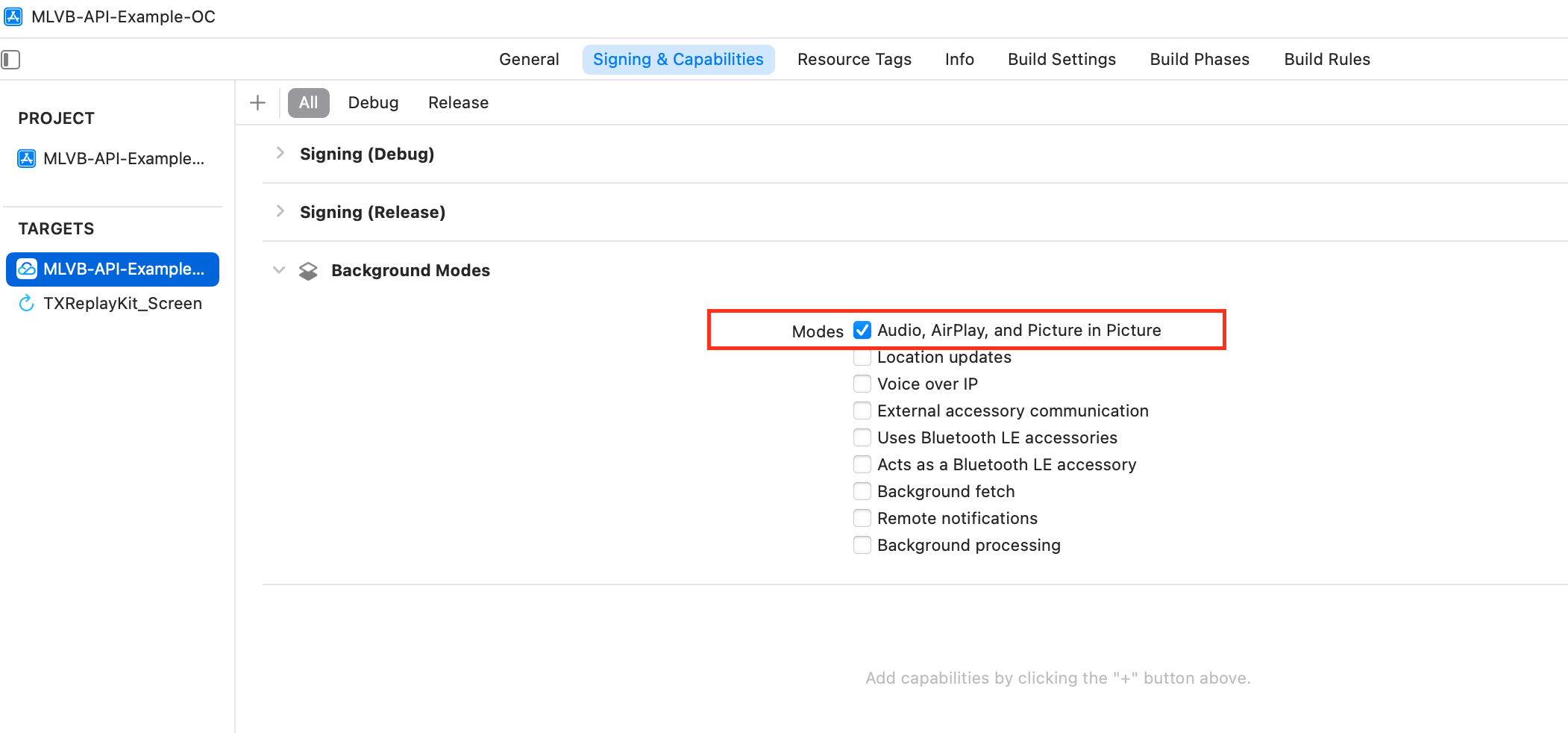
3. Check Audio, AirPlay and Picture in Picture in Background Modes, as shown below:
2. How to solve the problem of symbol conflict between multiple SDKs of LiteAVSDK series such as live SDK/real-time audio/video/player integrated in the project?
If you integrate 2 or more LiteAVSDK products (live broadcast, player, TRTC, short video), there will be a library conflict problem when compiling, because some SDK underlying libraries have the same symbol files, it is recommended to integrate only one full-featured version of the SDK. Live broadcast, player, TRTC, and short video are all included in one SDK.For details, please refer to SDK Download.