tencent cloud

Mobile Live Video Broadcasting

Release Notes and Announcements
TUILiveKit Release Notes
Live SDK Release Notes
User Guide
Product Introduction
Overview
Strengths
Performance Statistics
Concepts
Purchase Guide
TRTC Live Billing Overview
Billing of Video Live Component
Activating the Service (TUILiveKit)
Free Demo
Demo
Run Demo(TUILiveKit)
Integration Guide
Video Live Streaming
Preparation
Host Live Streaming
Audience Viewing
Live Stream List Live Stream List
Voice Chat Room
Preparation
Host Live Streaming
Audience Viewing
Live Stream List
Live Streaming Kit
Live Streaming Kit(Electron Desktop Application)
Live Streaming Kit(Web Desktop Browser)
Live Broadcast Monitoring
Monitoring Webpage (Web Desktop Browser React)
Monitoring Webpage (Web Desktop Browser Vue)
UI Customization
Live Stream Video Component
Video Source Editing Canvas
Audience List Component
Barrage Component
Media Source Configuration Panel
Link Management Panel
Live Gift Component
No UI Integration
Video Live Streaming
Voice Chat Room
Feature Guide
Follow Anchors (TUILiveKit)
Ultimate Image Quality (TUILiveKit)
Push Media Stream Into Room (TUILiveKit)
Gift System (TUILiveKit)
Client APIs
Android
iOS
Web
Server APIs (TUILiveKit)
Account System
REST API
Third-Party Webhooks
Error Codes (TUILiveKit)
FAQs
Platform Compilation
User Authentication
Live SDK
Product Introduction
Purchase Guide
Free Demo
Free Trial License
SDK Download
Licenses
Advanced Features
Client API
FAQs
Integration (No UI)
API Documentation
OSS information
OSS Attribution Notice

iOS

포커스 모드
폰트 크기
마지막 업데이트 시간: 2024-01-13 15:49:41
This document describes how to quickly run Tencent Cloud MLVB-API-Example for iOS.

Environment Requirements

Xcode 9.0 or later
iPhone or iPad with iOS 9.0 or later
A valid developer signature for your project

Prerequisites

Directions

Step 1. Download the SDK and MLVB-API-Example source code

1. Download the package here as needed. Here, the Live Edition is used as an example.
2. Decompress the file after download.
Note
The source code can also be obtained from GitHub.

Step 2. Configure the license

1. Log in to the CSS console, select MLVB SDK > License Management on the left sidebar, and click Create.


2. Enter the App Name, Package Name, and Bundle ID as needed, select the Live streaming feature module (Live Push + Video Playback), and click Confirm.
Package Name: Enter the applicationId in the build.gradle file in the App directory.
Bundle ID: Enter the Bundle Identifier of the project in Xcode.
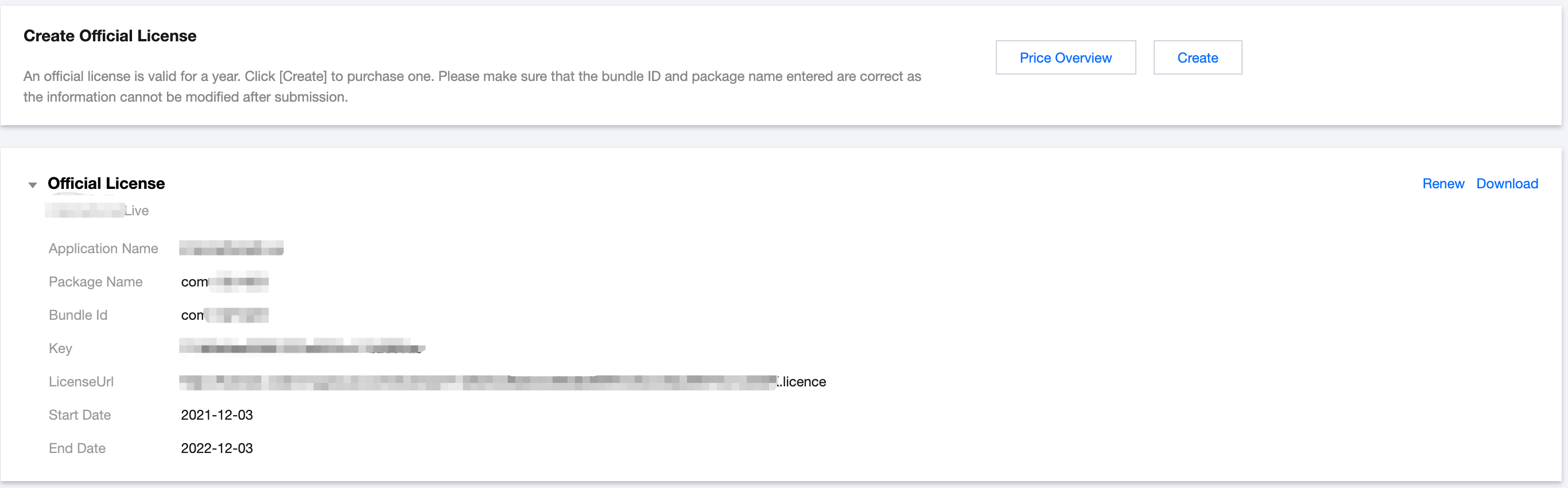
3. After the free trial license is created successfully, the page will display the information of the generated license. You need to pass in two parameters Key and License URL during initial SDK configuration. Store the following information properly:

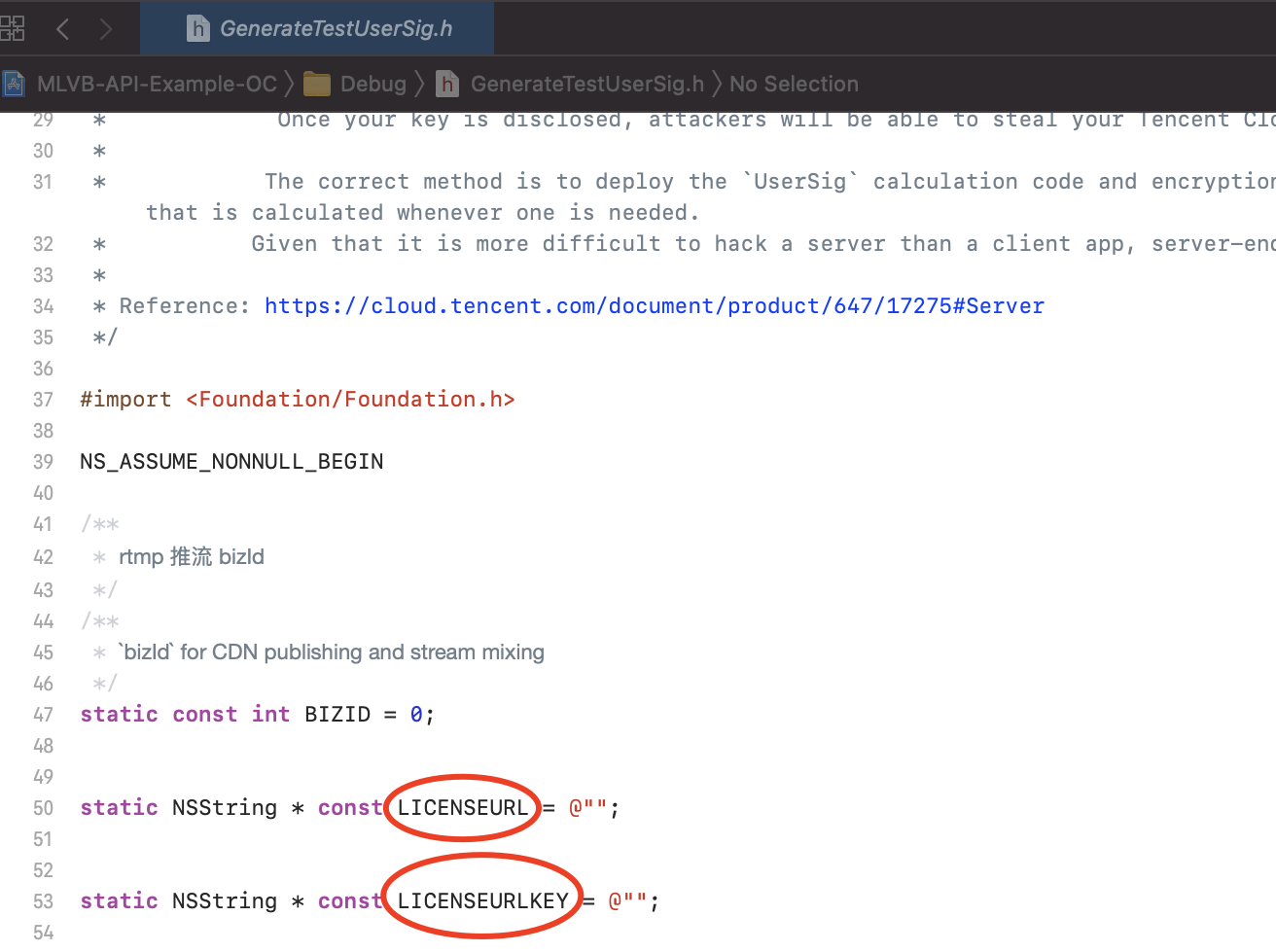
4. Open the LiteAVSDK_Live_iOS_version number/MLVB-API-Example-OC/Debug/GenerateTestUserSig.h file. Set parameters in GenerateTestUserSig.h as follows:
LICENSEURL: Empty by default. Set it to the actual download license URL.
LICENSEURLKEY: Empty by default. Set it to the actual download license key.


Step 3. Configure stream push/playback capabilities

1. Apply for a domain name in DNSPod and get an ICP filing for it.
2. Add the stream push/playback domain name in Domain Management in the CSS console. For detailed directions, see Adding Your Own Domain.
3. Configure the CNAME record for the domain name as instructed in Configuring CNAME.
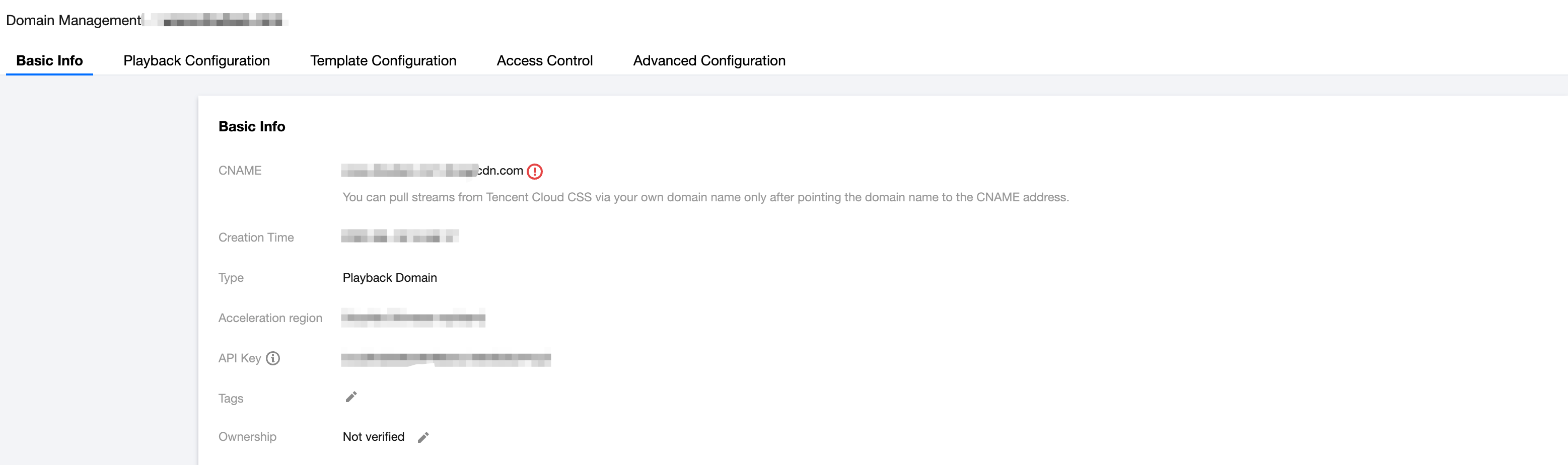
4. After configuring the stream push/playback domain name, you can get the CNAME information on the Basic Info page of the domain name.


5. Open the LiteAVSDK_Live_iOS_version number/MLVB-API-Example-OC/Debug/GenerateTestUserSig.h file. Set parameters in GenerateTestUserSig.h as follows:
PUSH_DOMAIN: Set it to your stream push domain name.
PLAY_DOMAIN: Set it to your playback domain name.
LIVE_URL_KEY: This parameter is optional. It is used to generate authentication information such as txSecret. For more information on how to calculate it, see Publishing/Playback URL. You can query it in Manage > Stream Push Configuration > Authentication Configuration on the Domain Name page.

Configuring stream push parameters

1. Find and open the LiteAVSDK_Live_iOS_version number/MLVB-API-Example-OC/Debug/GenerateTestUserSig.h file.
2. Set parameters in the GenerateTestUserSig.h file based on the above service:
SDKAppID: 0 by default. Set it to the actual SDKAppID.
SECRETKEY: Empty by default. Set it to the actual secret key.

Stream push URL field description

You need to concatenate the specific stream push/pull URL string based on the used protocol as instructed in Publishing/Playback URL. A string has been concatenated in the demo, and the stream can be played back after you run the demo.

Step 5. Compile and run

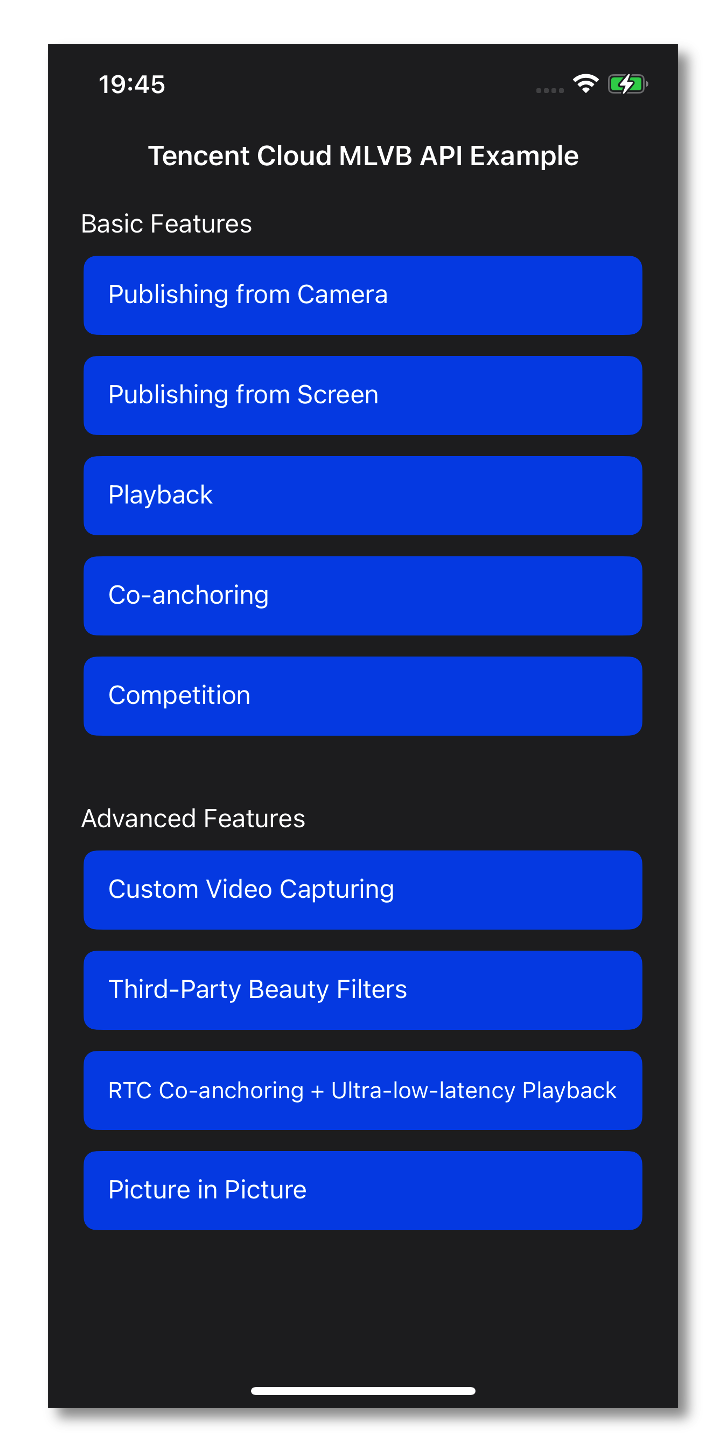
Open the demo project MLVB-API-Example-OC with Xcode 9.0 or later and click Run.



도움말 및 지원

문제 해결에 도움이 되었나요?

피드백