In order to satisfy the client demands for large-scale batch dialing, Cloud Contact Center offers a Predictive Dialing feature which can significantly enhance the agent utilization and reduce the labor costs. Through AI scheduling, Predictive Dialing supports the real-time processing and analysis of outbound call data such as call abandon rate, connection rate, and agent occupancy rate, and the full-automatic adjustment of the dialing rate and concurrent efficiency, with no need for manual intervention. This effectively improves the efficiency of calling service and lowers the dialing costs for enterprises.
Prerequisites
1. You have created a TCCC Application. For the operation method, refer to Create TCCC Application.
The Predictive Dialing feature only supports connecting enterprise-owned numbers.
1. Creating a Campaign
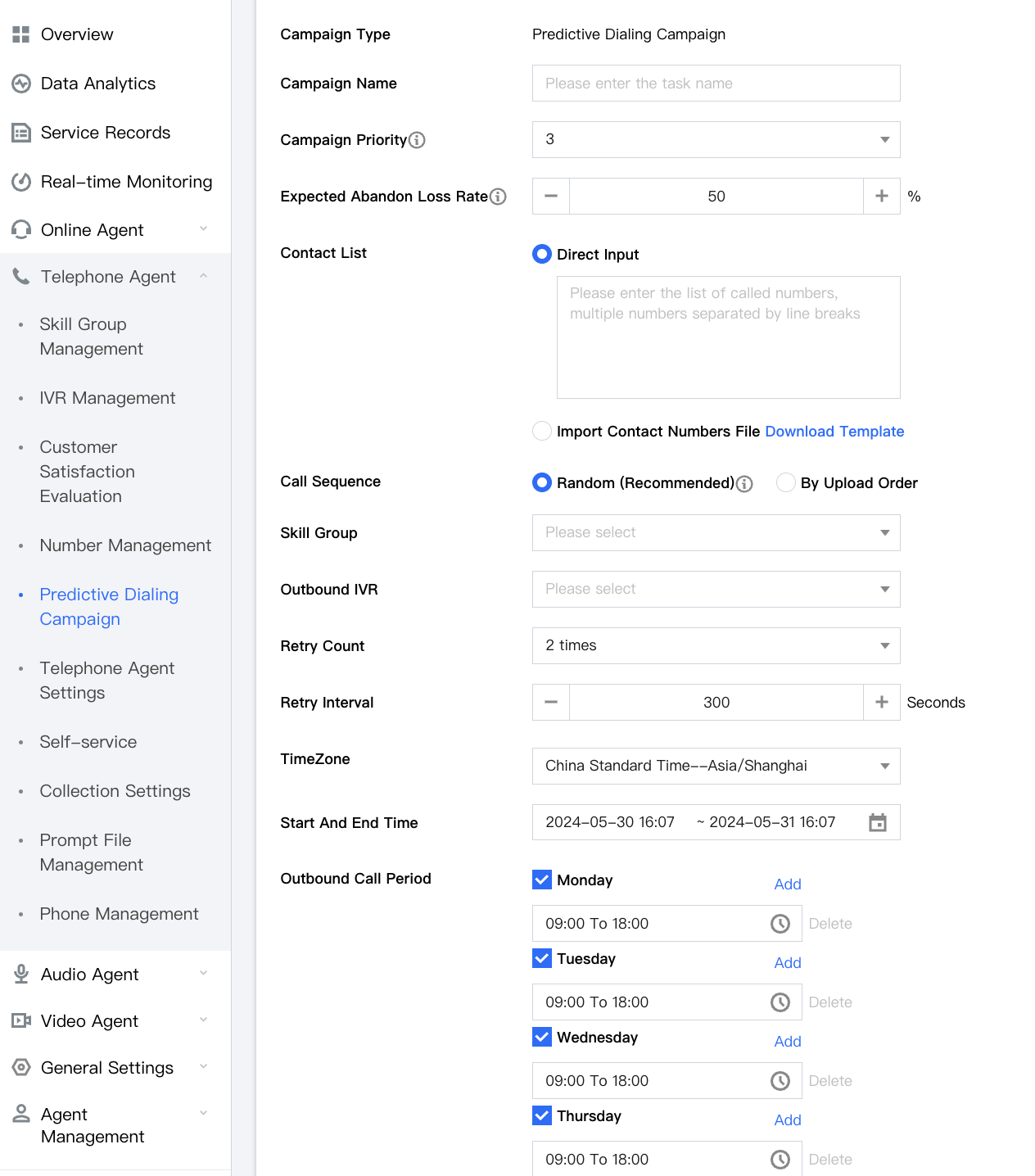
Predictive Dialing can be used only after a campaign is created. The administrator can set the campaign by configuring the contact list of called customers, outbound call dates and periods, retry policies, etc. The Campaign Scheduling System will initiate dialing campaigns on time according to the campaign information set by the administrator, and automatically execute and assign campaigns according to the actual scheduling situation of agents.
The configuration of campaign information by the administrator is described as follows:
Serial number
Configuration Item Name
Configuration Items
1
Task Name
The administrator shall enter the custom campaign name of the service, which contains up to 40 characters.
2
Campaign Priority
The campaign with a higher priority will be executed preferentially. Within the priority range of [1, 5], the priority increases successively from 1 to 5. The default priority is 3.
3
Expected Call Abandon Rate
The administrator can define the expected call abandon rate. The computational formula is:
Expected Call Abandon Rate = Number of calls entering the queue but not answered by agents/Number of calls entering the queue .
4
Contact List
Supports 2 options, namely Direct Input or Import Contact Numbers File. File import only supports uploading .xlsx files. The list shall only contain the customer phone numbers, which are separated by line break.
5
Call Sequence
Supports 2 options, namely Random and By Upload Order.
6
Skill Group
The administrator can bind the skill group associated with this dialing campaign.
7
Outbound IVR
The administrator can choose a configured IVR for binding.
8
Retry Count
The administrator can configure the retry count.
9
Retry Interval
The administrator can set the retry interval, 300 seconds by default. The minimum interval is 60 seconds, and the interval is increased/decreased by 60 seconds in each editing.
10
Outbound Call Period
The administrator can set specific execution time for weekly predictive dialing. The default time period is 9:00-18:00 every day. You are suggested to set it according to the actual available time periods of customers, to avoid disturbing them.
11
Caller Number
The administrator can select the caller number for outbound calls. Number search and filtering by tag are supported.
2. Executing a Campaign
After a campaign is created, the system will start to execute the predictive dialing campaign within the set time according to the campaign configuration information. When execution of a campaign is started, the campaign will be in the In progress status.
How Campaigns are Executed
Cloud Contact Center system has a suite of independent campaign scheduling policy algorithms, which can maximize the utilization and dialing efficiency of agents. The system can adjust the dialing rate and concurrent efficiency dynamically and intelligently based on campaign-related real-time data such as expected call abandon rate, connection rate, and agent occupancy status. The campaign procedure is optimized and adjusted automatically, with no need for manual intervention.
3. Managing a Campaign
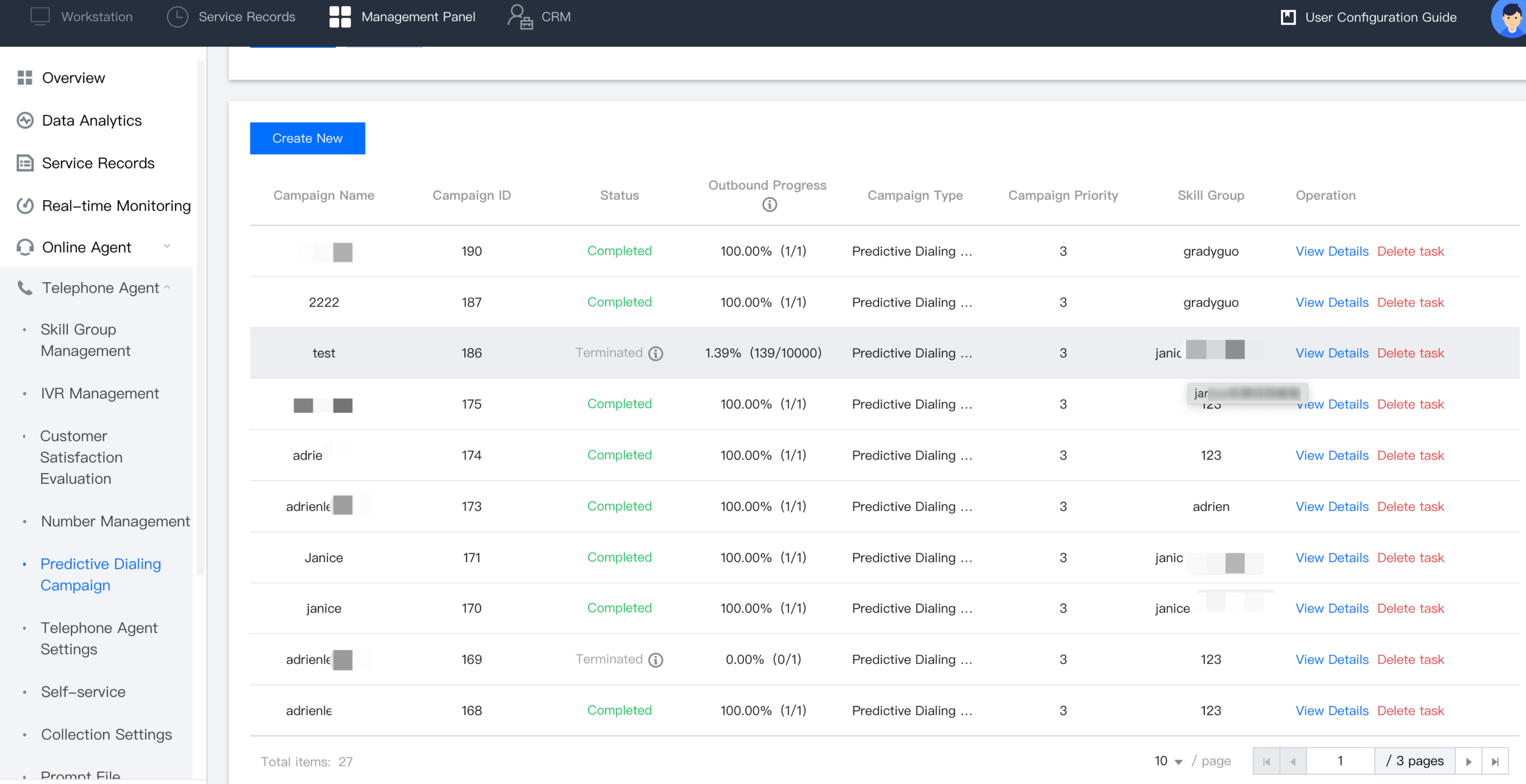
The administrator can get an overview of different campaigns in the campaign list. Operations such as Viewing, Editing, Continuing/Terminating, and Deleting on individual campaigns are supported.
Campaign Search and Filtering
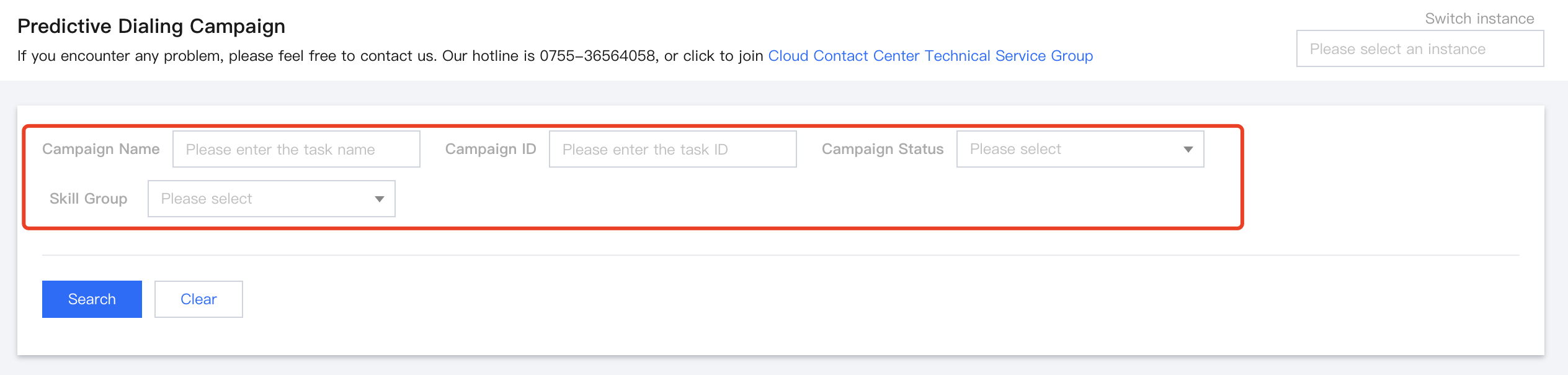
The predictive dialing campaign supports filtering and viewing operations. The administrator can search for a campaign by campaign name and campaign ID, or view a campaign list through filtering by campaign status and skill group.
Campaign Status Introduction
The campaign list will display campaigns in different statuses. The predictive dialing campaigns have a total of 5 statuses, with details as follows:
Status Name
Status Description
To be started
Before a campaign is started, it is in the To be started status. The administrator can edit or delete the campaign.
In progress
The campaign has started execution and is in the In progress status. The administrator can view the campaign progress, and can also pause or terminate it.
Paused
The campaign has been paused and is in the Paused status. The administrator can continue, terminate, or delete the campaign.
Terminated
The campaign has been terminated and is in the Terminated status. At this moment, the campaign cannot be restarted, and the administrator can only view or delete the campaign.
Completed
The campaign has been completed and is in the Completed status. The administrator can view or delete the campaign.
4. Viewing Campaign Details
The administrator can click on View Details in the campaign list to enter the campaign execution statistics page.
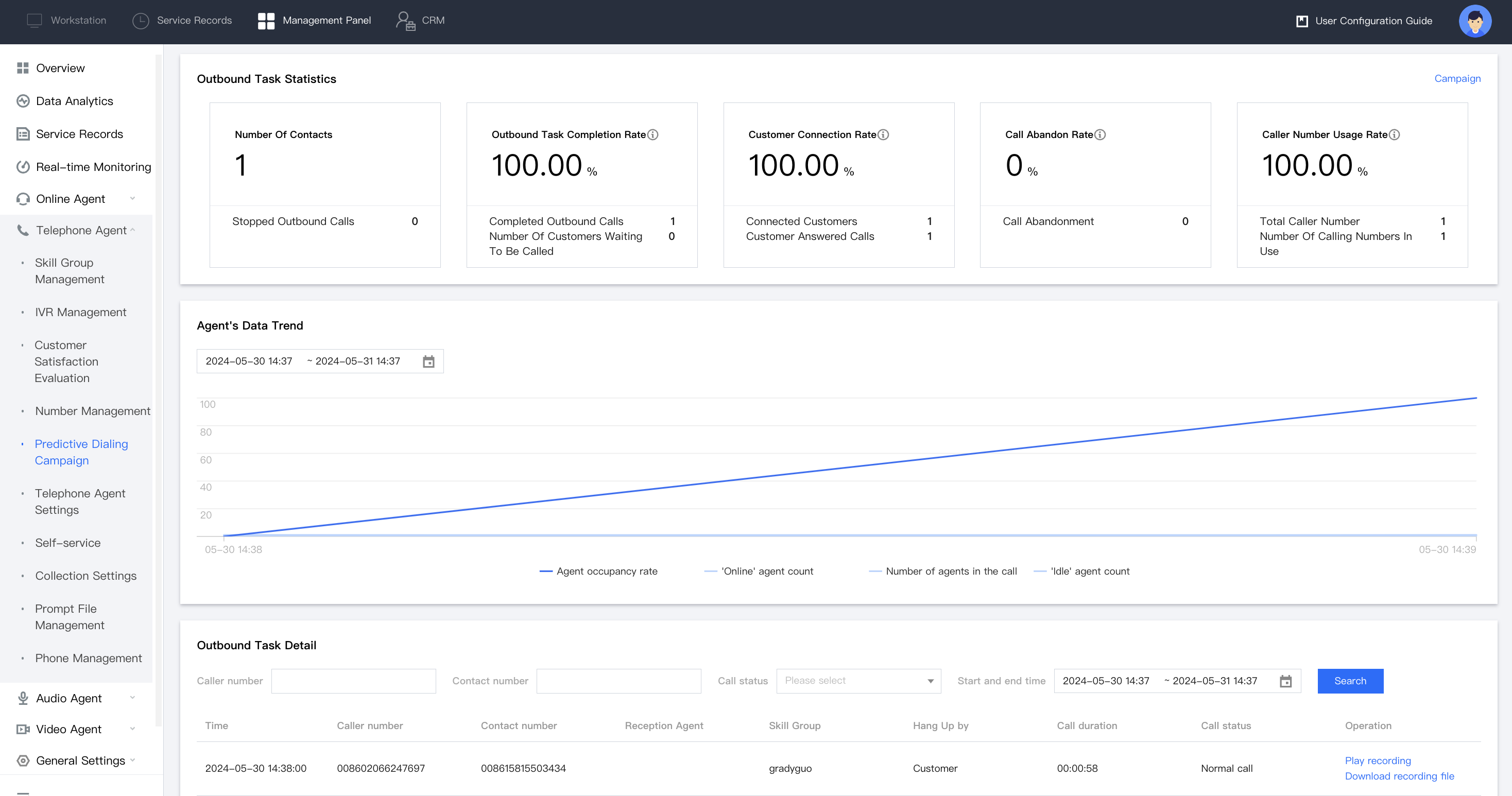
From Campaign Details, you can see the campaign statistics, agent data trends, and campaign details.
Note:
The call result status of predictive dialing differs from that of normal calling. Only Connected or Not Connected is displayed, without distinguishing detailed statuses.
Campaign Statistics
You can see the following statistical data on the Campaign Details page. Relevant descriptions are as follows:
Number of Contacts: Displays the total number of called customers in the contact list when the campaign is created.
Outbound Campaign Completion Rate: The computational formula is Outbound Campaign Completion Rate = Number of called customers/Number of contacts.
Customer Connection Rate: The computational formula is Customer Connection rate = Number of connected customers/Number of contacts, where the number of connected customers includes the number of dropped calls and the number of answered calls.
Call Abandon Rate: The computational formula is Call Abandon Rate = Number of dropped calls/Number of connected customers , namely Call Abandon Rate = Number of dropped calls/(Number of dropped calls + Number of answered calls).
Caller Number Usage Rate: The computational formula is Caller Number Usage Rate = Number of caller numbers in use/Total number of caller numbers.
More detailed data is listed below each entry of statistical data. You can also view each outbound call record through the Campaign Detail at the bottom of the panel.