Bandwidth Adjustment
Download
포커스 모드
폰트 크기
Overview
The network bandwidth required varies depending on the instance specifications. If the traffic exceeds the bandwidth cap, it may cause congestion and affect the service performance. For example, to handle business traffic peaks during flash sales, or to eliminate the impact of the bandwidth limit when a lot of big key reads and writes occur temporarily, you can quickly increase the instance bandwidth to avoid affecting the business.
Billing Details
Increasing the bandwidth is free of charge currently but will be billed in the future.
Concepts
Standard bandwidth: It is the bandwidth per (master or replica) node in the instance.
Read-only replica bandwidth: Each read-only replica has the same bandwidth as that of the master.
Additional bandwidth: If the standard bandwidth cannot meet your needs, you can add additional bandwidth.
Computing Bandwidth
When replica read-only is enabled, the total bandwidth of the instance is calculated as: Total bandwidth = Additional bandwidth x Number of shards + Standard bandwidth x Number of shards x Max ([Number of read-only replicas, 1]), where the number of shards in the standard architecture is 1.
When replica read-only is disabled, the total bandwidth of the instance is calculated as: Total bandwidth = Additional bandwidth x Number of shards + Standard bandwidth x Number of shards, where the number of shards in the standard architecture is 1.
Note:
Redis cluster traffic throttling is implemented at the Proxy feature. The traffic limit for a single Proxy node within a single availability zone (AZ) is calculated as: Traffic limit per Proxy node = Total bandwidth / Total number of Proxy nodes.
To improve bandwidth performance, you can upgrade the instance specifications or architecture, such as switching from a standard architecture to a cluster architecture.
Instance Architecture | Memory Specification (GB) | Standard Bandwidth (MB/s) | Additional Bandwidth (MB/s) |
Standard architecture | 0.25 | 10 | 1536 |
| 1 | 16 | |
| (1,8] | 24 | |
| (8,16] | 32 | |
| (16,32] | 48 | |
| (32,64] | 64 | |
Cluster architecture (single shard) | - | 96 | 1536 |
Cluster architecture (multiple shards) | - | 96 | 96 |
Note
Increasing the bandwidth will not affect your business, but reducing the bandwidth may cause throttling of the traffic that exceeds the bandwidth.
Prerequisites
The database instance is on v4.0 or later.
The database instance is in Running status.
The bandwidth of the database instance isn't suitable for the current business.
Directions
1. Log in to the Tencent Cloud Distributed Cache console.
2. Above the Instance List on the right, select the region.
3. In the instance list, find the target instance.
4. Open the Adjust Bandwidth pop-up window in any of the following ways:
In the Operation column of the target instance, select Configure > Adjust Bandwidth.
Click the instance ID and click Adjust Bandwidth after Max Network Throughput in the Network Info section on the Instance Details page.
5. In the Adjust Bandwidth pop-up window, select the desired additional bandwidth on the slider bar after Additional Bandwidth.
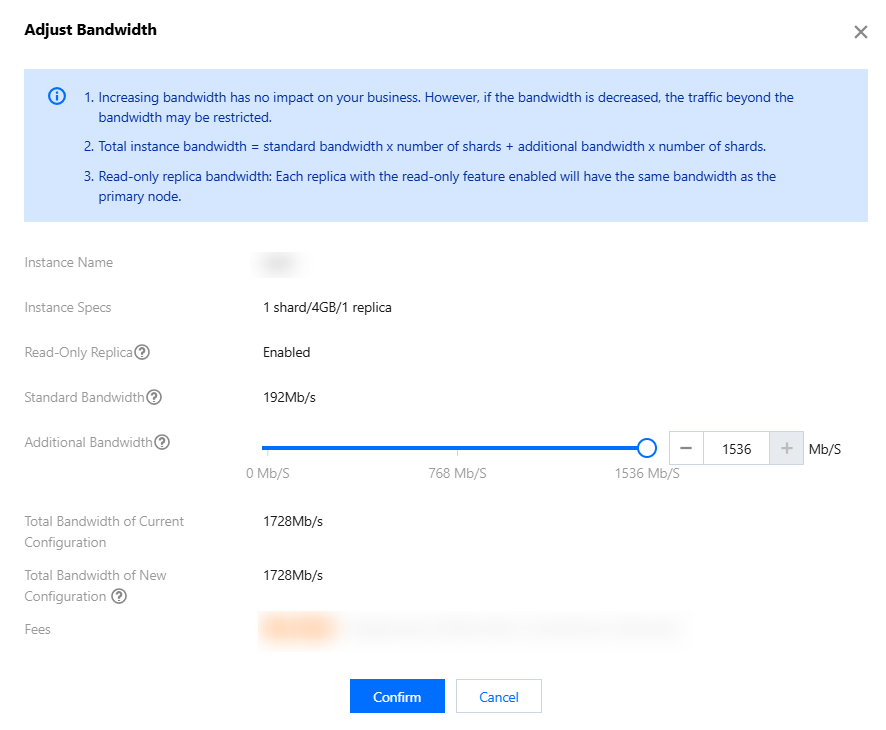
Parameter | Description |
Instance Name | The instance name. |
Instance Specs | The instance specification: Shard quantity, memory capacity, and replica quantity. |
Read-Only Replica | The read-only replica status. |
Standard Bandwidth | It is the bandwidth per (master or replica) node in the instance. |
Additional Bandwidth | Select the additional bandwidth on the slider bar. |
Total Bandwidth of Current Configuration | The total bandwidth configured for the instance. |
Total Bandwidth of New Configuration | The total bandwidth for the instance after the update. You can see the formula in bandwidth calculation to confirm the total bandwidth. |
Fees | Free of charge currently. |
6. After confirming that the total bandwidth meets your expectations, click Confirm.
7. Instance Status will change to Processing. Wait for it to change to Running. Then, you can see that the Max Network Throughput is the updated total bandwidth in the Network Info section on the Instance Details page.
Related APIs
API Name | Description |
Modifies the network configuration of an instance to change its bandwidth |
피드백