Tencent Cloud Distributed Cache supports both private and public network addresses. By default, a private network address is provided for internal access to the instance. If you need to enable public network access, you can access the instance via a Linux or Windows CVM connection after enabling the public network address. Alternatively, you can set up public network access via CLB, but you need to configure security group rules. Here is how to connect to the instance by enabling public network access via CLB.
2. Fill out the necessary information and submit the application.
Note:
Ensure that the CLB instance and Tencent Cloud Distributed Cache instance are in the same VPC network. When you submit the application, be sure to specify this requirement.
Step 1: Purchasing CLB Instances
Go to the CLB purchase page, select the desired configuration, and click Buy Now.
Note:
If there is already a CLB instance in the same region as that of your Tencent Cloud Distributed Cache, you do not need to purchase another one.
The region should be set to where Tencent Cloud Distributed Cacheinstance is located.
The CLB instance and the Tencent Cloud Distributed Cache instance should be in the same VPC.
Step 2: Configuring CLB
1. Enable cross-VPC access (which allows CLB to bind to other private IP addresses).
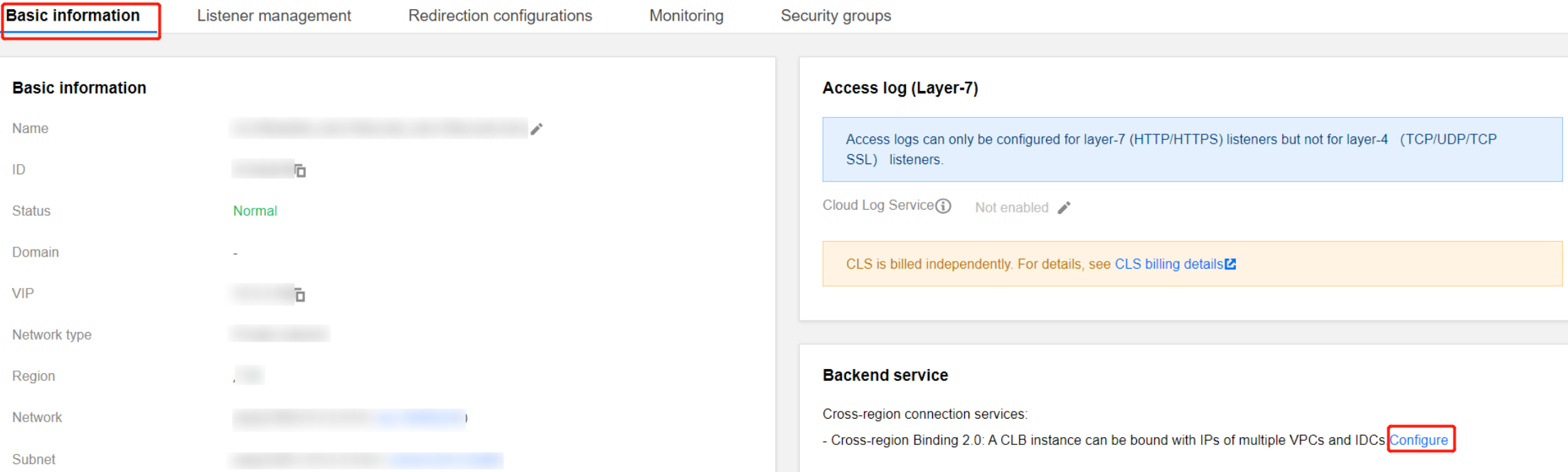
1.1 Log in to the CLB console, select a region, and click Instance ID in the instance management list to enter the instance management page.
1.2 In the Backend service section of the Basic information tab, click Configure.
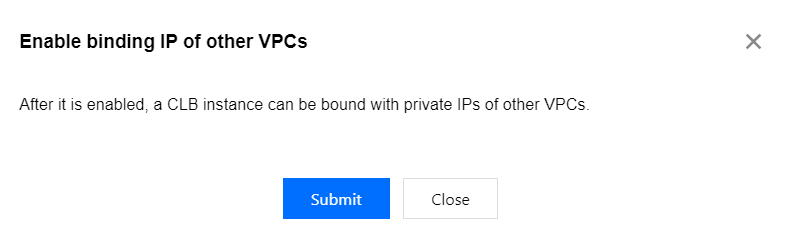
1.3 In the pop-up dialog, click Submit to enable it.
2. Configure the public network listening port.
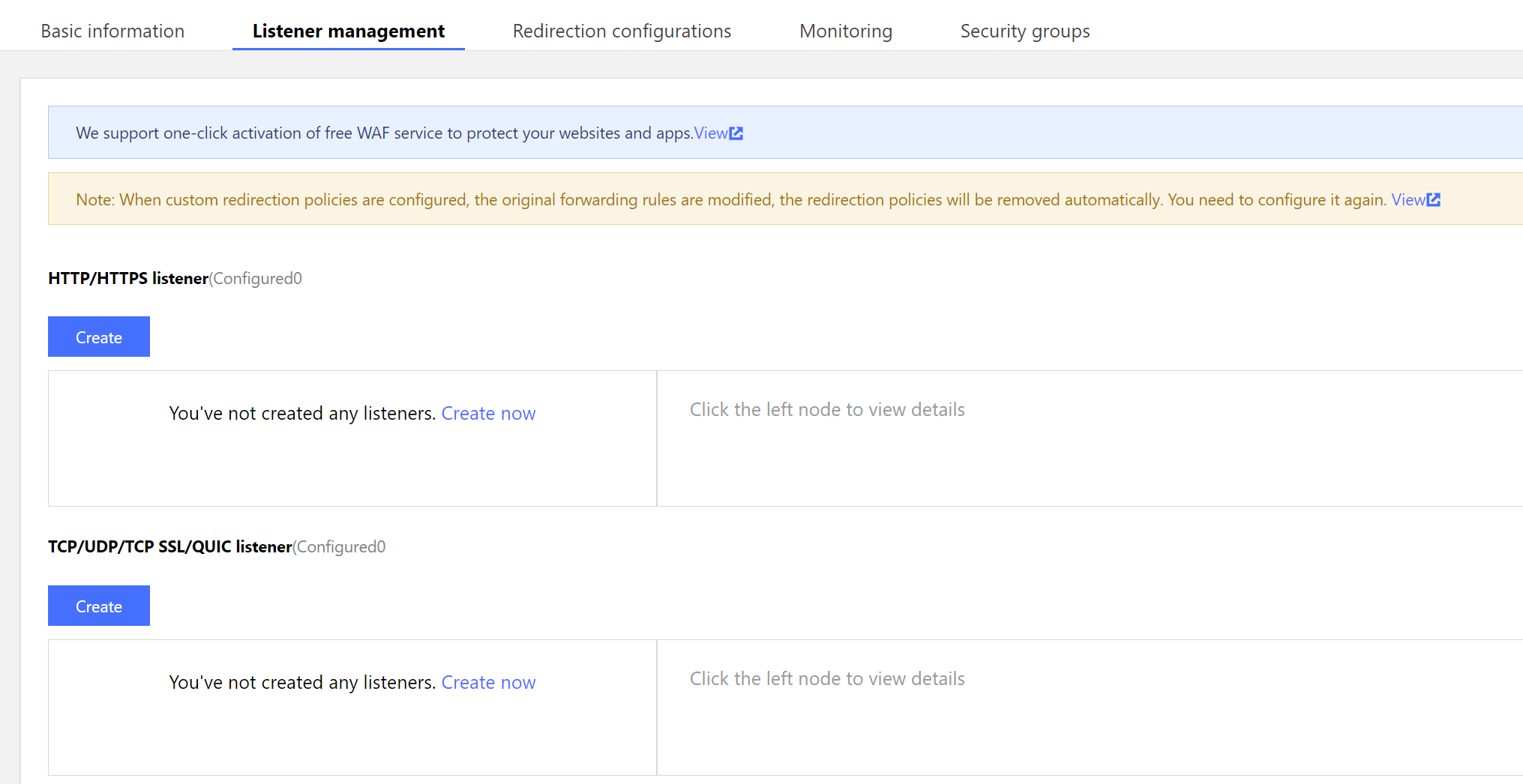
2.1 Log in to the CLB console, select a region, and click Instance ID in the instance management list to enter the instance management page.
2.2 On the instance management page, select the Listener management tab, and click Create under TCP/UDP/TCP SSL/QUIC listener.
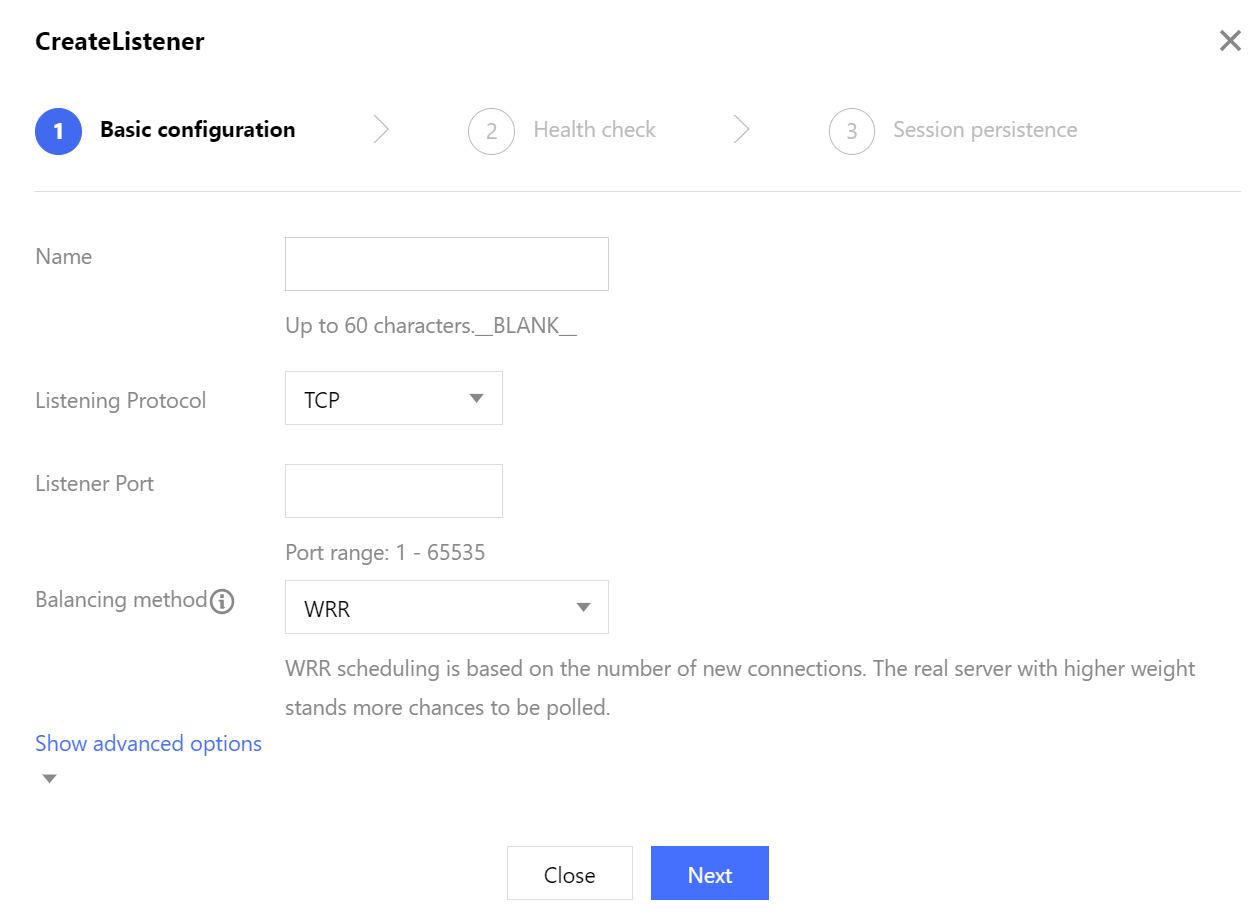
2.3 In the pop-up dialog, follow the steps to complete the settings, and then click Submit to complete the creation.
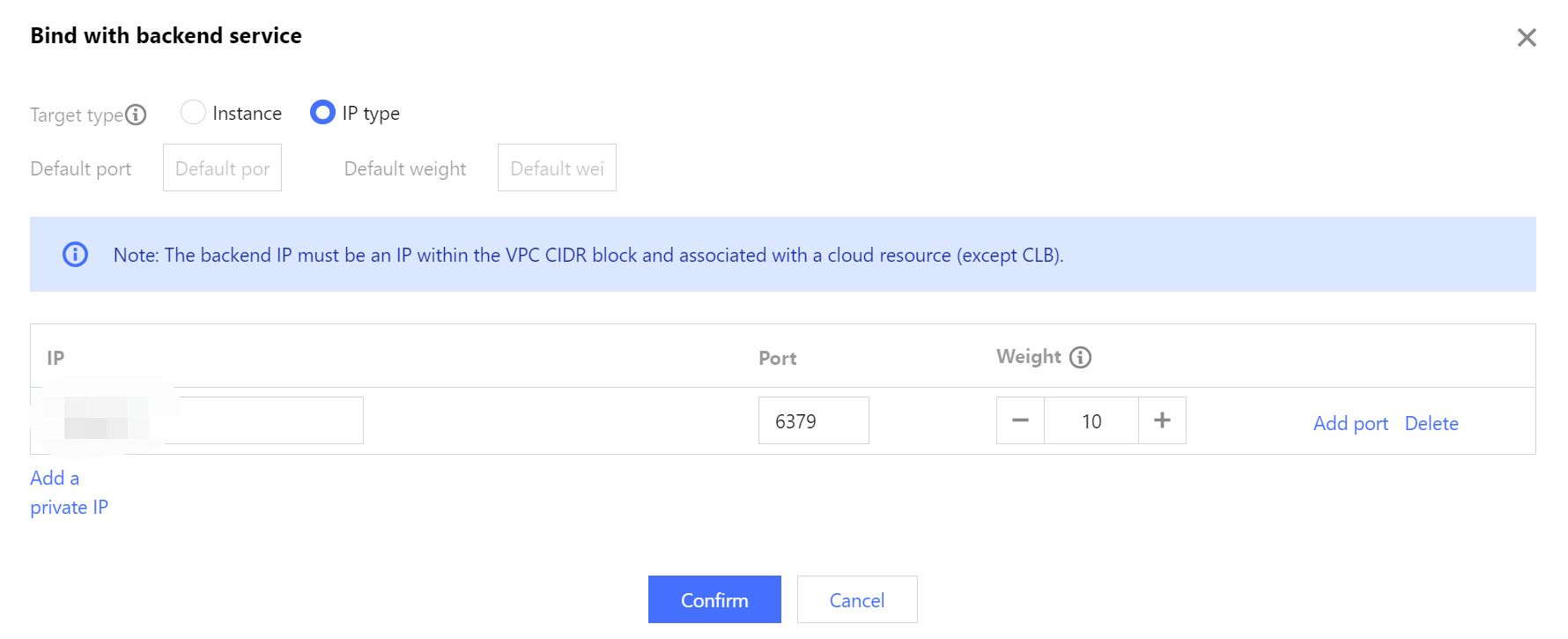
1. After the listener is created, go to the Listener management tab, click the created listener, and then click Bind on the right.
2. In the pop-up dialog, set the Target type to IP type, and enter the IP address and port of the Tencent Cloud Distributed Cache instance in the respective input fields. Click Confirm to complete the binding.
Note:
Make sure the login account is a standard account (with bandwidth upgrade). If you are unable to bind the Tencent Cloud Distributed Cache instance, submit a ticket for assistance.
Step 4: Configuring Tencent Cloud Distributed Cache Security Groups
After the public network service is enabled, promptly configure security group rules for both CLB and its Tencent Cloud Distributed Cache instances to control access sources and ensure data access security.
1. Log in to the CVM console and navigate to the security group page. Create a security group and set inbound rules to allow access from the Tencent Cloud Distributed Cache client IP address and listening port of the Distributed Cache instance you specify. For detailed directions, see Creating a Security Group.
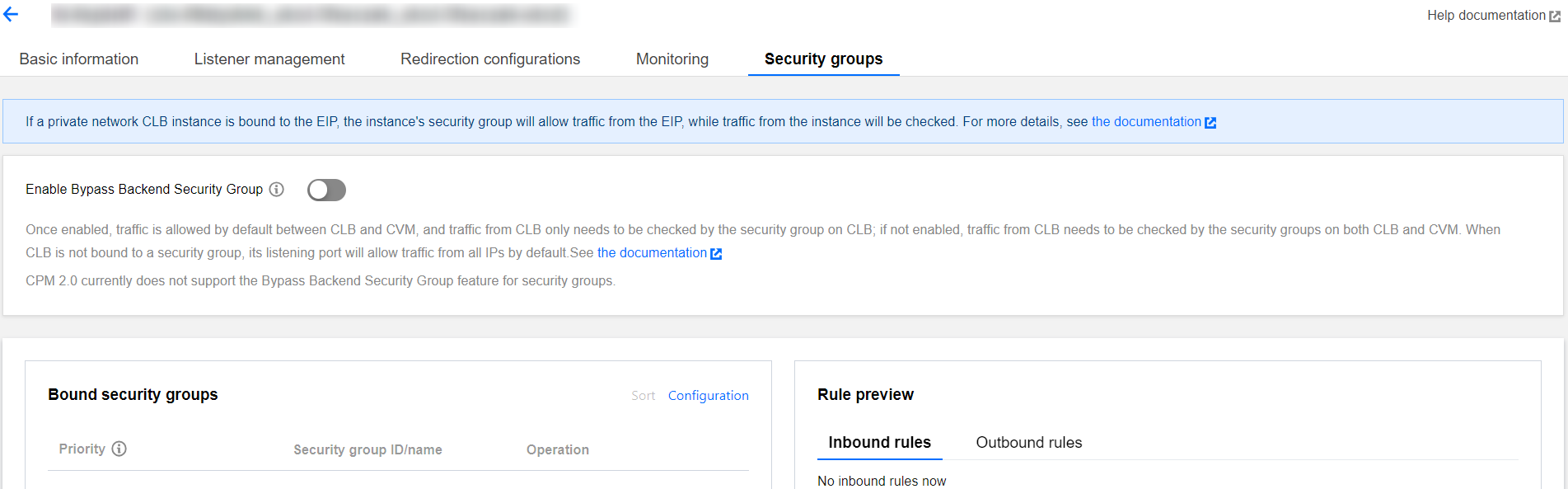
2. Log in to the CLB console, locate the CLB instance bound to the Distributed Cache in the instance management list. Click its Instance ID to enter the Basic Information tab, select the Security groups tab, and click Configuration in the Bound security groups section. In the Configure security group pop-up window, select the security group you have created and click OK. For detailed directions, see Configuring CLB Security Group.
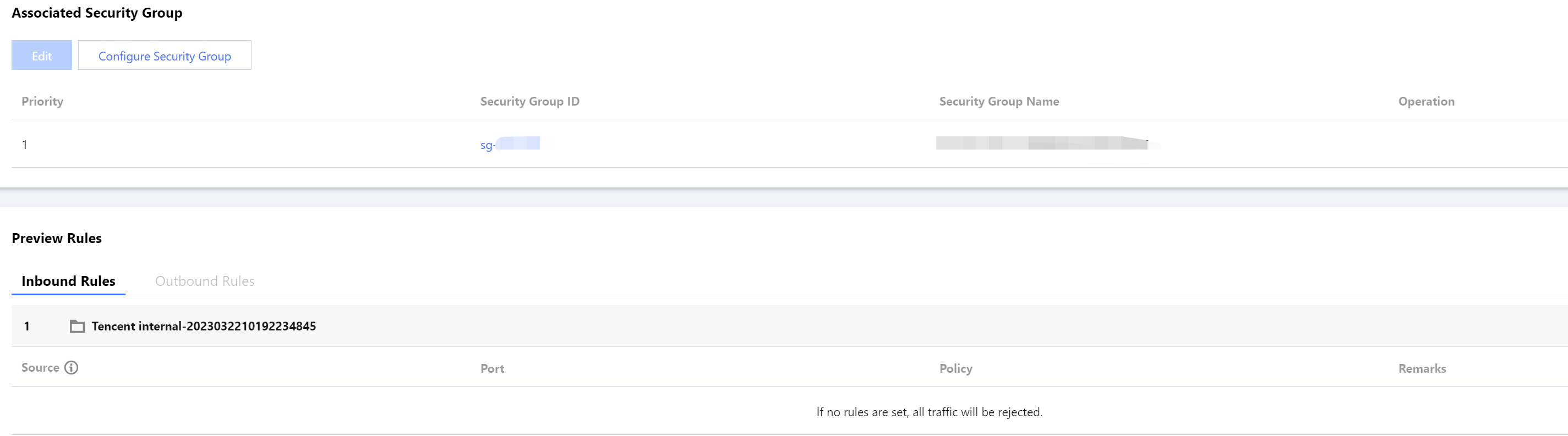
3. Log in to the Tencent Cloud Distributed Cache console, locate the instance that requires to bind a security group in the instance list. Click the target Instance ID, select the Security groups tab, and click Configure Security Group. In the Configure security group dialog box, select the security group you want to bind, and click OK. For detailed directions, see Binding security groups.
Step 5: Connecting to the Database via Client
Use the redis-cli command line to connect to the Tencent Cloud Distributed Cache database.
hostname: Enter the public address of the CLB.
port: Enter the listening port of the CLB.
password: Use the default account password of the Distributed Cache instance. If you use a custom account for connection, the authentication method will set the password parameter for accessing Redis as account name@password.