USB Camera Capture
Download
포커스 모드
폰트 크기
This article introduces how to integrate a USB camera with the
TUICallKit component on Android system devices to enable video call features. Currently, this feature supports Android TUICallkit components and Flutter (Android) TUICallKit components.Integration effect
Physical Connection Photo | Video Call View |
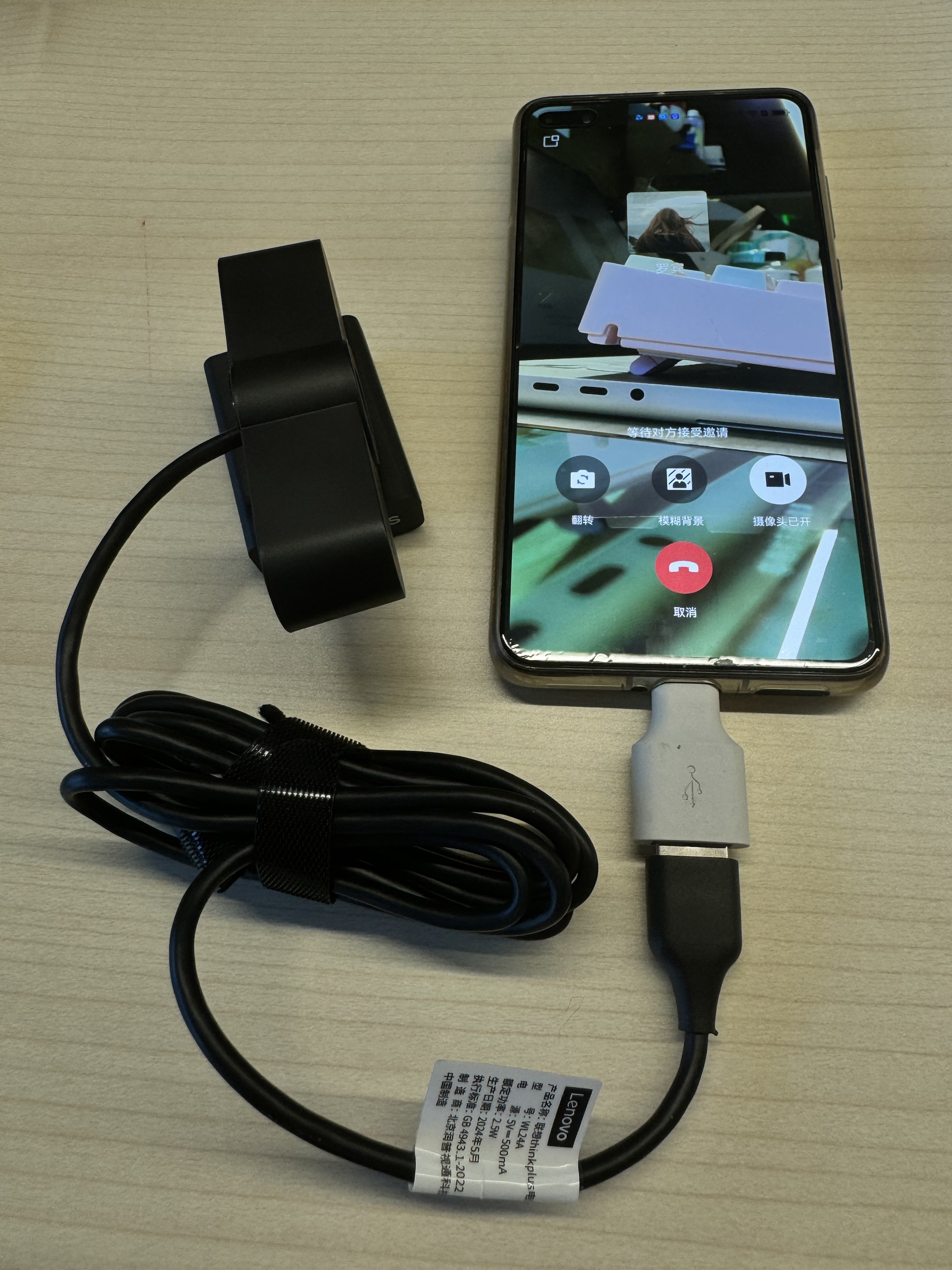 | 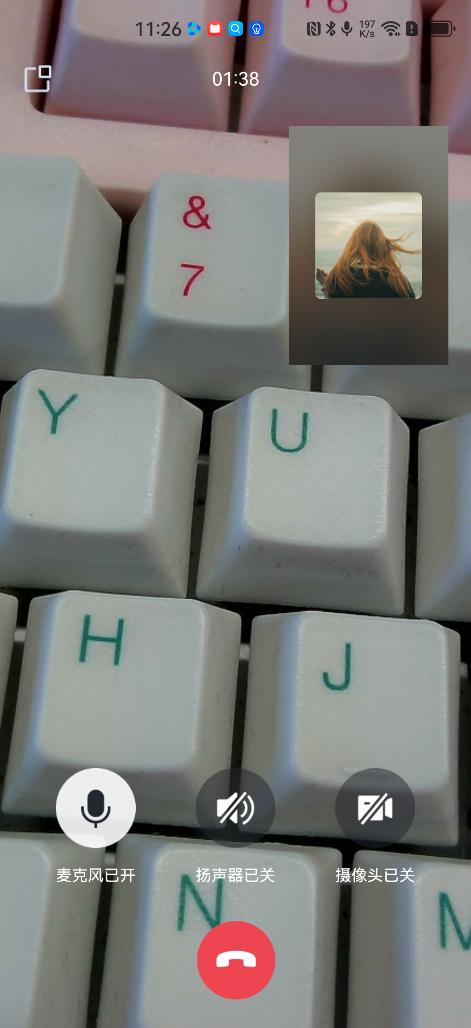 |
Environment preparations
Android 5.0 (SDK API Level 21) or later.
Gradle 4.2.1 or later.
Android system devices: mobile phone, tablet, or other custom devices.
Step 1: Prepare the conditions
1. Before using the USB Camera feature provided by Tencent Cloud, you need to go to the console to enable audio and video services for your application and purchase the Group Call Plan. For detailed steps, please refer to Activate Service.
2. This plugin needs to be used in conjunction with the TUICallKit Component. Please integrate the TUICallKit Component first:
Android
Flutter
Step 2: Integrate the component
In the
build.gradle file in the app directory of your project, add the following dependency code:implementation "io.trtc.uikit:usb-camera:latest.release"
After completing the above steps, you can use an external camera for video calls in the
TUICallKit component.FAQs
Cannot open camera on Android 9 and Android 10 devices?
Cause: On Android 9 and Android 10, requesting USB permissions will also check for Camera permissions. However, due to an anomaly in the Android framework, even if Camera permissions are granted, the check still fails, preventing USB permissions from being granted.
Solution: Modify the app's targetSdkVersion to 27 or lower.
defaultConfig {
    targetSdkVersion 27
}
피드백