Web
Download
포커스 모드
폰트 크기
This document guides you through the whole process with the
TUILiveKit Demo. By following these steps, you can set up and run the Demo in under 10 minutes and experience a fully featured online live streaming application with a complete UI. You can also customize the page style, layout, and features to fit your requirements by following the customization instructions in each section.
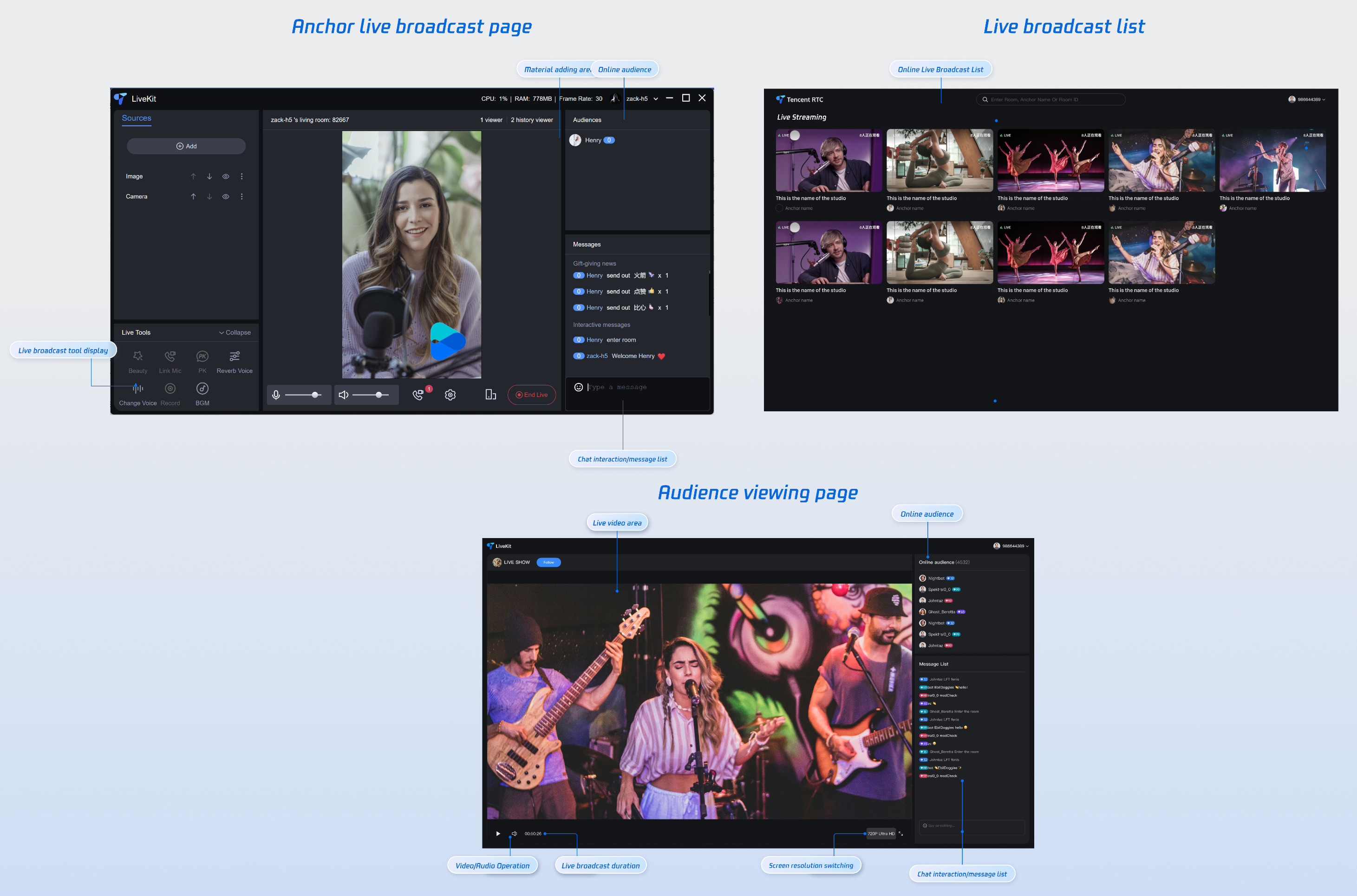
Quick Experience
You can directly experience all Live features using the following methods.
Prerequisites
Enable the Service
Refer to Enable the Service to obtain a TUILiveKit trial license. Then, retrieve the following information from the Console for application management:
SDKAppID: Application identifier (required). Tencent Cloud uses SDKAppId for billing and details.SDKSecretKey: Application secret key, used to initialize configuration file credentials.Environment Preparation
Node.js: ≥ 18.19.1 (official LTS version recommended)
Vue: ≥ 3.4.21
Modern Browser: A browser that supports WebRTC APIs
Devices: Camera, microphone, and speakers
Instructions
Get the Demo
1. Download the TUILiveKit Demo from GitHub, or run the following command directly from the command line:
git clone https://github.com/Tencent-RTC/TUILiveKit.git
2. Install dependencies
cd TUILiveKit/Web/web-vite-vue3npm install
Setup
Open the
TUILiveKit/Web/web-vite-vue3/src/config/basic-info-config.js in the Demo and enter the SDKAppID and SDKSecretKey you obtained when enabling the service: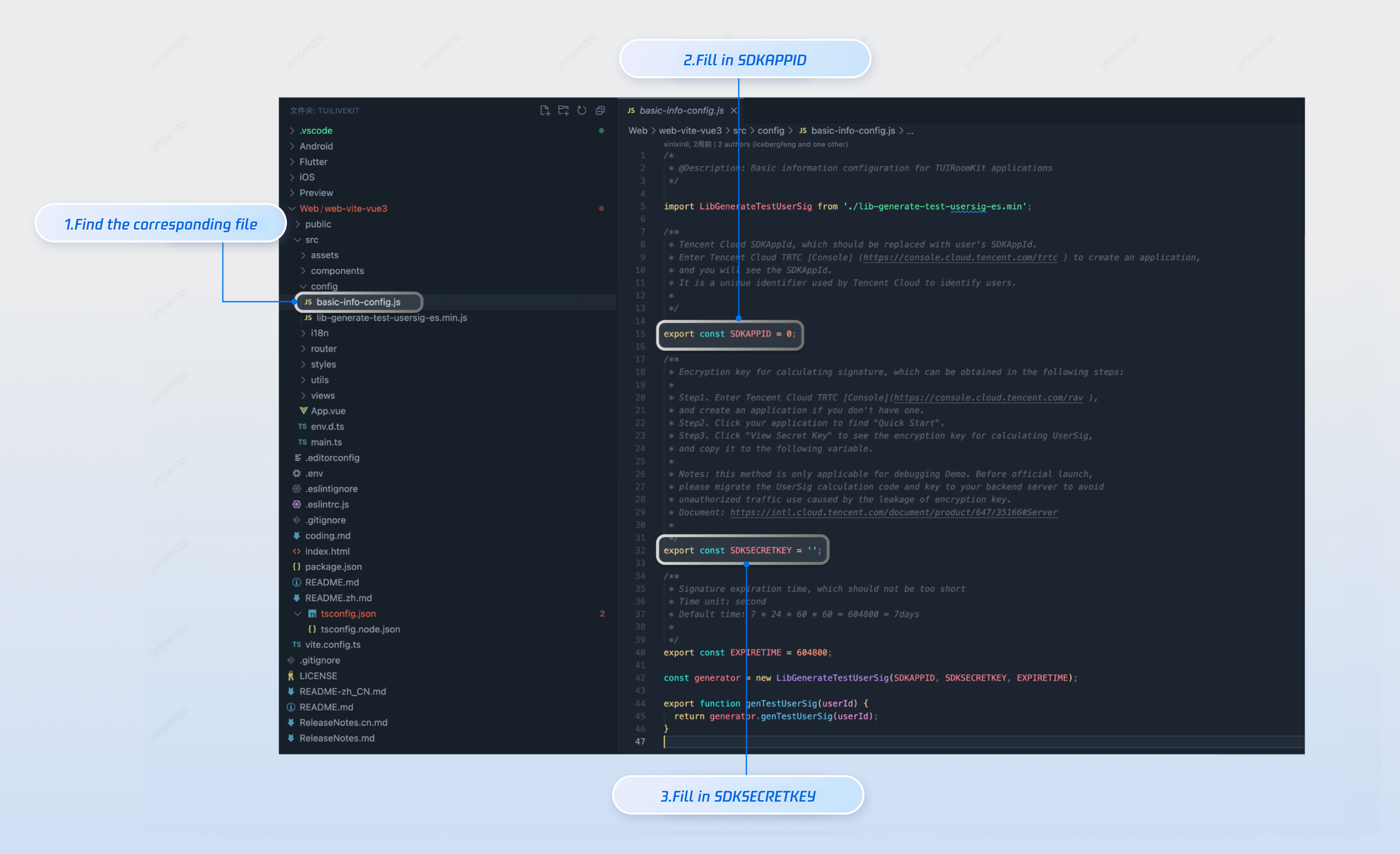
Build and Run the Demo
npm run dev
Experience the Basic Features
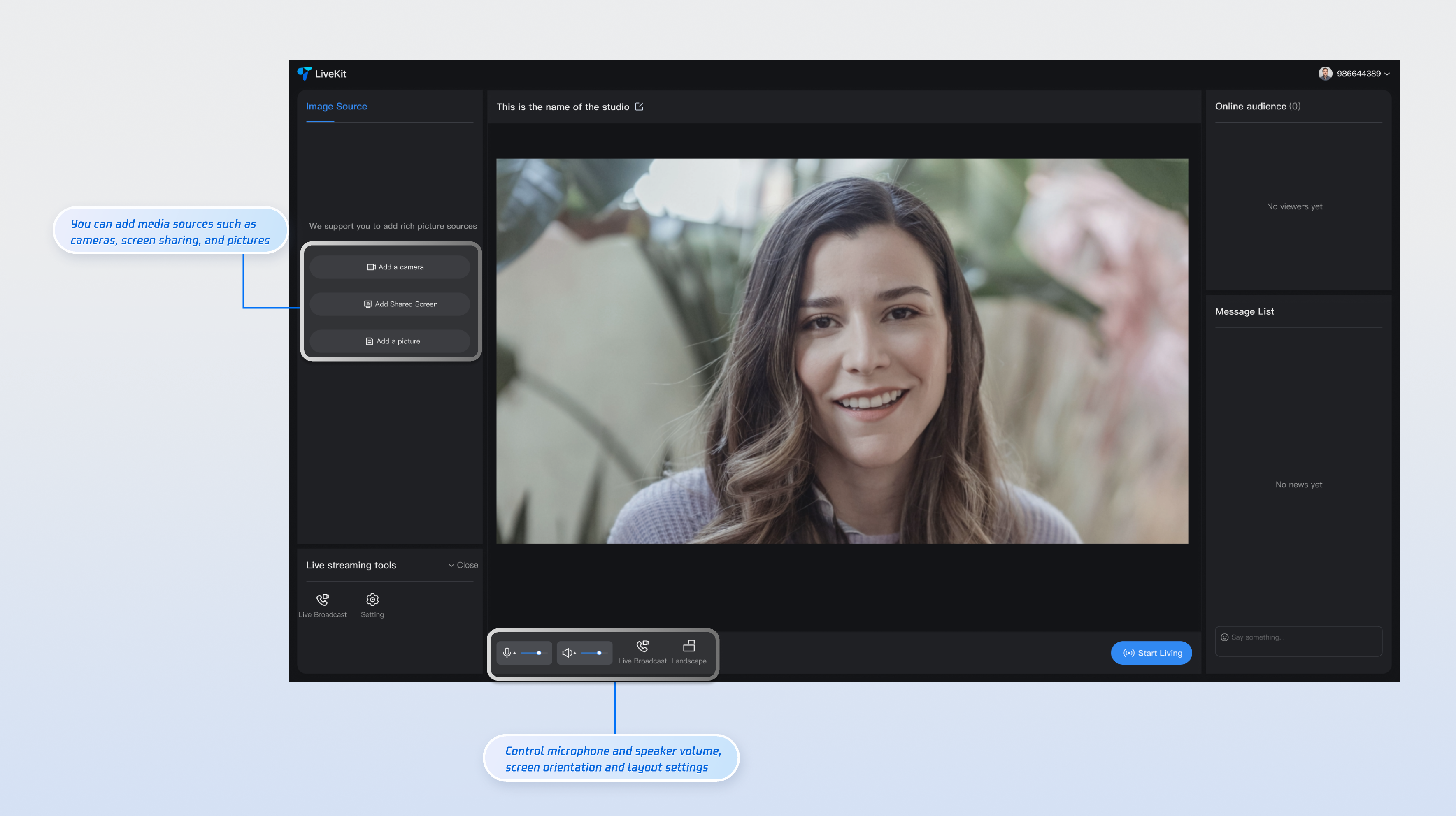
Host Streaming
To start streaming as a host, navigate to the streaming page by setting the URL to
http://localhost:5173/#/live-pusher. This page supports both landscape and portrait streaming modes. Use the material addition area on the left to add media sources, and click the Connect with Audience button to accept or reject audience connection requests.
Audience Viewing
When you run the project for the first time, enter a
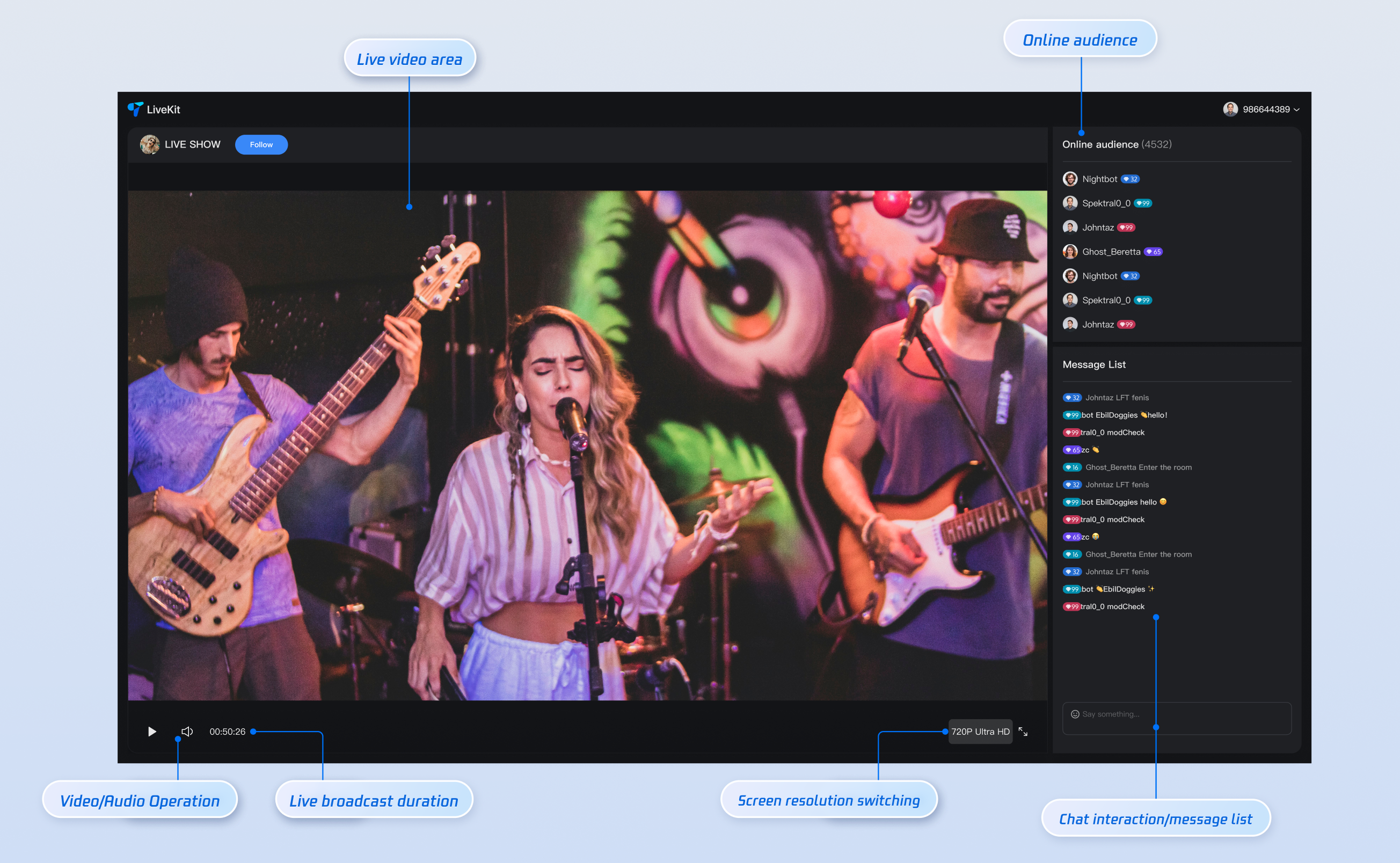
UserId to register your identity. On subsequent runs, the live streaming list page displays directly, as shown below.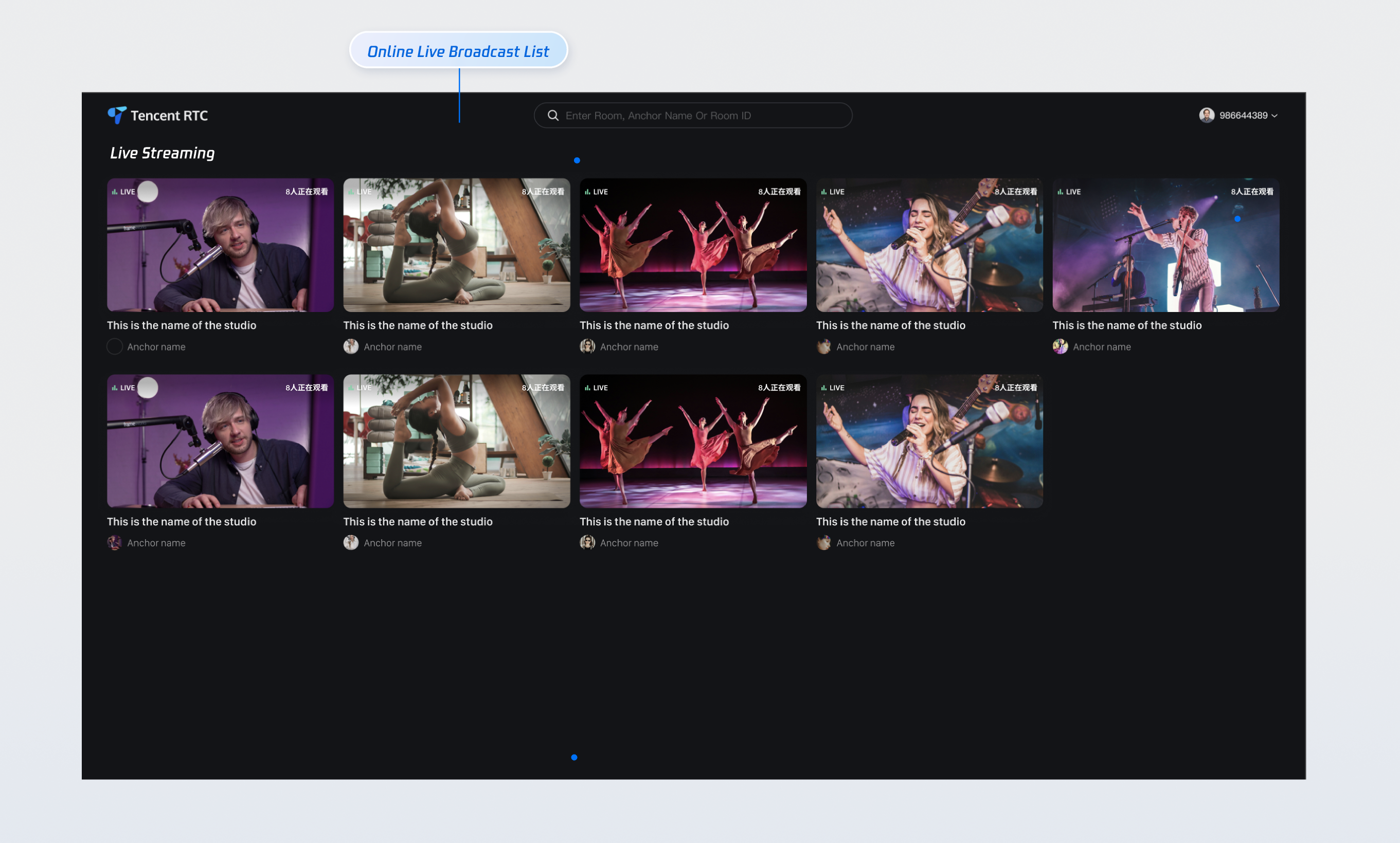
Click a live cover to enter a live room. In the live room, you can watch the stream, follow the host, send bullet comments, view the audience list, and more.
Note:
Do not use simple UserIDs such as "1", "123", or "111".
TRTC does not support multi-end login for the same UserID, and these simple UserIDs are likely to be used by others during collaborative development, which can cause login failures. Use distinctive UserIDs during debugging.
Multiple audience members can simultaneously send bullet comments, follow the host, request to connect, and more, to simulate real multi-user interaction scenarios.
Customization Guide
You can modify the provided UI source code to customize the
TUILiveKit Demo interface as needed. Run the following commands in the TUILiveKit/Web/web-vite-vue3 directory:mkdir -p ./src/TUILiveKit && rsync -av --exclude={'node_modules','package.json','excluded-list.txt'} ./node_modules/@tencentcloud/livekit-web-vue3/src/* ./src/TUILiveKit
xcopy .\\node_modules\\@tencentcloud\\livekit-web-vue3\\src\\* .\\src\\TUILiveKit /i /e /exclude:.\\node_modules\\@tencentcloud\\livekit-web-vue3\\excluded-list.txt
Note:
After running the export script:
1. The
livekit-web-vue3 source code will be generated in the specified src directory.2. You must then manually update the
Web/web-vite-vue3 project. Change all component references for livekit-web-vue3 from the npm package path to the relative path of the local source code.3. To reference the
tuikit-atomicx-vue3 source code, please visit its GitHub repository .If you want to integrate specific pages into your existing project or customize the UI for individual pages, refer to the following documentation links for detailed guidance:
Page | Documentation Link |
Host Streaming | |
Audience Viewing | |
Live Streaming List |
FAQs
After entering the room, you may encounter error code "-3301" with the message "Services are not available in your region."
Contact Us
If you have any questions or suggestions during integration or usage, join our Telegram technical group or contact us for support.
피드백