tencent cloud

Tencent Real-Time Communication

소식 및 공지 사항
제품 업데이트
Tencent Cloud 오디오/비디오 단말 SDK 재생 업그레이드 및 권한 부여 인증 추가
TRTC 월간 구독 패키지 출시 관련 안내
제품 소개
제품 개요
기본 개념
제품 기능
제품 장점
응용 시나리오
성능 데이터
구매 가이드
Billing Overview
무료 시간 안내
Monthly subscription
Pay-as-you-go
TRTC Overdue and Suspension Policy
과금 FAQ
Refund Instructions
신규 사용자 가이드
Demo 체험
Call
개요(TUICallKit)
Activate the Service
Run Demo
빠른 통합(TUICallKit)
오프라인 푸시
Conversational Chat
온클라우드 녹화(TUICallKit)
AI Noise Reduction
UI 사용자 정의
Calls integration to Chat
Additional Features
No UI Integration
Server APIs
Client APIs
Solution
ErrorCode
릴리스 노트
FAQs
라이브 스트리밍
Billing of Video Live Component
Overview
Activating the Service (TUILiveKit)
Demo 실행
No UI Integration
UI Customization
Live Broadcast Monitoring
Video Live Streaming
Voice Chat Room
Advanced Features
Client APIs
Server APIs
Error Codes
Release Notes
FAQs
RTC Engine
Activate Service
SDK 다운로드
API 코드 예시
Usage Guidelines
API 클라이언트 API
고급 기능
RTC RESTFUL API
History
Introduction
API Category
Room Management APIs
Stream mixing and relay APIs
On-cloud recording APIs
Data Monitoring APIs
Pull stream Relay Related interface
Web Record APIs
AI Service APIs
Cloud Slicing APIs
Cloud Moderation APIs
Making API Requests
Call Quality Monitoring APIs
Usage Statistics APIs
Data Types
Appendix
Error Codes
콘솔 가이드
애플리케이션 관리
사용량 통계
모니터링 대시보드
개발 보조
Solution
Real-Time Chorus
FAQs
과금 개요
기능 관련
UserSig 관련
방화벽 제한 처리
설치 패키지 용량 축소 관련 질문
Andriod 및 iOS 관련
Web 관련
Flutter 관련
Electron 관련
TRTCCalling Web 관련
멀티미디어 품질 관련
기타 질문
Protocols and Policies
컴플라이언스 인증
보안 백서
정보 보안에 관한 참고 사항
Service Level Agreement
Apple Privacy Policy: PrivacyInfo.xcprivacy
TRTC 정책
개인 정보 보호 정책
데이터 처리 및 보안 계약
용어집

Quick Start (Web)

PDF
포커스 모드
폰트 크기
마지막 업데이트 시간: 2025-12-15 14:35:03
This document will help you use the core component LiveView of the AtomicXCore SDK to quickly build a basic live streaming web application featuring host broadcasting and audience viewing capabilities.

Core Features

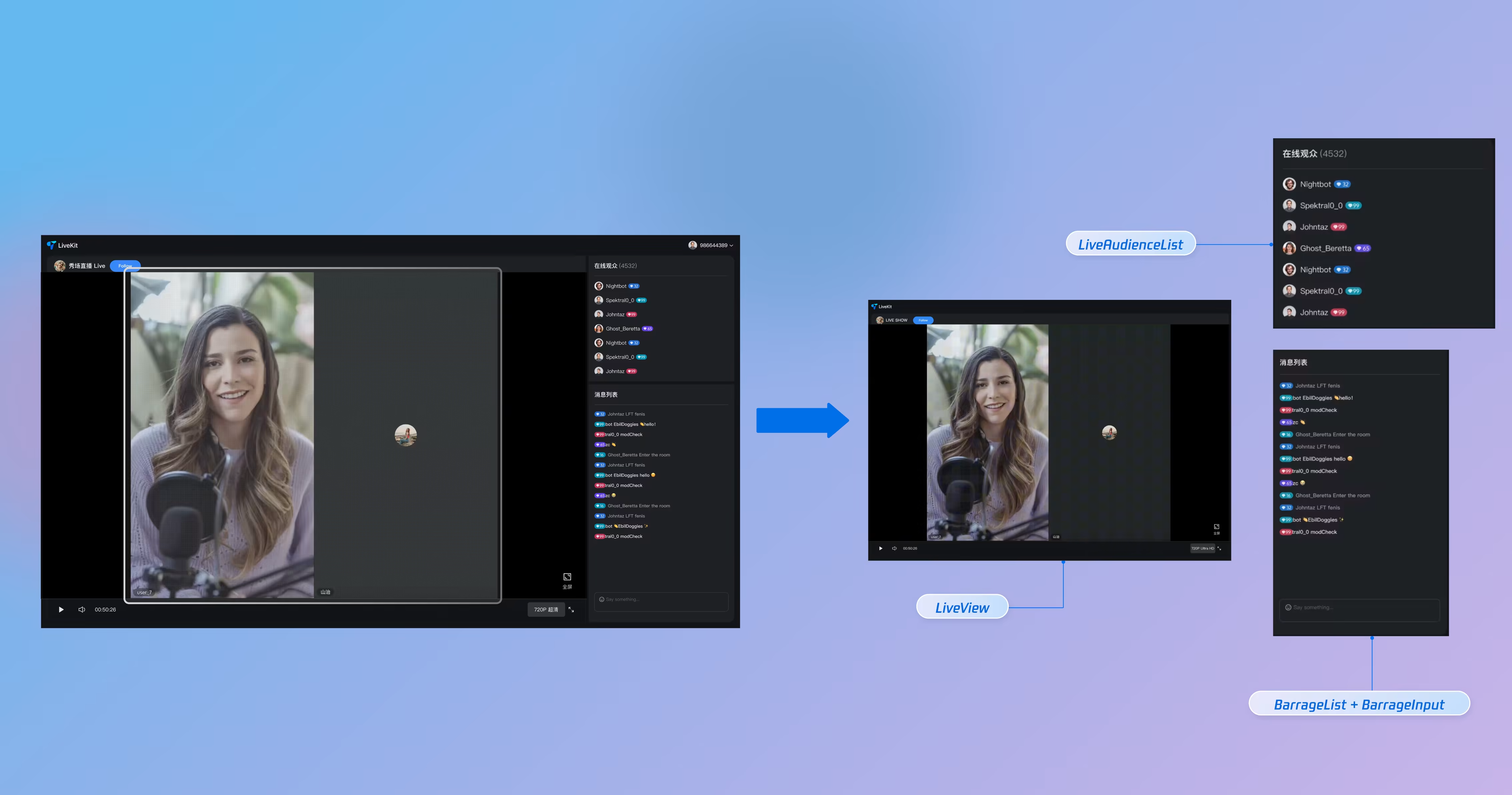
LiveView is a core video display component purpose-built for live streaming scenarios. It provides the foundation for building live broadcast interfaces, abstracting all underlying streaming technologies—including stream publishing and playback, co-hosting, and audio/video rendering. Treat LiveView as the "canvas" for your live video, enabling you to focus on developing your UI and interactive features. The following view hierarchy diagram illustrates the role and placement of LiveView within a typical live streaming interface:


Example Project

Refer to our LiveView component on GitHub for a complete implementation example.

Preparation

Step 1: Enable Service

See Activate Service to obtain either a trial or paid version of the SDK.
Note:
AtomicXCore SDK is designed for Vue 3 projects. Ensure your development environment is compatible with Vue 3 before proceeding.

Step 2: Import AtomicXCore into Your Project

1. Install the Component:
2. Install the tuikit-atomicx-vue3 package using one of the following commands:
npm
pnpm
yarn
npm install tuikit-atomicx-vue3 --save
pnpm add tuikit-atomicx-vue3
yarn add tuikit-atomicx-vue3
3. Configure Browser Permissions: Ensure your web application requests permission to use the camera and microphone. Modern browsers typically prompt users for these permissions on first access.

Step 3: Implement Login Logic

Call the login method from useLoginState() in your project to authenticate. Logging in is required before you can use any AtomicXCore functionality.
Note:
Call the login method in useLoginState only after your own user account login is successful. This ensures clarity and consistency in your authentication logic.
import { useLoginState } from 'tuikit-atomicx-vue3';

const { login } = useLoginState();

async function initLogin() {
try {
await login({
sdkAppId: 0, // Replace with your sdkAppId
userId: "", // Replace with your userId
userSig: "" // Replace with your userSig
});
} catch (error) {
console.error("login failed:", error);
}
}

initLogin(); // Call initLogin when the component mounts or at the appropriate time
Login API Parameter Description:
Parameter
Type
Description
sdkAppId
int
The ID of the live application created in the Console.
userId
string
Unique identifier for the current user. Use only letters, numbers, hyphens, and underscores. Avoid simple IDs like 1, 123, etc., to prevent multi-device login conflicts.
userSig
string
A ticket for Tencent Cloud authentication. Please note:
Development Environment: You can use the local GenerateTestUserSig.genTestSig function to generate a UserSig or generate a temporary UserSig via the UserSig Generation Tool.
Production Environment: To prevent key leakage, you must use a server-side method to generate UserSig. For details, see Generating UserSig on the Server.

Building a Basic Live Room

Step 1: Implement Host Video Broadcasting

Follow these steps to quickly set up host video streaming

1. Initialize the Host Streaming View
In your host Vue component, import and use the StreamMixer component:
<template>
<StreamMixer />
</template>

<script setup lang="ts">
import { StreamMixer } from 'tuikit-atomicx-vue3';
</script>
2. Enable Camera and Microphone
Use the openLocalCamera and openLocalMicrophone methods from useDeviceState to enable the camera and microphone. StreamMixer will automatically preview the current camera video stream.
import { onMounted } from 'vue';
import { useDeviceState } from 'tuikit-atomicx-vue3';
const { openLocalCamera, openLocalMicrophone } = useDeviceState();

onMounted(() => {
openLocalMicrophone();
openLocalCamera();
})
3. Start Live Streaming
Call the createLive method from useLiveListState to start streaming:
import { useLiveListState } from 'tuikit-atomicx-vue3';

const { createLive } = useLiveListState();
// Define the live room ID, typically generated by the backend or passed via route parameters
const liveId = ref('test_live_room_001');

async function startLive() {
try {
await createLive({
liveId: liveId.value, // Set the live room ID
liveName: 'test Live', // Set the live room name
});
} catch (error) {
console.error('Failed to create live:', error);
}
}
LiveInfo Parameter Description:
Parameter Name
Type
Attribute
Description
liveId
string
Required
Unique identifier for the live room
liveName
string
Required
Title of the live room
notice
string
Optional
Announcement for the live room
isMessageDisableForAllUser
boolean
Optional
Mute all users (true: yes, false: no)
isPublicVisible
boolean
Optional
Publicly visible (true: yes, false: no)
isSeatEnabled
boolean
Optional
Enable seat feature (true: yes, false: no)
keepOwnerOnSeat
boolean
Optional
Keep host on seat
maxSeatCount
number
Optional
Maximum number of seats
seatMode
string
Optional
Seat mode ('FREE': free to become a co-host, 'APPLY': request access to become a co-host)
seatLayoutTemplateId
number
Optional
Seat layout template ID
coverUrl
string
Optional
Cover image URL for the live room
backgroundUrl
string
Optional
Background image URL for the live room
categoryList
number[]
Optional
List of category tags for the live room
activityStatus
number
Optional
Live activity status
isGiftEnabled
boolean
Optional
Enable gift feature (true: yes, false: no)
isLikeEnabled
boolean
Optional
Enable likes (true: yes, false: no)
4. End Live Streaming
To end the live stream, call the endLive method from useLiveListState. The SDK will automatically stop the stream and destroy the room.
import { useLiveListState } from 'tuikit-atomicx-vue3';

const { endLive } = useLiveListState();

// End live streaming
async function stopLive() {
try {
await endLive();
} catch (error) {
console.error('Failed to end live:', error);
}
}

Step 2: Implement Audience Entry to Live Room

Enable audience members to watch the live stream with the following steps:

1. Add Audience Playback Page
In your audience Vue component, import and use the LiveView component:
<template>
<LiveView />
</template>

<script setup lang="ts">
import { LiveView } from 'tuikit-atomicx-vue3';
</script>
2. Enter Live Room to Watch
Call the joinLive method from useLiveListState to enter the live room. LiveView will automatically play the video stream for the current room.
import { useLiveListState } from 'tuikit-atomicx-vue3';

const { joinLive } = useLiveListState();
// Define the live room ID to enter
const liveId = ref('test_live_room_001');

// Enter the live room
async function joinLiveRoom() {
try {
await joinLive({ liveId: liveId.value }); // Use the same liveId as the host
} catch (error) {
console.error('Failed to enter live room:', error);
}
}
3. Exit Live Streaming
When an audience member leaves the live room, call the leaveLive method from useLiveListState. The SDK will automatically stop playback and exit the room.
import { useLiveListState } from 'tuikit-atomicx-vue3';

const { leaveLive } = useLiveListState();

// Exit live streaming
async function exitLive() {
try {
await leaveLive();
// You can perform page navigation here
} catch (error) {
console.error('Failed to leave live room:', error);
}
}

Step 3: Listen for Live Events

After an audience member enters a live room, handle passive events such as the host ending the live stream or users being removed for violations. Without event handling, the UI may remain on a black screen, impacting user experience. Subscribe to events using subscribeEvent from useLiveListState:
import { useLiveListState, LiveListEvent } from "tuikit-atomicx-vue3";
import { onMounted, onUnmounted } from 'vue';

const { subscribeEvent, unsubscribeEvent } = useLiveListState();

const handleKickedOutOfLive = () => {
console.log('You have been removed from the live room');
};

const handleLiveEnded = () => {
console.log('Live has ended');
};

onMounted(() => {
subscribeEvent(LiveListEvent.onLiveEnded, handleLiveEnded);
subscribeEvent(LiveListEvent.onKickedOutOfLive, handleKickedOutOfLive);
});

onUnmounted(() => {
unsubscribeEvent(LiveListEvent.onLiveEnded, handleLiveEnded);
unsubscribeEvent(LiveListEvent.onKickedOutOfLive, handleKickedOutOfLive);
});

Runtime Effect

After integrating LiveView, you will have a clean video rendering area with full live streaming capabilities, but no interactive UI. See the next section, Enhancing the Live Experience, to add interactive features to your live stream.

Enhancing the Live Experience

After implementing basic live streaming, refer to the following feature guides to add interactive elements to your live stream.
Live Feature
Feature Description
Feature State
Implementation Guide
Enable Audience Audio/Video Link
Audience can request to join the stream and interact with the host via real-time video.
Implement audience linking
Enable Host Cross-Room PK
Hosts from two different rooms can connect for interaction or PK.
Implement host PK linking
Add Bullet Chat Feature
Audience can send and receive real-time text messages in the live room.
Implement bullet chat

API Documentation

State
Feature Description
API Documentation
LiveListState
Full lifecycle management of live rooms: create, enter, leave, destroy room, query room list, modify live info (name, announcement, etc.), listen for live status (such as being removed, ended).
DeviceState
Audio/video device control: microphone (switch, volume), camera (switch, switch camera, video quality), screen sharing, real-time device status monitoring.
CoGuestState
Audience linking management: link request, invitation, approval, rejection, member permissions control (microphone, camera), status synchronization.
CoHostState
Host cross-room linking: supports multiple layout templates (dynamic grid, etc.), initiate, accept, reject linking, co-host interaction management.
BarrageState
Bullet chat feature: send text or custom bullet chat, maintain bullet chat list, real-time bullet chat status monitoring.
LiveAudienceState
Audience management: get real-time audience list (ID, name, avatar), count audience number, listen for audience entry/exit events.

FAQs

Why is the screen black with no video after the host calls createLive or the audience calls joinLive?

Check login status: Ensure you have successfully called the login method before invoking broadcast or viewing interfaces.
Check browser permissions: Confirm the browser has permission to use the camera and microphone. Modern browsers prompt for permission on first access.
Check host side: Verify the host has called openLocalCamera() to enable the camera.
Check network: Ensure the device has a stable network connection and can access TRTC services.
Check HTTPS: In production, your web application must run over HTTPS, as browsers require a secure context for camera and microphone access.

Why does the host see a local video preview after starting the broadcast, but the preview is black before going live?

Check host side: Ensure the host streaming view uses the StreamMixer component.
Check audience side: Ensure the audience playback view uses the LiveView component.
Check component imports: Confirm relevant components are imported from tuikit-atomicx-vue3.

Web-specific Issues

Browser compatibility: Use a modern browser that supports WebRTC. Recommended: Chrome 70+, Firefox 65+, Safari 12+, or Edge 79+.
Local development environment: For local development, use localhost or 127.0.0.1. In production, use HTTPS.
Firewall and proxy: In enterprise networks, ensure the firewall allows WebRTC-related ports and protocols.

도움말 및 지원

문제 해결에 도움이 되었나요?

피드백