tencent cloud

Cloud Contact Center

Announcement
What's New
Cloud Contact Center Terminology Update
What is Tencent Cloud Contact Center
Overview
Feature List
Terms Introduction
Handling Firewall Restrictions
AI Voicebot
Billing Guide
Voice Call Billing Overview
Desk Billing Overview
View Billing
Refund Policy
New User Guide
Voice Guide
Desk Guide
Use Case
Inbound: Customer Experience
Outbound: Telemarketing
Auto Dialer: Voice Notification
Integration Use Case (SDK)
Administrator Guide
Voice Guide
Desk Guide
Member Guide
Voice Guide
Desk Guide
AI Voice Agent Guide
Introducing AI Voice Agent
AI Voice Agent Practical Tutorial
Set Up Your AI Voice Agent
Activate AI Voice Agent Call
AI Voice Agent Call Logs
Developer Guide
SDK Development Guide
Data Push
Voice API Reference
History
Introduction
API Category
Making API Requests
Agent APIs
Skill Group APIs
Number APIs
Dual Call APIs
Predictive Outbound Call APIs
SIP Phone APIs
Call Service Record APIs
Billing APIs
Other APIs
Outbound Call APIs
Speech Intelligent Agent APIs
Data Types
Error Codes
Desk API Reference
API Reference
Callback Configuration
FAQs
Data Deletion Guide
Legal
Privacy Policy
Data Processing And Security Agreement
Service Level Agreements
TENCENT CLOUD CONTACT CENTRE TERMS OF USE
Glossary
Contact Us

Create an IVR Flow

PDF
Modo Foco
Tamanho da Fonte
Última atualização: 2025-01-15 11:19:56

Steps

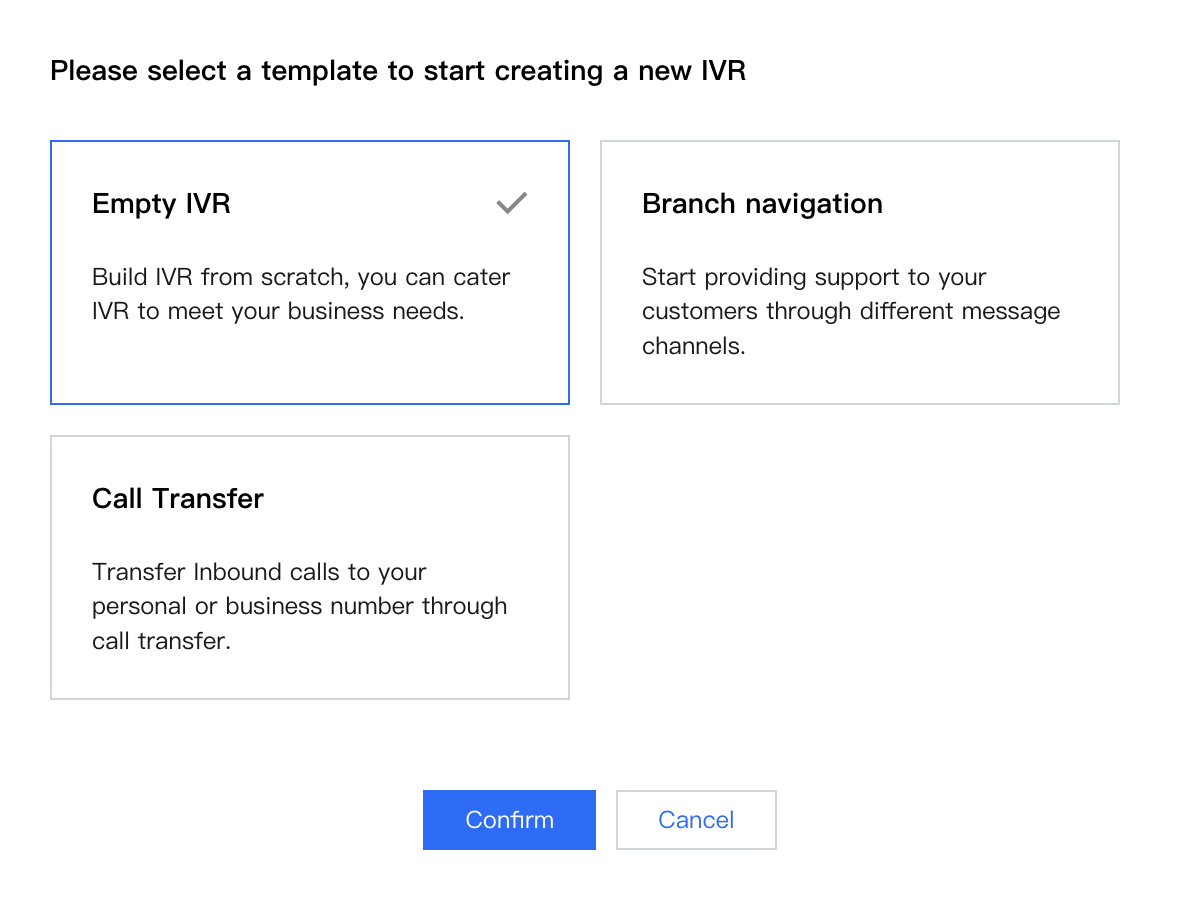
1. Go to the Cloud Contact Center Console , click Telephone Customer Service - IVR Management in the left navigation bar to enter the IVR management page. ClickInbound IVR, and in the upper left corner of the page, click Create and Select Template.


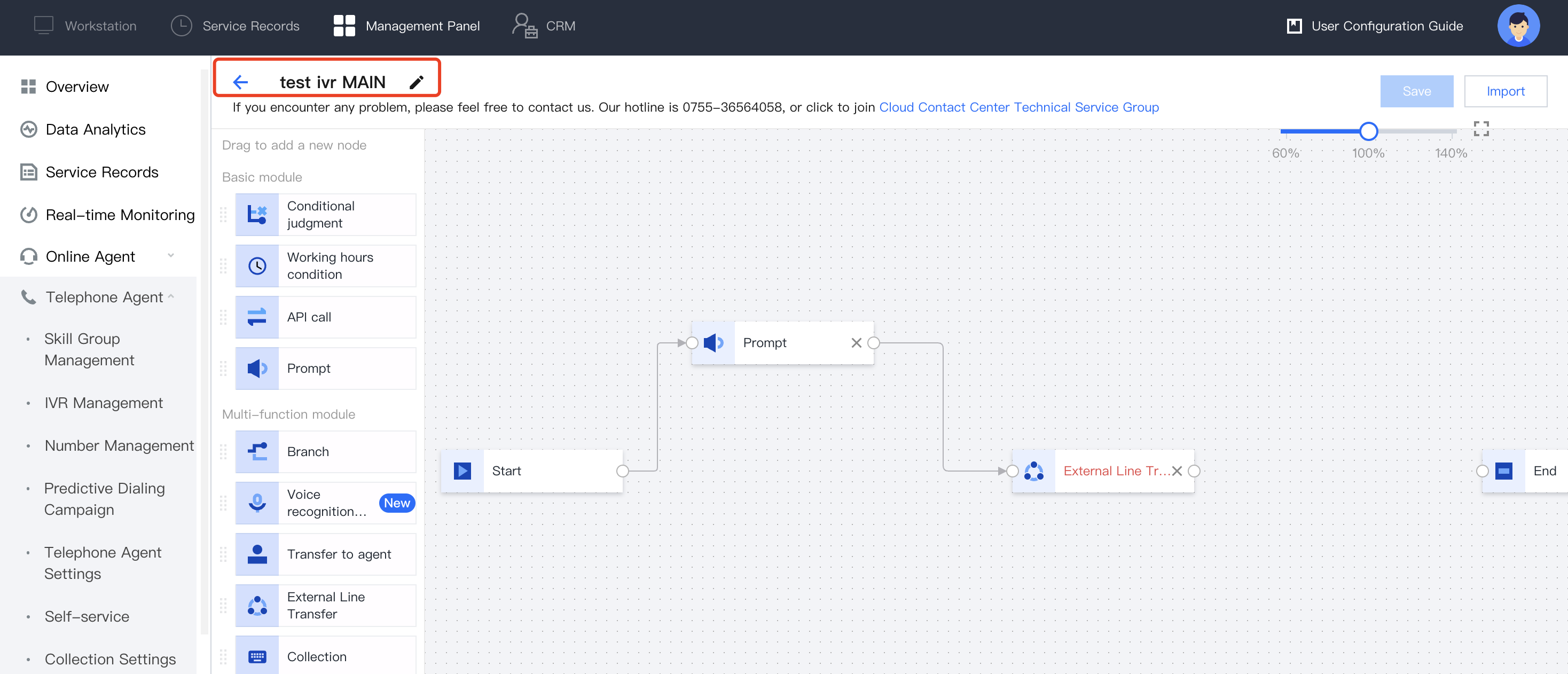
2. Enter the IVR name, such as 'Phone call-in process test', in the upper left corner of the IVR canvas.


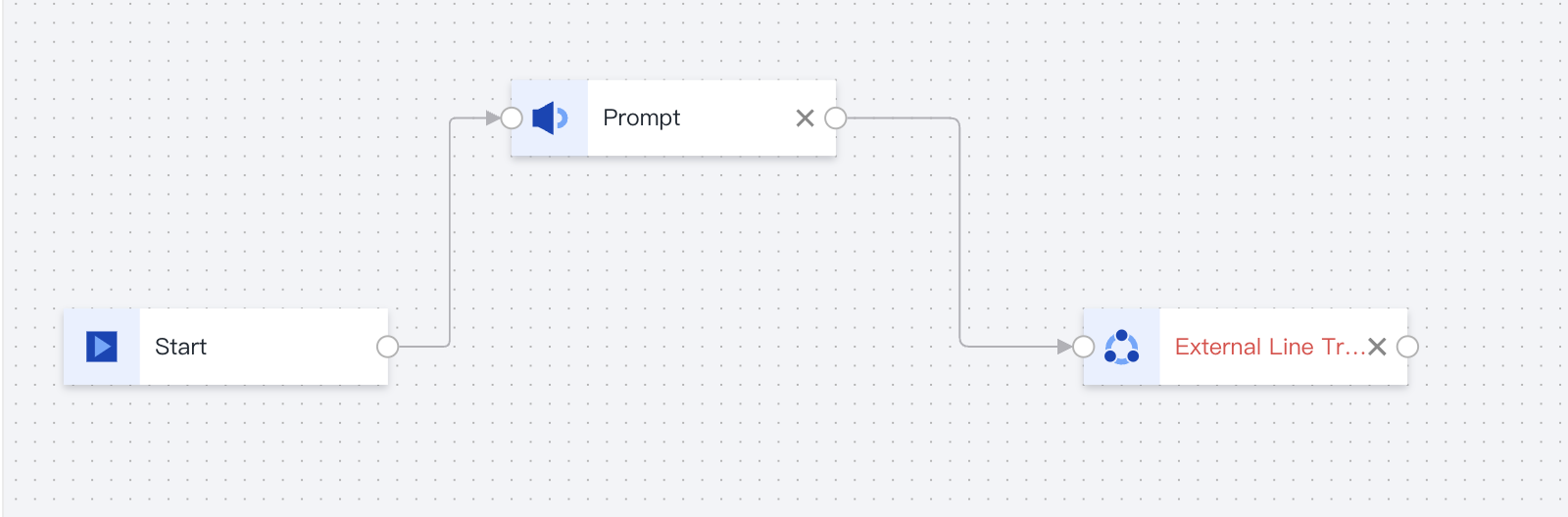
3. Based on your scenario, drag IVR modules to appropriate positions on the canvas, and connect and fill relevant information for each module. For details, refer to Basic IVR Module and Multi-Feature IVR Module (Premium Feature). Every IVR flow must start with a Start module and end with an End module.


4. After configuration, click Save in the upper right corner of the IVR canvas to return to the IVR list.
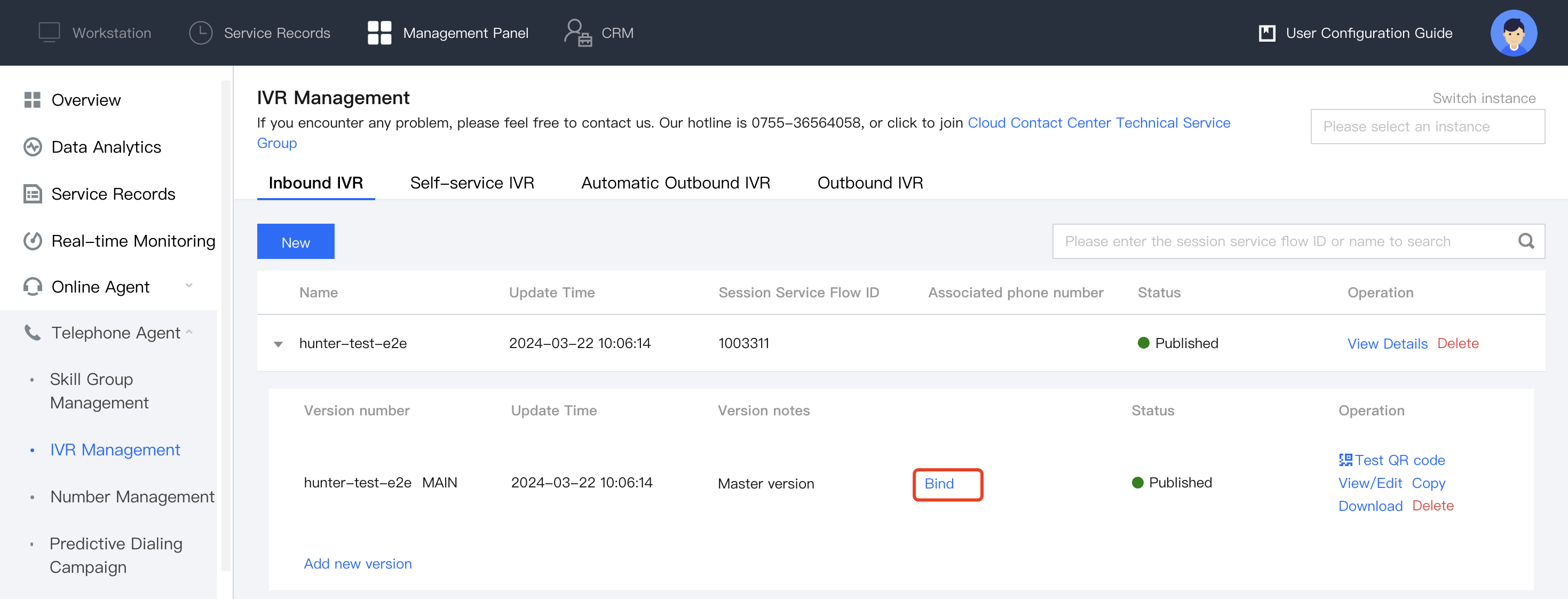
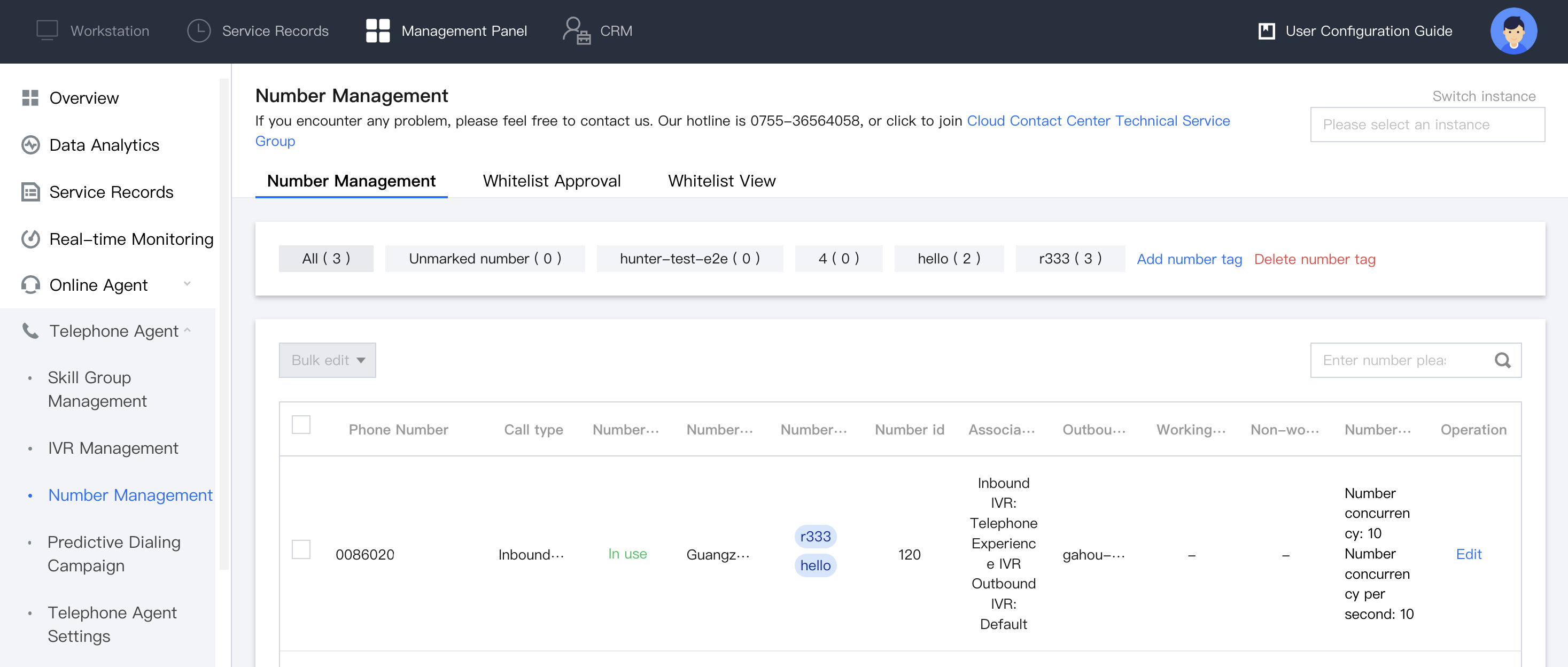
5. In the Associated phone number column, click Bind to enter the Number Management page.


6. Click Edit in the operation column of the target number.


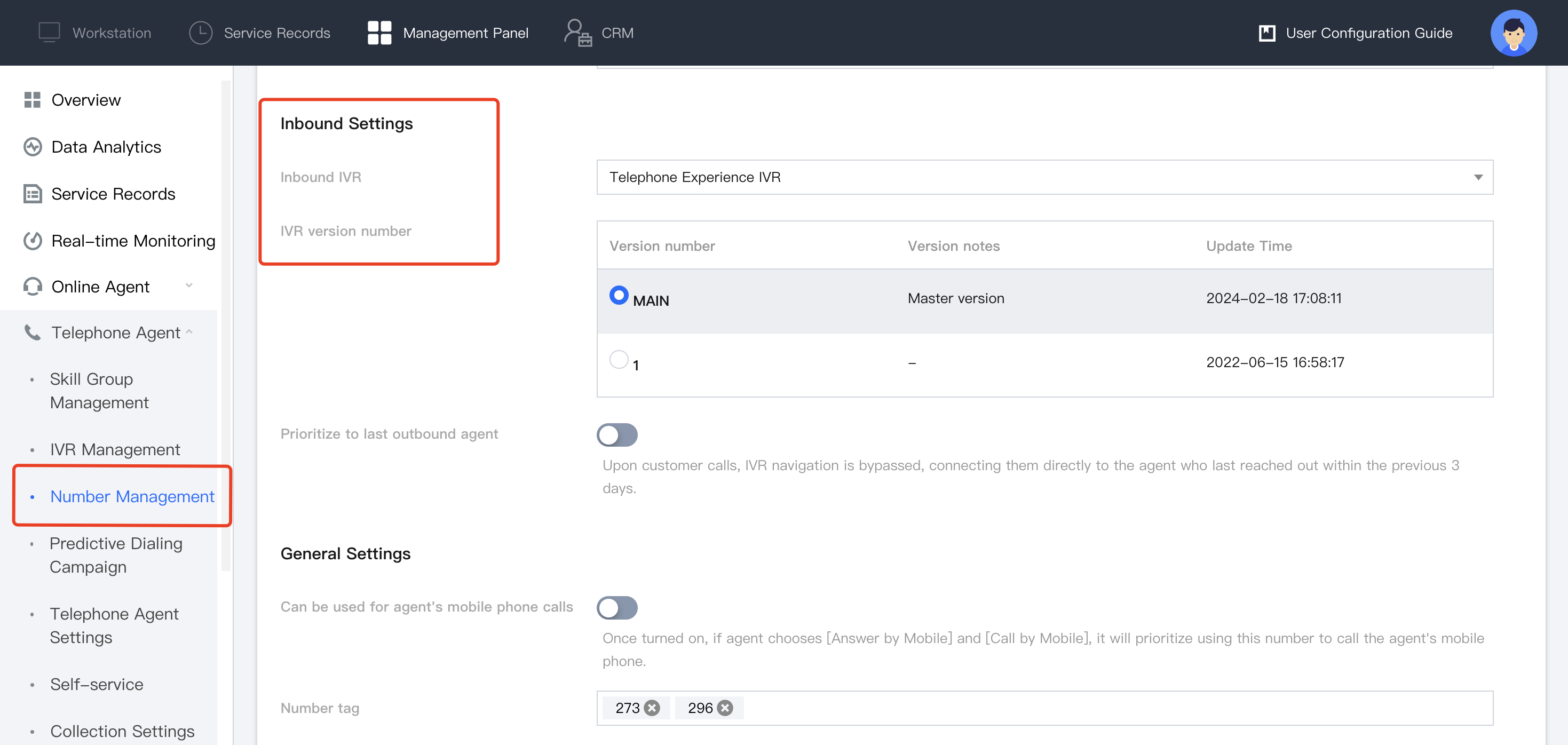
7. In Inbound Settings - Inbound IVR, click the IVR name that needs to be bound like "Phone call-in process test", and then click Confirm to complete binding.
Ajuda e Suporte

Esta página foi útil?

comentários