Renewal
Download
Modo Foco
Tamanho da Fonte
Instances with the monthly subscription billing mode will become unavailable upon expiration. To continue using the instance, you must renew it within the specified time frame. Failure to renew promptly will result in automatic release of your TDSQL Boundless instance resources and deletion of data. This document explains the renewal guidelines and procedures for TDSQL Boundless instances.
Note:
Downtime and data deletion risks exist after the instance expires. Renew it promptly to avoid affecting your business.
Prerequisites
Instances to be renewed must be monthly subscription instances. Pay-as-you-go instances are not subject to expiration or renewal.
Renewal Method
You can renew instances either automatically or manually to ensure data integrity. For manual renewal, you need to periodically renew instances to extend their usage time. Automatic renewal saves you the trouble of periodic manual renewal, and helps avoid affecting the use of instances or causing business interruptions due to forgetting to renew them.
Automatic Renewal Instructions
I. Automatic Renewal Rules
Service Content: Automatic renewal of TDSQL Boundless database instances.
Automatic renewal cycle: Determined by the automatic renewal cycle you set. For example, if you select a cycle of 1 month, the system will automatically renew for 1 month upon each expiration.
Deducted amount: The fee for renewing an instance is the same as the fee for purchasing a new instance. For instance fees, see the Purchase Page.
Deduction time and method: The system will start deducting fees on the expiration date of the product. If the deduction fails due to insufficient account balance, the service will be terminated upon expiration.
II. Enabling Automatic Renewal
You can enable automatic renewal via the following operation path.
Enabling Automatic Renewal on the Product Console Page
Note:
Instances that have been set for automatic renewal do not need to be reconfigured. Automatically renewed instances will be marked in the console. The method for viewing them is as follows.

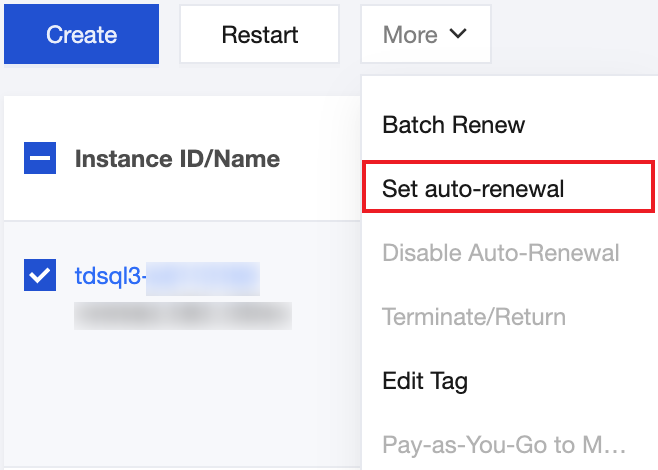
1. In the instance list, select one or more instances, then choose More > Set auto-renewal from the top menu.
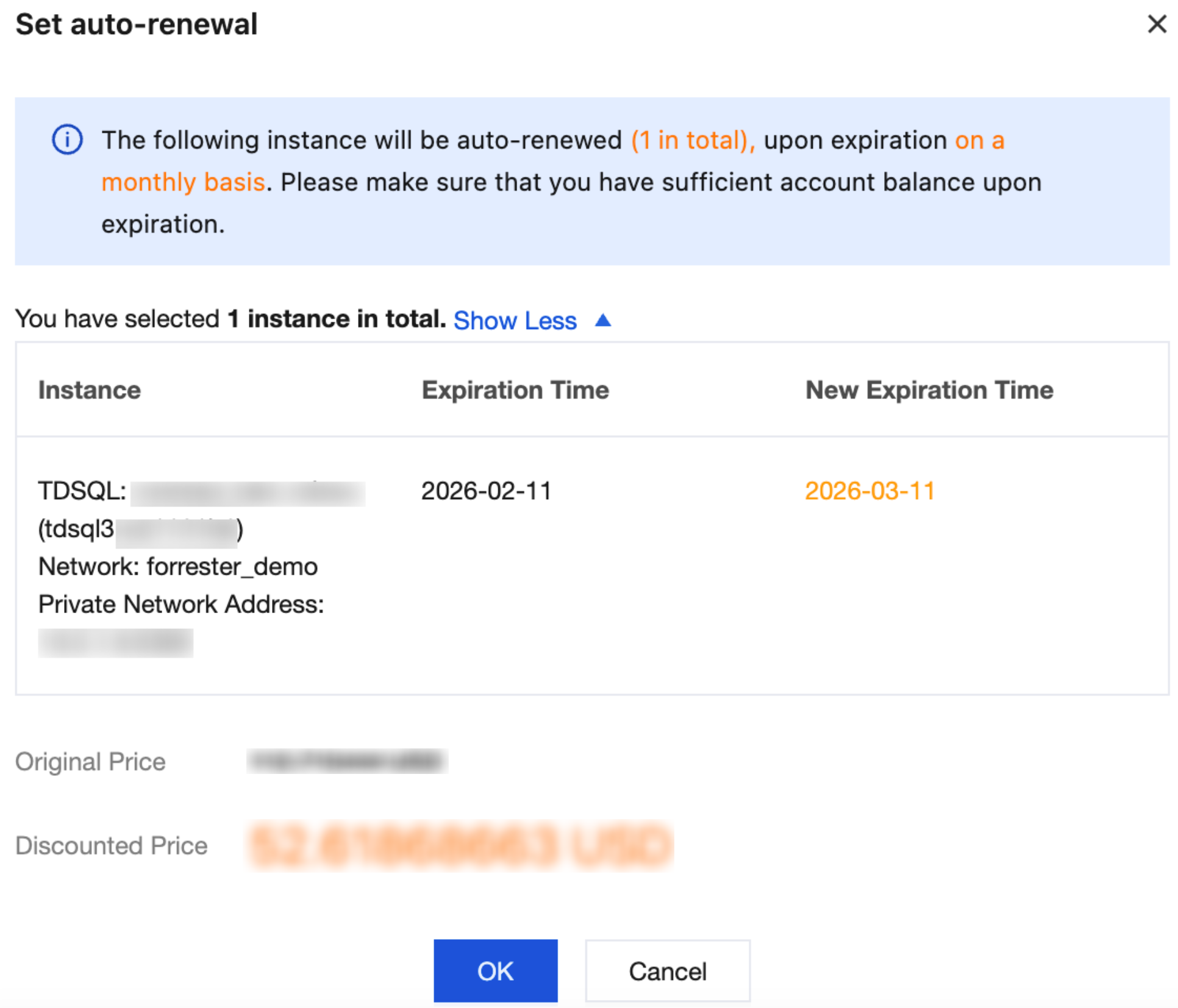
2. In the pop-up dialog box, confirm that everything is correct and click OK.
Note:
As shown in the figure below, the dialog box stating "will be auto-renewed, upon expiration on a monthly basis" indicates that auto-renewal is enabled. The instance will automatically renew for one month upon each expiration.
Enabling Automatic Renewal via the Expense Center > Renewal Management Page
1. Log in to the Billing Center > Renewal Management page. Resources for the TDSQL Boundless product have IDs starting with "tdsql3-".
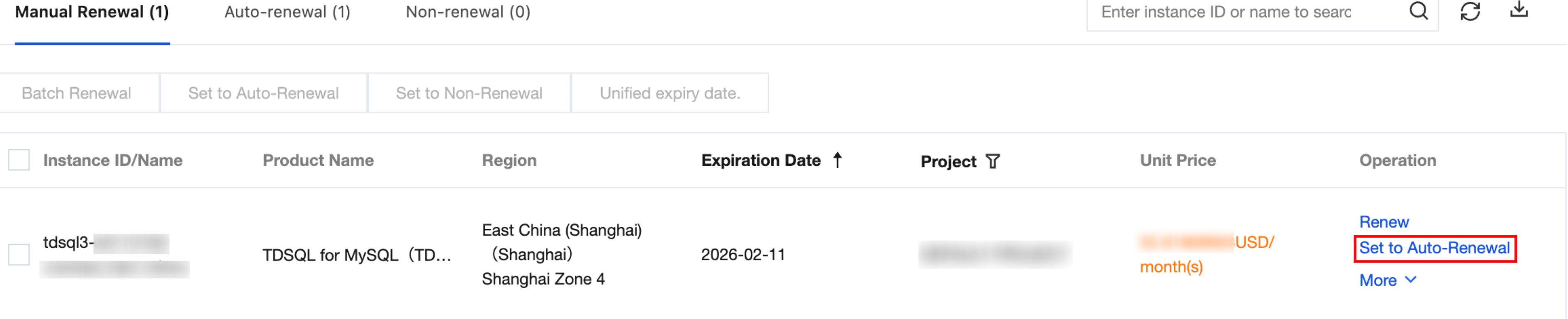
2. In the manual renewal items section, locate one or more instances with resource IDs starting with "tdsql3-" that you want to set for automatic renewal, select them, and click Set to Auto-Renewal.
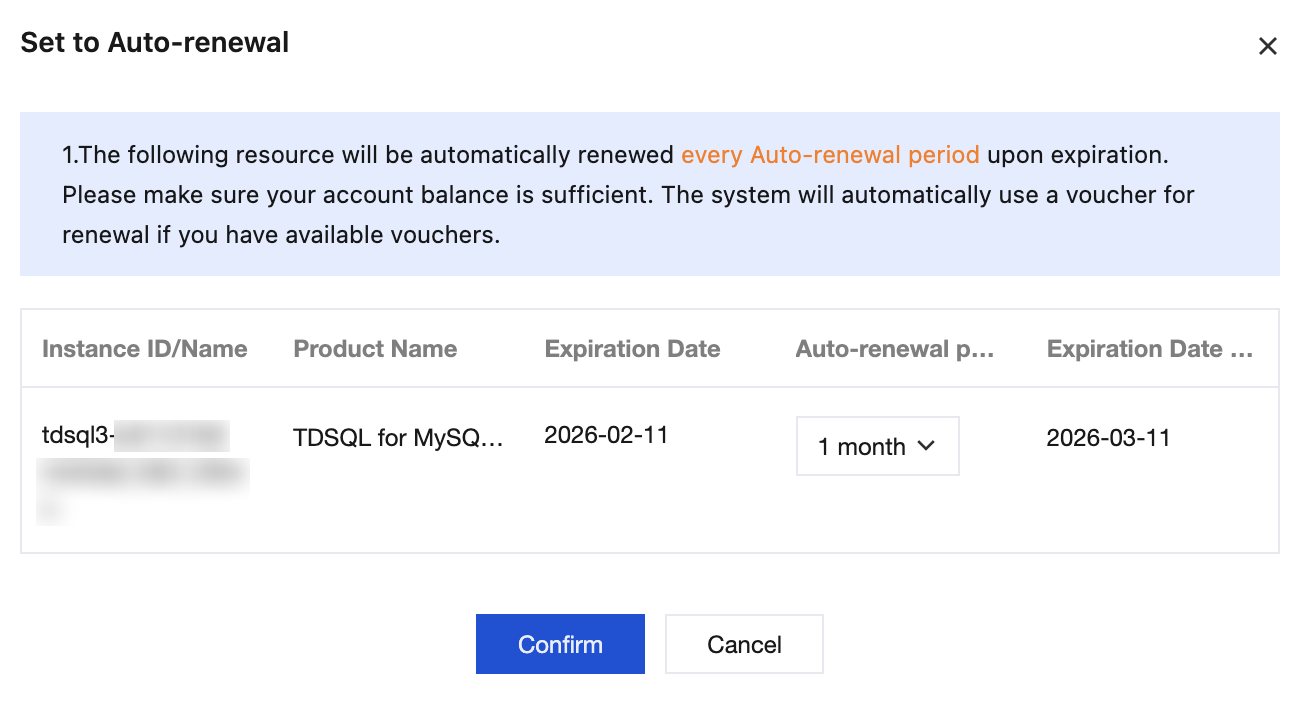
3. In the pop-up auto-renewal window, confirm the product information, select the Auto-renewal period, verify that everything is correct, and click Confirm.
III. Canceling Automatic Renewal
Cancel auto-renewal through the following procedure.
Canceling Automatic Renewal via the Product Console Page
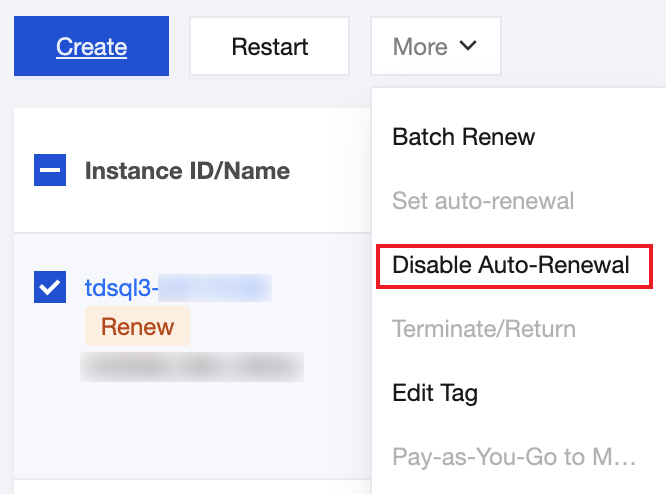
In the instance list, select one or more instances, then choose More > Disable Auto-Renewal from the top menu.
Canceling Automatic Renewal via the Website Expense Center > Renewal Management Page
1. Log in to the Billing Center > Renewal Management page. Resources for the TDSQL Boundless product have IDs starting with "tdsql3-".
2. In the auto-renewal items section, locate one or more instances with resource IDs starting with "tdsql3-" that you want to cancel auto-renewal for, select them, and click Set to Manual Renewal.
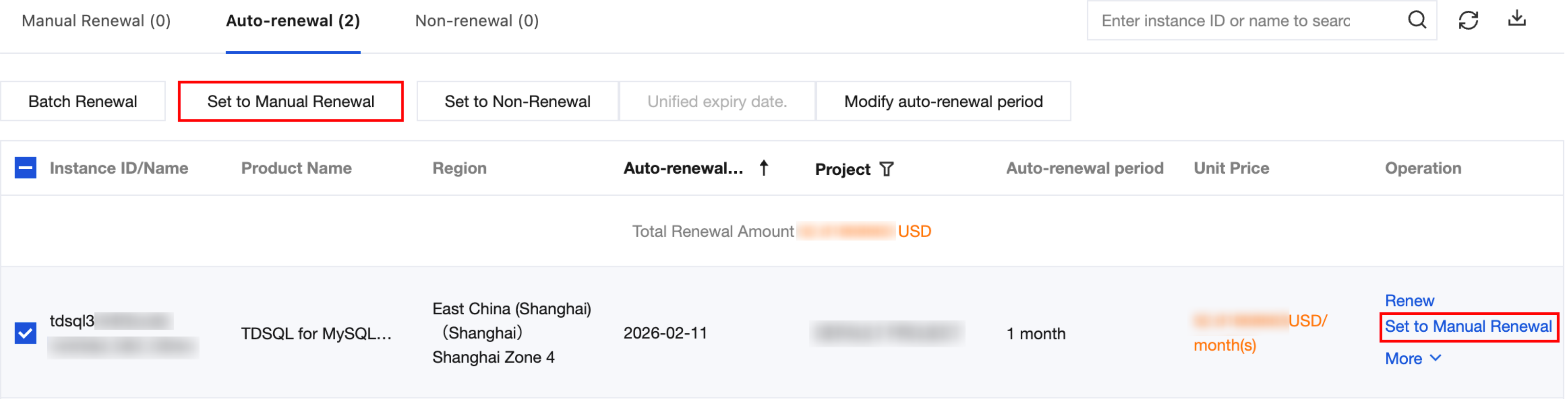
3. In the pop-up window to set to manual renewal, confirm product information and click OK.
IV. Modifying the Automatic Renewal Cycle
1. Log in to the Billing Center > Renewal Management page. Resources for the TDSQL Boundless product have IDs starting with "tdsql3-".
2. In the auto-renewal items section, select one or more instances with resource IDs starting with "tdsql3-" that you want to modify the auto-renewal period for, and click Modify auto-renewal period.
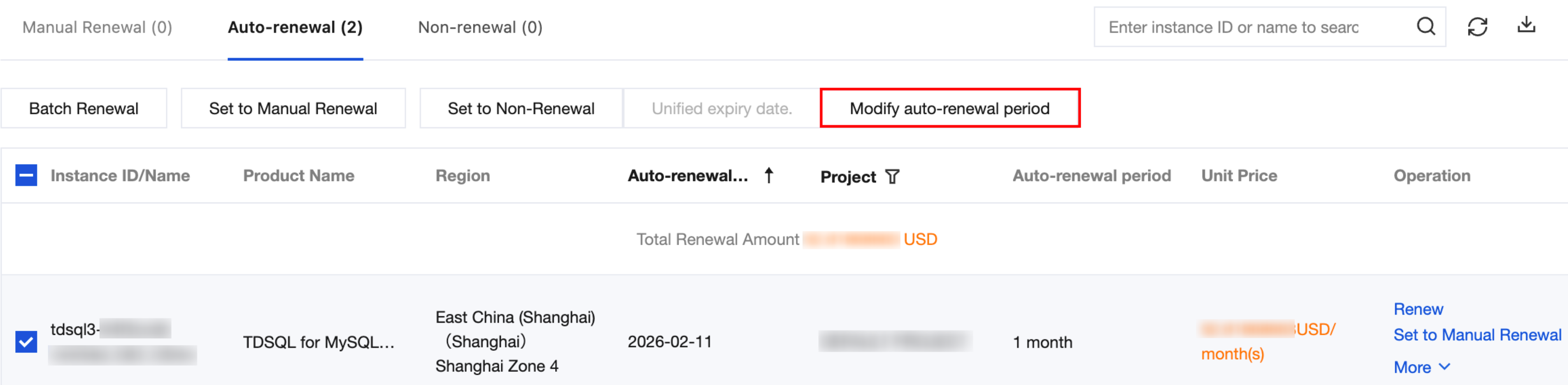
3. In the pop-up window to modify the auto-renewal period, adjust the auto-renewal period for the instance and click OK.
V. Managing Automatic Renewal
On the Renewal Management page, you can also perform other management operations for renewal on your instances, such as viewing the renewal status of your instances, setting non-renewal upon expiration, and setting a unified expiry date. For detailed operation instructions, see Renewal Management.
Manual Renewal Instructions
I. Manual Renewal Rules
Service Content: Manual renewal for TDSQL Boundless database instances.
Time for Manual Renewal: You can manually renew an instance within 7 days after its expiration or at any time before expiration. The renewal period can range from 1 month to 5 years. After renewal, the instance's expiry date will be extended by the selected renewal period. For example, if your instance expires on January 1, 2025, and you manually renew it for 1 month, the new expiry date will be February 1, 2025.
Deduction Amount: The renewal fee for the instance is the same as that for a new purchase.
Time and Method of Deduction: When you perform manual renewal, the page will navigate to the payment interface. The renewal will take effect immediately after payment.
II. Manual Renewal
Renewal operation refers to extending the usage duration of TDSQL Boundless instances, which can be implemented in the following ways:
Method 1
1. Log in to the Billing Center, in the left sidebar, select Renewal Management. Select the instance(s) that need renewal, and click Renew. Resources for the TDSQL Boundless product have IDs starting with "tdsql3-".
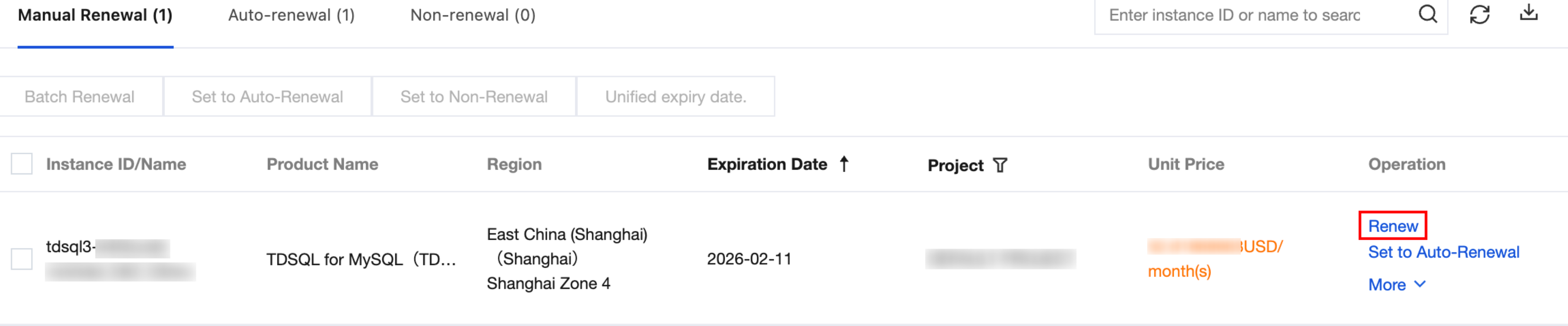
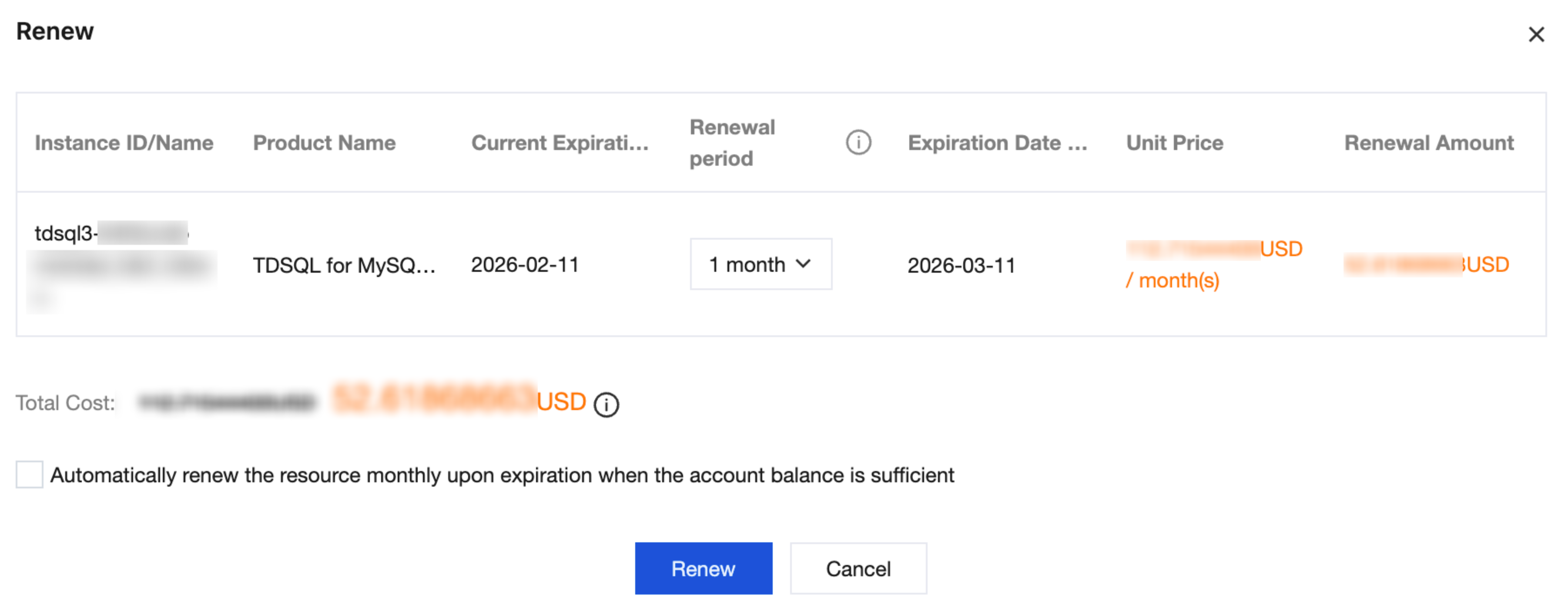
2. In the pop-up dialog box, select the renewal duration and click Renew.
Note:
The renewal duration can be selected by month or by year. As shown above, selecting 1 month renewal means the instance's validity period will be extended by 1 month after expiration, after which the instance will require renewal again.
3. On the order verification page, confirm that everything is correct and then pay for the order.
Method 2
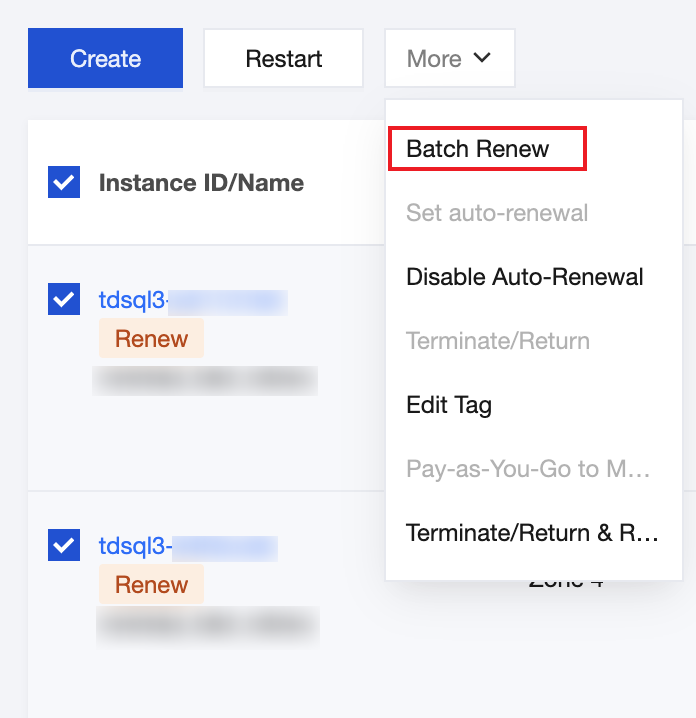
1. Log in to the TDSQL Boundless console, select the desired instance(s) in the instance list, and choose More > Batch Renew in the Operation bar at the top.
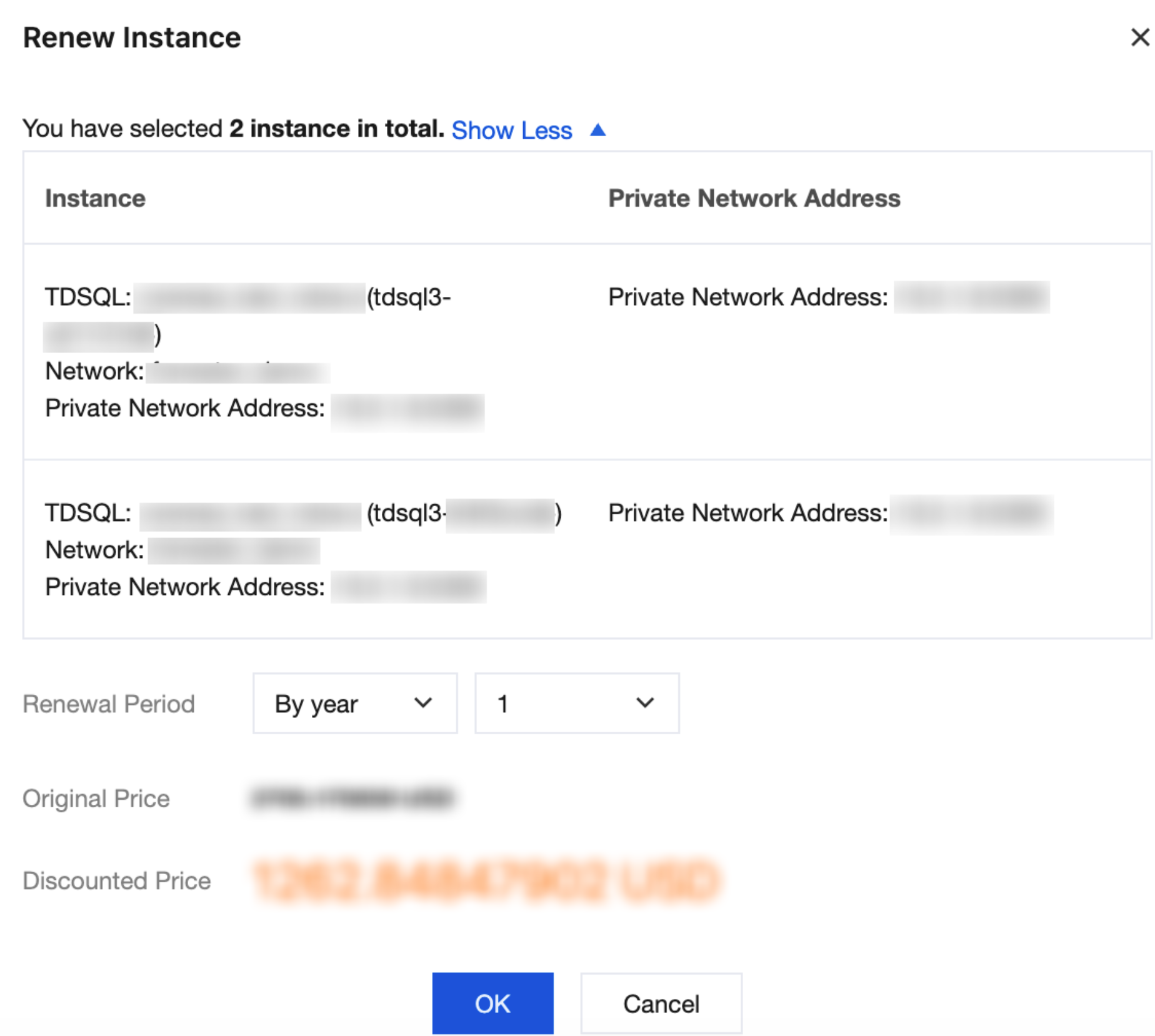
2. In the pop-up dialog box, select the renewal duration and click OK.
3. On the order verification page, confirm that everything is correct and then pay for the order.
III. Managing Manual Renewal
Managing Manual Renewal via the Website Expense Center > Renewal Management Page
On the Renewal Management page, you can also perform other management operations for renewal on your instances, such as viewing the renewal status of your instances, setting non-renewal upon expiration, and setting a unified expiry date. For detailed operation instructions, see Renewal Management.
Ajuda e Suporte
Esta página foi útil?
Você também pode entrar em contato com a Equipe de vendas ou Enviar um tíquete em caso de ajuda.
comentários