Viewing Consumer Group Details
By viewing the details and statuses of the consumer group, users can monitor the message processing progress in real time, identify consumption bottlenecks, and optimize resource allocation, ensuring timely consumption of critical business data.
Viewing Consumer Group Information
1. Log in to the TDMQ for CKafka (CKafka) console.
2. In the left sidebar, click Instance List, select the target region, and click the ID of the target instance to go to the basic instance information page.
3. On the basic instance information page, click the Consumer Group tab to view the list of consumer groups under the instance.
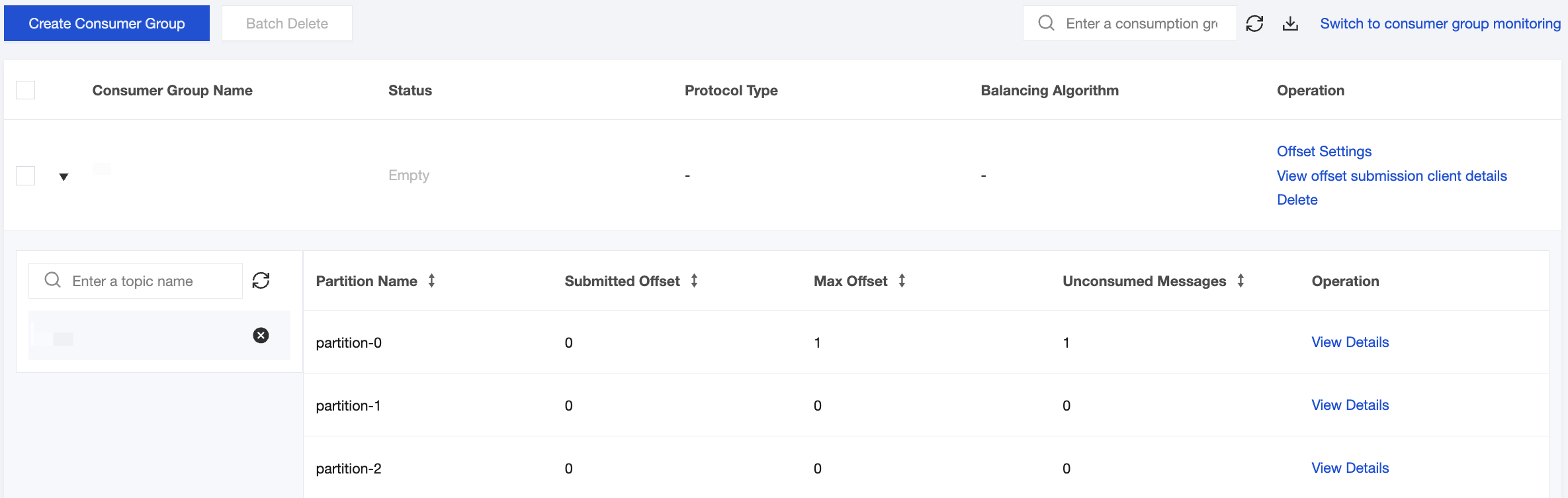
Parameter | Description |
Consumer Group Name | Consumer group name. |
Status | Current status of the consumer group. Dead: No members exist in the consumer group and no metadata is present. Empty: No members exist in the consumer group, but metadata is present. If all offsets in the group have expired, the consumer group will become Dead. Generally, a newly created group is in the Empty status by default. Note: If all consumers in the consumer group are client types committed by self-managed offsets such as Flink or Spark, the status may be displayed as Empty. PreparingRebalance: Prepare to enable a rebalance (for example, a consumer joins/exits). CompletingRebalance: All members have joined the consumer group. Stable: Members in the consumer group can consume normally. |
Protocol Type | Consumer: indicates that the consumer is a regular consumer. Consumption records are stored on the server, and subscription relationships are displayed normally on the console. Note: If a consumer uses Flink or Spark for consumption with the assign mode, consumption records are maintained by the client and are not submitted to the server; therefore, subscription relationships will not be displayed in the console. |
Balancing Algorithm | Partition assignment policy for consumer groups: Range: assigns partitions in sequential order by partition numbers, assigning consecutive partitions to each consumer. RoundRobin: assigns all partitions and consumers in a sequential round-robin fashion to achieve as even a distribution as possible. Sticky: strives to preserve the existing assignment, adjusting only when necessary (such as when consumers are added or removed), to minimize the cost of partition migration. |
Operation | On the Subscription Relationship page, you can perform the following operations: Offset settings: Reset the consumption offset of a consumer group. For detailed information, see Viewing and Manually Resetting a Consumption Offset. View consumer details: View details of all consumers in a consumer group. For detailed information, see Viewing Consumer Group Details. Delete a consumer group: A consumer group can only be deleted when the broker version is 1.1.1 or later and the consumer group is in the Empty status. For detailed information, see Manually Deleting Consumer Groups. |
4. Click the small triangle on the left side of the Consumer Group Name column to display information about topics subscribed to by that consumer group.
Parameter | Description |
Partition Name | Name of a partition. |
Submitted Offset | The position of the last message that the consumer group has successfully processed and acknowledged. |
Max Offset | The position of the last stored message in the partition. |
Unconsumed Messages | Total number of unconsumed messages in the partition. |
Operation | Click View Details in the Operation column of the partition to view the offset consumption status at the partition level. |
Note:
As the offset information is maintained on the consumer, the offset position is subject to the way the consumer commits the offset. It is displayed asynchronously and does not necessarily indicate real-time consumption conditions.
Viewing Consumer Information
1. Log in to the CKafka console.
2. In the left sidebar, click Instance List, select the target region, and click the ID of the target instance to go to the basic instance information page.
3. On the basic instance information page, click the Consumer Group tab to view the list of consumer groups under the instance.
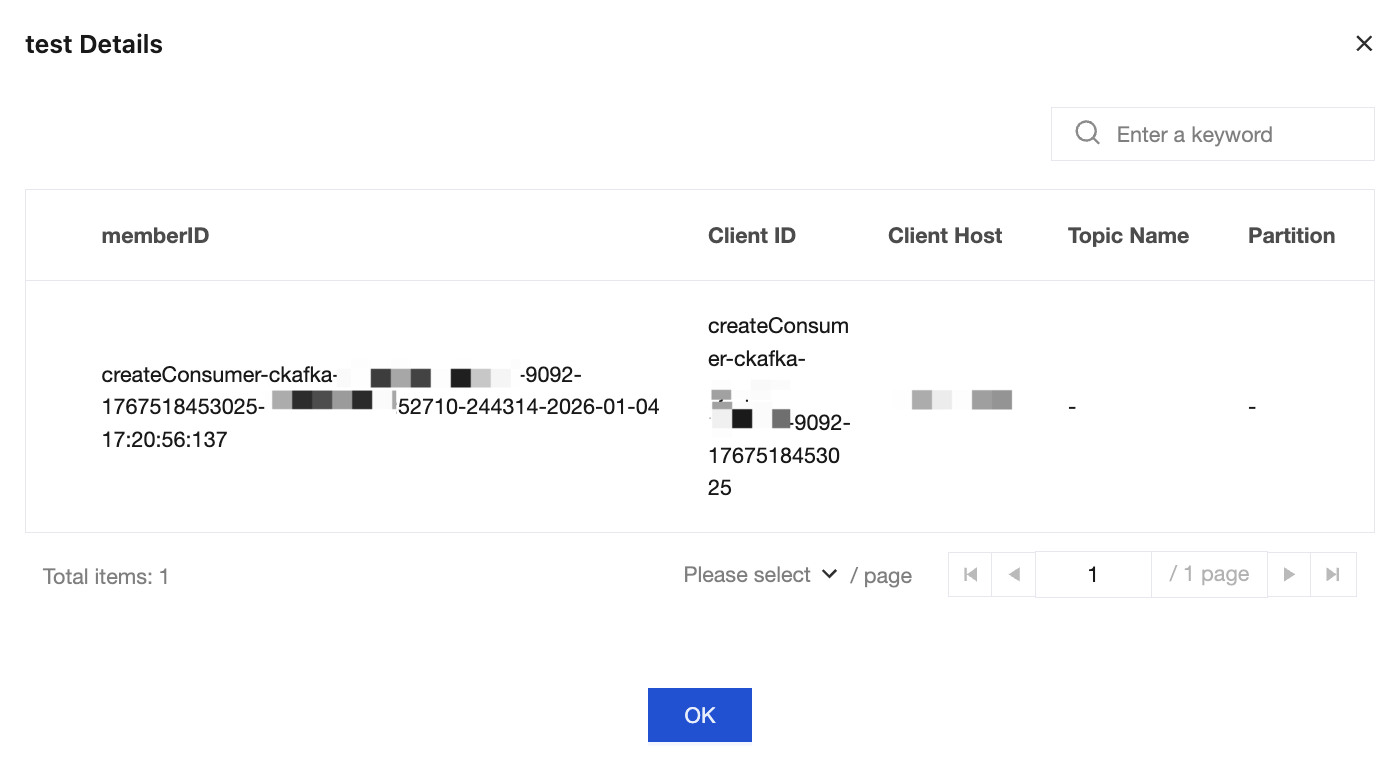
4. Click View offset submission client details in the Operation column of the consumer group to view consumer information in the consumer group, including the mapping between specific consumers and subscribed topics.
Parameter | Description |
memberID | The unique identifier of a consumer in a consumer group, typically in the format of consumer-xx-<UUID>, consisting of the consumer number and a random ID. |
Client ID | Identifier configured for the consumer client through the client.id parameter (automatically generated by default). |
Client Host | The information about the host running the consumer application is in the IP address/hostname:port format. |
Topic Name | The Kafka topic that the consumer is subscribing to. |
Partition | The specific topic partition number currently assigned to this consumer. |
Ajuda e Suporte
Esta página foi útil?
Você também pode entrar em contato com a Equipe de vendas ou Enviar um tíquete em caso de ajuda.
comentários