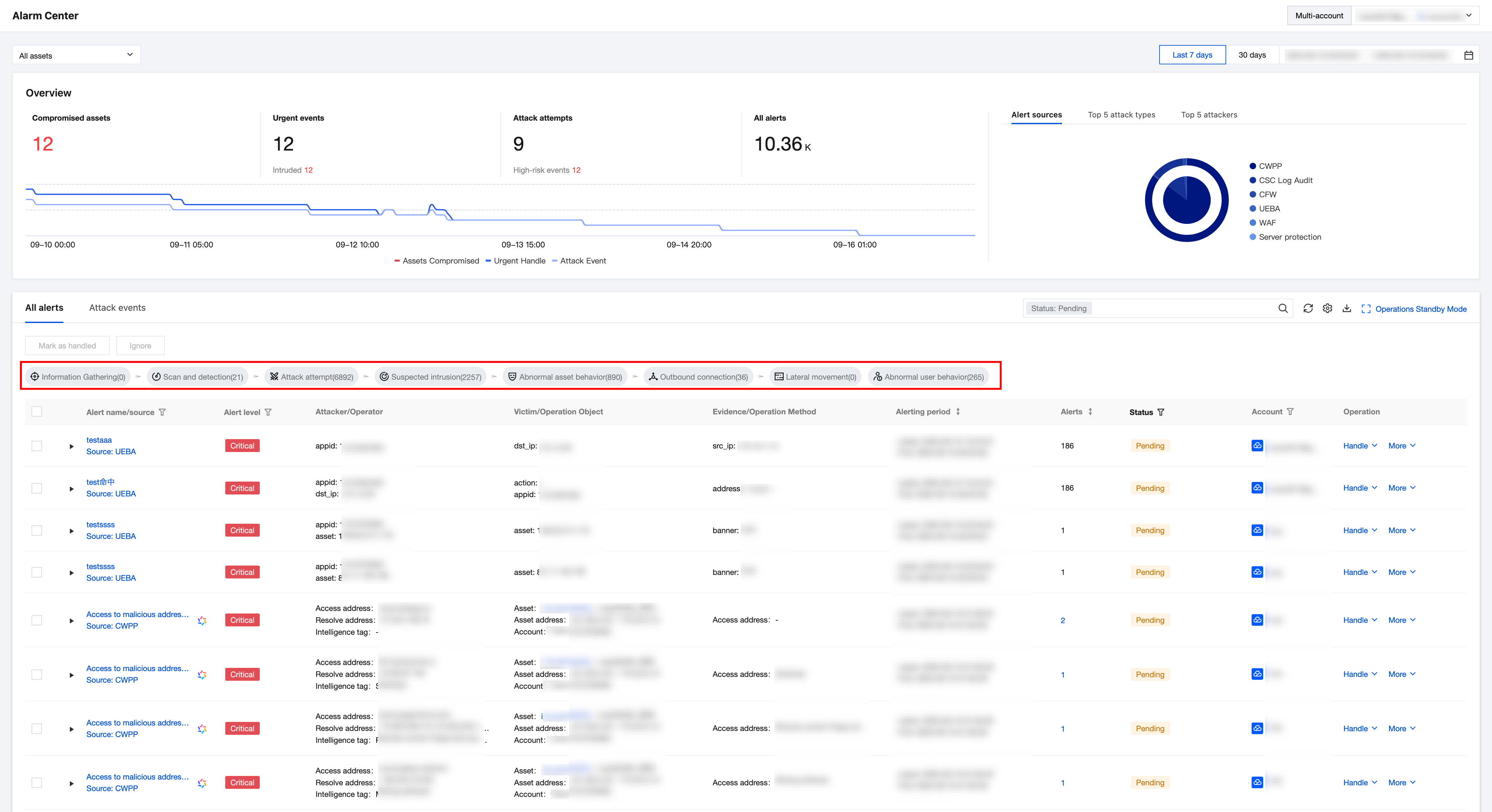
Alarm Center is an integrated feature for centralized monitoring and analysis of cloud security threats. It aggregates alarms from Cloud Security Center (CSC), Cloud Workload Protection Platform (CWPP), container security, Cloud Firewall (CFW), and Web Application Firewall (WAF). Based on the ATT&CK framework, it performs correlation analysis to unify security threat discovery and management, helping users quickly detect and handle potential security risks.
Alarm Locating
1. Log in to the CSC console, click Alarm Center in the left navigation.
2. On the All Alarms tab, select the corresponding attack stage to locate the alarm.
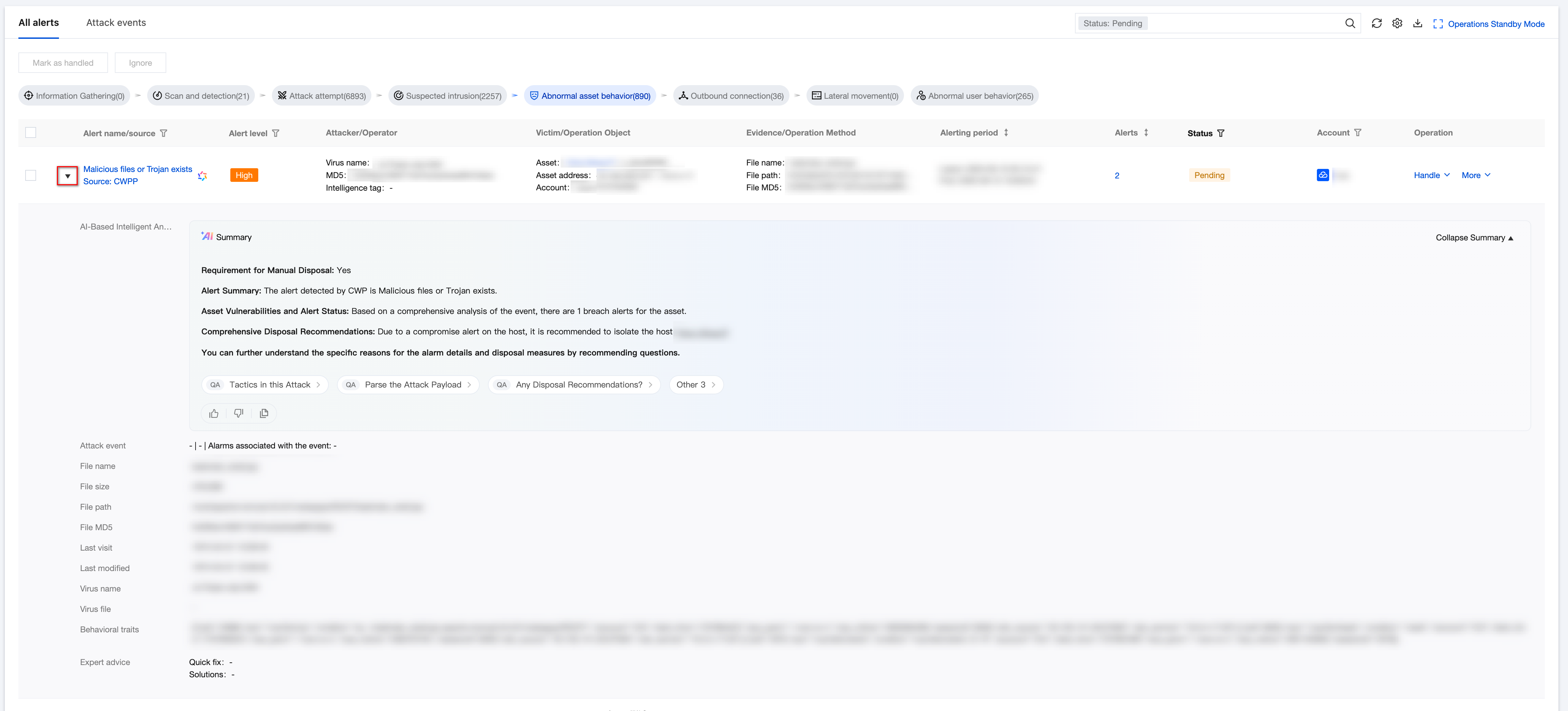
3. Click the target
, unfold it to check alarm details, locate the attack source and affected asset based on the attacker, victim and evidence in the list, and refer to the relevant suggestions provided by AI-based intelligent analysis for troubleshooting and handling.
Alarm Management
1. Log in to the CSC console, click Alarm Center in the left navigation.
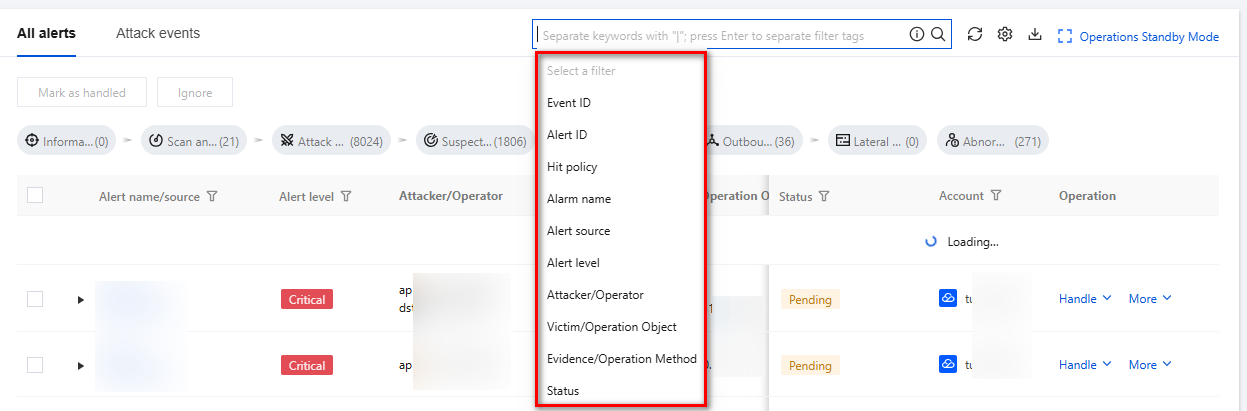
2. On the All Alarms tab, click the Search Bar to filter alarms by keyword.
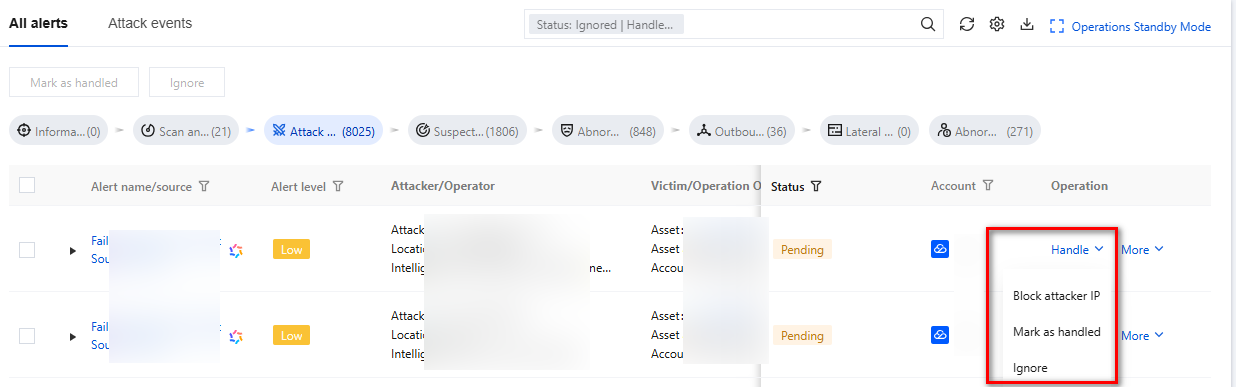
3. Click Handle in the Operation column of the target alarm name to perform the following operations:
Processing Type
Handling Suggestion
Operation Instruction
Mark as processed
We recommend using CWPP and CFW to block callback addresses, isolate assets, and take other defensive measures for security alarms. Processed alarms can be marked as processed.
1. Enable individually or batch mark alarm status as processed.
Select target alarms, click Mark as processed in the Action column.
Batch: Select one or more alarms, click Mark as processed in the upper left corner.
2. In the confirmation window, click Confirm to mark the target alarm as processed.
Mark as ignored
When a false alarm occurs or the alarm is considered to require no action, you can ignore it. Subsequently, the same alarm will be filtered.
1. Enable individually or batch change alarm status to ignored.
Select target alarms, click ignore in the Action column.
Batch: Select one or more alarms, click ignore in the upper left corner.
2. In the confirmation window, click Confirm to change the target alarm status to ignored.
unmark
When an alarm requires re-analysis, the processing status will restore to unprocessed after unmarking.
For processed or ignored alarms, select the target alarm and click Unmark Disposal or Unmark Ignored in the Action column to cancel the operation.
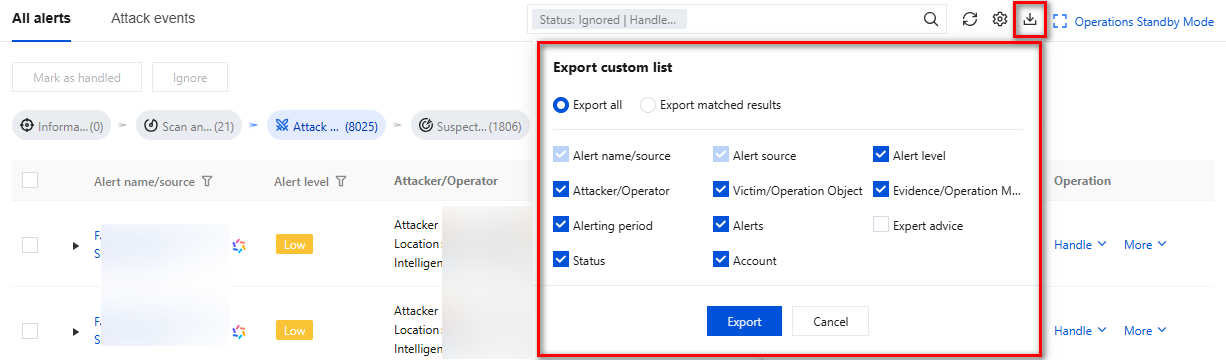
4. On the All Alarms tab, click
in the upper right corner, select the rows and column content to be exported, then click Export to save the data to local directory.
Combat Duty Mode
1. Log in to the CSC console, click Alarm Center in the left navigation.
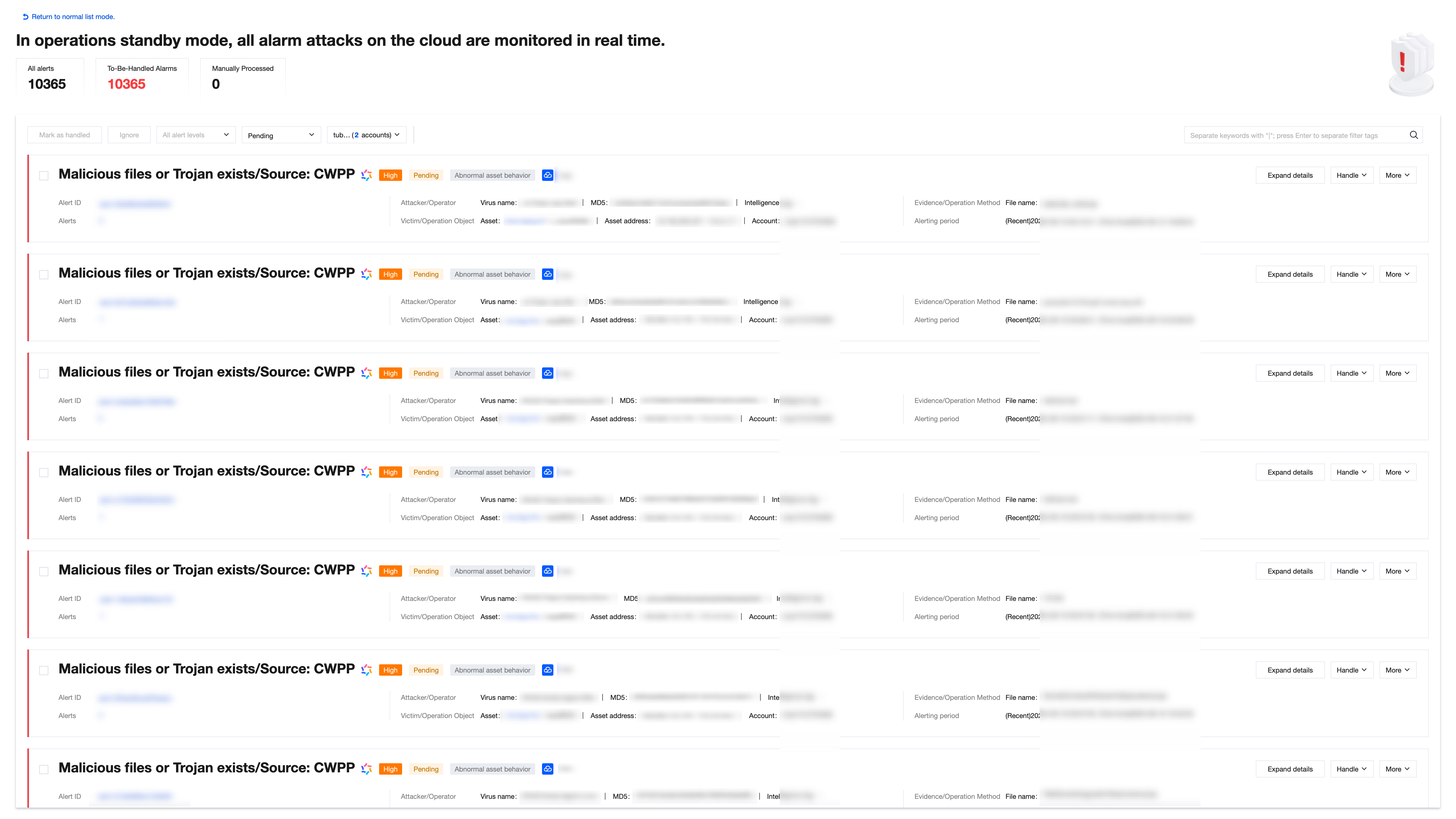
2. On the All Alarms tab, click Combat Duty Mode in the upper right corner to start up Combat Duty Mode.
3. At this point, the security dashboard will display incremental alarm information in real time through rolling updates, helping you quickly obtain new threats to be handled.