For the compressed package file in the existing bucket, you can create a task to perform the decompression operation.
Note:
Currently supports decompression formats: zip, tar, gz, 7zip, rar, apk.
Decompression tasks support decompressing files less than 5 TB.
After creating a task, appropriate service fees will be incurred and charged by the Cloud Infinite (CI) service. For detailed billing information, see File Processing Fee.
Supported regions: Beijing, Shanghai, Guangzhou, Chengdu, Nanjing, Chongqing, Hong Kong (China), Singapore, Silicon Valley.
Create File Decompression Task
The file decompression feature supports decompression operations for various compressed archive formats.
2. In the left sidebar, click Bucket List to enter the bucket list management page.
3. Find the bucket that requires operation, click the Bucket Name, and go to the bucket management page.
4. In the left sidebar, select Task and Workflow, click Task Management, and enter the task management page.
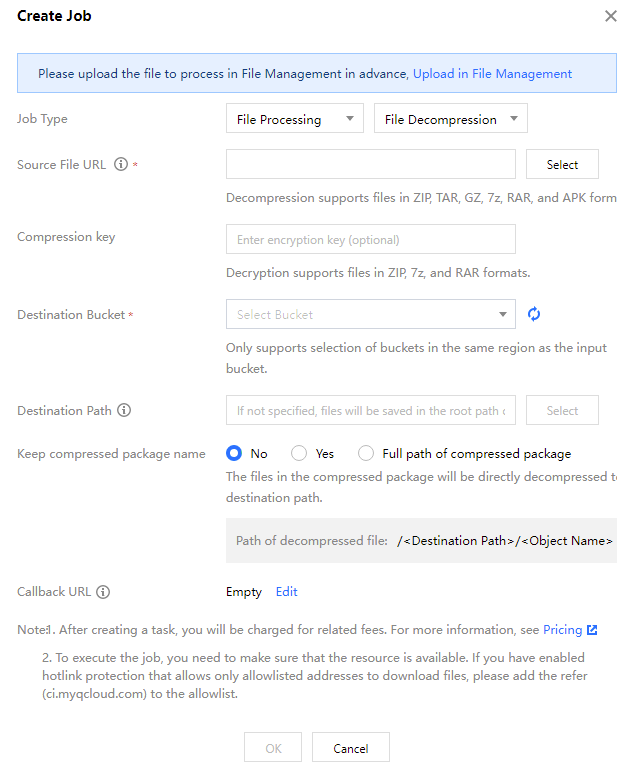
5. Select the File Processing tab, choose the File Decompression task type, click Create Job, and configure according to the following information:
Source File URL: Enter or select the path where the file to be processed is located. Note that the file path cannot start or end with /.
Compression key: You can enter a password to decompress an encrypted compression package. Currently only supports decryption of zip, 7zip, and rar compression formats.
Destination Bucket: The bucket where files are saved after decompression. Only buckets that have enabled the file processing service in the same region are supported.
Destination Path: The specific path where files are saved after decompression. If not specified, files are saved in the root path of the target bucket by default.
Keep compressed package name: Specify the directory of files after extraction. Whether to retain the name of the archive. The following options are available:
No: After file decompression, files will be saved directly in the destination path (the name of the archive will not be retained).
Yes: On the basis of the destination path, after file decompression, files will be saved in a directory named after the archive name.
Retain the full path of the compressed package: On the basis of the destination path, after file decompression, files will be saved in a directory named after the full path of the compressed package (the directory includes the name of the compressed package).
Callback URL: The callback address information bound to the queue. For more details, see Queues and Callbacks.
Viewing Tasks
You can view all tasks of different types within the specified period on the task page. You can click task status to filter and view tasks in different states. You can also use the search bar to find a specified task by its task ID.