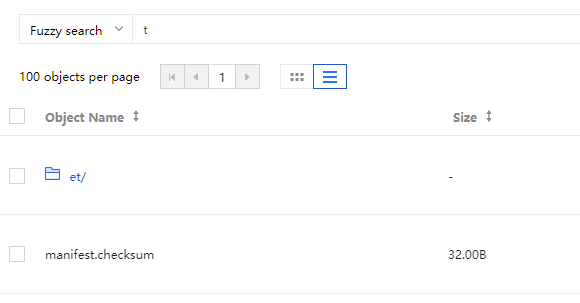
You can use the COS console or object key to search for uploaded objects and folders.
ObjectKey is the unique identifier of an object in the bucket, which can be understood as the file path. For example, if the object key is doc/picture.jpg, it means the image file picture.jpg is stored under the doc path (or folder) in Cloud Object Storage (COS).
List object keys to search for specific targets by specified object keys. In addition, you can also search for objects by object key prefix, which means specifying part of the object key (such as doc) to find all objects with the same prefix doc.
Applicable Scenarios
Tencent Cloud COS supports listing object keys by prefix. You can also use the / character in object keys to implement a hierarchical structure similar to the traditional file system. COS also supports using a delimiter to select and browse keys hierarchically.
You can list all keys in a single bucket in UTF-8 binary order of prefixes or filter the key list by specifying the prefix. For example, adding the parameter t will list the tencent object, but skip objects prefixed with a or other characters.
Add the / delimiter and object keys will be reorganized based on this delimiter. You can combine prefixes and delimiters to achieve folder-like searching feature.
Tencent Cloud COS supports an unlimited number of objects in a single bucket, so the object list may be very large. For convenient management, a single List Objects request returns up to 1000 objects and includes a return indicator to inform if truncation exists. If truncation exists, it means that there are more objects on the next page. You can trigger multiple List Objects requests based on indicators and the separator to list all object keys or query the necessary content.
Usage
Using the COS Console
The COS console supports prefix search and fuzzy search.
Prefix search: Search based on the same object prefix and show objects and folders with the same object prefix in the search results.
Fuzzy search: Search with custom keywords and show objects and folders containing the keywords in the search results.
Note:
Search object prefixes are case sensitive when searching for objects.
Besides, you can also use the COSBrowser tool to do fuzzy search. For details, see COSBrowser Overview.
2. In the left sidebar, click Bucket List to go to the bucket list page.
3. Find the bucket where the object is located and click the bucket name to enter the bucket management page.
4. In the left sidebar, select File List to go to the file list page.
5. In the search box at the top of the page, input the object name prefix and click
to show objects or folders with the same name prefix in the current bucket. For example, input img/ to display search results for objects or folders with img/.
2. In the left sidebar, click Bucket List to go to the bucket list page.
3. Find the bucket where the object is located and click the bucket name to enter the bucket management page.
4. In the left sidebar, select File List to go to the file list page.
5. At the top of the page, enter search keywords in the search box and click
to show search results containing the keyword, including objects and folders. For example, enter keyword t to display objects and folders containing t.
Using the REST API/SDK
You can use REST APIs to trigger a List Objects request. For details, see the GET Bucket (List Objects) API document.
You can directly call the SDK to list objects for searching objects. For details, see the following language SDK documents: