tencent cloud

Cloud Object Storage

Release Notes and Announcements
Release Notes
Announcements
Product Introduction
Overview
Features
Use Cases
Strengths
Concepts
Regions and Access Endpoints
Specifications and Limits
Service Regions and Service Providers
Billing
Billing Overview
Billing Method
Billable Items
Free Tier
Billing Examples
Viewing and Downloading Bill
Payment Overdue
FAQs
Getting Started
Console
Getting Started with COSBrowser
User Guide
Creating Request
Bucket
Object
Data Management
Batch Operation
Global Acceleration
Monitoring and Alarms
Operations Center
Data Processing
Content Moderation
Smart Toolbox
Data Processing Workflow
Application Integration
User Tools
Tool Overview
Installation and Configuration of Environment
COSBrowser
COSCLI (Beta)
COSCMD
COS Migration
FTP Server
Hadoop
COSDistCp
HDFS TO COS
GooseFS-Lite
Online Tools
Diagnostic Tool
Use Cases
Overview
Access Control and Permission Management
Performance Optimization
Accessing COS with AWS S3 SDK
Data Disaster Recovery and Backup
Domain Name Management Practice
Image Processing
Audio/Video Practices
Workflow
Direct Data Upload
Content Moderation
Data Security
Data Verification
Big Data Practice
COS Cost Optimization Solutions
Using COS in the Third-party Applications
Migration Guide
Migrating Local Data to COS
Migrating Data from Third-Party Cloud Storage Service to COS
Migrating Data from URL to COS
Migrating Data Within COS
Migrating Data Between HDFS and COS
Data Lake Storage
Cloud Native Datalake Storage
Metadata Accelerator
GooseFS
Data Processing
Data Processing Overview
Image Processing
Media Processing
Content Moderation
File Processing Service
File Preview
Troubleshooting
Obtaining RequestId
Slow Upload over Public Network
403 Error for COS Access
Resource Access Error
POST Object Common Exceptions
API Documentation
Introduction
Common Request Headers
Common Response Headers
Error Codes
Request Signature
Action List
Service APIs
Bucket APIs
Object APIs
Batch Operation APIs
Data Processing APIs
Job and Workflow
Content Moderation APIs
Cloud Antivirus API
SDK Documentation
SDK Overview
Preparations
Android SDK
C SDK
C++ SDK
.NET(C#) SDK
Flutter SDK
Go SDK
iOS SDK
Java SDK
JavaScript SDK
Node.js SDK
PHP SDK
Python SDK
React Native SDK
Mini Program SDK
Error Codes
Harmony SDK
Endpoint SDK Quality Optimization
Security and Compliance
Data Disaster Recovery
Data Security
Cloud Access Management
FAQs
Popular Questions
General
Billing
Domain Name Compliance Issues
Bucket Configuration
Domain Names and CDN
Object Operations
Logging and Monitoring
Permission Management
Data Processing
Data Security
Pre-signed URL Issues
SDKs
Tools
APIs
Agreements
Service Level Agreement
Privacy Policy
Data Processing And Security Agreement
Contact Us
Glossary

Direct Upload to ARCHIVE

PDF
聚焦模式
字号
最后更新时间: 2024-01-06 15:06:14

Overview

COS supports direct upload to the ARCHIVE storage class by using the console, APIs, SDKs, or COSCMD. Alternatively, you can use the lifecycle feature of COS to transition your objects to the ARCHIVE or DEEP ARCHIVE storage class. For more information, see Storage Class Overview.

Supported Methods

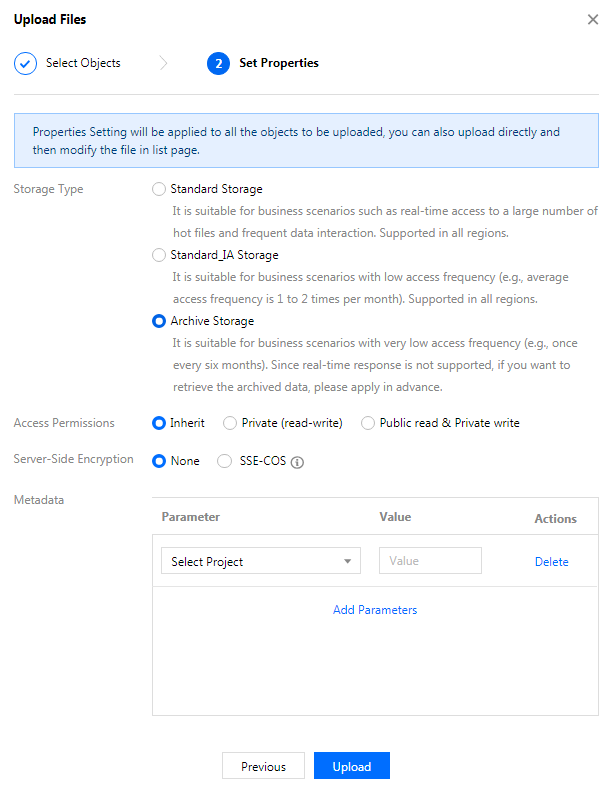
Uploading via the console In the COS console, click Upload Files and select the object to be uploaded. In the Set Properties step, set Storage Class to ARCHIVE or DEEP ARCHIVE. For more information, see Uploading Object.

Uploading via APIs You can set x-cos-storage-class to ARCHIVE or DEEP_ARCHIVE in the PUT Object, POST Object, or Initiate Multipart Upload API to implement direct upload to ARCHIVE.
Note:
The Append Object API does not support direct upload to ARCHIVE.
Uploading via SDKs Currently, all COS SDKs support direct upload to ARCHIVE. You can set the StorageClass parameter to ARCHIVE or DEEP_ARCHIVE during the upload.
Uploading via COSCMD You can add the header field x-cos-storage-class and set it to ARCHIVE or DEEP_ARCHIVE during the upload.

Restoring and downloading archived data

Unlike STANDARD/STANDARD_IA, objects in ARCHIVE or DEEP ARCHIVE can only be downloaded after being restored. The following three restoration modes are provided:
Expedited: Restores an object within 1–5 minutes (fastest).
Standard: Restores an object within 3–5 hours.
Bulk: Restores multiple objects within 5–12 hours (most cost-effective).
Note:
Objects in DEEP ARCHIVE cannot be restored in the expedited mode. An object can be restored within 12–24 hours in standard mode or 24–48 hours in bulk mode.
Note that the console, APIs, SDKs, and COSCMD all support the restoration and download of archived objects.

Restrictions

Objects in ARCHIVE or DEEP ARCHIVE need to be restored before being downloaded.
To copy an object in ARCHIVE or DEEP ARCHIVE, you need to restore it first.
Objects in ARCHIVE and DEEP ARCHIVE do not support cross-region replication.
Objects in ARCHIVE and DEEP ARCHIVE cannot be changed to a more frequently accessed storage class, such as STANDARD and STANDARD_IA.
帮助和支持

本页内容是否解决了您的问题?

填写满意度调查问卷,共创更好文档体验。

文档反馈