tencent cloud

Cloud Object Storage

Release Notes and Announcements
Release Notes
Announcements
Product Introduction
Overview
Features
Use Cases
Strengths
Concepts
Regions and Access Endpoints
Specifications and Limits
Service Regions and Service Providers
Billing
Billing Overview
Billing Method
Billable Items
Free Tier
Billing Examples
Viewing and Downloading Bill
Payment Overdue
FAQs
Getting Started
Console
Getting Started with COSBrowser
User Guide
Creating Request
Bucket
Object
Data Management
Batch Operation
Global Acceleration
Monitoring and Alarms
Operations Center
Data Processing
Content Moderation
Smart Toolbox
Data Processing Workflow
Application Integration
User Tools
Tool Overview
Installation and Configuration of Environment
COSBrowser
COSCLI (Beta)
COSCMD
COS Migration
FTP Server
Hadoop
COSDistCp
HDFS TO COS
GooseFS-Lite
Online Tools
Diagnostic Tool
Use Cases
Overview
Access Control and Permission Management
Performance Optimization
Accessing COS with AWS S3 SDK
Data Disaster Recovery and Backup
Domain Name Management Practice
Image Processing
Audio/Video Practices
Workflow
Direct Data Upload
Content Moderation
Data Security
Data Verification
Big Data Practice
COS Cost Optimization Solutions
Using COS in the Third-party Applications
Migration Guide
Migrating Local Data to COS
Migrating Data from Third-Party Cloud Storage Service to COS
Migrating Data from URL to COS
Migrating Data Within COS
Migrating Data Between HDFS and COS
Data Lake Storage
Cloud Native Datalake Storage
Metadata Accelerator
GooseFS
Data Processing
Data Processing Overview
Image Processing
Media Processing
Content Moderation
File Processing Service
File Preview
Troubleshooting
Obtaining RequestId
Slow Upload over Public Network
403 Error for COS Access
Resource Access Error
POST Object Common Exceptions
API Documentation
Introduction
Common Request Headers
Common Response Headers
Error Codes
Request Signature
Action List
Service APIs
Bucket APIs
Object APIs
Batch Operation APIs
Data Processing APIs
Job and Workflow
Content Moderation APIs
Cloud Antivirus API
SDK Documentation
SDK Overview
Preparations
Android SDK
C SDK
C++ SDK
.NET(C#) SDK
Flutter SDK
Go SDK
iOS SDK
Java SDK
JavaScript SDK
Node.js SDK
PHP SDK
Python SDK
React Native SDK
Mini Program SDK
Error Codes
Harmony SDK
Endpoint SDK Quality Optimization
Security and Compliance
Data Disaster Recovery
Data Security
Cloud Access Management
FAQs
Popular Questions
General
Billing
Domain Name Compliance Issues
Bucket Configuration
Domain Names and CDN
Object Operations
Logging and Monitoring
Permission Management
Data Processing
Data Security
Pre-signed URL Issues
SDKs
Tools
APIs
Agreements
Service Level Agreement
Privacy Policy
Data Processing And Security Agreement
Contact Us
Glossary

Configure File Decompression Task

PDF
Mode fokus
Ukuran font
Terakhir diperbarui: 2025-05-21 18:53:11

Overview

For the compressed package file in the existing bucket, you can create a task to perform the decompression operation.
Note:
Currently supports decompression formats: zip, tar, gz, 7zip, rar, apk.
Decompression tasks support decompressing files less than 5 TB.
After creating a task, appropriate service fees will be incurred and charged by the Cloud Infinite (CI) service. For detailed billing information, see File Processing Fee.
Supported regions: Beijing, Shanghai, Guangzhou, Chengdu, Nanjing, Chongqing, Hong Kong (China), Singapore, Silicon Valley.

Create File Decompression Task

The file decompression feature supports decompression operations for various compressed archive formats.

Operation Steps

1. Log in to the COS Console.
2. In the left sidebar, click Bucket List to enter the bucket list management page.
3. Find the bucket that requires operation, click the Bucket Name, and go to the bucket management page.
4. In the left sidebar, select Task and Workflow, click Task Management, and enter the task management page.
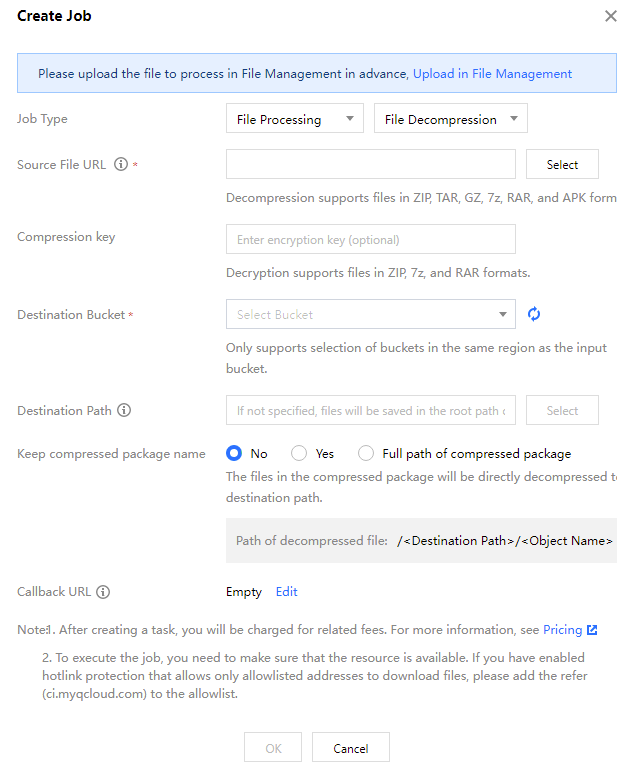
5. Select the File Processing tab, choose the File Decompression task type, click Create Job, and configure according to the following information:


Source File URL: Enter or select the path where the file to be processed is located. Note that the file path cannot start or end with /.
Compression key: You can enter a password to decompress an encrypted compression package. Currently only supports decryption of zip, 7zip, and rar compression formats.
Destination Bucket: The bucket where files are saved after decompression. Only buckets that have enabled the file processing service in the same region are supported.
Destination Path: The specific path where files are saved after decompression. If not specified, files are saved in the root path of the target bucket by default.
Keep compressed package name: Specify the directory of files after extraction. Whether to retain the name of the archive. The following options are available:
No: After file decompression, files will be saved directly in the destination path (the name of the archive will not be retained).
Yes: On the basis of the destination path, after file decompression, files will be saved in a directory named after the archive name.
Retain the full path of the compressed package: On the basis of the destination path, after file decompression, files will be saved in a directory named after the full path of the compressed package (the directory includes the name of the compressed package).
Callback URL: The callback address information bound to the queue. For more details, see Queues and Callbacks.

Viewing Tasks

You can view all tasks of different types within the specified period on the task page. You can click task status to filter and view tasks in different states. You can also use the search bar to find a specified task by its task ID.
Operation Steps

1. Log in to the COS Console.
2. In the left sidebar, click Bucket List to enter the bucket list management page.
3. Find the bucket that requires operation, click the Bucket Name, and go to the bucket management page.
4. In the left sidebar, select Task and Workflow, click Task, and enter the task management page.
5. Click View on the right of a task to view its detailed information.
Note:
Task includes 6 statuses: execution successful, execution failed, executing, unexecuted, paused, canceled.
Only support querying task records in the last month.

Bantuan dan Dukungan

Apakah halaman ini membantu?

masukan