Cloud Object Storage (COS) supports file zipping functionality for multiple files in the cloud. It supports batch packaging of files in a certain path on COS or packaging based on several file single links provided by you.
Note:
Use the packaging method for multiple files. It supports up to 1,000 files with a total size of no more than 50 TB.
Use the packaging method with directory or manifest, supporting a maximum of 10 million files with a total size not exceeding 50 TB.
After creating a task, appropriate service fees will occur, which will be collected by Cloud Infinite. For detailed billing information, see File Processing Fees.
Supported regions: Beijing, Shanghai, Guangzhou, Chengdu, Nanjing, Chongqing, Hong Kong (China), Singapore, Silicon Valley.
2. In the left sidebar, click Bucket List to enter the bucket list management page.
3. Find the bucket that requires operation. Click the Bucket Name, and go to the bucket management page.
4. In the left sidebar, click Task and Workflow > Task Management to enter the job management page.
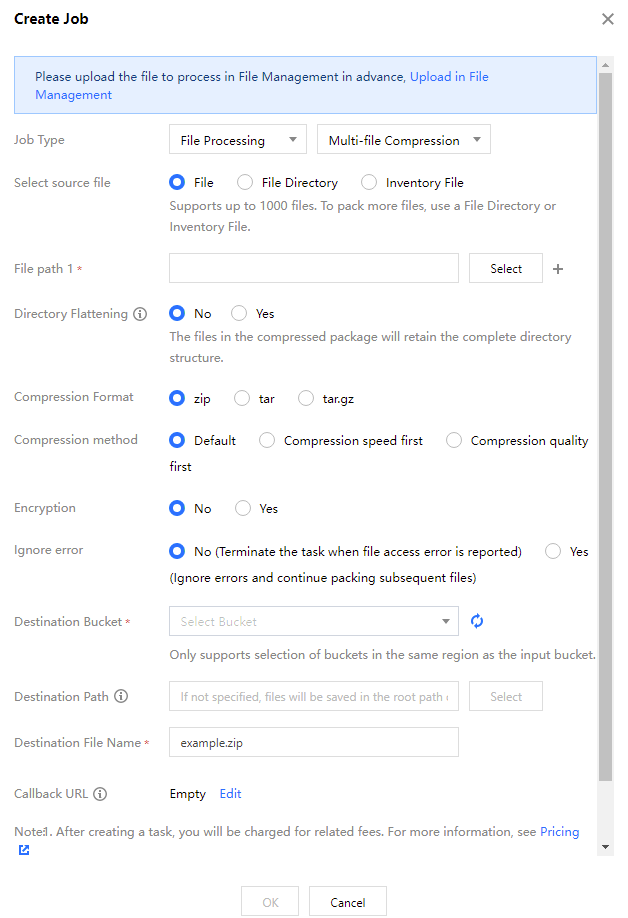
5. Select the File Processing tab, choose the Multi-file Compression task type, click Create Task, and configure according to the following information:
Select source file: The following three methods are supported for file packaging and compression:
File: Manually select multiple files in the bucket and pack and compress them;
Select a directory in the bucket manually and pack and compress the entire directory.
URL list file: Organize the list of files to be packaged into a CSV manifest file and save the manifest file in a bucket. Select the manifest file in the bucket to package and compress the files in the list.
Directory Flattening: After using directory flattening, the source directory structure will be removed. For example, if the source file URL is https://example.com/source/123/test.mp4, the file path here is source/123/test.mp4.
If flattened is used, the file in the compressed package is test.mp4;
If flattened is not used, the file in the compressed package is source/123/test.mp4.
Note:
If using directory flattening, existing files with the same name under different directories will be automatically overwritten and only one will be kept in the compressed package.
Compression Format: Supports compression into three formats: zip, tar, gz.
Compression method: Support setting the compression effect:
Default: Moderate compression speed and compressed file size.
Prefer higher compression speed: Shorter compression time, but relatively larger compressed file size.
Prefer higher compression quality: Longer compression time, but smaller compressed file size.
Encryption: Encryption is supported during compaction and is only supported when the target format is zip.
Ignore error: You can choose to terminate the packaging operation when encountering issues such as being unable to obtain a single file when packaging.
Destination Bucket: The bucket where files are saved after decompression. Only buckets that have enabled the file processing service in the same region are supported.
Destination Path: The specific path where files are saved after decompression. If not specified, they are saved in the root path of the target bucket by default.
Destination File Name: The file name after packaging and compression.
Callback URL: The callback address information bound to the queue. For details, see Queues and Callbacks.
Viewing Tasks
You can view all tasks of different task types within a specified period on the task page. You can click Task Status to filter and view tasks in different statuses. You can also search for a specified task by task ID in the search box.