tencent cloud

Tencent Real-Time Communication

お知らせ・リリースノート
製品アップデート情報
Tencent Cloudオーディオビデオ端末SDKの再生アップグレードおよび承認チェック追加に関するお知らせ
TRTCアプリケーションのサブスクリプションパッケージサービスのリリースに関する説明について
製品の説明
製品概要
基礎概念
製品の機能
製品の強み
ユースケース
性能データ
購入ガイド
Billing Overview
無料時間の説明
Monthly subscription
Pay-as-you-go
TRTC Overdue and Suspension Policy
課金に関するよくあるご質問
Refund Instructions
初心者ガイド
Demo体験
Call
コンポーネントの説明(TUICallKit)
Activate the Service
Run Demo
クイック導入
オフライン通知
Conversational Chat
クラウドレコーディング(TUICallKit)
AI Noise Reduction
インターフェースのカスタマイズ
Calls integration to Chat
Additional Features
No UI Integration
Server APIs
Client APIs
Solution
ErrorCode
公開ログ
よくある質問
ライブ配信
Billing of Video Live Component
Overview
Activating the Service (TUILiveKit)
Demo のクイックスタート
No UI Integration
UI Customization
Live Broadcast Monitoring
Video Live Streaming
Voice Chat Room
Advanced Features
Client APIs
Server APIs
Error Codes
Release Notes
FAQs
RTC Engine
Activate Service
SDKのダウンロード
APIコードサンプル
Usage Guidelines
クライアント側 API
高度な機能
RTC RESTFUL API
History
Introduction
API Category
Room Management APIs
Stream mixing and relay APIs
On-cloud recording APIs
Data Monitoring APIs
Pull stream Relay Related interface
Web Record APIs
AI Service APIs
Cloud Slicing APIs
Cloud Moderation APIs
Making API Requests
Call Quality Monitoring APIs
Usage Statistics APIs
Data Types
Appendix
Error Codes
コンソールガイド
アプリケーション管理
使用統計
監視ダッシュボード
開発支援
Solution
Real-Time Chorus
よくあるご質問
課金関連問題
機能関連
UserSig関連
ファイアウォールの制限の対応関連
インストールパッケージの圧縮に関するご質問
AndriodおよびiOS関連
Web端末関連
Flutter関連
Electron関連
TRTCCalling Web関連
オーディオビデオ品質関連
その他のご質問
旧バージョンのドキュメント
TUIRoom(Web)の統合
TUIRoom (Android)の統合
TUIRoom (iOS)の統合
TUIRoom (Flutter)の統合
TUIRoom (Electron)の統合
TUIRoom APIのクエリー
クラウドレコーディングと再生の実現(旧)
Protocols and Policies
セキュリティコンプライアンス認証
セキュリティホワイトペーパー
情報セキュリティの説明
Service Level Agreement
Apple Privacy Policy: PrivacyInfo.xcprivacy
TRTC ポリシー
プライバシーポリシー
データ処理とセキュリティ契約
用語集

iOS

PDF
フォーカスモード
フォントサイズ
最終更新日: 2025-06-23 11:17:02
This tutorial mainly introduces how to implement a basic audio and video call with Objective-C.

Prerequisites

Xcode 13.0 or later.
iPhone or iPad with iOS 9.0 or later.
A valid developer signature for your project.

Integration guideline

Step 1. Import TRTC SDK

1. Run the following command in a terminal window to install CocoaPods. If you have installed CocoaPods, skip this step.
sudo gem install cocoapods
2. In the terminal window, go to the project root directory and run the following command to create the Podfile for your project.
pod init
3. Edit and save the Podfile as follows.
platform :ios, '8.0'

# Modify the 'App' to the name of your project
target 'App' do
pod 'TXLiteAVSDK_TRTC', :podspec => 'https://liteav.sdk.qcloud.com/pod/liteavsdkspec/TXLiteAVSDK_TRTC.podspec'
end
4. In the terminal window, run the following command to update the local library files and download the TRTC SDK.
pod install
Note:
After the pod install executed, a new .xcworkspace project file is generated. Double-click the .xcworkspace file to open it.

Step 2. Configure project

1. Once the .xcworkspace file opened, click on the Project Navigator on the left in the Xcode navigation bar, click on your project name, and make sure you select the correct TARGETS in the edit area.
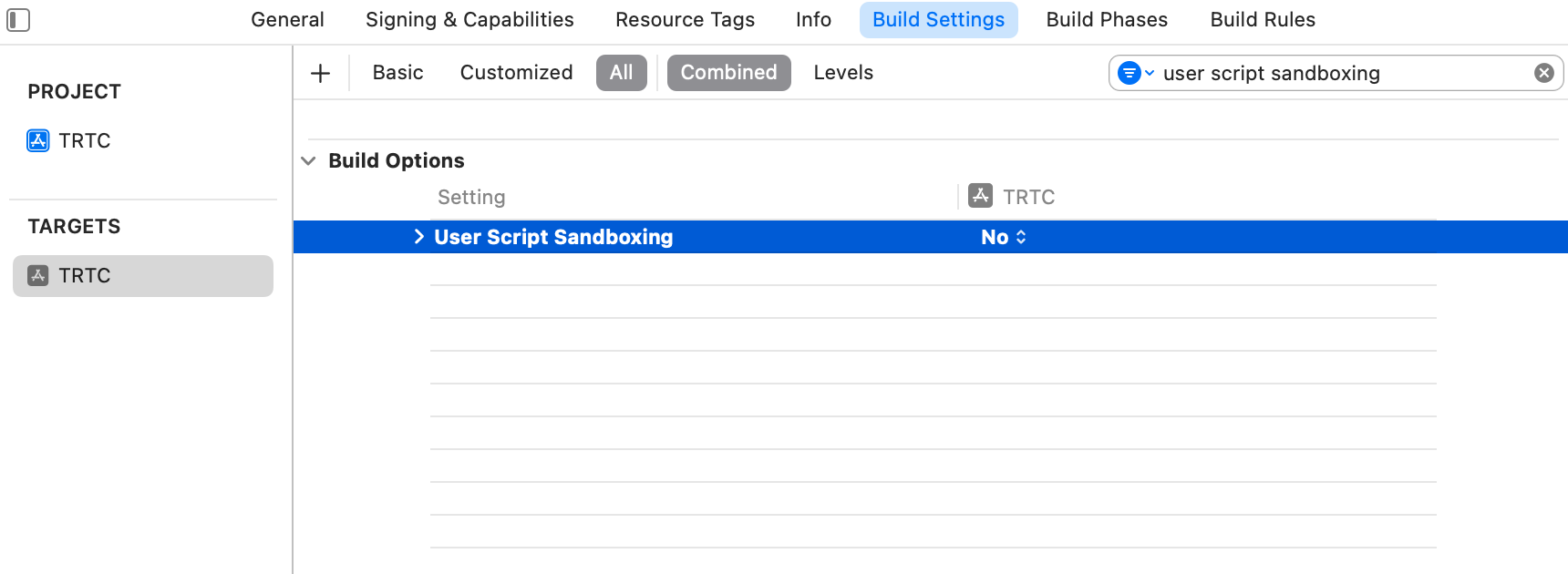
2. In the Build Settings TAB, search for User Script Sandboxing and set its value to No, which could allow the user script access to a wider range of system resources and files.


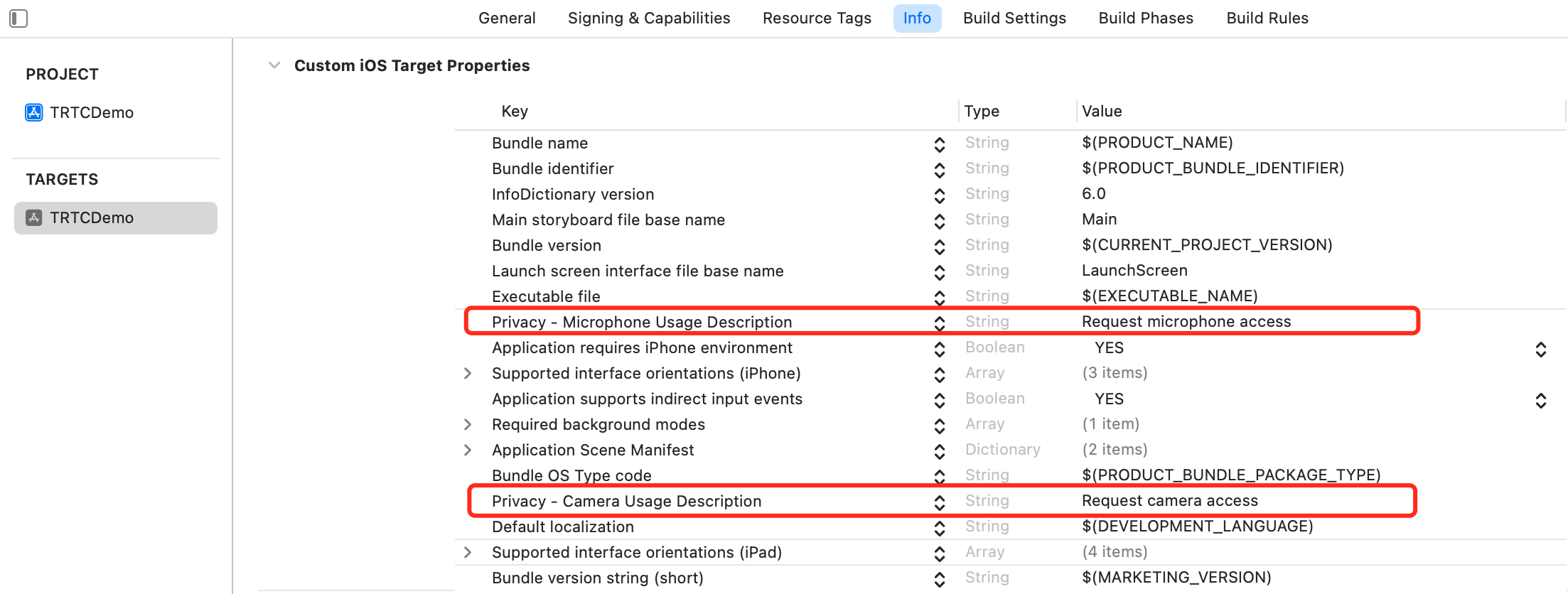
3. In the the Info.plist TAB, add the Privacy-Microphone Usage Description and Privacy-Microphone Usage Description, and fill in the target prompt words used by the Microphone/Camera to obtain the permission to use the microphone and camera.


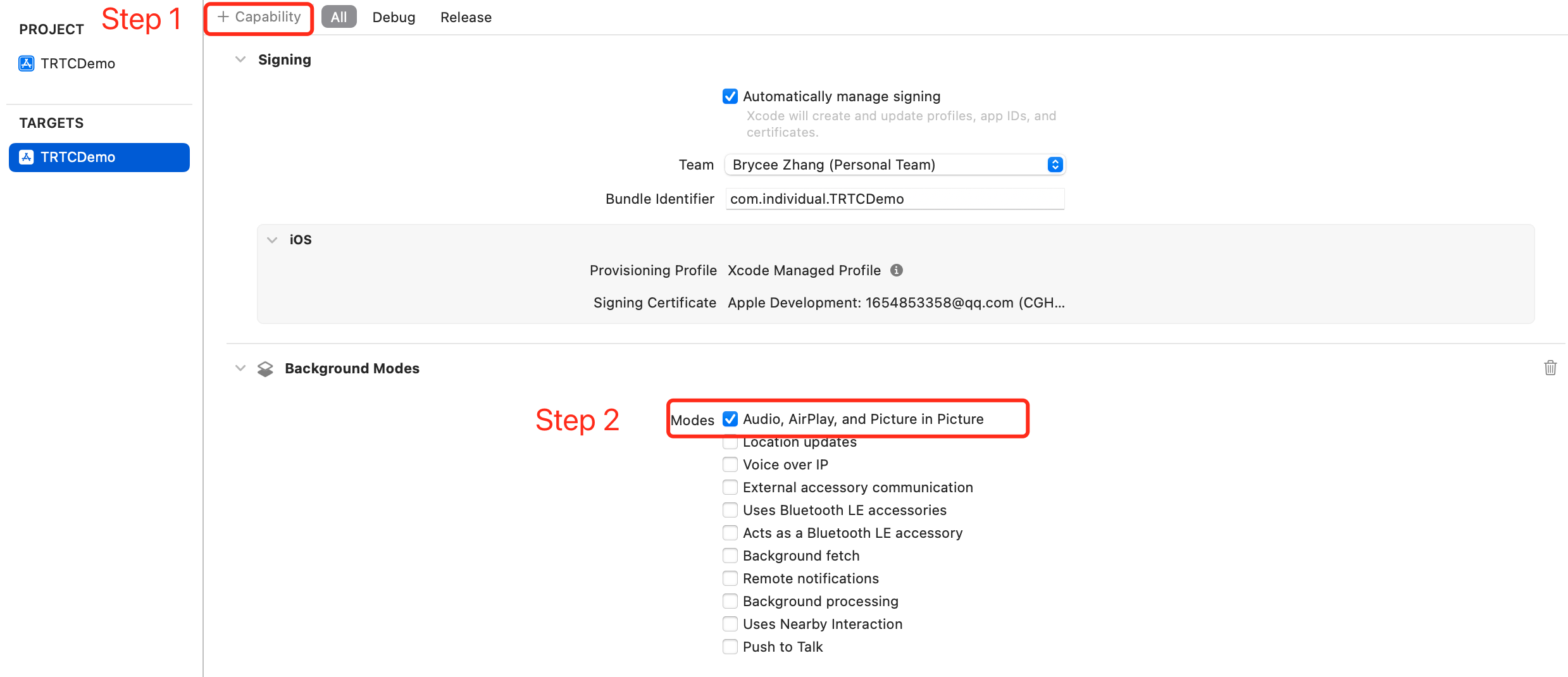
4. In the Signing & Capabilities TAB, add the Background Modes and check Audio, AirPlay and Picture in Picture to allow the app to run audio, AirPlay and picture-in-picture functions in the background.


Step 3. Create TRTC instance

1. Import the TRTC SDK in the AppDelegate.h file.
@import TXLiteAVSDK_TRTC; // Import TRTC SDK Module
2. Declare the TRTCCloud property and the TRTCCloudDelegate interface in the AppDelegate.h file.
@interface AppDelegate : UIResponder <UIApplicationDelegate, TRTCCloudDelegate> // Declare the TRTCCloudDelegate interface

@property (nonatomic, strong) TRTCCloud *trtcCloud; // Declare the TRTCCloud property
3. After entering the AppDelegate.m file, call sharedInstance to create the TRTC instance in the didFinishLaunchingWithOptionsmethod and set up the event listener.
- (BOOL)application:(UIApplication *)application didFinishLaunchingWithOptions:(NSDictionary *)launchOptions {
// Create a TRTC instance and set up a listener
_trtcCloud = [TRTCCloud sharedInstance];
_trtcCloud.delegate = self;
return YES;
}

// Listen for the 'onError' event
- (void)onError:(TXLiteAVError)errCode
errMsg:(nullable NSString *)errMsg
extInfo:(nullable NSDictionary *)extInfo{
// Handle the 'onError' event
// Recommend to display OnError information via 'toastTip:'
NSString *errCodeStr = [NSString stringWithFormat:@"%ld", (long)errCode];
NSString *extInfoStr = extInfo ? [extInfo description] : @"";
NSString *notification = [NSString stringWithFormat:@"%@, %@, %@", errCodeStr, errMsg, extInfoStr];
[self toastTip:notification];
}

// Implement 'toastTip:'
- (void)toastTip:(NSString *)tip {
UIAlertController *alert = [UIAlertController alertControllerWithTitle:@"Tip"
message:tip
preferredStyle:UIAlertControllerStyleAlert];
UIAlertAction *okAction = [UIAlertAction actionWithTitle:@"Confirm"
style:UIAlertActionStyleDefault
handler:nil];
[alert addAction:okAction];
[self.window.rootViewController presentViewController:alert animated:YES completion:nil];
dispatch_after(dispatch_time(DISPATCH_TIME_NOW, (int64_t)(2.0 * NSEC_PER_SEC)), dispatch_get_main_queue(), ^{
[alert dismissViewControllerAnimated:YES completion:nil];
});
}

Step 4. Enter the room

Set the entry parameter TRTCParams and call enterRoom to successfully enter the room, which is usually called after clicking the Start Call button.
Parameter
Type
Description
sdkAppId
number
The sdkAppId of the audio and video application you created in TRTC Console.
userId
string
User ID specified by you.
userSig
string
User signature, refer to UserSig
roomId
number
Room ID specified by you, usually a unique room ID.
For more detailed parameter descriptions, please refer to the interface document enterRoom
#import "AppDelegate.h" // Import the "AppDelegate.h" file

- (void)enterRoom {
// Modify the following parameters to your own
TRTCParams *trtcParams = [[TRTCParams alloc] init];
trtcParams.sdkAppId = 1400000123;
trtcParams.userId = @"denny";
trtcParams.userSig = @"";
trtcParams.roomId = 123321;
// For multi-party video calls, `TRTC_APP_SCENE_LIVE` is recommended
AppDelegate *appDelegate = (AppDelegate *)[[UIApplication sharedApplication] delegate];
[appDelegate.trtcCloud enterRoom:trtcParams appScene:TRTCAppSceneLIVE];
}

// Listen for the 'onEnterRoom' event
- (void)onEnterRoom:(NSInteger)result {
// Handle the 'onEnterRoom' event
// Recommend to display OnError information via 'toastTip:'
}

Step 5. Turn on/off Camera

1. Declare the UIWindow and UIView properties in the ViewController.h file.
@property (strong, nonatomic) UIWindow *window; // Declare the UIWindow property
@property (nonatomic, strong) UIView *localCameraVideoView; // Declare the UIView property
2. Set the render parameter setLocalRenderParams for the local preview, and call startLocalPreview for the local preview, and start the push after successfully calling enterRoom.
- (void)startLocalPreview {
// Set the local preview rendering parameter
TRTCRenderParams *trtcRenderParams = [[TRTCRenderParams alloc] init];
trtcRenderParams.fillMode = TRTCVideoFillMode_Fill;
trtcRenderParams.mirrorType = TRTCVideoMirrorTypeAuto;
AppDelegate *appDelegate = (AppDelegate *)[[UIApplication sharedApplication] delegate];
[appDelegate.trtcCloud setLocalRenderParams:trtcRenderParams];

// Preview the collected content locally
[appDelegate.trtcCloud startLocalPreview:YES view:self.localCameraVideoView];
}
Call stopLocalPreview to turn off the camera preview and stop pushing local video information.
AppDelegate *appDelegate = (AppDelegate *)[[UIApplication sharedApplication] delegate];
[appDelegate.trtcCloud stopLocalPreview];
3. Perform other extended device functions such as "Switch front and rear cameras", "Set focus Mode", and "Flash".
// By default, the front camera is enabled and switch to the rear camera
AppDelegate *appDelegate = (AppDelegate *)[[UIApplication sharedApplication] delegate];
TXDeviceManager * deviceManager = [appDelegate.trtcCloud getDeviceManager];
if([deviceManager isFrontCamera]) {
[deviceManager switchCamera:false];
}

// Switch to the front camera
AppDelegate *appDelegate = (AppDelegate *)[[UIApplication sharedApplication] delegate];
TXDeviceManager * deviceManager = [appDelegate.trtcCloud getDeviceManager];
[deviceManager switchCamera:true];
// If the automatic face recognition supported, enable the auto focus function
AppDelegate *appDelegate = (AppDelegate *)[[UIApplication sharedApplication] delegate];
TXDeviceManager * deviceManager = [appDelegate.trtcCloud getDeviceManager];
if([deviceManager isAutoFocusEnabled]) {
[deviceManager enableCameraAutoFocus:true];
}

// Disable the autofocus function
AppDelegate *appDelegate = (AppDelegate *)[[UIApplication sharedApplication] delegate];
TXDeviceManager * deviceManager = [appDelegate.trtcCloud getDeviceManager];
[deviceManager enableCameraAutoFocus:false];
// The flash can be turned on when using the rear camera
AppDelegate *appDelegate = (AppDelegate *)[[UIApplication sharedApplication] delegate];
TXDeviceManager * deviceManager = [appDelegate.trtcCloud getDeviceManager];
if(![deviceManager isFrontCamera]) {
[deviceManager enableCameraTorch:true];
}

// Turn off the flash
AppDelegate *appDelegate = (AppDelegate *)[[UIApplication sharedApplication] delegate];
TXDeviceManager * deviceManager = [appDelegate.trtcCloud getDeviceManager];
[deviceManager enableCameraTorch:false];
4. Initialize the localCameraVideoView in the ViewController.m file, and add it to the view hierarchy of the current view.
#import "AppDelegate.h" // Import the "AppDelegate.h" file

- (void)viewDidLoad {
[super viewDidLoad];
// Do any additional setup after loading the view.

// Initialize localCameraVideoView
self.localCameraVideoView = [[UIView alloc] initWithFrame:self.view.bounds];
self.localCameraVideoView.backgroundColor = [UIColor blackColor];
[self viewDidAppear];
}

- (void)viewDidAppear {
AppDelegate *appDelegate = (AppDelegate *)[[UIApplication sharedApplication] delegate];
// Add the localCameraVideoView to the view hierarchy of the current view
[self.view addSubview:self.localCameraVideoView];

// Start local preview
[appDelegate.trtcCloud startLocalPreview:YES view:self.localCameraVideoView];
}
@end

Step 6. Turn on/off microphone

Call the startLocalAudio to turn on microphone capture. Select one of the following sound Quality parameters according to your requirements.
// Enable microphone acquisition and set the current scene to: Voice mode
// For high noise suppression capability, strong and weak network resistance
AppDelegate *appDelegate = (AppDelegate *)[[UIApplication sharedApplication] delegate];
[appDelegate.trtcCloud startLocalAudio:TRTCAudioQualitySpeech];
// Enable microphone acquisition, and set the current scene to: Music mode
// For high fidelity acquisition, low sound quality loss, recommended to use with professional sound cards
AppDelegate *appDelegate = (AppDelegate *)[[UIApplication sharedApplication] delegate];
[appDelegate.trtcCloud startLocalAudio:TRTCAudioQualityMusic];
Call stopLocalAudio to turn off microphone collection and stop pushing local audio information.
AppDelegate *appDelegate = (AppDelegate *)[[UIApplication sharedApplication] delegate];
[appDelegate.trtcCloud stopLocalAudio];

Step 7. Play/stop video streaming

1. Listen to onUserVideoAvailable before entering the room. When you receive the onUserVideoAvailable(userId, true) notification, it means that there are video frames available to play in the road screen.
2. Call startRemoteView to play the video content collected by the remote side.
- (void)startRemoteView {
// Play the remote side's video
AppDelegate *appDelegate = (AppDelegate *)[[UIApplication sharedApplication] delegate];
[appDelegate.trtcCloud startRemoteView:@"denny" streamType:TRTCVideoStreamTypeBig view:self.localCameraVideoView];
}
Call stopRemoteView to stop the remote video.
// Stop the video
AppDelegate *appDelegate = (AppDelegate *)[[UIApplication sharedApplication] delegate];
[appDelegate.trtcCloud stopRemoteView:@"denny"]; // Only stop denny's video
[appDelegate.trtcCloud stopAllRemoteView]; // Stop all videos

Step 8. Play/stop the audio stream

Call muteRemoteAudio to mute or unmute the remote side's sound.
// Mute
AppDelegate *appDelegate = (AppDelegate *)[[UIApplication sharedApplication] delegate];
[appDelegate.trtcCloud muteRemoteAudio:@"denny" mute:YES]; // Only mute denny

[appDelegate.trtcCloud muteAllRemoteAudio:YES]; // Mute all remote users
// Unmute
AppDelegate *appDelegate = (AppDelegate *)[[UIApplication sharedApplication] delegate];
[appDelegate.trtcCloud muteRemoteAudio:@"denny" mute:NO]; // Only unmute denny
[appDelegate.trtcCloud muteAllRemoteAudio:NO]; // Unmute all remote users

Step 9. Exit the room

Call exitRoom to exit the current room, and the TRTC SDK will notify you after check-out via the onExitRoom callback event.
// Exit current room
AppDelegate *appDelegate = (AppDelegate *)[[UIApplication sharedApplication] delegate];
[appDelegate.trtcCloud exitRoom];

// Listen for the onExitRoom callback to find out why you checked out
- (void)onExitRoom:(NSInteger)reason {
if (reason == 0) {
NSLog(@"Exit current room by calling the 'exitRoom' api of sdk ...");
} else if (reason == 1) {
NSLog(@"Kicked out of the current room by server through the restful api...");
} else if (reason == 2) {
NSLog(@"Current room is dissolved by server through the restful api...");
}
}

FAQs

API Reference at API Reference.
If you encounter any issues during integration and use, please refer to Frequently Asked Questions.

Contact us

If you have any suggestions or feedback, please contact info_rtc@tencent.com.

ヘルプとサポート

この記事はお役に立ちましたか?

フィードバック