React Native
Download
フォーカスモード
フォントサイズ
This document will guide you through quickly running the audio and video call Demo. By following this guide, you can run the Demo within 10 minutes and experience an audio and video call feature with a complete UI.
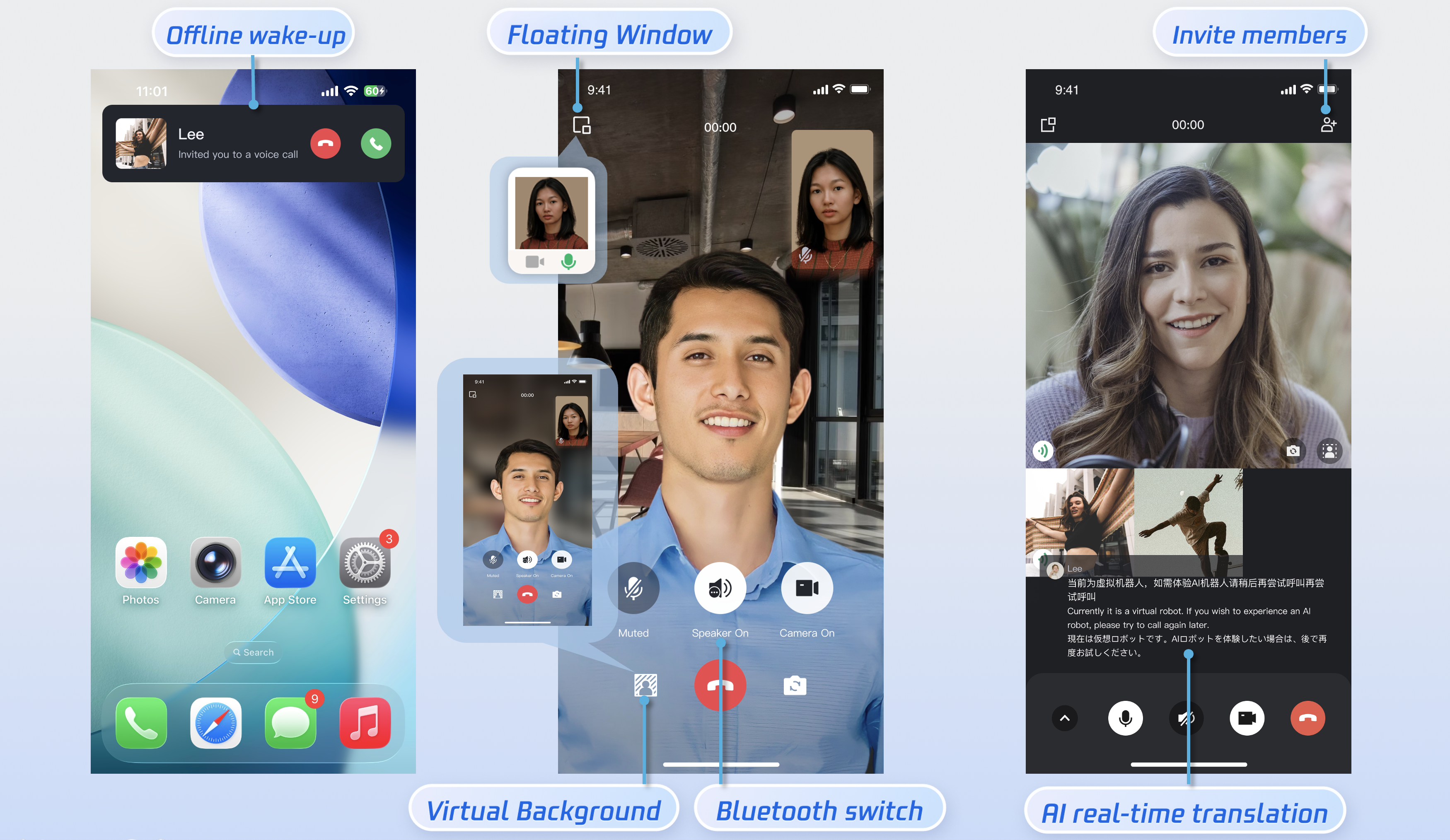
Prerequisites
Environment Setup
Node.js 16 and above.
Two mobile phones.
Activate the Service
Please refer to Activate the Service to obtain your
SDKAppID and SDKSecretKey. These will be used in a later step (Configure and Run the Demo).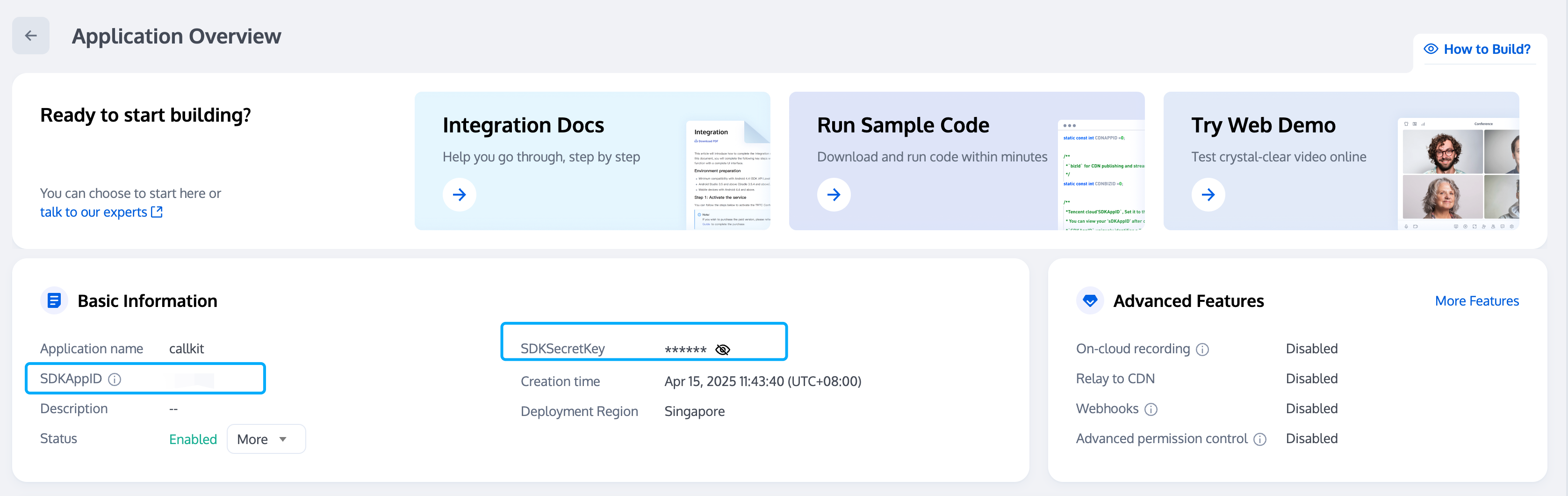
Downloading the Demo
1. Download the source code from GitHub, or run the following command in the command line:
git clone https://github.com/Tencent-RTC/TUICallKit.git
2. Enter the
./TUICallKit/ReactNative directory and depend on the TUICallKit component.cd ./TUICallKit/ReactNativeyarn install
Running the Demo
We recommend that you run the Demo on two devices, Log in with two different user accounts on two devices, one as the caller and one as the callee, to complete an audio/video call experience.
Step 1: Configure and Run the Demo
1. Configure SDKAppID and SecretKey: Open the
TUICallKit/ReactNative/src/debug/GenerateTestUserSig-es.js file, and fill in the SDKAppID and SDKSecretKey obtained during Activate the Service: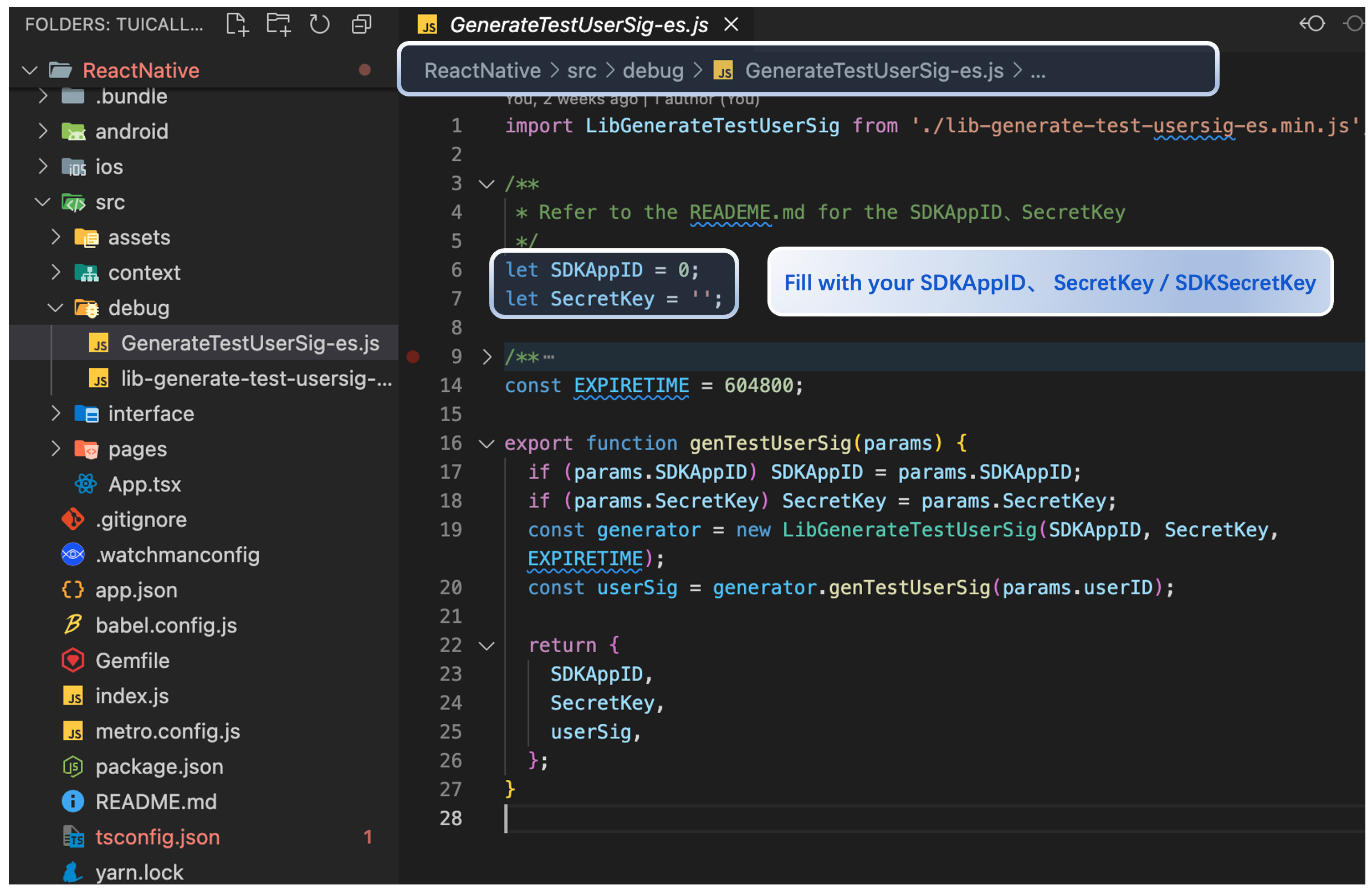
2. Compile and Run: Run the Demo using the following command.
# TUICallKit/ReactNativeyarn start
Step 2: Login
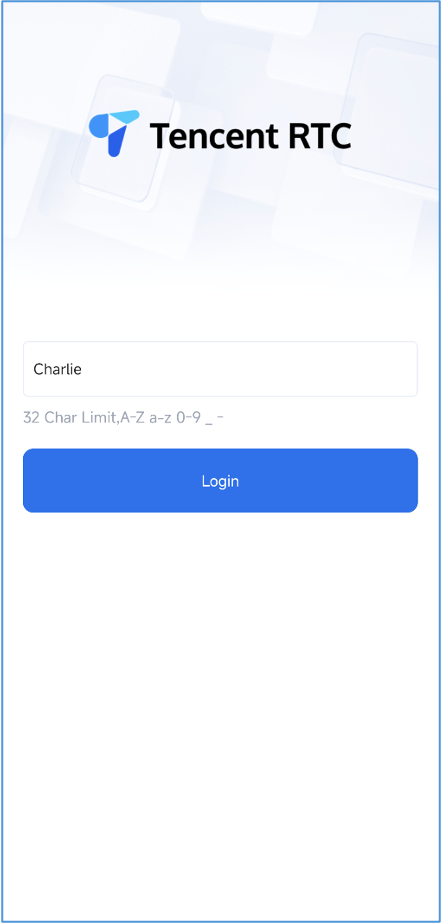
After the Demo starts, please enter an ID at the
Login field to complete the login.Login User: Charlie | Login User: Jane |
 |  |
Tip:
Avoid using simple UserIDs such as "1", "123", or "111". These IDs are commonly used during collaborative development and may already be in use by others, resulting in login failures. We recommend using a unique UserID during testing.
Step 3: Make a Call
1. On the caller's device, tap 1V1 Call on the interface, enter the callee's UserID in the pop-up window, and select the desired call type.
2. Click Start Call.
Charlie calls Jane | Jane receives the call | Both parties start talking after Jane clicks "Answer" |
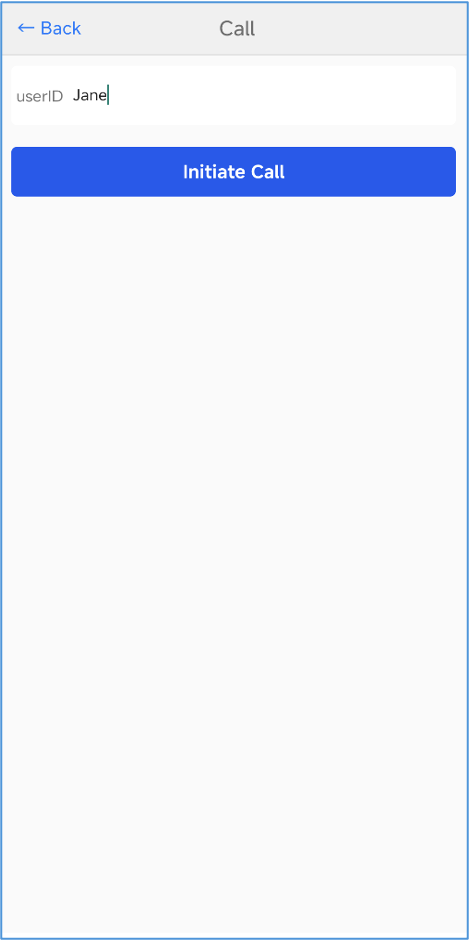 | 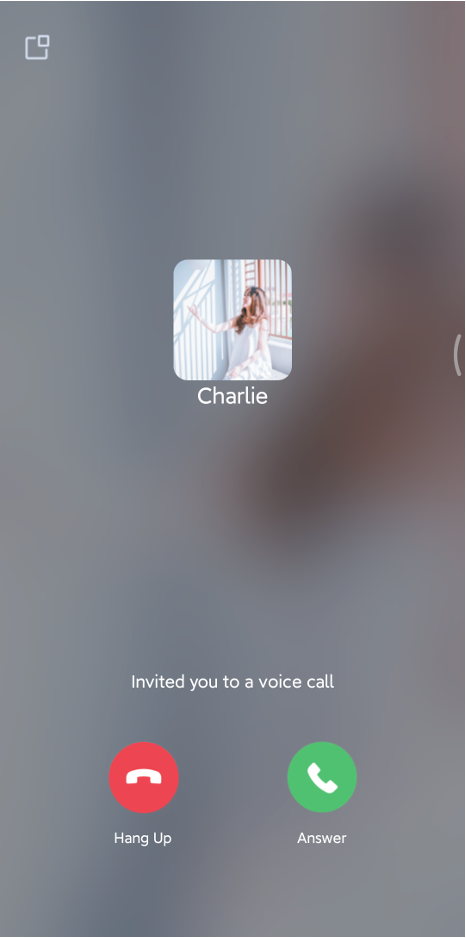 | 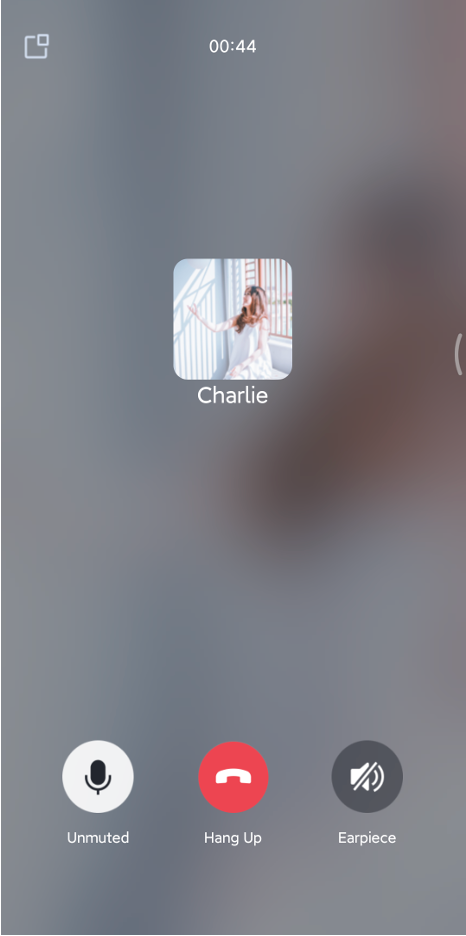 |
Tip:
To start a call, you need to confirm that the Callee User ID is a valid and logged-in ID.
FAQs
A signature error or login failure occurs when running the demo?
Please check if the
SDKAppID and SDKSecretKey you filled in the TUIKit_Android/application/debug/src/main/java/com/tencent/qcloud/tuikit/debug/GenerateTestUserSig.java file are correct. Ensure they are the keys you obtained when Activate the Service.Purchase prompt appears during call?
Error Prompt | Solution |
You have not purchased an audio and video calling package. Please go to the IM console to activate a free trial or purchase the official version. | You have not purchased an audio and video calling package. Please go to the console to activate a free trial or purchase the official version. |
The audio and video calling package you currently purchased does not support this feature. It is recommended that you upgrade your package type. | The audio and video calling package you currently purchased does not support this feature. It is recommended that you go to the console to upgrade your package type. |
How to check for React Native environment issues?
If you need to know if there are any issues with your React Native environment, run
npx react-native doctor to check if the React Native environment is properly installed.npx react-native doctor
Contact Us
If you have any needs or feedback, you can contact: info_rtc@tencent.com.
フィードバック