tencent cloud

Tencent Real-Time Communication

お知らせ・リリースノート
製品アップデート情報
Tencent Cloudオーディオビデオ端末SDKの再生アップグレードおよび承認チェック追加に関するお知らせ
TRTCアプリケーションのサブスクリプションパッケージサービスのリリースに関する説明について
製品の説明
製品概要
基礎概念
製品の機能
製品の強み
ユースケース
性能データ
購入ガイド
Billing Overview
無料時間の説明
Monthly subscription
Pay-as-you-go
TRTC Overdue and Suspension Policy
課金に関するよくあるご質問
Refund Instructions
初心者ガイド
Demo体験
Call
コンポーネントの説明(TUICallKit)
Activate the Service
Run Demo
クイック導入
オフライン通知
Conversational Chat
クラウドレコーディング(TUICallKit)
AI Noise Reduction
インターフェースのカスタマイズ
Calls integration to Chat
Additional Features
No UI Integration
Server APIs
Client APIs
Solution
ErrorCode
公開ログ
よくある質問
ライブ配信
Billing of Video Live Component
Overview
Activating the Service (TUILiveKit)
Demo のクイックスタート
No UI Integration
UI Customization
Live Broadcast Monitoring
Video Live Streaming
Voice Chat Room
Advanced Features
Client APIs
Server APIs
Error Codes
Release Notes
FAQs
RTC Engine
Activate Service
SDKのダウンロード
APIコードサンプル
Usage Guidelines
クライアント側 API
高度な機能
RTC RESTFUL API
History
Introduction
API Category
Room Management APIs
Stream mixing and relay APIs
On-cloud recording APIs
Data Monitoring APIs
Pull stream Relay Related interface
Web Record APIs
AI Service APIs
Cloud Slicing APIs
Cloud Moderation APIs
Making API Requests
Call Quality Monitoring APIs
Usage Statistics APIs
Data Types
Appendix
Error Codes
コンソールガイド
アプリケーション管理
使用統計
監視ダッシュボード
開発支援
Solution
Real-Time Chorus
よくあるご質問
課金関連問題
機能関連
UserSig関連
ファイアウォールの制限の対応関連
インストールパッケージの圧縮に関するご質問
AndriodおよびiOS関連
Web端末関連
Flutter関連
Electron関連
TRTCCalling Web関連
オーディオビデオ品質関連
その他のご質問
旧バージョンのドキュメント
TUIRoom(Web)の統合
TUIRoom (Android)の統合
TUIRoom (iOS)の統合
TUIRoom (Flutter)の統合
TUIRoom (Electron)の統合
TUIRoom APIのクエリー
クラウドレコーディングと再生の実現(旧)
Protocols and Policies
セキュリティコンプライアンス認証
セキュリティホワイトペーパー
情報セキュリティの説明
Service Level Agreement
Apple Privacy Policy: PrivacyInfo.xcprivacy
TRTC ポリシー
プライバシーポリシー
データ処理とセキュリティ契約
用語集

React Native

PDF
フォーカスモード
フォントサイズ
最終更新日: 2025-05-07 17:01:12
This document primarily introduces how to perceive the quality of the current network.

Detecting Network Quality during Call

TRTC provides a callback event called onNetworkQuality, which reports the current network quality to you every two seconds. Its parameters include two parts: localQuality and remoteQuality.
localQuality: Represents your current network quality, which is divided into 6 levels, namely Excellent, Good, Poor, Bad, VeryBad, and Down.
remoteQuality: Represents the network quality of remote users. This is an array where each element represents the network quality of a remote user.
Quality
Name
Description
0
Unknown
Unperceived
1
Excellent
The current network is excellent.
2
Good
The current network is good.
3
Poor
The current network is moderate.
4
Bad
The current network is poor, and obvious lag and call latency may occur.
5
VeryBad
The current network is very poor. TRTC can only barely keep-alive, but cannot guarantee communication quality.
6
Down
The current network fails to satisfy the minimum requirements of TRTC, and normal audio and video calls cannot be performed.
You only need to listen to TRTC's onNetworkQuality and provide corresponding notifications on the interface:
// Create a TRTC instance.
const trtcCloud = TRTCCloud.sharedInstance();
// Listen to the onNetworkQuality callback and perceive changes in the current network status.
const onRtcListener = useCallback((type: TRTCCloudListener, params: any) => {
if (type === TRTCCloudListener.onNetworkQuality) {
console.log("local user", params.localQuality);
params.remoteQuality.forEach((user: any) => {
console.log("remote user", "id=" + user.userId + ",quality=" + user.quality);
});
}
}
// Register a callback
trtcCloud.registerListener(onRtcListener);

Detecting Network Quality before Call

Principle of Speed Test


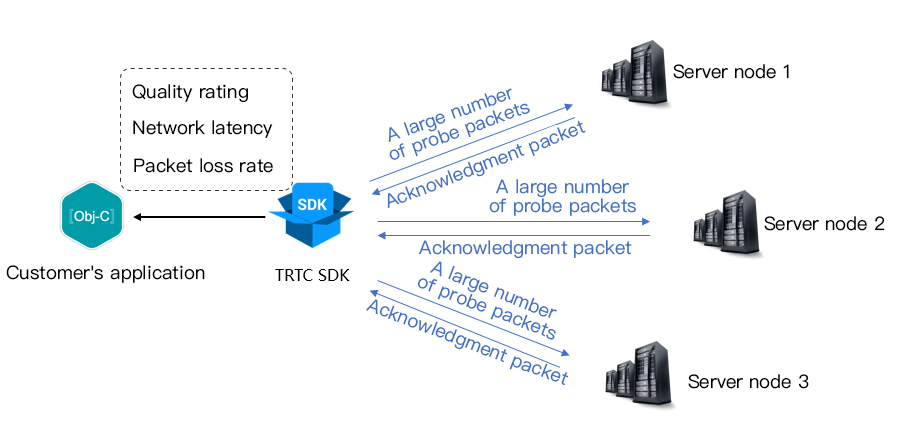
The principle of speed test is that the SDK sends a batch of probe packets to the server node, then calculates the quality of the returned packets, and notifies the speed test results through the callback API.
The speed test results will be used to optimize the SDK's subsequent server selection strategy. Therefore, it is recommended that you perform a speed test before the user's first call. This will help us select the best server. Meanwhile, if the test results are highly unsatisfactory, you can prompt the user through a prominent UI to choose a better network.
Speed test result (TRTCSpeedTestResult) includes the following fields:
Field
Meaning
Description
success
Whether it is successful
Whether this test is successful.
errMsg
Error message.
Detailed error information of the bandwidth test.
ip
Server IP address
IP address of the testing server
quality
Network quality scoring
The network quality calculated by the evaluation algorithm, with lower loss and smaller rtt, results in a higher score.
upLostRate
Uplink packet loss rate
Range is [0 - 1.0]. For example, 0.3 means when sending 10 packets to server, 3 may be lost midway.
downLostRate
Downstream packet loss rate
Range is [0 - 1.0]. For example, 0.2 means when receiving 10 packets from server, 2 may be lost midway.
rtt
Network delay
Time consumed for SDK to communicate with server round-trip. The smaller this value is, the better. The normal value is between 10 ms and 100 ms.
availableUpBandwidth
Uplink bandwidth
Predicted uplink bandwidth, unit: kbps. -1 indicates an invalid value.
availableDownBandwidth
Downstream bandwidth
Predicted downstream bandwidth, unit: kbps. -1 indicates an invalid value.

How to Conduct a Speed Test

1.You can start the speed test feature through the startSpeedTest functionality of TRTCCloud.
// Call startSpeedTest to start the speed test.
const trtcCloud = TRTCCloud.sharedInstance();
const param: TRTCSpeedTestParams = {
expectedDownBandwidth: 10, // Expected downstream bandwidth (kbps, value ranges from 10 to 5000, no test when it is 0)
expectedUpBandwidth: 10, // Expected uplink bandwidth (kbps, value ranges from 10 to 5000, no test when it is 0).
scene: 1, // 1: Delay test. 2: Delay and bandwidth test. 3: Online chorus testing.
sdkAppId: 0, // Application identifier
userId: "", // User identity
userSig: "", // User signature
}
trtcCloud.startSpeedTest(param);
const onRtcListener = useCallback((type: TRTCCloudListener, params: any) => {
if (type === TRTCCloudListener.onSpeedTestResult) {
console.log('Speed test result:', params);
setSpeedTestResult(params);
}
}

2.The speed test result will be returned through the onSpeedTestResult callback function.
// Return results through the onSpeedTestResult callback function
const trtcCloud = TRTCCloud.sharedInstance();
const onRtcListener = useCallback((type: TRTCCloudListener, params: any) => {
if (type === TRTCCloudListener.onSpeedTestResult) {
console.log('Speed test result:', params);
setSpeedTestResult(params);
}
}
trtcCloud.registerListener(onRtcListener);
Enumeration Types
Description
availableDownBandwidth
Downstream bandwidth (kbps, -1: invalid value).
availableUpBandwidth
Uplink bandwidth (kbps, -1: invalid value).
downJitter
Downlink packet Jitter (ms), indicating the stability of data communication under the current network environment for the user. The smaller this value, the better. The normal value range is 0 ms - 100 ms. -1 means the speed test did not successfully measure a valid value. Generally, the Jitter of a WiFi network is slightly larger than that in a 4G/5G environment.
downLostRate
Downstream packet loss rate. The value ranges from [0 - 1.0]. For example, 0.2 means when receiving 10 packets from the server, 2 may be lost midway.
errMsg
Error information of the bandwidth test.
ip
Server IP address.
quality
Internal network quality calculated by the evaluation algorithm. Details as follows:
quality = 0: undefined.
quality = 1: The current network is excellent.
quality = 2: The current network is good.
quality = 3: The current network is moderate.
quality = 4: The current network is poor.
quality = 5: The current network is very poor.
quality = 6: The current network fails to satisfy the minimum requirements of TRTC.
rtt
Latency (ms): Refers to the Round-Trip Time (RTT) from the current device to the TRTC server. The smaller the value is, the better. The normal value range is 10ms - 100ms.
success
Whether the test is successful.
upJitter
Uplink packet Jitter (ms): Refers to the stability of data communication under the current network environment of the user. The smaller the value is, the better. The normal value range is 0ms - 100ms. -1 represents that no valid value was successfully measured in this speed test. Generally, the Jitter of a WiFi network is slightly larger than that in a 4G/5G environment.
upLostRate
Uplink packet loss rate. The value ranges from [0 - 1.0]. For example, 0.3 means when sending 10 packets to the server, 3 may be lost midway.

ヘルプとサポート

この記事はお役に立ちましたか?

フィードバック