Unity
Download
フォーカスモード
フォントサイズ
This article will introduce how to quickly integrate the Unity RTC Engine and implement a basic audio and video call.
Environment preparations
Unity 2022.3.13f1.
Currently supports Android, iOS, Windows, Mac platforms.
Unity needs to include Android Build Support, iOS Build Support, Windows Build Support and MacOs Build Support modules.
For iOS development, please make sure your project has a valid developer signature.
Integration guideline
Step 1. Import TRTC SDK
1. Open Unity and create your own Unity program.
2. Download the Unity SDK and unzip the SDK library containing the following files:
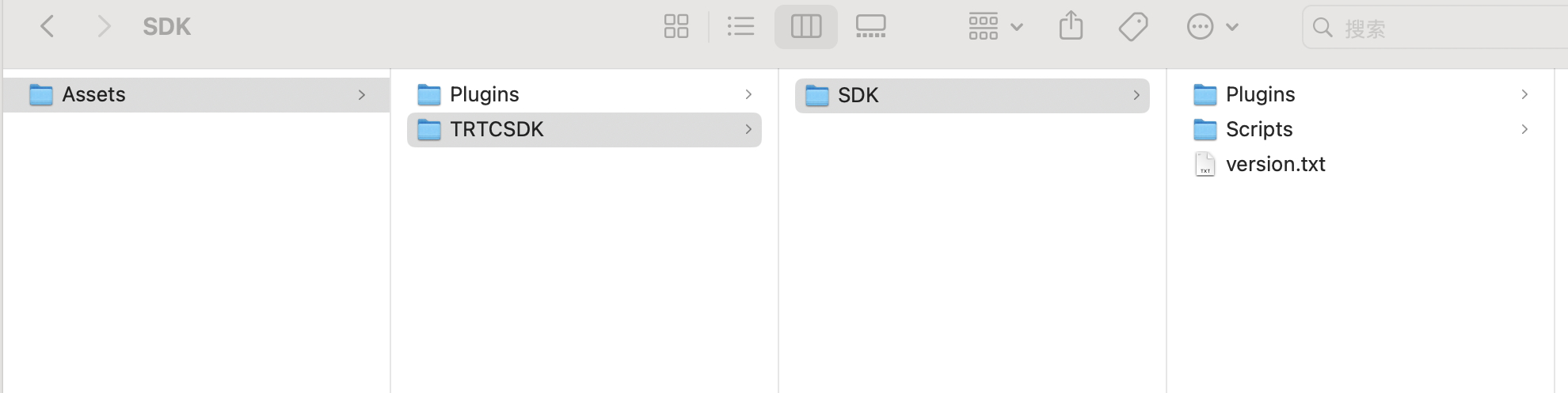
3. Copy the files Plugins and TRTCSDK in the Assets directory of the decompressed SDK to the Assets file directory of your project.
Step 2. Configure project
iOS / Mac / Android need to add requests for camera and mic permissions in the project:
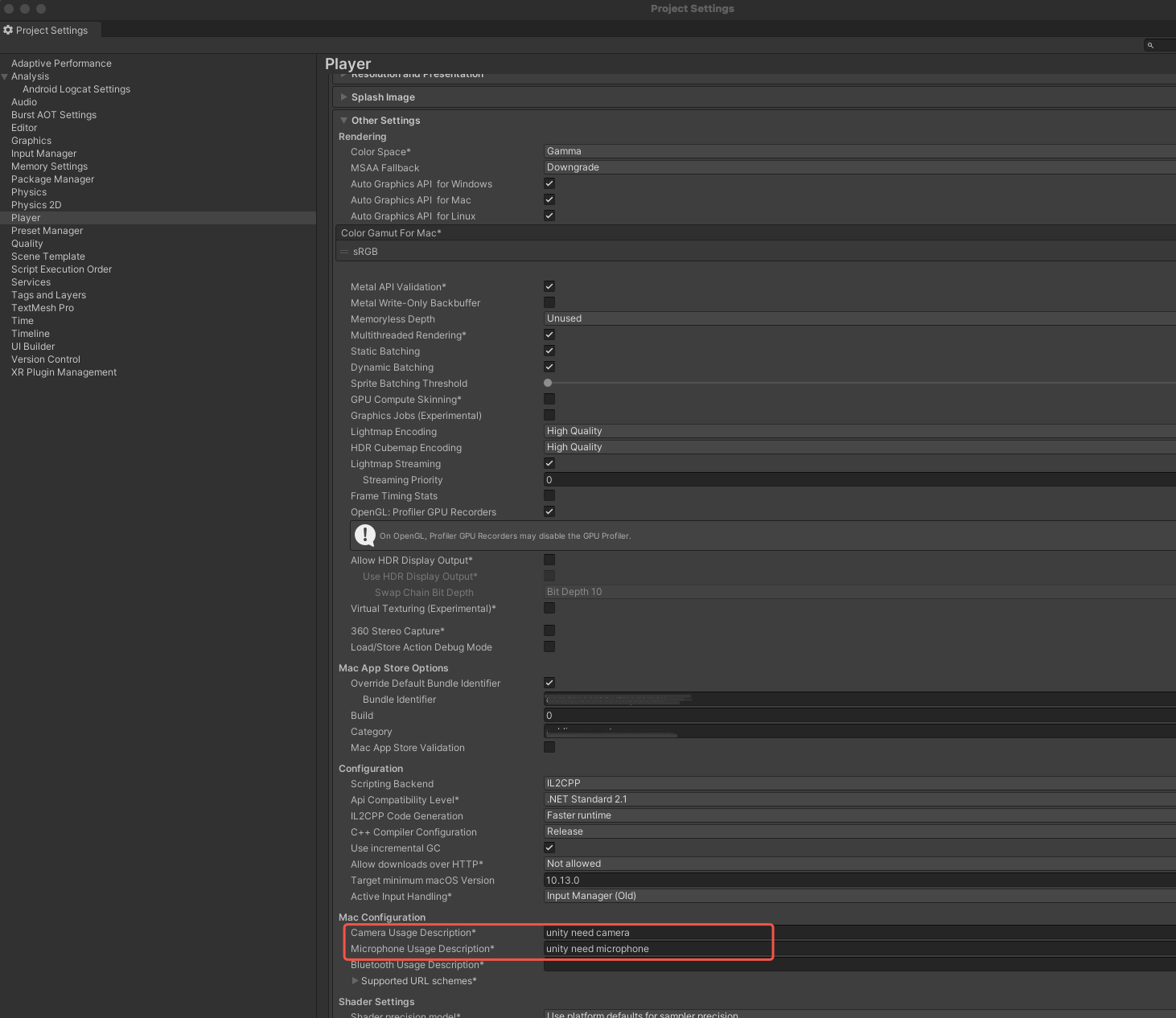
1. Open the Player settings interface of Project Settings in the Unity project.
2. Add the description statements of the corresponding permission application to Camera Usage Description and Microphone Usage Description of the MAC/iOS platform respectively as shown in the following figure.
1. Open the
AndroidManifest.xml file in your project.2. Add the following permissions:
<uses-permission android:name="android.permission.INTERNET" /><uses-permission android:name="android.permission.ACCESS_NETWORK_STATE" /><uses-permission android:name="android.permission.ACCESS_WIFI_STATE" /><uses-permission android:name="android.permission.RECORD_AUDIO" /><uses-permission android:name="android.permission.MODIFY_AUDIO_SETTINGS" /><uses-permission android:name="android.permission.BLUETOOTH" /><uses-permission android:name="android.permission.CAMERA" /><uses-feature android:name="android.hardware.camera.autofocus" />
Step 3. Create TRTC instance
1. Import TRTC namespace.
using trtc;
2. Inherit ITRTCCloudCallback and override ITRTCCloudCallback method to declare and define TRTCCloud events.
public class AppExample : MonoBehaviour,ITRTCCloudCallback {private ITRTCCloud mTRTCCloud; // Declare the TRTCCloud member variable#region ITRTCCloudCallbackpublic:public void onError(TXLiteAVError errCode, String errMsg, IntPtr arg) {} // Listen for the 'onError' eventpublic void onWarning(TXLiteAVWarning warningCode, String warningMsg, IntPtr arg) {} // Listen for the 'onWarning' eventpublic void onEnterRoom(int result) {} // Listen for the result of 'onEnterRoom' eventpublic void onExitRoom(int reason) {} // Listen for the result of 'onExitRoom' event// to do other event.........#endregion}
3. Call the interface to obtain the TRTC instance.
mTRTCCloud = ITRTCCloud.getTRTCShareInstance();
4. Call the
addCallback interface to add listeners for TRTCCloud events.mTRTCCloud.addCallback(this);
Step 4. Enter the room
1. Set the entry parameter
TRTCParams and call enterRoom to successfully enter the room.Parameter | Type | Description |
sdkAppId | UInt32 | |
userId | String | User ID specified by you. |
userSig | String | |
roomId | UInt32 | Room ID specified by you, usually a unique room ID. |
TRTCParams trtcParams = new TRTCParams();trtcParams.sdkAppId = 1400xxxxx;trtcParams.roomId = 345;trtcParams.userId = "123";trtcParams.userSig = "";TRTCAppScene scene = TRTCAppScene.TRTCAppSceneLIVE;mTRTCCloud.enterRoom(ref trtcParams, scene);public void onEnterRoom(int result) {} // Listen for the result of 'onEnterRoom' event
Step 5. Turn on/off Camera
1. Create a component
RawImage: videoView in the Unity project as the value of the startLocalPreview interface parameter view.2. Before calling the interface
startLocalPreview to open the camera preview, you can set the local preview rendering parameters by calling the interface setLocalRenderParams.// Set local preview rendering parametersprivate TRTCRenderParams renderParams = new TRTCRenderParams();renderParams.fillMode = TRTCVideoFillMode.TRTCVideoFillMode_Fit;renderParams.mirrorType = TRTCVideoMirrorType.TRTCVideoMirrorType_Disable;renderParams.rotation = TRTCVideoRotation.TRTCVideoRotation0;mTRTCCloud.setLocalRenderParams(renderParams);// Local preview of the content captured by the front cameramTRTCCloud.startLocalPreview(true, videoView);// Local preview of the content captured by the rear cameramTRTCCloud.startLocalPreview(false, videoView);
3. Call
stopLocalPreview to close the camera preview and stop pushing local video information.mTRTCCloud.stopLocalPreview();
Step 6. Turn on/off Microphone
1. Call the
startLocalAudio to turn on microphone capture. Select one of the following sound Quality parameters according to your requirements.// Enable microphone acquisition and set the current scene to: Voice mode// For high noise suppression capability, strong and weak network resistancemTRTCCloud.startLocalAudio(TRTCAudioQuality.TRTCAudioQualitySpeech);
// Enable microphone acquisition, and set the current scene to: Music mode// For high fidelity acquisition, low sound quality loss, recommended to use with professional sound cardsmTRTCCloud.startLocalAudio(TRTCAudioQuality.TRTCAudioQualityMusic);
2. Call
stopLocalAudio to turn off microphone collection and stop pushing local audio information.mTRTCCloud.stopLocalAudio()
Step 7. Play/stop Video Streaming
1. Listen for the
onUserVideoAvailable before entering the room. When you receive the onUserVideoAvailable(userId, true) notification, it indicates that playable video frames are available for that user's video stream.public void onUserVideoAvailable(String userId, bool available) {}
2. Call
startRemoteView/stopRemoteView to play or stop the remote video.mTRTCCloud.startRemoteView(“denny”, TRTCVideoStreamType.TRTCVideoStreamTypeBig, videoView);// videoView is the RawImage component of Unity
3. Call
stopRemoteView to stop playing the remote image.mTRTCCloud.stopRemoteView(”denny“, TRTCVideoStreamType.TRTCVideoStreamTypeBig); // Stop playing denny's videomTRTCCloud.stopAllRemoteView(true); // Mute all remote users
Step 8. Play/stop Audio Streaming
Call
muteRemoteAudio to mute or unmute the remote sound.// MutemTRTCCloud.muteRemoteAudio("denny", true); // Mute dennymTRTCCloud.muteAllRemoteAudio(true); // Mute all remote users
// UnmutemTRTCCloud.muteRemoteAudio("denny", false); // Unmute dennymTRTCCloud.muteAllRemoteAudio(false); // Unmute all remote users
Step 9. Exit the room
1. Call
exitRoom to exit the current room.mTRTCCloud.exitRoom();
2. TRTC SDK will notify you through the
onExitRoom callback event after exiting the room.public void onExitRoom(int reason) {} // Listen for the result of 'onExitRoom' event
FAQs
API Reference at API Reference.
Contact us
If you have any suggestions or feedback, please contact
info_rtc@tencent.com.フィードバック