Room List (React Native)
ダウンロード
フォーカスモード
フォントサイズ
LiveListState is the central module in AtomicXCore that handles live stream room management—including listing rooms, creating and joining rooms, and maintaining room state. With LiveListState, you can implement a complete live stream lifecycle management solution for your app.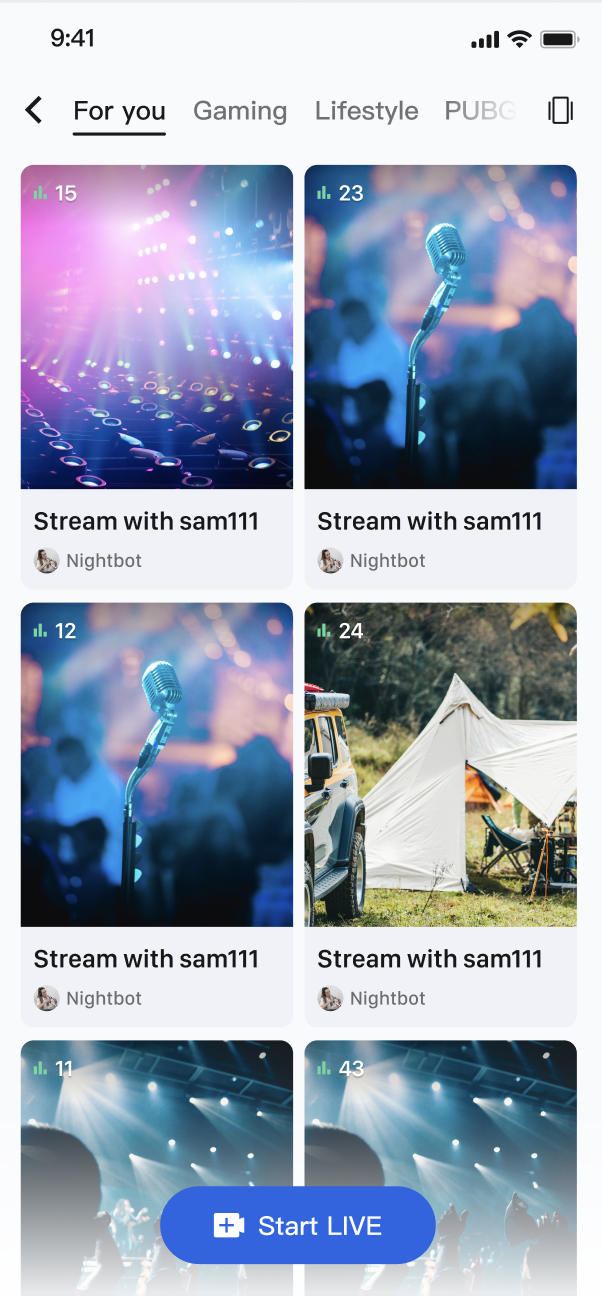
Core Features
Live Stream List Fetching: Retrieve the list of all public live stream rooms, with support for pagination.
Live Stream Lifecycle Management: Access comprehensive APIs for creating, starting, joining, leaving, and ending a live stream.
Live Stream Info Update: Hosts can update public details of the live stream room at any time, such as the cover image or announcements.
Real-time Event Listening: Monitor key events—including live stream ending, users being kicked out, and more.
Custom Business Data: Flexible custom metadata (
Metadata) lets you store and synchronize any business information in the room, such as live status, music details, custom roles, and more.Implementation Steps
Step 1: Integrate Components
Step 2: Enable Audiences to Join a Live Room from the Live Stream List
Build a page that displays the live stream list. When a user taps a card, retrieve the
liveID and navigate to the audience view page.import React, { useEffect } from 'react';import {StyleSheet, Text, View, FlatList, TouchableOpacity,Dimensions, ImageBackground,} from 'react-native';import { useLiveListState } from 'react-native-tuikit-atomic-x/lib/module/atomic-x/state/LiveListState';const defaultCover = 'https://liteav-test-1252463788.cos.ap-guangzhou.myqcloud.com/voice_room/voice_room_cover1.png';const { width: SCREEN_WIDTH } = Dimensions.get('window');const CARD_GAP = 12;const CARD_PADDING = 16;const CARD_WIDTH = (SCREEN_WIDTH - CARD_PADDING * 2 - CARD_GAP) / 2;const CARD_HEIGHT = CARD_WIDTH * 1.3;// Live stream card componentfunction LiveCard({ item, onPress }) {return (<TouchableOpacity style={styles.card} activeOpacity={0.75} onPress={onPress}><ImageBackgroundsource={{ uri: item.coverURL || defaultCover }}style={styles.cardBg}resizeMode="cover"><View style={styles.viewerBadge}><Text style={styles.viewerBadgeText}>{item.totalViewerCount || 0} viewers</Text></View><View style={styles.bottomInfo}><Text style={styles.liveName} numberOfLines={1}>{item.liveName}</Text><Text style={styles.ownerName} numberOfLines={1}>{item.liveOwner?.userName}</Text></View></ImageBackground></TouchableOpacity>);}export default function LiveListScreen({ navigation }) {// State managementconst { liveList, liveListCursor, fetchLiveList, joinLive } = useLiveListState();// InitializationuseEffect(() => {fetchLiveList({ cursor: liveListCursor, count: 20 });}, []);// Join live streamconst handleJoinLive = (live) => {joinLive({liveID: live.liveID,onSuccess: () => {navigation.navigate('Audience', { liveID: live.liveID }); // Navigate to your audience page},onError: (error) => {console.log('Failed to join voice room', error);},});};return (<View style={styles.container}>{/* Live stream list */}<FlatListdata={liveList || []}keyExtractor={(item) => item.liveID}numColumns={2}columnWrapperStyle={styles.row}contentContainerStyle={styles.listContent}renderItem={({ item }) => (<LiveCard item={item} onPress={() => handleJoinLive(item)} />)}/></View>);}const styles = StyleSheet.create({container: {flex: 1,backgroundColor: '#fff',},listContent: {paddingHorizontal: CARD_PADDING,paddingTop: 12,},row: {justifyContent: 'space-between',marginBottom: CARD_GAP,},card: {width: CARD_WIDTH,height: CARD_HEIGHT,borderRadius: 12,overflow: 'hidden',},cardBg: {flex: 1,justifyContent: 'space-between',},viewerBadge: {alignSelf: 'flex-start',backgroundColor: 'rgba(0, 0, 0, 0.45)',borderRadius: 10,paddingHorizontal: 8,paddingVertical: 3,margin: 8,},viewerBadgeText: {fontSize: 11,color: '#fff',},bottomInfo: {padding: 8,paddingTop: 20,backgroundColor: 'rgba(0, 0, 0, 0.35)',},liveName: {fontSize: 14,fontWeight: '600',color: '#fff',},ownerName: {fontSize: 12,color: 'rgba(255, 255, 255, 0.8)',marginTop: 2,},});
LiveInfo Parameter ReferenceParameter | Type | Description |
liveID | string | Unique identifier for the live stream room |
liveName | string | Title of the live stream room |
coverURL | string | Cover image URL for the live stream room |
liveOwner | LiveUserInfo | Host's profile information |
totalViewerCount | number | Total number of viewers in the live stream room |
categoryList | [number] | Category tags for the live stream room |
notice | string | Announcement text for the live stream room |
metaData | [string: string] | Custom metadata for advanced business scenarios |
Advanced Features
Scenario 1: Categorized Live Stream List Display
On the live stream plaza page, category tags—such as "Hot," "Music," and "Games"—appear at the top. When users select a category tab, the live stream list below filters to show only streams in that category, helping audiences quickly find relevant content.
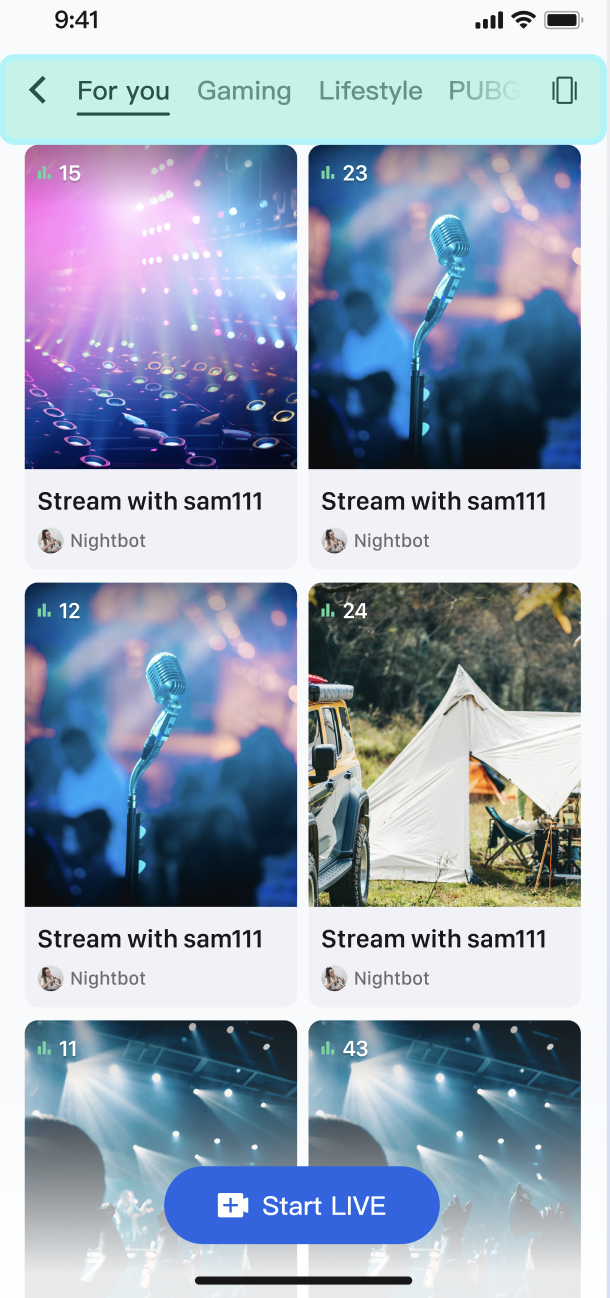
Implementation
Use the
categoryList property in the LiveInfo model. When a host sets a category during stream creation, the resulting LiveInfo returned by fetchLiveList includes this category. After retrieving the full live stream list, filter the data on the client side based on the user's selected category and update the UI.Code Example
This example demonstrates how to add category filtering UI and logic to the live stream list page using
categoryList.import React, { useEffect, useState, useMemo } from 'react';import {StyleSheet, Text, View, FlatList, TouchableOpacity,Dimensions, ImageBackground, ScrollView,} from 'react-native';import { useLiveListState } from 'react-native-tuikit-atomic-x/lib/module/atomic-x/state/LiveListState';const defaultCover = 'https://liteav-test-1252463788.cos.ap-guangzhou.myqcloud.com/voice_room/voice_room_cover1.png';const { width: SCREEN_WIDTH } = Dimensions.get('window');const CARD_GAP = 12;const CARD_PADDING = 16;const CARD_WIDTH = (SCREEN_WIDTH - CARD_PADDING * 2 - CARD_GAP) / 2;const CARD_HEIGHT = CARD_WIDTH * 1.3;// Category listconst categories = [{ id: 0, name: 'All' },{ id: 1, name: 'Games' },{ id: 2, name: 'Music' },{ id: 3, name: 'Chat' },{ id: 4, name: 'Sports' },{ id: 5, name: 'Entertainment' },];// Category name mappingconst categoryMap = {1: 'Games',2: 'Music',3: 'Chat',4: 'Sports',5: 'Entertainment',};// Get category nameconst getCategoryName = (categoryId) => {return categoryMap[categoryId] || 'Other';};// Live stream card componentfunction LiveCard({ item, onPress }) {const firstCategory = item.categoryList?.[0];return (<TouchableOpacity style={styles.card} activeOpacity={0.75} onPress={onPress}><ImageBackgroundsource={{ uri: item.coverURL || defaultCover }}style={styles.cardBg}resizeMode="cover"><View style={styles.viewerBadge}><Text style={styles.viewerBadgeText}>{item.totalViewerCount || 0} viewers</Text></View><View style={styles.bottomInfo}>{firstCategory ? (<View style={styles.categoryBadge}><Text style={styles.categoryBadgeText}>{getCategoryName(firstCategory)}</Text></View>) : null}<Text style={styles.liveName} numberOfLines={1}>{item.liveName}</Text><Text style={styles.ownerName} numberOfLines={1}>{item.liveOwner?.userName}</Text></View></ImageBackground></TouchableOpacity>);}export default function LiveListScreen({ navigation }) {// State managementconst { liveList, fetchLiveList, joinLive } = useLiveListState();// Track current category, 0 means allconst [selectedCategory, setSelectedCategory] = useState(0);// InitializationuseEffect(() => {fetchLiveList({ cursor: '', count: 20 });}, []);// Filter list based on selected categoryconst filteredList = useMemo(() => {const list = liveList || [];if (selectedCategory === 0) {return list;}return list.filter((live) => {const categoryList = live.categoryList || [];return categoryList.includes(selectedCategory);});}, [liveList, selectedCategory]);// Join live streamconst handleJoinLive = (live) => {joinLive({liveID: live.liveID,onSuccess: () => {navigation.navigate('Audience', { liveID: live.liveID }); // Navigate to your target page},onError: (error) => {console.log('Failed to join voice room', error);},});};return (<View style={styles.container}>{/* Category tabs */}<View style={styles.categoryTabsWrapper}><ScrollView horizontal showsHorizontalScrollIndicator={false} contentContainerStyle={styles.categoryTabs}>{categories.map((cat) => (<TouchableOpacitykey={cat.id}style={[styles.tab, selectedCategory === cat.id && styles.tabActive]}activeOpacity={0.7}onPress={() => setSelectedCategory(cat.id)}><Text style={[styles.tabText, selectedCategory === cat.id && styles.tabTextActive]}>{cat.name}</Text></TouchableOpacity>))}</ScrollView></View>{/* Live stream list */}<FlatListdata={filteredList}keyExtractor={(item) => item.liveID}numColumns={2}columnWrapperStyle={styles.row}contentContainerStyle={styles.listContent}renderItem={({ item }) => (<LiveCard item={item} onPress={() => handleJoinLive(item)} />)}/></View>);}const styles = StyleSheet.create({container: {flex: 1,backgroundColor: '#fff',},categoryTabsWrapper: {backgroundColor: '#f9f9f9',borderBottomWidth: StyleSheet.hairlineWidth,borderBottomColor: '#e8e8e8',},categoryTabs: {flexDirection: 'row',paddingHorizontal: 16,paddingVertical: 10,},tab: {paddingHorizontal: 14,paddingVertical: 6,marginRight: 10,backgroundColor: '#fff',borderWidth: 1,borderColor: '#e0e0e0',borderRadius: 16,},tabActive: {backgroundColor: '#0468FC',borderColor: '#0468FC',},tabText: {fontSize: 13,color: '#666',},tabTextActive: {color: '#fff',},listContent: {paddingHorizontal: CARD_PADDING,paddingTop: 12,},row: {justifyContent: 'space-between',marginBottom: CARD_GAP,},card: {width: CARD_WIDTH,height: CARD_HEIGHT,borderRadius: 12,overflow: 'hidden',},cardBg: {flex: 1,justifyContent: 'space-between',},viewerBadge: {alignSelf: 'flex-start',backgroundColor: 'rgba(0, 0, 0, 0.45)',borderRadius: 10,paddingHorizontal: 8,paddingVertical: 3,margin: 8,},viewerBadgeText: {fontSize: 11,color: '#fff',},categoryBadge: {alignSelf: 'flex-start',backgroundColor: 'rgba(4, 104, 252, 0.9)',borderRadius: 3,paddingHorizontal: 6,paddingVertical: 2,marginBottom: 4,},categoryBadgeText: {fontSize: 10,color: '#fff',fontWeight: '600',},bottomInfo: {padding: 8,paddingTop: 20,backgroundColor: 'rgba(0, 0, 0, 0.35)',},liveName: {fontSize: 14,fontWeight: '600',color: '#fff',},ownerName: {fontSize: 12,color: 'rgba(255, 255, 255, 0.8)',marginTop: 2,},});
Scenario 2: Real-Time Product Information in E-commerce Live Streams
In e-commerce live streaming scenarios, when a host showcases a product, a product card appears below the live video for all audience members, displaying the product image, name, and price in real time. When the host switches products, the product card updates instantly across all audience clients.
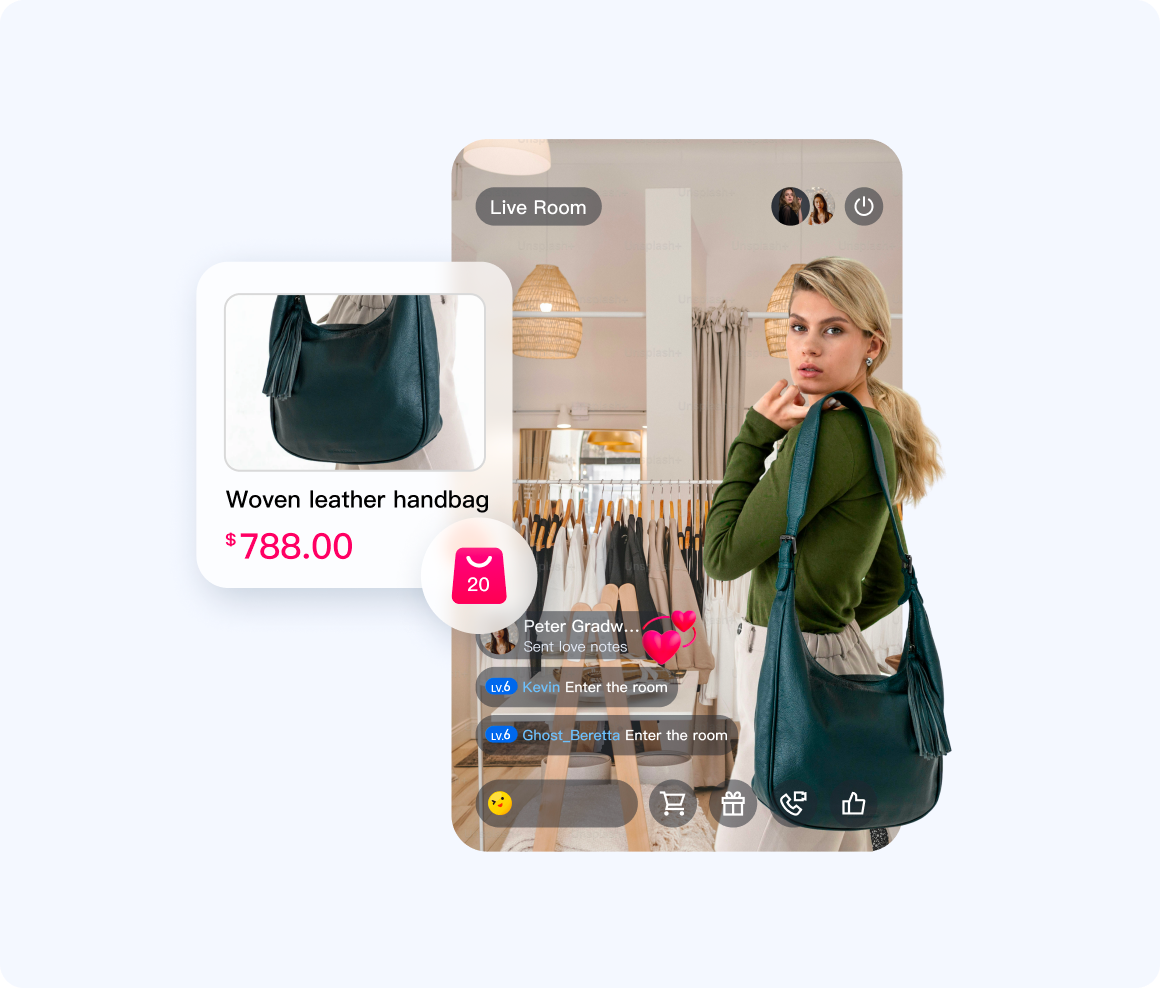
Implementation
On the host side, use the
updateLiveMetaData API to push the current product's structured data (ideally in JSON) to a custom key (like "product_info"). AtomicXCore synchronizes these updates in real time to all audience clients. On the audience side, listen for changes in currentLive. When metaData.product_info updates, parse the JSON and refresh the product card UI.Code Example
import React, { useEffect, useState } from 'react';import { useLiveListState } from 'react-native-tuikit-atomic-x/lib/module/atomic-x/state/LiveListState';// Host-side example componentfunction AnchorProductPanel() {const { updateLiveMetaData } = useLiveListState();// Host: push product info to all audience clientsconst updateProduct = (product) => {updateLiveMetaData({metaData: {product_id: product.id,product_name: product.name,product_price: product.price,product_image_url: product.image_url,},onSuccess: () => {console.log(`Product ${product.name} info pushed successfully`);},onError: (error) => {console.log('Failed to push product info', error);},});};return null; // Replace with your host-side UI}// Audience-side example componentfunction AudienceProductCard() {const { currentLive } = useLiveListState();const [product, setProduct] = useState(null);// Audience: listen to currentLive and parse product infouseEffect(() => {if (!currentLive) return;const metaData = currentLive.metaData;if (metaData?.product_id) {const newProduct = {id: metaData.product_id,name: metaData.product_name,price: metaData.product_price,imageUrl: metaData.product.image_url,};setProduct(newProduct);// Render your product UI using fields from newProduct}}, [currentLive]);return null; // Replace with your audience-side product card UI}
API Documentation
For full details on available interfaces, properties, and methods for LiveListState and related classes, see the official API documentation included with the AtomicXCore framework. The relevant Store referenced here is:
State | Description | API Documentation |
LiveListState | Complete live stream room management: create, join, leave, destroy rooms; query room lists; modify live stream info (name, announcement, etc.); listen to live stream status (for example: kicked out, ended). |
FAQs
What restrictions apply to updateLiveMetaData?
To maintain stability and performance,
metaData usage is governed by the following rules:Permissions: Only hosts and administrators can call
updateLiveMetaData. Audience members do not have permission.Limits:
Each room supports a maximum of 10 keys.
Each key must be no longer than 50 bytes, and each value must not exceed 2KB.
The combined size of all values in a room must not exceed 16KB.
Conflict Resolution:
metaData updates follow a "last write wins" policy. If multiple administrators modify the same key within a short timeframe, the last update prevails. To avoid conflicts, ensure your business logic prevents simultaneous edits to the same key.フィードバック