Custom Hotword Lexicon
Download
포커스 모드
폰트 크기
Overview
The smart subtitle feature utilizes Automatic Speech Recognition (ASR) technology to accurately identify commonly used words. However, for specific names (such as personal names, product names, and company names), and industry-specific terms (such as the brand name Zhilin, the building name Binhai Dasha, Hebao in the insurance field, or Cunchutong in cloud storage), the recognition accuracy may decrease. To address this issue, we provide a custom hotword lexicon feature, allowing users to add hotwords to significantly improve the recognition accuracy of specialized terms. When recognizing speech, if homophones with the same tone are encountered, the system will prioritize hotwords with higher weights.
Prerequisites
1. You have signed up for a Tencent Cloud account.
2. You have activated Media Processing Service (MPS) and logged in to the MPS Console.
Creating a Lexicon
Creation Guide
1. Go to Templates > Media AI Template > Smart Subtitle. On the smart subtitle template list page, click Manage Hotword Lexicons to open the custom hotword lexicon list.
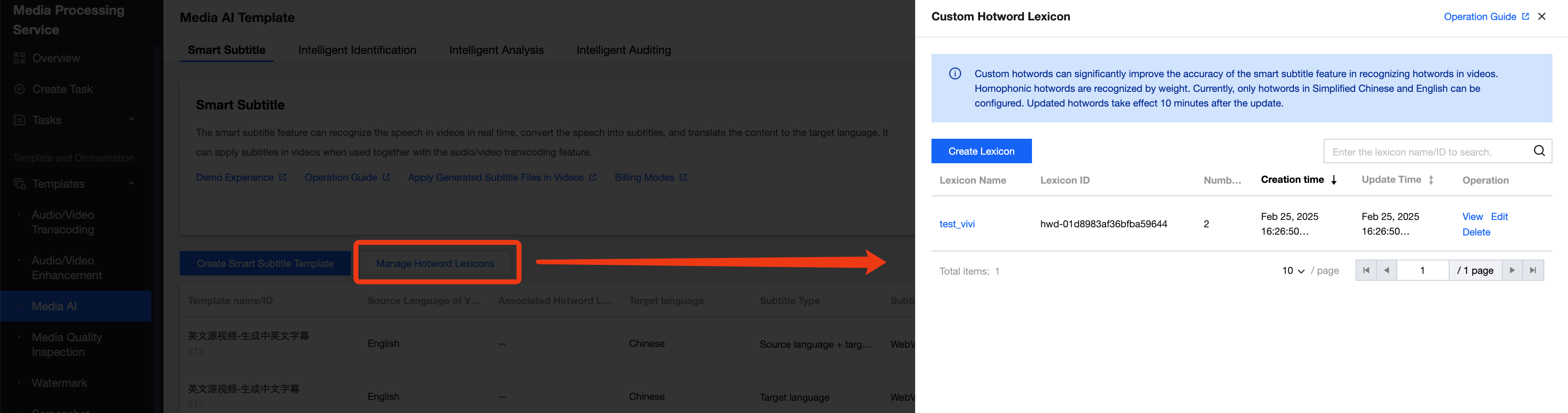
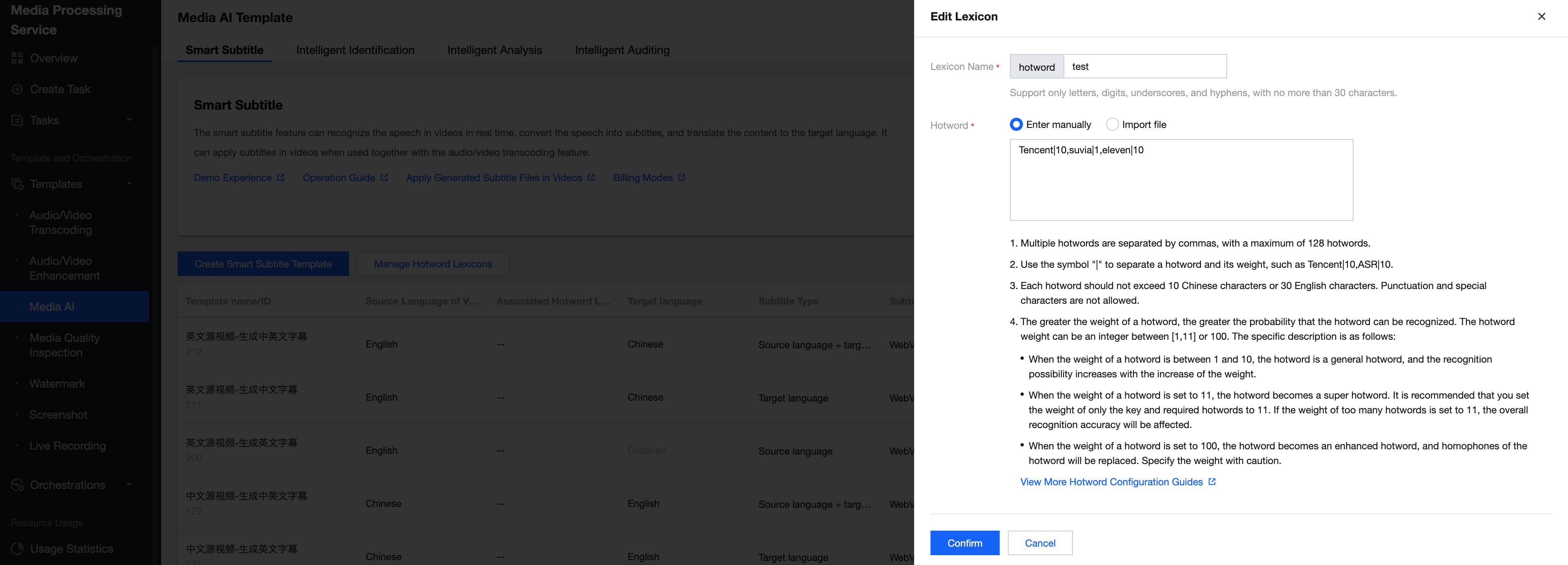
2. Click Create Lexicon. You can enter hotwords by manually inputting or file import.
If you add hotwords through manual input, use English commas to separate multiple hotwords, and use the English symbol "|" to separate a hotword from its weight. Example: Tencent Cloud|10, Automatic Speech Recognition|5, ASR|11.
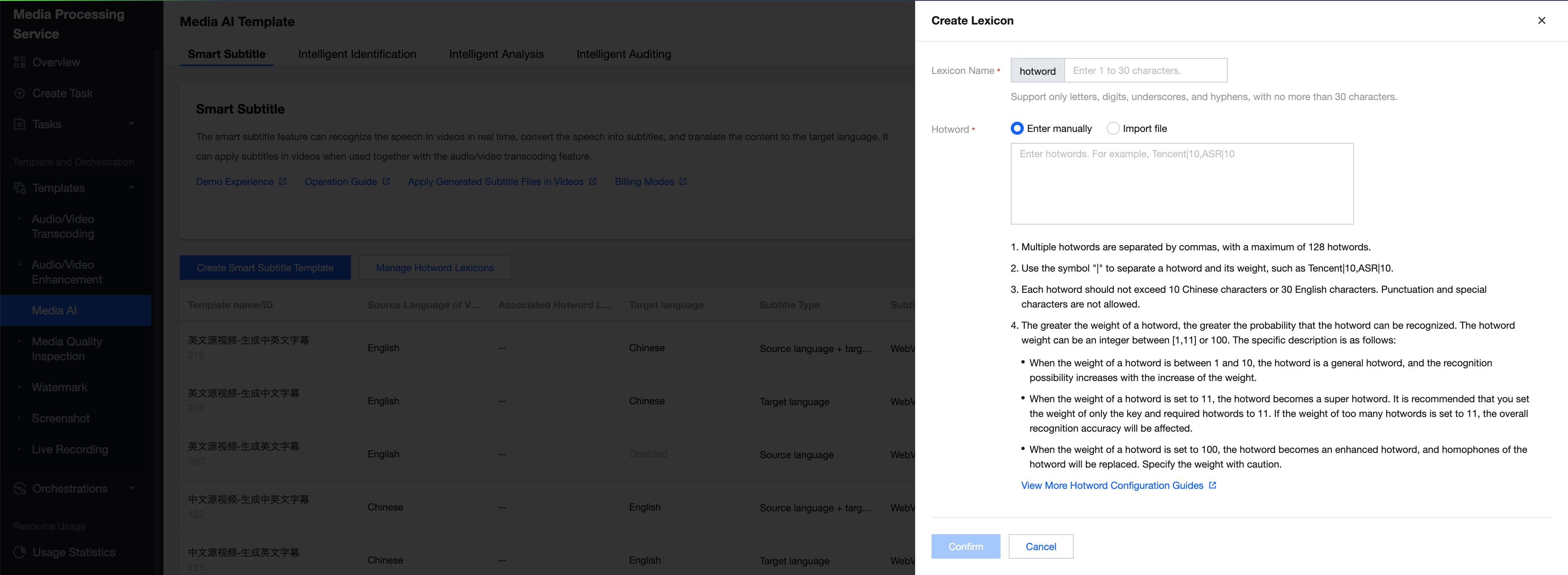
If you add hotwords through file import, the file should be in UTF-8 or GBK encoding format. Each line should contain only one hotword and its corresponding weight (separated by the English symbol "|"), and cannot include any punctuation or special characters. An example of a hotword file is as follows:

Hotword Configuration Descriptions
It is not recommended that you add commonly used general words, such as customer or friend, as hotwords. Adding too many general words may reduce the recognition accuracy of specialized terms.
It is recommended that you replace numbers with corresponding Chinese characters according to their pronunciation. For example, 689 yuan should be replaced with six hundred eighty-nine yuan.
The larger the weight of a hotword, the higher the probability of it being recognized. The range of hotword weights is integers from 1 to 11, as well as the number 100. The specific correspondence is as follows:
When the hotword weight is set within the range from 1 to 10, the hotword is considered a general hotword, and its effectiveness increases as the value grows.
When the weight of a hotword is set to 11, the hotword becomes a super hotword. It is recommended that the weight is set to 11 only for critical and necessary hotwords. The overall accuracy will be affected if the weight is set to 11 for too many hotwords.
When the weight of a hotword is set to 100, the hotword becomes an enhanced hotword, and homophones of the hotword will be replaced. Specify the weight with caution.
Note:
The Enhanced Hotword (with a weight of 100) exclusively supports the Mandarin Chinese language.
Each hotword list can contain up to 128 hotwords (if you need to add more, please contact us).
Each hotword can be up to 10 Chinese characters or 30 English letters long, and cannot contain punctuation or special characters. The limit cannot be exceeded.
Adding hotwords can significantly improve recognition accuracy and is one of the important ways to quickly enhance the recognition of specialized terms. However, there may still be cases where correct recognition is not possible. You should first ensure that the audio clarity and quality meet the standards, meaning that an average person can correctly transcribe the text after listening to the recording once.
Associating the Hotword Lexicon with the Template
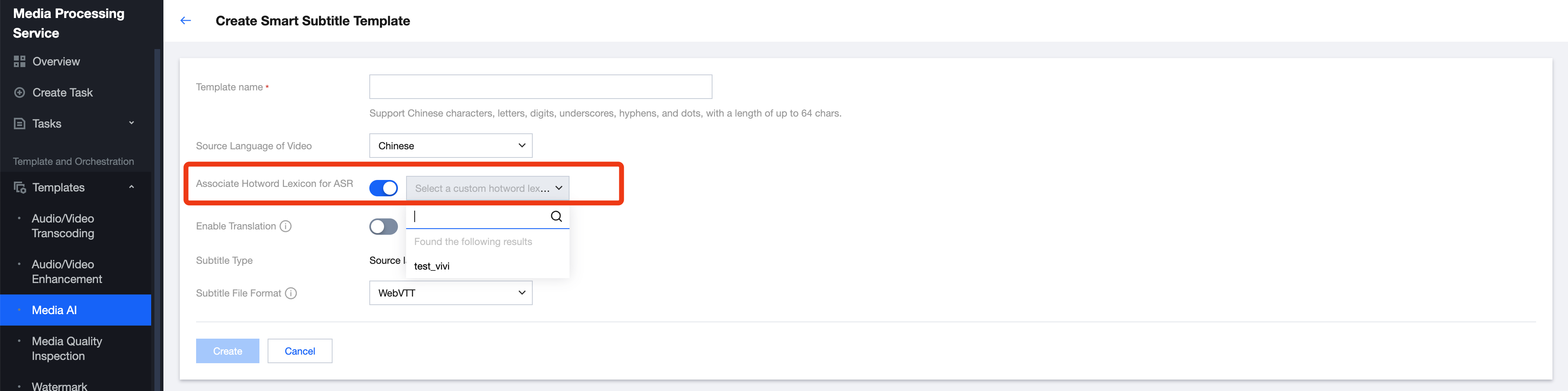
Refer to Smart Subtitle Template documentation, enable Associate Hotword Lexicon for ASR feature in template configuration, and select your created custom hotword lexicon.
Note:
Currently, the hotword lexicon only supports Mandarin and English languages. Therefore, the hotword lexicon can only be associated when the source language of the video's audio is Simplified Chinese or English.
Viewing a Hotword Lexicon
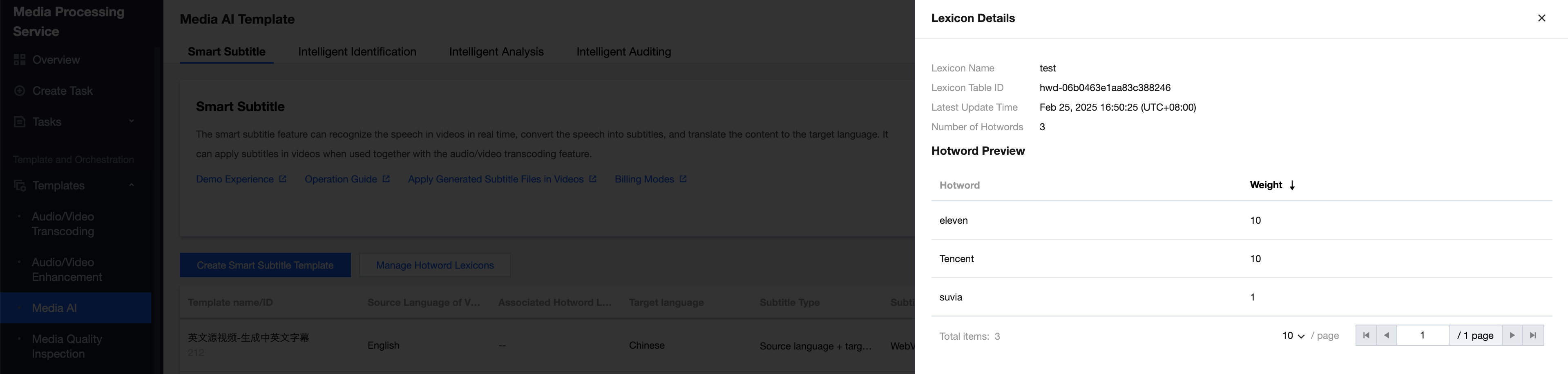
Go to Smart Subtitle > Manage Hotword Lexicon, click View in lexicon operations, and you can preview the lexicon details.
Modifying a Hotword Lexicon
Go to Smart Subtitle > Manage Hotword Lexicon, click Edit in lexicon operations, and you can modify the lexicon configuration.
If hotwords are added through file import, you can modify them by re-uploading the file.
Deleting a Hotword Lexicon
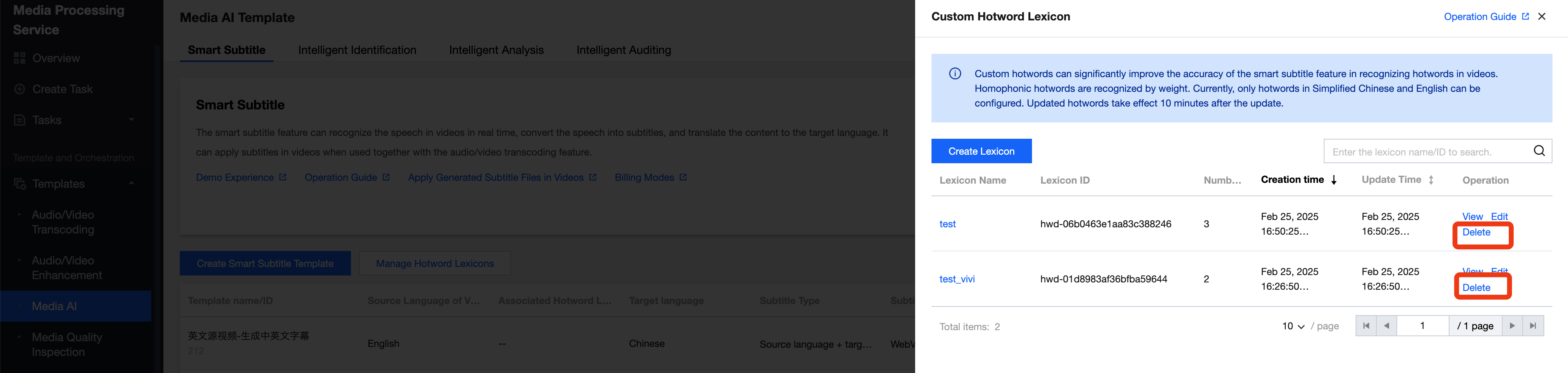
On the custom hotword lexicon page, find and select the lexicon you want to operate, then click Delete on the right side to delete the lexicon.
If a hotword lexicon is associated with a template, it cannot be deleted directly. You need to unbind it from the template first. To do this, you can enter the smart subtitle template page, edit the template, and remove the association with the hotword lexicon.
피드백