Video Screenshot Upload
다운로드
포커스 모드
폰트 크기
Feature Overview
TRTC currently supports the automatic screenshot upload feature of SDK. Screenshots can be used in scenarios such as third-party review and setting cover images to meet the needs of users.
Prerequisites
Log in to Console to create an RTC Engine application.
Navigate to Application> Advanced Features, enable the Video Screenshot Upload feature, and configure the specified storage location (currently supporting Tencent Cloud Object Storage (COS) and AWS S3).
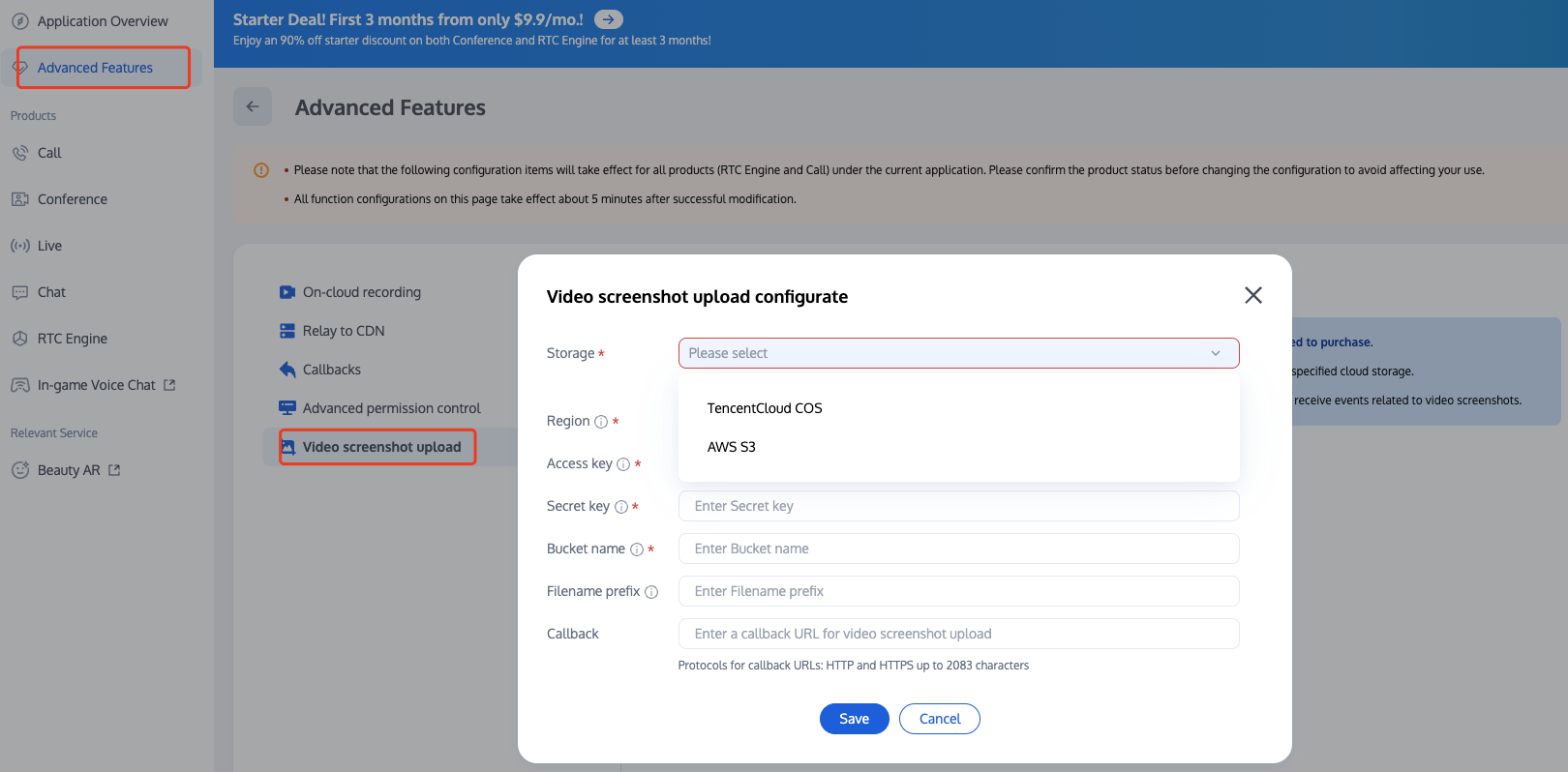
Note:
1. To use the Video Screenshot Upload feature, you need to purchase the RTC Engine Pro Edition package. For more information on monthly packages, see RTC-Engine Monthly Packages.
2. The Video Screenshot Upload feature will incur charges based on the number of screenshots taken. For more details, see Fee Details.
3. To use the Video Screenshot Upload feature, please submit a ticket to contact us for the latest version of the SDK (currently supported on Android, iOS/Mac and Windows).
Feature Overview
1. See Prerequisites, enable the feature toggle and set the storage location.
2. Use the SDK experimental interface callExperimentalAPI to utilize this feature. The parameters shall be passed as a JSON string. The parameter description is as follows:
{"api": "enableAutoSnapshotAndUpload","params" : {"'enable": 1, //Start/stop automatic screenshot, int, required. Field values: 0: stop, and 1: start. The passed value shall not be empty, and bool values (true and false) are supported."intervalS": 1, //Screenshot interval, int, optional. The interval is expressed in second, with the default value of 3 seconds and the minimum interval of 1 second. The passed value for the field shall not be empty. If it is less than 1, the minimum value of 1 second will be taken."streamType": 0, //Stream type, int, optional. Field values: 0: BigStream, and 2: SubStream. The passed value shall not be empty. Default behavior: If this field is not passed when starting a screenshot, the starting will not take effect. If this field is not passed, all tasks will stop when a screenshot is stopped."extraInfo": "customized messages" //Screenshot upload additional information, string, optional. This information will be sent to your business backend through a server-side callback.}}
Note:
The screenshot upload task will only start after the enterRoom is successful.
It is recommended to call this method after the startLocalPreview is successful to avoid screenshot upload task failure.
Receiving Server-side Event Callbacks
Configuration Information
TRTC Console supports self-configured callback information. Once configured, you can receive event callback notifications. For detailed directions, see Callback Configuration.
Note:
You need to prepare the following information in advance:
Required: The HTTP/HTTPS server address to receive callback notifications.
Optional: The key for calculating the signature. It is a key of up to 32 characters defined by you, consisting of uppercase and lowercase letters and numbers.
Timeout Retry
If the event callback server does not receive a response from your server within 5 seconds after sending a message notification, it is considered a notification failure. After the first failure, an immediate retry is attempted. Subsequent retries will occur at 10-second intervals until the message retention time exceeds 1 minute, after which no further retries will be made.
Format of Event Callback Message
The event callback message is dispatched to your server via HTTP/HTTPS POST requests, in which:
Character Encoding Format: UTF-8.
Request: The body is in JSON format.
Response: HTTP STATUS CODE = 200. The server ignores the specific content of the response package. For the sake of a friendly protocol, it is recommended that the response content from a customer shall carry JSON: {"code":0}.
Package Example: The following is a package example of the "Retweet Time Group - CDN Streaming in Progress" event.
Callback Message Parameters
The header of the event callback message contains the following fields:
Field name | Value |
Content-Type | application/json |
Sign | Signature value |
SdkAppId | sdk application id |
The body of the event callback message contains the following fields:
Field name | Type | Meaning |
EventGroupId | Number | Event group ID, the value of a screenshot event (EVENT_GROUP_SCREEN_SHOT) is 6 |
EventType | Number | The event type of the callback notification, the value of a video screenshot (EVENT_TYPE_VIDEO_SCREENSHOT) is 601 |
CallbackTs | Number | The Unix timestamp when the event callback server sends a callback request to your server, expressed in millisecond |
EventInfo | JSON Object | Event information |
Description of event information :
Field name | Type | Meaning |
eventId | String | The event ID for this callback |
callbackData | String | Screenshot upload additional information, reported via the client's extraInfo |
pictureURL | String | The URL of the screenshot |
code | Number | Task execution status code, default: 0, indicating that the task is executed successfully |
msg | String | Description information of task execution |
roomID | String/Number | Room ID |
streamType | String | Stream type of the screenshot, BigStream or SubStream |
userID | String | Screenshot username |
timestamp | Number | UTC timestamp of the screenshot, accurate to millisecond |
Callback Request Example
{"EventGroupId": 6,"EventType": 601,"CallbackTs": 1698410059705,"EventInfo": {"eventID": "ap-guangzhou-1400000000-1698410059243691647-60022-jpg.jpg","callbackData": "test","pictureURL": "https://sotest-1200000000.cos.ap-guangzhou.myqcloud.com/1400000000/ap-guangzhou-1400000000-1698410059243691647-60022-jpg.jpg","code": 0,"msg": "","roomID": "464884","streamType": "BigStream","userID": "dd","timestamp": 1698410059693}}
Calculating Signature
The signature is calculated by using the HMAC SHA256 encryption algorithm. When your event callback receiver receives a callback message, it calculates the signature in the same way. If the signatures match, it indicates that the callback is from Tencent Cloud Real-Time Audio and Video and has not been tampered with. The calculations of the signature are as follows:
//In the calculation formula of Sign, the key is the encryption key for calculating the Sign.Sign = base64 (hmacsha256(key, body))
Note:
The body is the original package of the callback request you received. Do not perform any transformations; it is imperative to preserve in its entirety, including \\n\\t escape characters. An example is provided below:
body="{\\n\\t\\"EventGroupId\\":\\t1,\\n\\t\\"EventType\\":\\t103,\\n\\t\\"CallbackTs\\":\\t1615554923704,\\n\\t\\"EventInfo\\":\\t{\\n\\t\\t\\"RoomId\\":\\t12345,\\n\\t\\t\\"EventTs\\":\\t1608441737,\\n\\t\\t\\"UserId\\":\\t\\"test\\",\\n\\t\\t\\"UniqueId\\":\\t1615554922656,\\n\\t\\t\\"Role\\":\\t20,\\n\\t\\t\\"Reason\\":\\t1\\n\\t}\\n}"
Signature Verification Example (Java)
import javax.crypto.Mac;import javax.crypto.spec.SecretKeySpec;import java.util.Base64;//# Feature: Verification of the third-party callback sign//# Parameters://# Key: The key configured in the console//# Body: The body returned by Tencent Cloud callback//# Sign: The sign returned by Tencent Cloud callback//# Returned values://# Status OK indicates that it has passed the verification, and FAIL indicates that it has failed the verification. For specific reasons, see Info//# Info: The information of pass/failpublic class checkSign {public static String getResultSign(String key, String body) throwsException {Mac hmacSha256 = Mac.getInstance("HmacSHA256");SecretKeySpec secret_key = new SecretKeySpec(key.getBytes(),"HmacSHA256");hmacSha256.initialize(secret_key);returnBase64.getEncoder().encodeToString(hmacSha256.doFinal(body.getBytes()));}public static void main(String[] args) throws Exception {String key = "123654";String body = "{\\n" + "\\t\\"EventGroupId\\":\\t2,\\n" +"\\t\\"EventType\\":\\t204,\\n" + "\\t\\"CallbackTs\\":\\t1664209748188,\\n" +"\\t\\"EventInfo\\":\\t{\\n" + "\\t\\t\\"RoomId\\":\\t8489,\\n" +"\\t\\t\\"EventTs\\":\\t1664209748,\\n" + "\\t\\t\\"EventMsTs\\":\\t1664209748180,\\n" +"\\t\\t\\"UserId\\":\\t\\"user_85034614\\",\\n" + "\\t\\t\\"Reason\\":\\t0\\n" + "\\t}\\n" +"}";String Sign = "kkoFeO3Oh2ZHnjtg8tEAQhtXK16/KI05W3BQff8IvGA=";String resultSign = obtainResultSignature(key, body);if (resultSign.equals(Sign)) {System.out.println("{'Status': 'OK', 'Info': 'Verification passed'}");} else {System.out.println("{'Status': 'FAIL', 'Info': 'Verification failed'}");}}}
Note:
피드백